Yokitup is a restaurant management and purchasing automation platform for restaurants. BETA integrates with Yokitup for streamlined operations between the BETA POS.
request FTP credentials from Yokitup support
In BETA,
Navigate to the Settings » Integrations
Click on Yokitup
Enter the details you received from Yokitup support in the Yokitup pop-up
ID: username/login
Auth token/API key : password
in BETA dashboard
Navigate to Products » Download stock-taking sheet (scroll to bottom of page)
BETA will download a .csv of all of your products
Open that .csv in spreadsheet software
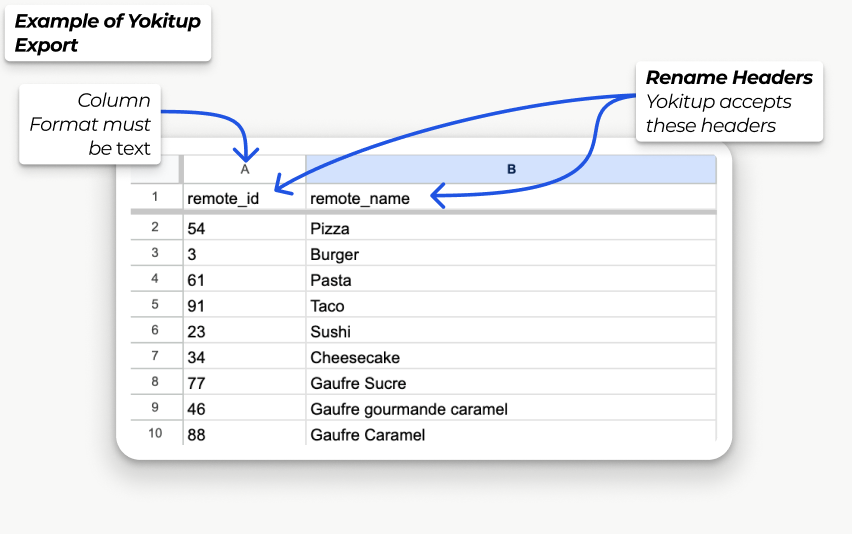
Rename columns in your spreadsheet as follows
in BETA | rename to for Yokitup |
product_key | remote_id |
product_name | remote_name |
Ensure the format of the column remote_id is plain text
Delete all additional columns
Export as an .xlsx
Below is a screenshot example of what the exported .xlsx should look like for Yokitup.
Yokitup: How to link POS products with your products or recipes in Yokitup?
Click the above link to see the help guide from Yokitup, summarised below:
On your Yokitup Dashboard
Navigate to this link https://stock.yokitup.com/organization/integrations
Choose Yokitup FTP
Choose location
Produits
upload the .XLSX file
Refresh the page in Yokitup or switch to another tab and back to Produits
Map each item to the desired recette or produit in Yokitup
