Pausing a subscription temporarily stops payment collection and suspends all associated passes (i.e., entry types), including bundled ones.
Pausing passes linked to a subscription requires navigating to the Subscription Details tab.

If a recurring subscription that started on the 1st of the month is paused on the 15th, when un-paused, there will be 15 days left in that billing cycle and for the associated expiry of the pass (i.e., entry type).
When a subscription is paused, by default no charges will be collected.
Recurring pass prices will not be billed
Recurring extras will also stop billing
This option is useful when you want to fully suspend both access and billing for a member (e.g., in cases of long-term absence, travel, or injury).
Available on the Enterprise tier and above.

If you want to continue collecting a reduced fee during a pause, you can set up a pause fee, by adding a Recurring Extra to their subscription.
When setting up a recurring extra, depending on your policies, make sure you remove:
all Pass Prices from the Subscription
any other Recurring Extras from the Subscription
any other Promotions/Discounts on the Subscription
This process can also be automated.
Please find the dedicated section in the below linked guide,
Gym Wide Subscription's Settings
Access the Gym Subscription Settings guide to learn how to customize billing methods, manage subscriber actions, and enhance user experience in your gym's subscription management.
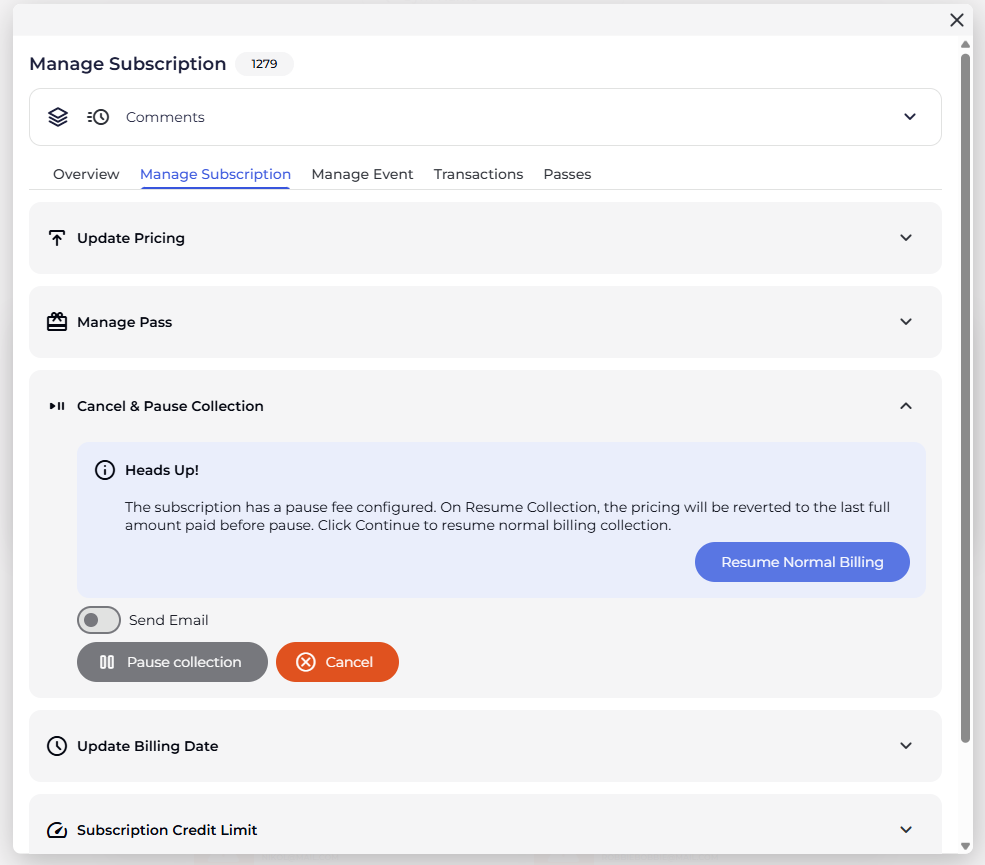
When a climber is unpaused after being in a “pseudo-paused” state (i.e., they continued to be billed, but at the pause fee price), BETA checks the climber’s most recent successful transaction that did not consist solely of pause-price items.
If the climber has never had a successful transaction with a normal subscription price, the system cannot restore pricing, which is why you, or your visitors, are getting this error message.

Invalid form submission: no valid transaction to revertHowever, this can be overrun manually if needed via the dashboard by manually updating the price on the subscription.
Available on the Business tier and above.
This is a BETA automation that runs once a day. This will:
Affect all paused subscriptions
Each subscription with status paused will be resumed
To see if this has already been set for you, navigate to Settings » Automations.
Available on the Business tier and above.
Go to the visitor’s profile and select Manage Pass via the  icon on the entry type issued by the subscription. Navigate to the Pause tab and set a date on which the subscription should resume.
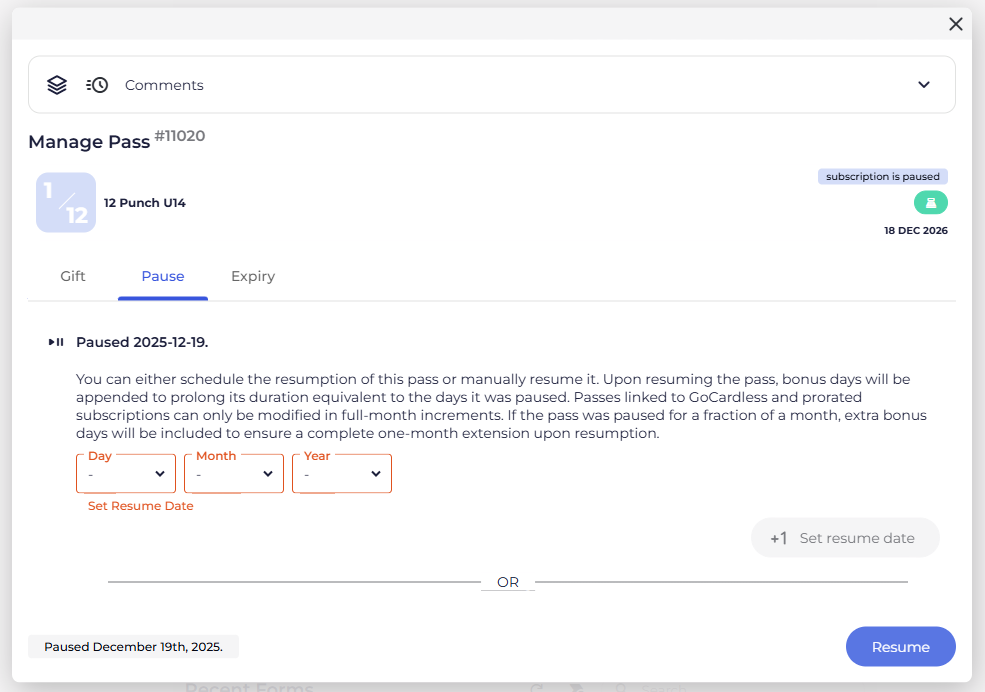
To pause or expire a pass, make sure the pass has been initiated.
To do this, just check the climber in.
You can do this for a subscription in the subscription pop-up!
This will also pause the entry types associated with that Recurring Pass Price.
If the two subscriptions looks like the below on one of the profiles, and you’re unsure how to pause just one of them.
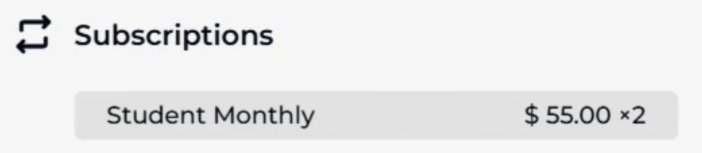
You can either update one of the prices on the subscription to a Membership Freeze price and keep the other on the standard Student Monthly price, which will take effect at the next billing date. If you would prefer to separate them completely, we would recommend removing one of the prices from the current subscription entirely and setting up a new subscription under the second visitor with only the freeze price applied, if they wish for this to be frozen.

Still Lost? We’ve got you covered!
Use the search box on the main Help to search the entire list of available help guides, or drop your question in the Support Chat!
