The Staff Scheduling feature in BETA allows you to efficiently assign shifts, manage team availability, and coordinate workloads across teams - minimizing conflicts and maximizing productivity.
Using the staff scheduling alongside BETA’s Event & Course Calendar provides a clearer, more organized view of overall gym activity.
The feature also allows you to easily track staff pay based on assigned hours and hourly rates, helping you streamline payroll and budgeting.

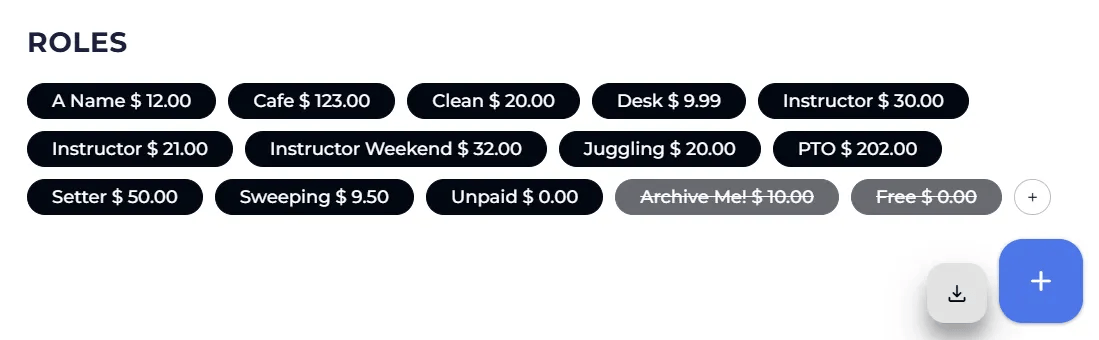
Shift Roles are the tags that you can set to your staff‘s shifts. BETA will group their time according to the Roles set, and will inform the staff member on what to do in their shift. Adding a Staff Role: Step 01: Create ‘ Label’ i.e., the name of the role Step 02: Add ‘Role Hourly Rate’
Once you’ve added your default staff roles, you can add your staff members and assign each of them their roles and set their minimum and maximum weekly work hours. When assigning each staff member their roles, you would be able to set an individual hourly rate, or/and pre-set what their hourly pay will be for each of the roles they can be assigned to, based on role type, or the times of the week they are working. You can easily archive and delete roles for each staff member.
Shifts show up automatically on a staff’s account in the BETA app once they are created. It is important to note that if a person has been assigned as an organizer/instructor to an event, this does NOT automatically create a shift.
Shifts are visible to staff members on the BETA app. They can request a sift change and choose a shift to swap with once that has been approved by a manager.
Staff with manager permissions have an additional view on the BETA app, which allows them to see and process all shift change requests.
Currently shift change management is only available in the BETA app.
Auto-scheduling for staff shifts is currently not available in the same way it is for recurring events.
To minimize manual scheduling, we recommend setting up shifts for one full week and then duplicating that week's schedule as needed.
Yes. There is a download button just below your Roles (image below). You can select a specific time period that you wish to look into.
Shift reports can be used to:
Ensure accurate payment by cross-referencing hours worked with hourly ratesAnalyse labor costs over specific periodsTrack staffing expenses by event to support budgeting decisionsIdentify patterns in staff availability or workload distribution
