In BETA, you can conveniently view your transactions categorised by different transaction states: open, succeeded, cancelled, refunded and all. This provides you with a clear and organised overview of your transaction history, allowing for you to efficiently monitor and manage transactions in your gym, according to their status. When performing a transaction search, you can also filter your view by a specific date range, time, staff member who closed the transaction, or a visitor’s profile.
A transaction is the overall record of a sale or purchase, which can include multiple items, services, or subscriptions.
A payment is the actual transfer of money applied to that transaction, which can be partial or full and may use different methods (cash, card, terminal, etc.).
Open Transaction
Open transactions are transactions that were started, but either the cart was abandoned, or the transaction was not finalised in the POS. Open transactions allows for more items to be added to the same transaction. Items are NOT issued.
Due Transaction
Due transactions locks the transaction, preventing any items to be added to the transaction. Due transactions may only be modified by adding/removing payments, recalling, or refunding the entire transaction. All Items are issued to the linked profile. Available on Business and above
Succeeded Transaction
Transactions that have been successfully processed and completed.
Cancelled Transaction
Transactions that have been intentionally terminated.
Refunded Transaction
Transactions for which a full refund has been issued.
Partial Refund Transaction
Transactions for which a part refund has been issued.
The reports sometimes run into a small discrepancy between the amount of sales tax in reports.
Why is that? Rounding.
Selling three items at $15.43 each with a 2% tax rate:
___Tax per item: $0.3086, rounded to $0.31
___Total tax for three items: $0.93
___Tax on the total amount ($46.29): $0.9258, rounded to $0.93
Rounding in reports is important because it can cause discrepancies between collected and reported sales tax. This is particularly relevant when rounding occurs at the item level and when combining different jurisdiction tax rates, leading to potential penny variances in reports.
Sales tax rounding can lead to small discrepancies between the collected tax and what is reported to the state. Different jurisdictions often require rounding at different stages, such as per item at checkout versus in total when filing returns.
This can cause minor variances, especially in high-volume transactions.
Reports built on item-level tax calculations may show slight differences due to immediate rounding after each calculation.
Rounding in Reports:
Rounding occurs after multiplying the unit price by the rate, not after summing the unrounded amounts.
Combined jurisdiction rates (e.g., state, county, city) can lead to discrepancies.
Transactions with penny variances of $0.01 are classified differently if multiple line items are affected.
Key Points:
Rounding discrepancies can cause small variances.
Reports account for these discrepancies to ensure accurate "expected sales tax due."
Transactions
Line by line transactions, a list of every single transaction separated by time.
id
Unique internal ID for the transaction.
source
Where the transaction originated (e.g. POS, widget/online).
time
When the transaction was initially created.
time_finalized
When the transaction was completed and finalized.
time_items_issued
When purchased items (passes, memberships, products) were issued.
time_refunded
When a refund was processed, if applicable.
time_items_revoked
When previously issued items were revoked due to a refund or reversal.
items
List of items included in the transaction, with quantities and prices.
staff
Staff member who processed the transaction (blank for online sales).
climber_id
Internal ID of the climber/customer.
climber_name
Name of the climber/customer.
climber_email
Email address associated with the climber.
climber_dob
Date of birth of the climber.
gym_id
Internal ID of the gym location.
total_amount
Final amount charged after discounts and adjustments.
total_ccy
Currency used for the transaction (e.g. USD).
state
Transaction status (e.g. SUCCEEDED, FAILED, REFUNDED).
discount_total
Total value of discounts applied.
The following columns show how much of the transaction total was paid using each payment method. Values are typically in the smallest currency unit (e.g. cents):
Cash
Amount paid in cash.
Stripe Online
Amount paid via Stripe online checkout.
Revolut
Amount paid via Revolut.
Voucher
Amount covered by internal vouchers or credits.
Bank Transfer
Amount paid via bank transfer.
Sumup
Amount paid via SumUp terminal.
Discount
Amount applied as a direct discount line.
Stripe Terminal
Amount paid via Stripe in-person terminal.
Check
Amount paid by check.
Stripe Autobill
Amount charged via automated Stripe billing.
Square Terminal
Amount paid via Square terminal.
Square Invoice
Amount paid via Square invoice.
Card Terminal
Amount paid via a generic card terminal.
Add On
Amount from add-on charges.
Square Online
Amount paid via Square online checkout.
External Voucher
Amount covered by third-party vouchers.
GoCardless Immediate
Amount paid via immediate GoCardless debit.
GoCardless Mandate
Amount paid via GoCardless mandate billing.
Stripe Invoice
Amount paid via Stripe invoice.
Clover Terminal
Amount paid via Clover terminal.
ABA Pay
Amount paid via ABA Pay.
PayConiq
Amount paid via PayConiq.
Clover Ecommerce
Amount paid via Clover online checkout.
Stripe Subscription Bill
Amount charged as part of a Stripe subscription cycle.
Stripe Terminal Server-Driven
Amount paid via server-driven Stripe terminal flow.
Global Payments Link
Amount paid via Global Payments payment link.
MBWAY
Amount paid via MB Way.
Dojo Terminal
Amount paid via Dojo terminal.
Carte Titre Restaurant
Amount paid using meal vouchers (Carte Titre Restaurant).
ANCV
Amount paid using ANCV vouchers.
ANCV Connect
Amount paid via ANCV Connect.
Yavin
Amount paid via Yavin terminal.
total_payments
Total of all successful payments collected.
total_refunds
Total amount refunded.
payment_ids_internal
Internal payment reference IDs.
payment_ids_external
External processor payment IDs (e.g. Stripe payment intent).
total_adjustments
Net value of manual adjustments.
tax_collected
Total tax collected in the transaction.
total_less_tax
Transaction total excluding tax.
tax_id
Tax configuration or tax rate identifier applied to the transaction.
Items
Exports all transactions grouped by line item.
id
Transaction ID this item belongs to (matches the TRANSACTIONS report).
time
When the item was added to the transaction.
time_finalized
When the transaction containing this item was finalized.
time_refunded
When this specific item was refunded, if applicable.
item
Name of the item sold (e.g. membership, pass, fee).
item_amount
Base price of a single unit of the item before discounts or tax.
price_key
Internal identifier for the item’s price configuration.
product_key
Internal identifier for the product definition.
option_key
Internal identifier for a selected option or variant, if applicable.
option
Human-readable name of the selected option, if applicable.
category
Product category (e.g. membership, events, reg fee).
quantity
Number of units sold for this item line.
staff
Staff member associated with the sale (blank for online sales).
climber_id
Internal ID of the climber/customer.
climber_name
Name of the climber/customer.
climber_email
Email address of the climber.
gym_id
Internal ID of the gym location.
gym_name
Name of the gym location.
gross_subtotal
Subtotal for this item line after discounts and tax adjustments, as reflected in the transaction total.
total_ccy
Currency used for the transaction.
state
Item transaction status (e.g. SUCCEEDED, REFUNDED).
line_item_base_price
Original total price for this line item before discounts and tax (item_amount × quantity).
discount_value
Total discount applied to this item line.
tax_rate
Tax rate applied to this item.
total_tax
Total tax collected for this item line.
subtotal_less_tax
Final item subtotal excluding tax, after discounts are applied.
Payments
A list of all of the payments received.
id
Unique internal ID for the payment record.
time
When the payment was initially created.
amount
Total amount charged in this payment.
amount_refunded
Amount refunded from this payment, if any.
external_id
Payment reference from the external processor (e.g. Stripe payment intent ID, cash reference).
type
Payment method used (e.g. Cash, Stripe Online).
state
Current status of the payment (e.g. SUCCEEDED, FAILED, REFUNDED).
tx_id
Transaction ID this payment is associated with (matches the TRANSACTIONS report).
time_finalized
When the payment was completed and finalized.
time_refunded
When a refund was processed for this payment, if applicable.
Adjustments
All adjustments in a report, including discounts, promotions and dynamic pricing changes
id
Unique internal ID for the adjustment.
amount
Value of the adjustment. Negative amounts reduce the transaction total (e.g. discounts or promotions); positive amounts increase it.
type
Category of adjustment applied (e.g. promotion, manual adjustment).
reference
Internal reference ID for the adjustment source, such as a promotion or rule.
tx_id
Transaction ID this adjustment is applied to (matches the TRANSACTIONS report).
time_finalized
When the adjustment was finalized and applied to the transaction.
time_refunded
When the adjustment was reversed or refunded, if applicable.
note
Optional internal note describing the reason or context for the adjustment.
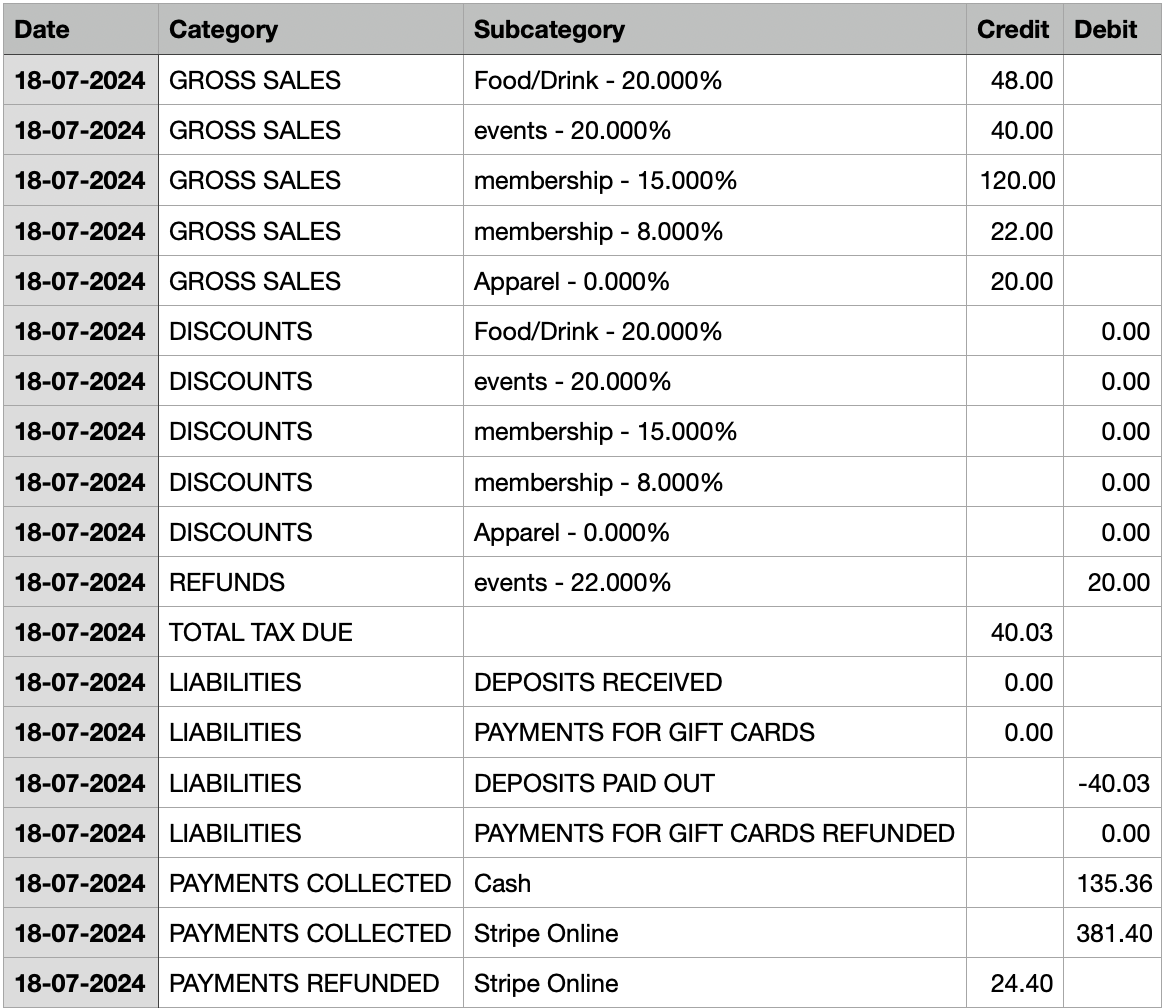
Report
This generates a report summing all of the following together: gross sales, discounts, refunds, tax due, liabilities, payments collected and payments refunded.
Category
High-level accounting bucket that defines how the row impacts revenue, liabilities, payments, or tax.
Subcategory
Breakdown within the category, typically by product category and tax rate, or by payment method.
Credit
Amounts increasing revenue, tax owed, or balances (accounting credit).
Debit
Amounts reducing revenue or balances, or representing money collected or paid out (accounting debit).
Represents the full value of items sold before any discounts are applied.
Subcategories are grouped by product category and tax rate
Values come from item line_item_base_price
Always appear as Credit
Total discounts applied to sales, reducing gross revenue.
Grouped by product category and tax rate
Values come from item-level discounts and promotions
Always appear as Debit
Tax amounts collected on tax-exclusive prices.
Typically reflects tax calculated separately from item prices
Always appears as Credit
Feeds directly into tax liability
Money that is not recognized as revenue at the time of sale.
DEPOSITS RECEIVED: Customer deposits held
PAYMENTS FOR GIFT CARDS: Gift card sales (unearned revenue)
DEPOSITS PAID OUT: Returned deposits
PAYMENTS FOR GIFT CARDS REFUNDED: Refunded gift card balances
These rows ensure deferred revenue is tracked correctly.
Actual money received, grouped by payment method.
Values come from the PAYMENTS report
Always appear as Debit
Used for cash and processor reconciliation
Money returned to customers.
Grouped by payment method
Always appear as Credit
Matches refunded payment records
Represents refunded amounts that apply to partially refunded transactions.
Used to balance revenue vs payment refunds
Ensures net totals remain accurate
Final recognized revenue after discounts and before tax.
Grouped by tax rate
Calculated as:
Gross Sales – Discounts (excluding tax)
Always appears as Credit
This is true earned revenue
Total tax owed to tax authorities.
Sum of all tax collected
Always appears as Credit
Matches tax_collected totals from underlying data
Report by Date
A Daily Totals Report by Date groups all the transactions carried out by date. Each date includes:
Gross Sales: the credit is split by price category and Tax.
Discounts: Discount applied to the price categories.
Refunds, Total Tax Due and Liabilities.
The Report also includes Payments Collected per payment type.
Basic Filtering on the Sales Page
Explore our guide on filtering and searching the Sales Page to efficiently track transactions by date, climber, staff member, and transaction ID.
To see a quick bar chart indicating sales quantities for a specific product, navigate to the Insights tab on the product popup in your BETA dashboard.
Look out for the stats icon, to see Quick Stats around the Dashboard
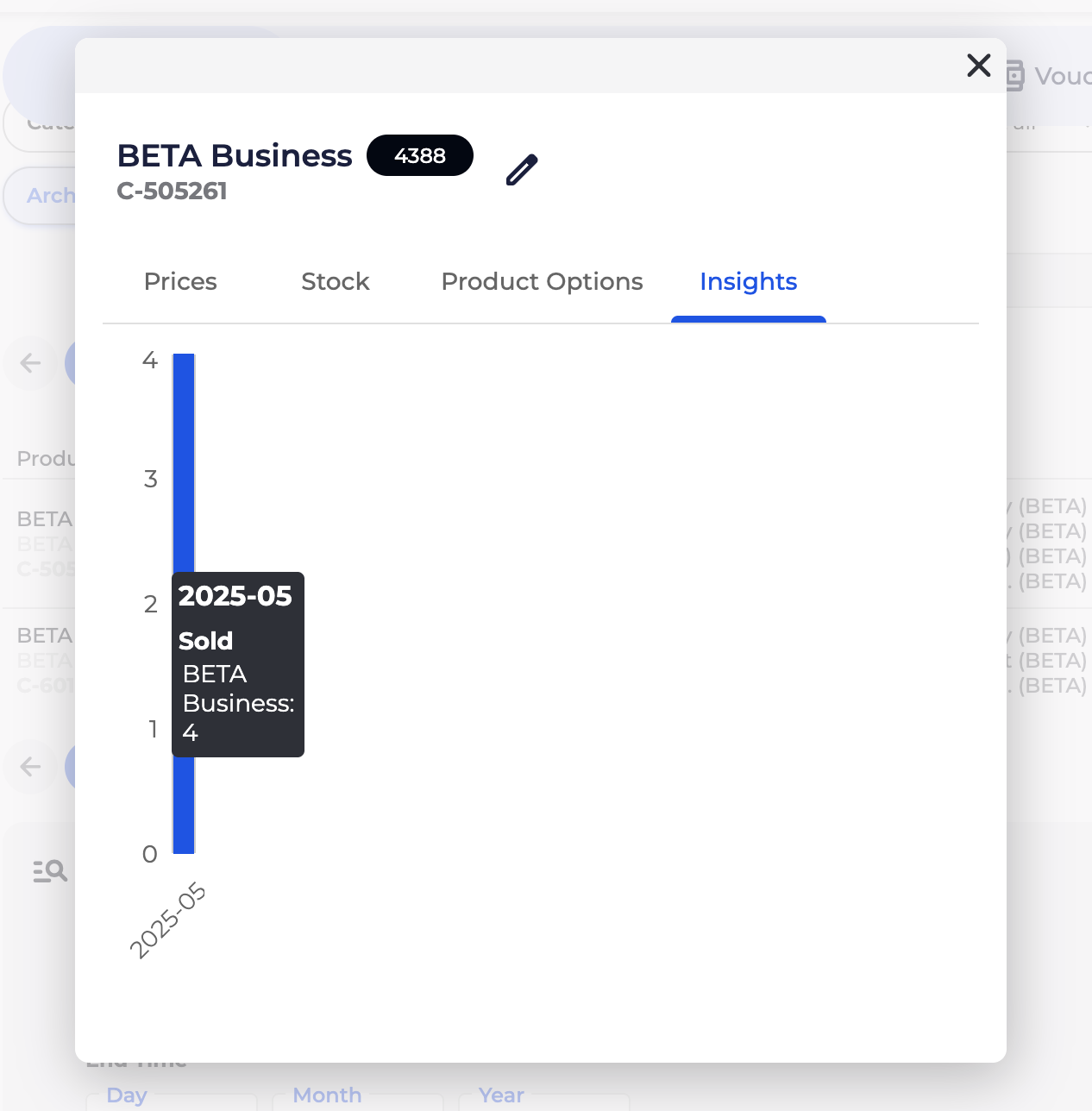
Please note that the Sales page and the Insights page contain data on sales only from BETA, but not any historical ones (if migrated from another provider).
Whereas the Custom queries on the Reporting page (available on Enterprise tier and above) & the Advanced SORT tool can assist you in seeing your historical sales data.
Please note that Advanced SORT only returns lists of climbers. If you require an export of the underlying raw data, there isn’t currently a way to export that from BETA. However, you can create custom queries in the reporting page (if you’re on the Enterprise Tier & above) using the information available within the transactions.
To view sales figures for a specific event, you can download an items report from the Sales Page, which you can then filter the item column. You can vary the date range, and click item to download.
