Once a transition is marked as Due, you can send an invoice for the items listed in that transaction. You can only send or save an invoice of Due transactions.
Here, you will learn how to download (in .pdf format) and send the invoice of a transaction via email. By default the email is sent to the profile linked to the transaction.
Not sure how to mark a transaction as due? Check out this help
Navigating the Point of Sale (POS)
This page summarises vital daily actions you can perform directly in the POS.
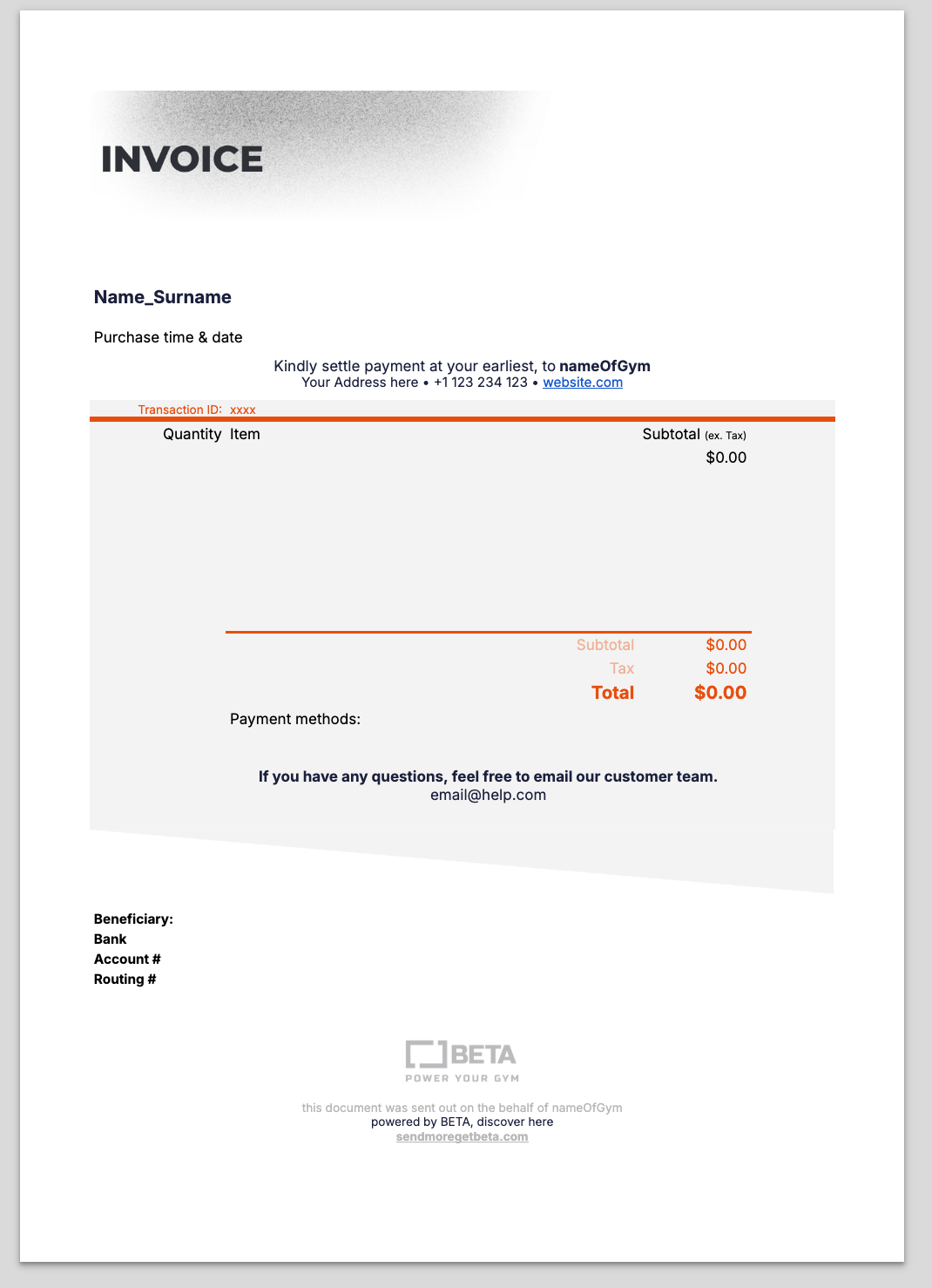
BETA's built-in invoicing feature (available on the Business Tier and above) allows you to issue and manage customer invoices directly through the platform. When setting up invoicing, you have two main options for how customers can settle their invoices:
Integrated Payment Methods:
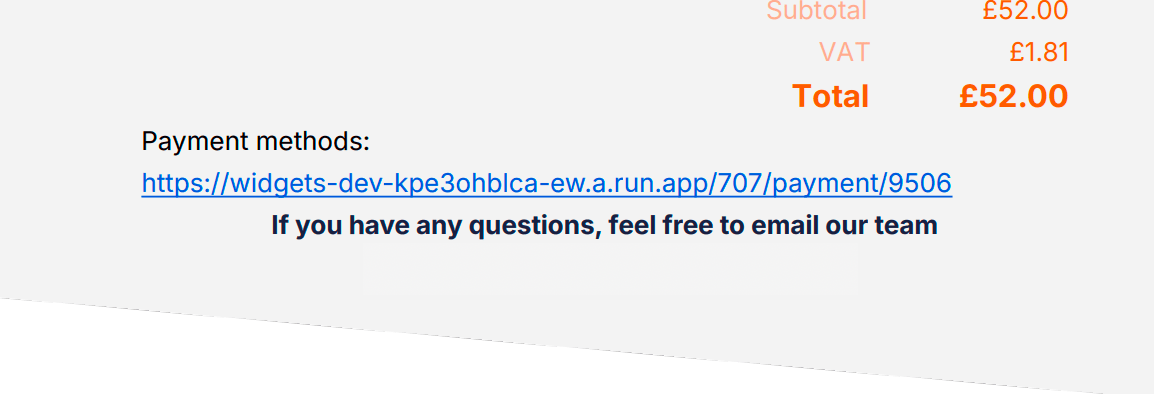
You can include a payment link on the invoice, allowing customers to pay using your connected payment provider (e.g., card or direct debit). You have full control over which payment methods are available, and settlements are tracked automatically in BETA.
Bank Transfer (Manual):
Alternatively, you can include your business bank details on the invoice. This allows customers to pay via manual transfer. Please note that choosing this option does not allow for automated payment tracking and reconciliation within BETA. You will need to manually Add Payments in the BETA dashboard.
🔗Send and Save Invoices / Due Transactions
Manage part payments and issue passes/events for future payment through the POS system. Handle deposits and related transactions.

To generate a due transaction with an Online payment link, create the Due transaction and assign as a payment method:
Stripe (Card Details)
Dojo (Card Details)
or any other of BETA’s integrated payment providers that allows for online payment
This ensures an Online payment link is included in the invoice when sent, allowing the recipient to then pay online.
Payments may be added to transactions through the POS or directly in the transaction pop-up i.e., you can assign a Stripe payment in the transaction pop-up at any time.
If you select an integrated payment method, the Invoice will automatically populate with the Link to the transaction, where clients can settle their payment.
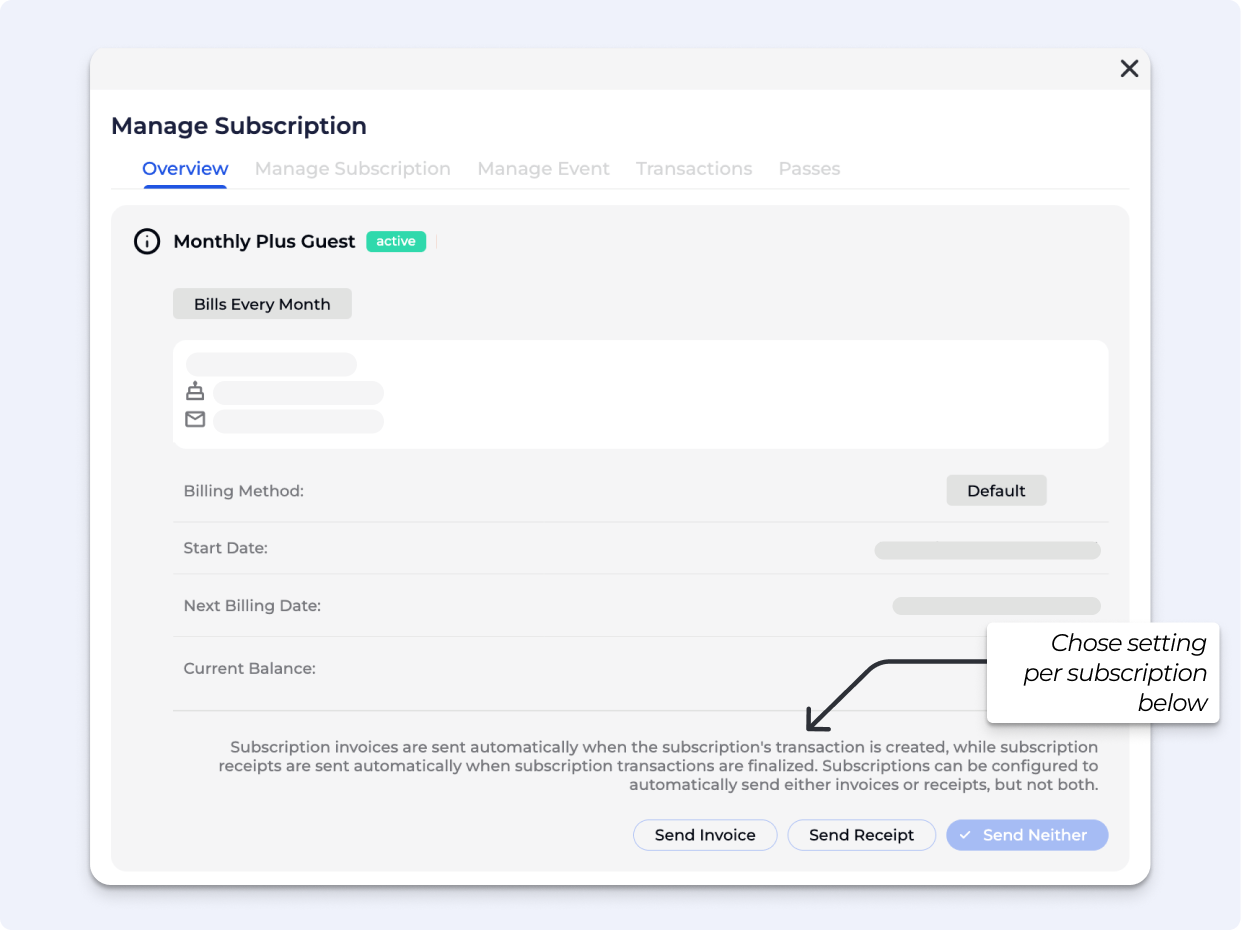
This setting is controlled per subscription to give you full control over whether a subscription issues an invoice (for requesting payment) or a receipt (when payment is settled).
If you configure a subscription to send invoices, the subscription can be set to send an invoice on the billing (Due) date. Subscriptions can be configured to automatically send either invoices or receipts, but not both.
› Subscription invoices are sent when the subscription's transaction is created.
› Subscription receipts are sent when subscription transactions are finalized.
To change this setting, open the Subscription pop-up » Overview.
An invoice Templates is set up by the BETA team, and it ensure all invoices sent out match your brand, and all the fiscal requirements of your jurisdiction.
To set up or update your invoice template, please contact the BETA team with the following:
Any company information like VAT number, company registration number, address, etc. that you would wish to be included in the Invoice.
Which payment methods, if any, you'd like to reference as possible payment methods for the invoice.
This is useful if you wish to attach an payment link in the invoice. If you would like to allow Stripe online payments, BETA can embed a link into the document by which customers can complete payment via Stripe. This will automatically reconcile within BETA and mark the transaction as succeeded.
Your banking details for customers to send payment to (assuming bank transfer is a payment method you'd like to include) Beneficiary Name Bank SWIFT code IBAN
Fully customised invoices are available on the Enterprise Tier - please contact the BETA team.
A Stripe (card details) payment must be assigned to the transaction for the invoice to include a Stripe payment link.
Yes, you can assign a Stripe payment in the transaction pop-up at any time
No you cannot, the Invoice is set up as a template, for all products/prices in your business.
