Follow in our guide below
🔗 Products Explainer
This was moved to a random place so was not migrated
To suggest an optional extra during checkout, link a non-required add-on to a pass or event. This will display the add-on as a selectable option when the customer is purchasing online.
To include a mandatory charge, like a registration fee, link a required add-on to the base price or event. It will be automatically added to the total and cannot be removed during checkout.
To sell two items as a package, link a required add-on to the main price. This ensures both items are included in a single online checkout, and the customer is charged for both together.
When selling bundles online, make sure the combined price of A + B reflects the total amount you want to charge, customers will be charged the full sum. If you wish, you can create an auto-applying discount, to discount that price. See the Promotions Explainer for more.
In the BETA POS, add-ons are not automatically applied, so staff must manually add the add-on during checkout.
Example, You want to create a bundle for your Learn to Top Rope course, where participants can receive a 1-month prepaid pass for an additional $10 when booking online.
To do this, you would:
» Set your Learn to Lead course as the main event price. (eg. $45.00)
» Link the 1-month prepaid pass as a required add-on priced (eg. $10.00)
» Total online purchase price = $45.00 + $10.00 = $55.00This ensures that when purchased online, the participant is automatically charged for both the course and the prepaid pass, creating a seamless bundle experience.
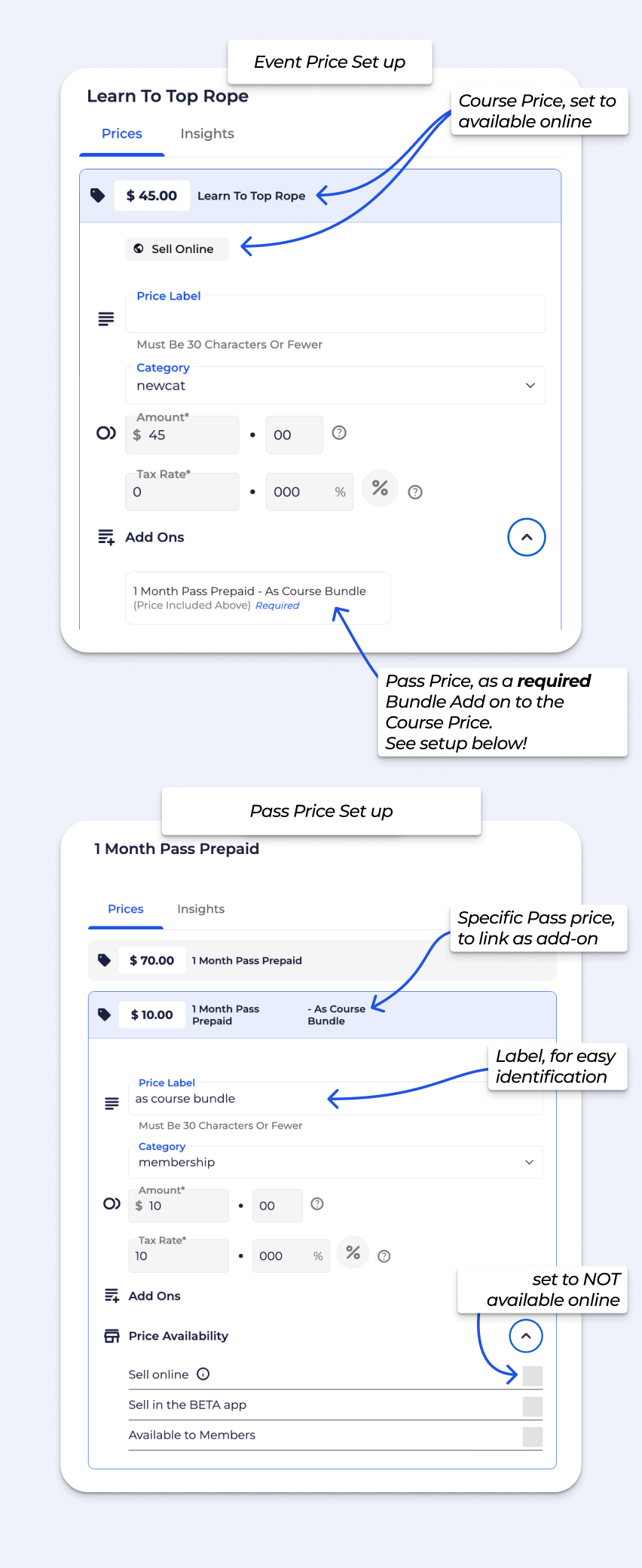
To remove a required or non-required add-on, open the price or event price pop-up, scroll to the Add-ons section, and click the trash icon next to the add-on you want to unlink.
Once removed, it will no longer appear during checkout.
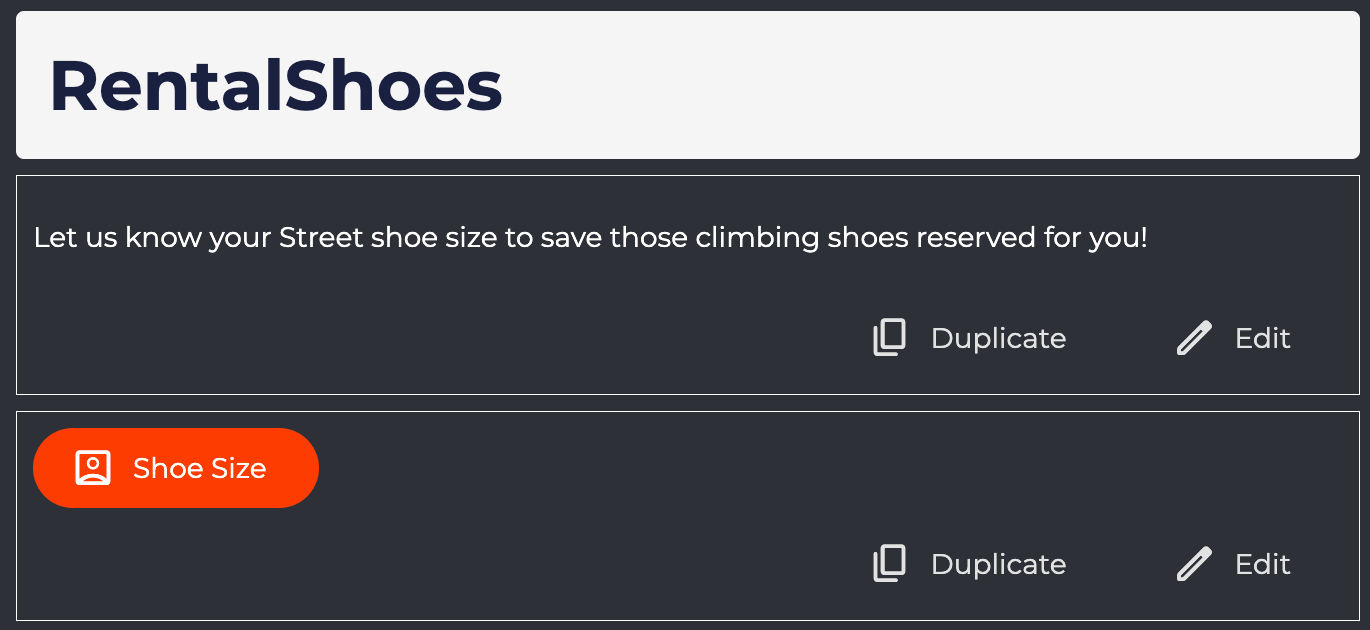
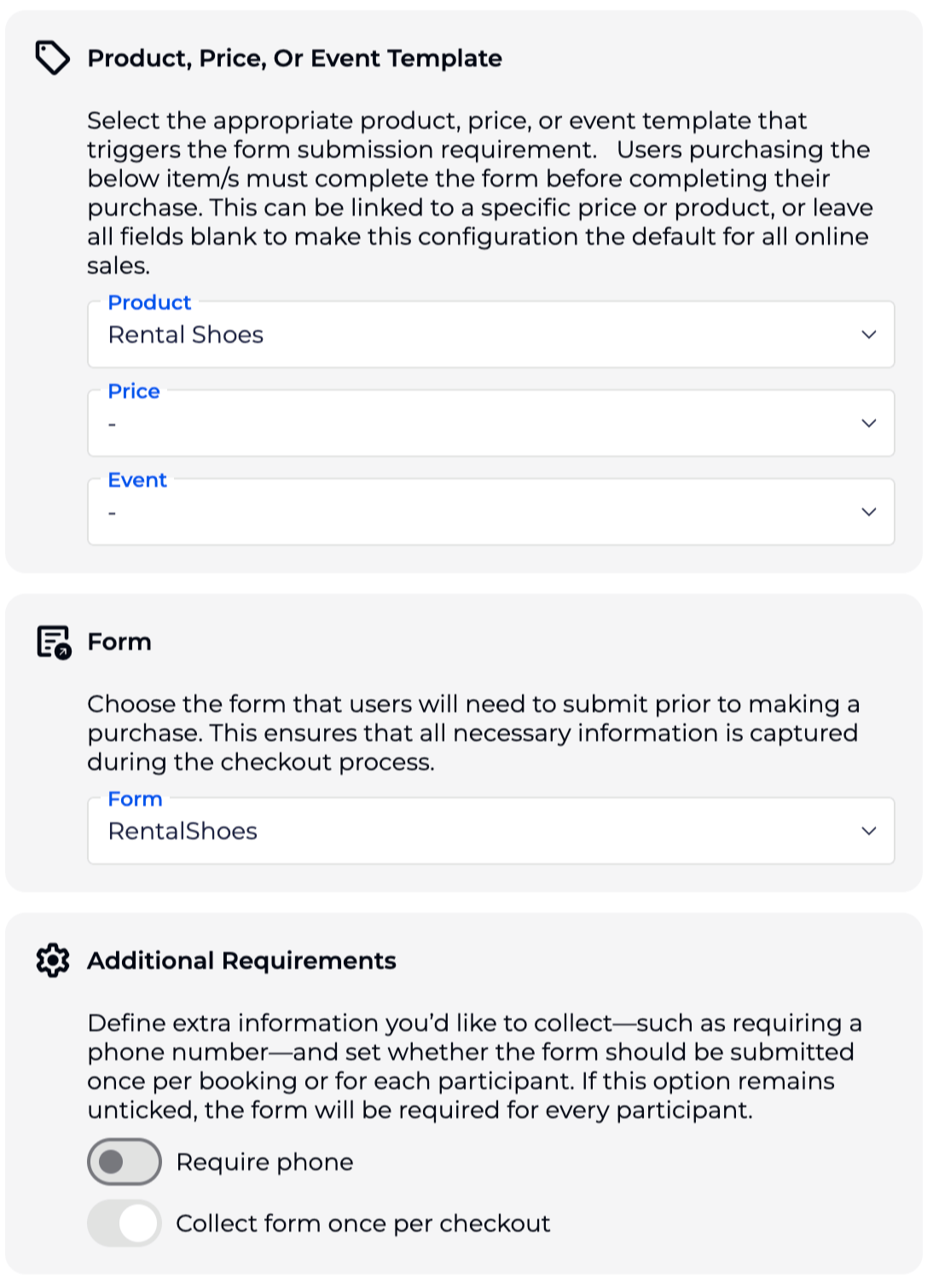
Use a booking form, tied to the Product or price “Rental Shoes”.
***
Booking Form Example,
Form is set to NOT advance the Profile's Form Status
If you're running parties or functions through Events and need to collect specific information (e.g., catering preferences or pizza orders), you can do this using Add-ons and booking forms.
Recommended setup:
Create an Add-on Product (e.g. “Pizza”) tied to your birthday party Event. See more here Link Prices/Product Add-Ons to Pass/Event Price
Attach a booking form to that Add-on to collect details like pizza type, quantity, or dietary notes. See more on Booking Forms Explainer
This keeps everything organised within the Event booking and ensures your team has the details they need. Additionally comments can be left on an events, or tied to a specific person on that event.
Note on Slots, If you're currently using Slots, please be aware that they are being phased out. All core Slot features (e.g. resource control, single bookings, repeat schedules) are now available in Events, which offer better flexibility and long-term support. We recommend transitioning to Events where possible.
Add-ons start on the Business Tier and above, while adding Pass Prices/Recurring Pass Prices/Recurring Extras/Gift Cards as Add-Ons is available on the Enterprise Tier.
Please note, Event, and Archived prices cannot be added as an Add-ons.
This is available on the BETA Business Tier and above.
First create the Joining Fee/ Reg Fee product. Then add this product as an add-on to the pass price of your membership (in the Passes Page).
Optional: You can create a ‘Reg Fee’ Tag, that you can link to your product. This will automatically issue the tag to the visitor’s profile that pays the fee. To create a Tag, go to the Settings Page » Tags.
