You can download all the data of your climbers, organized according to the profile filters that you've set.
Profile filters are a powerful tool for easily segmenting your visitors and community, allowing you to download the filtered view in .csv format or send to Mailchimp as an audience for a newsletter!
Each query can be customized using filters. Filters define which part of that data you want to look at and help you narrow down the data to exactly what you need. You can apply multiple filters simultaneously to refine your climber view.

In BETA, you can organize your climbers data, using 7 filters:
Tag
Type
Expiration/Validity
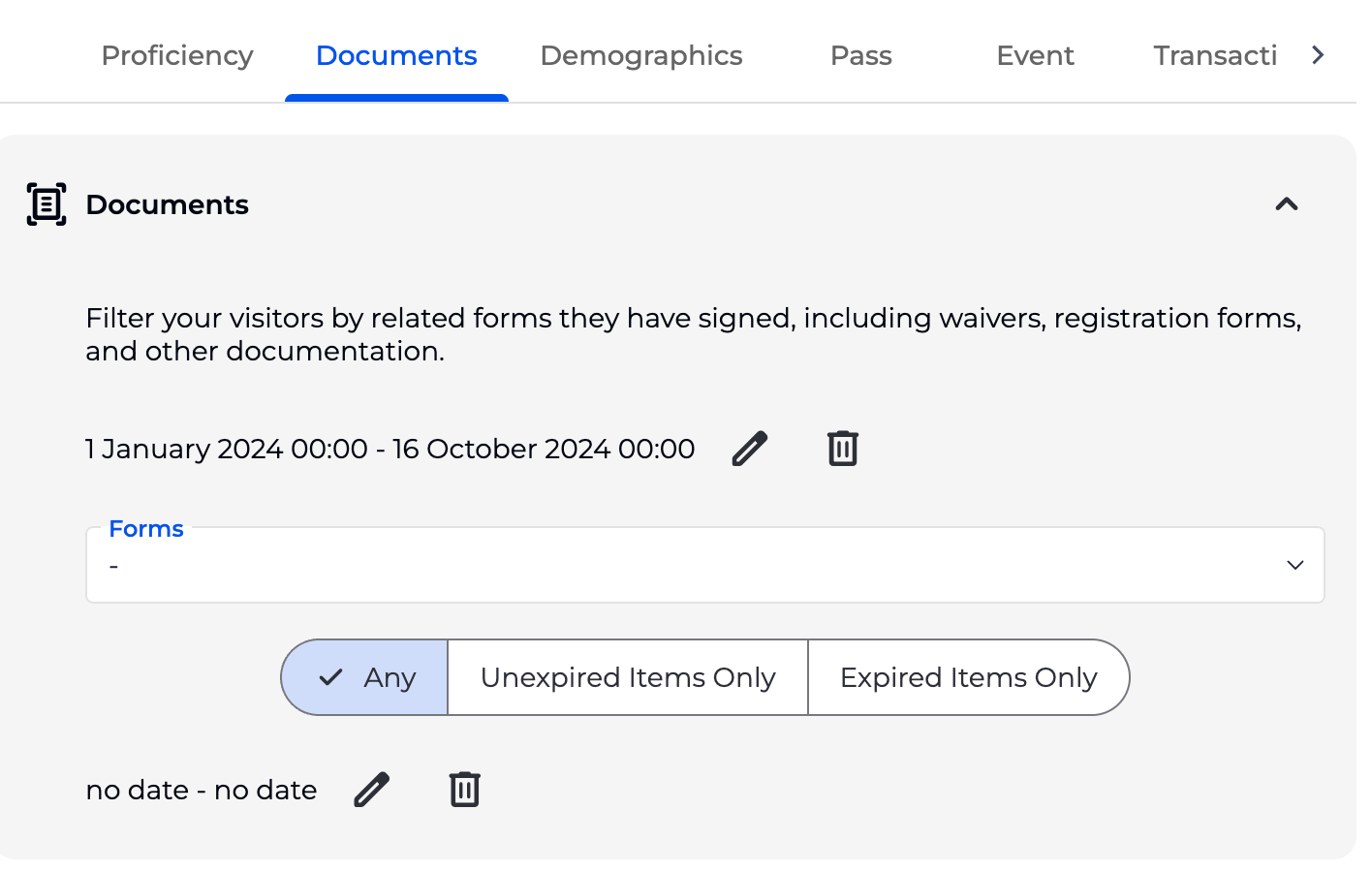
Documents
Forms
Expiration/Validity
Demographics
Min/max age
Gender: None, male, female and other
Family Status
Family Role: Admins/dependants
Min/max family size
Passes
Entry type
Duration of validity
No. guest entries
No. entries
Events
Template
Transaction
Product
Discount
Type of transaction
Location of transaction: Online, POS, In-app, Subscription
Attendance
Type of entry: Pass, Guest, Non-guest (passholder)
No. entries
Slots
Type of entry: Pass, Guest, Non-guest (passholder)
No. entries
Climbs
Type of entry: Pass, Guest, Non-guest (passholder)
No. entries
Advanced SORT allows you query your database, to gather a list of profiles that fit your query.


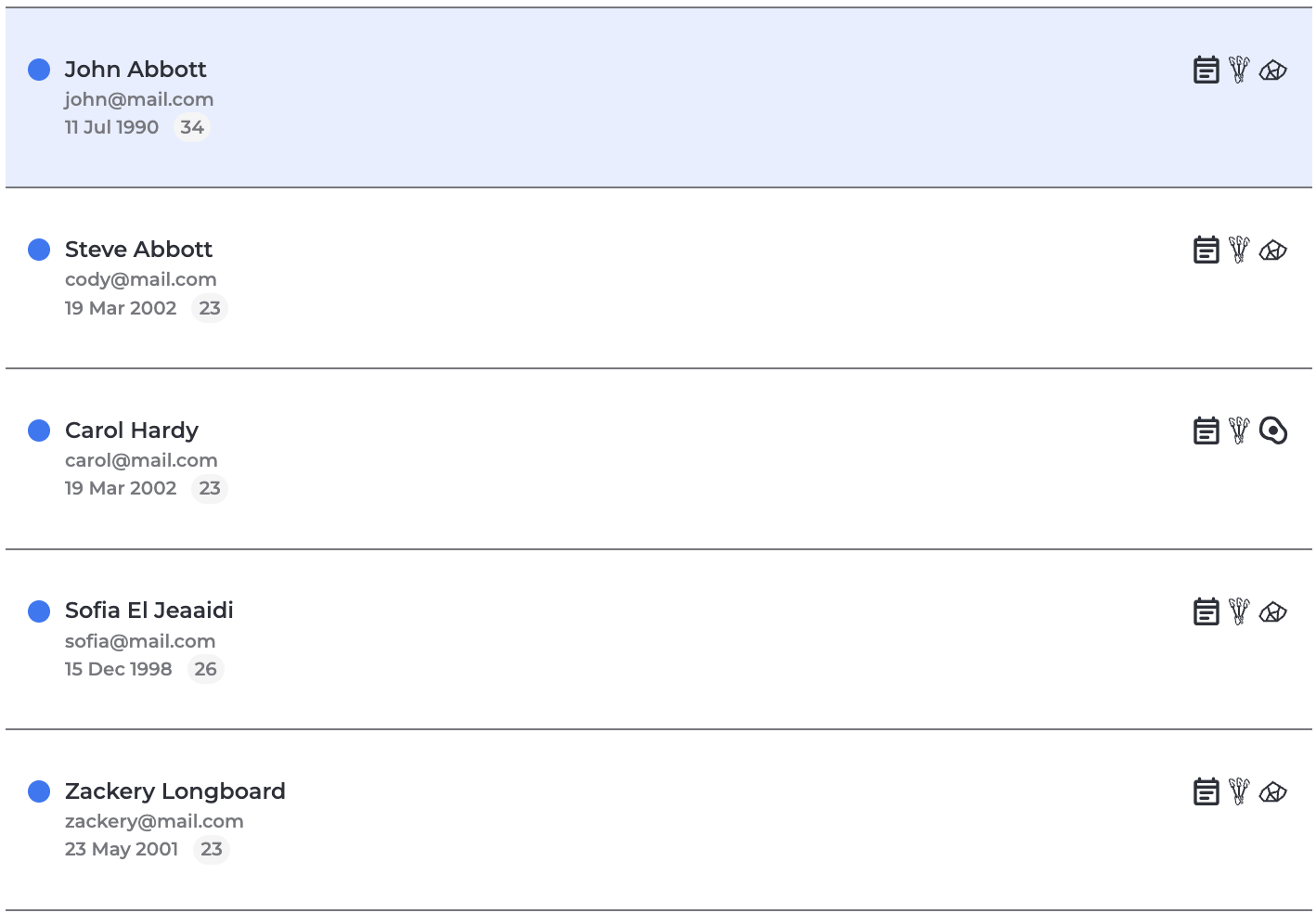
On Club and Above Tier, BETA will generate a profile list of everyone that fits that query. Double click to open up the profile.
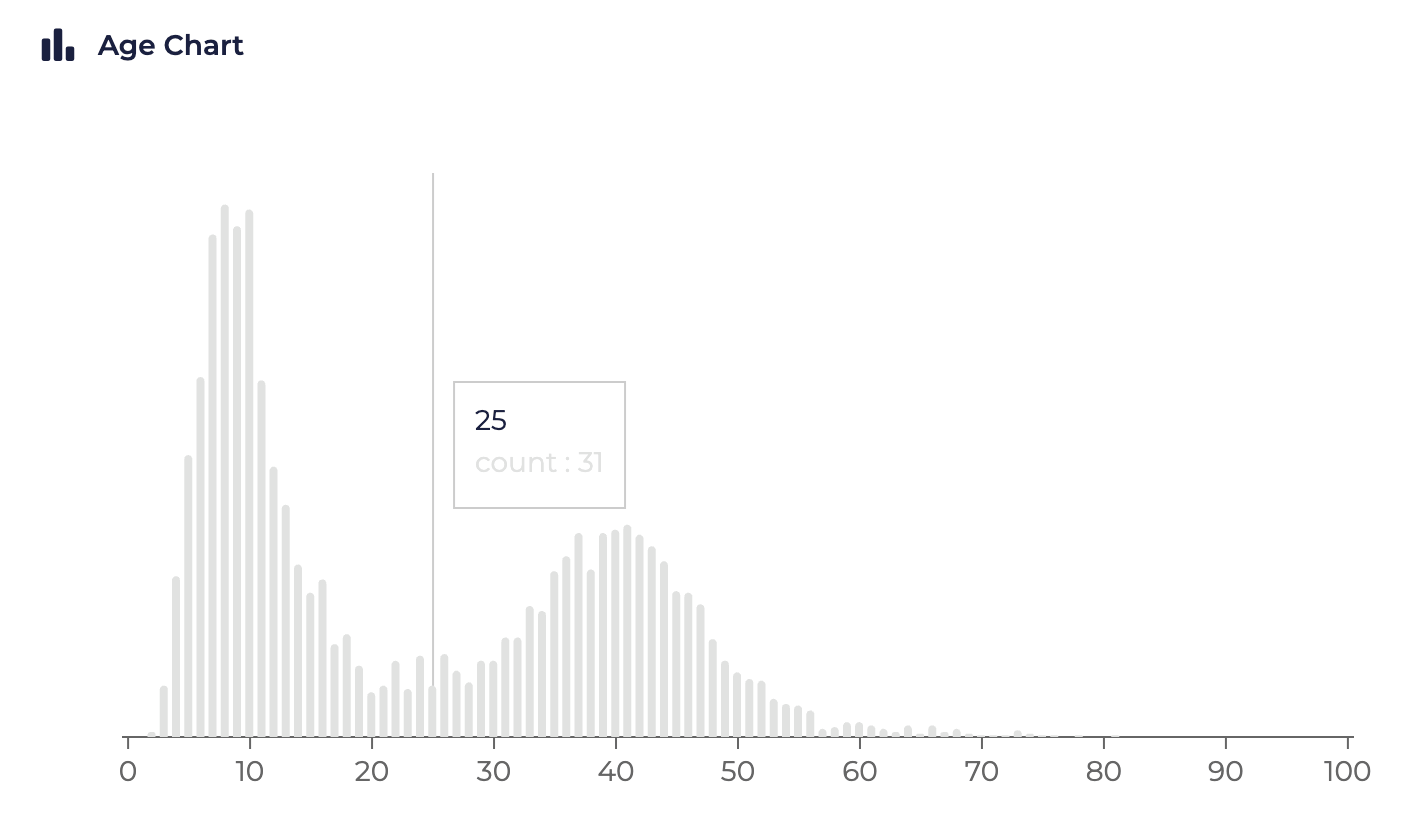
On Community and Above, BETA will generate a bar chart to understand the age breakdown for the profiles in that list.
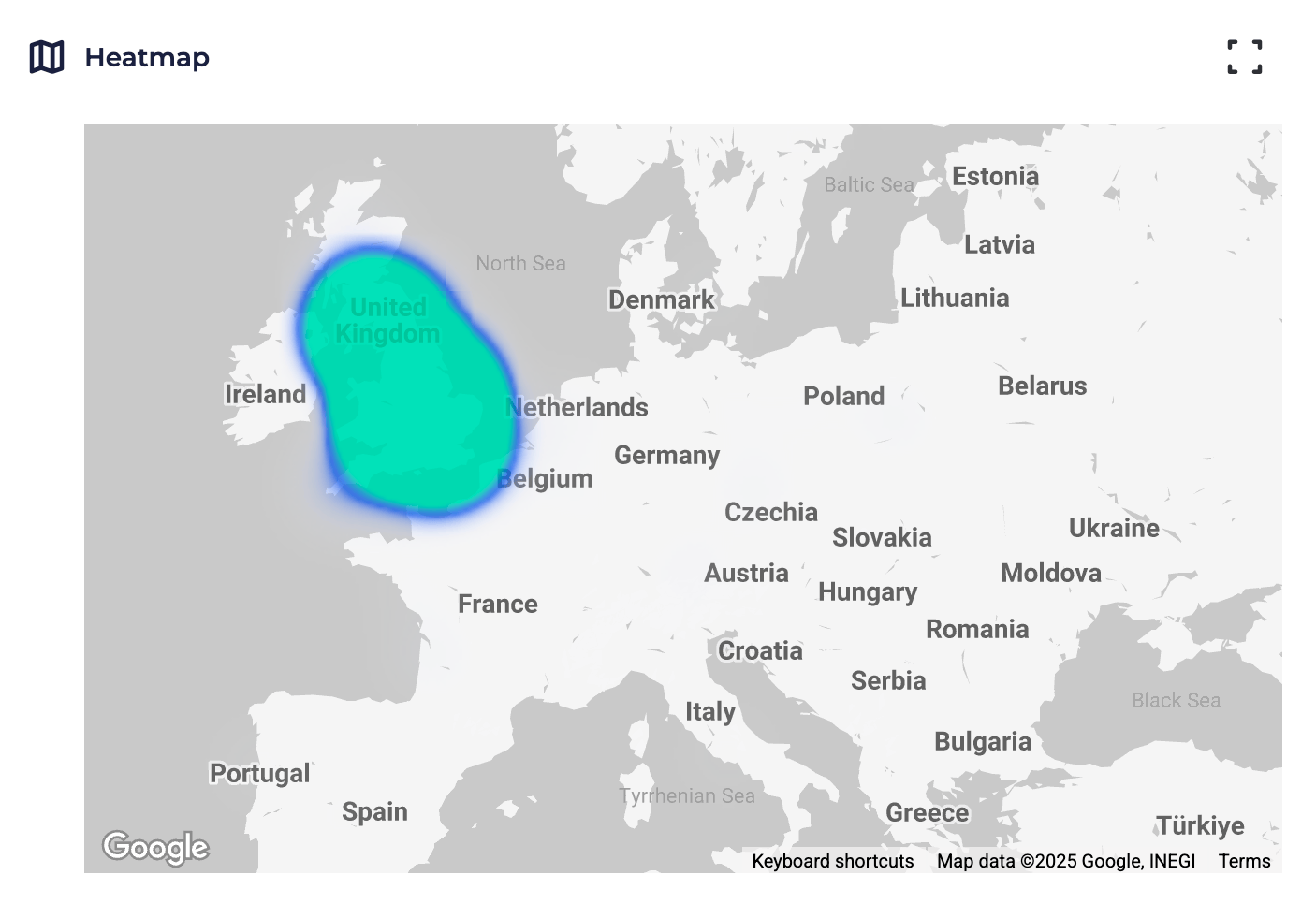
On Enterprise and Above, BETA will generate a Location Heatmap, based on the address submit in their form.
Saving advanced sort queries is a great way to quickly access the searches you use most often. Once saved, these queries can also be applied as filters in your reporting dashboard, making it easier to track and analyse the data that matters to you.
See how to create and save “Members” query. Keep in mind that climbing gyms often define “members differently” — for example:
Prepaid passes
Recurring subscriptions
Annual pass holders
Others only include a specific subset.
By saving a “Members” query, you can easily reuse it throughout the Advanced Sort, Reporting page and even in the Transactional Emails by selecting the specific entry types that match your gym’s definition of a member.
Example is that they have signed the form, even if expired
Example is that they have an entry with the:
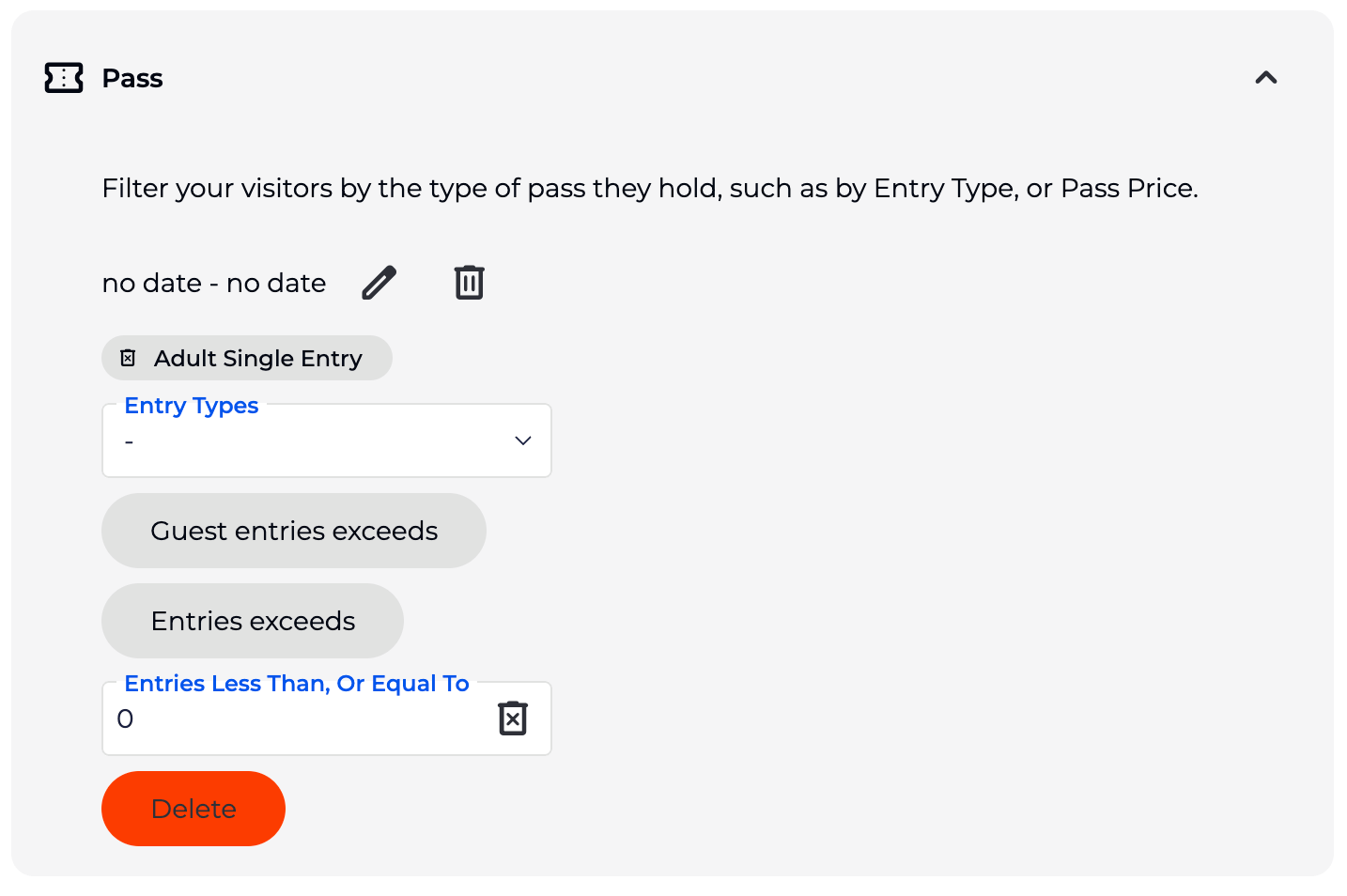
Select the specific Entry Type/s
Note, we suggest selecting a a single Entry type, for more accurate results
or, use Duration of validity = day Entry, for a broader search
Set Entries less than, or equal to = 0
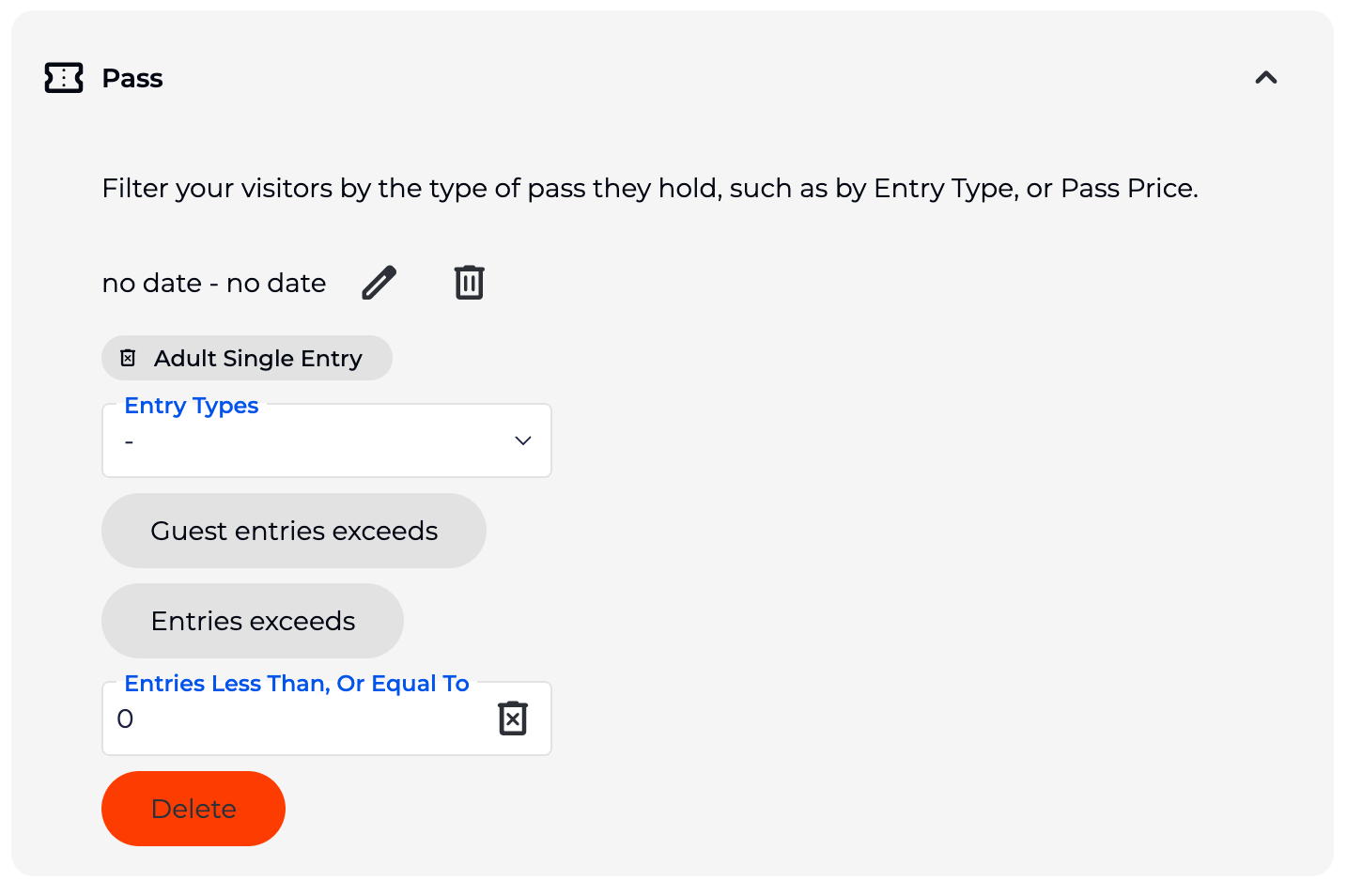
Please note, you can select exactly which entry Type from the drop down, do not use the Duration of Validity filter. For a more broader search, you can use the duration of validity.
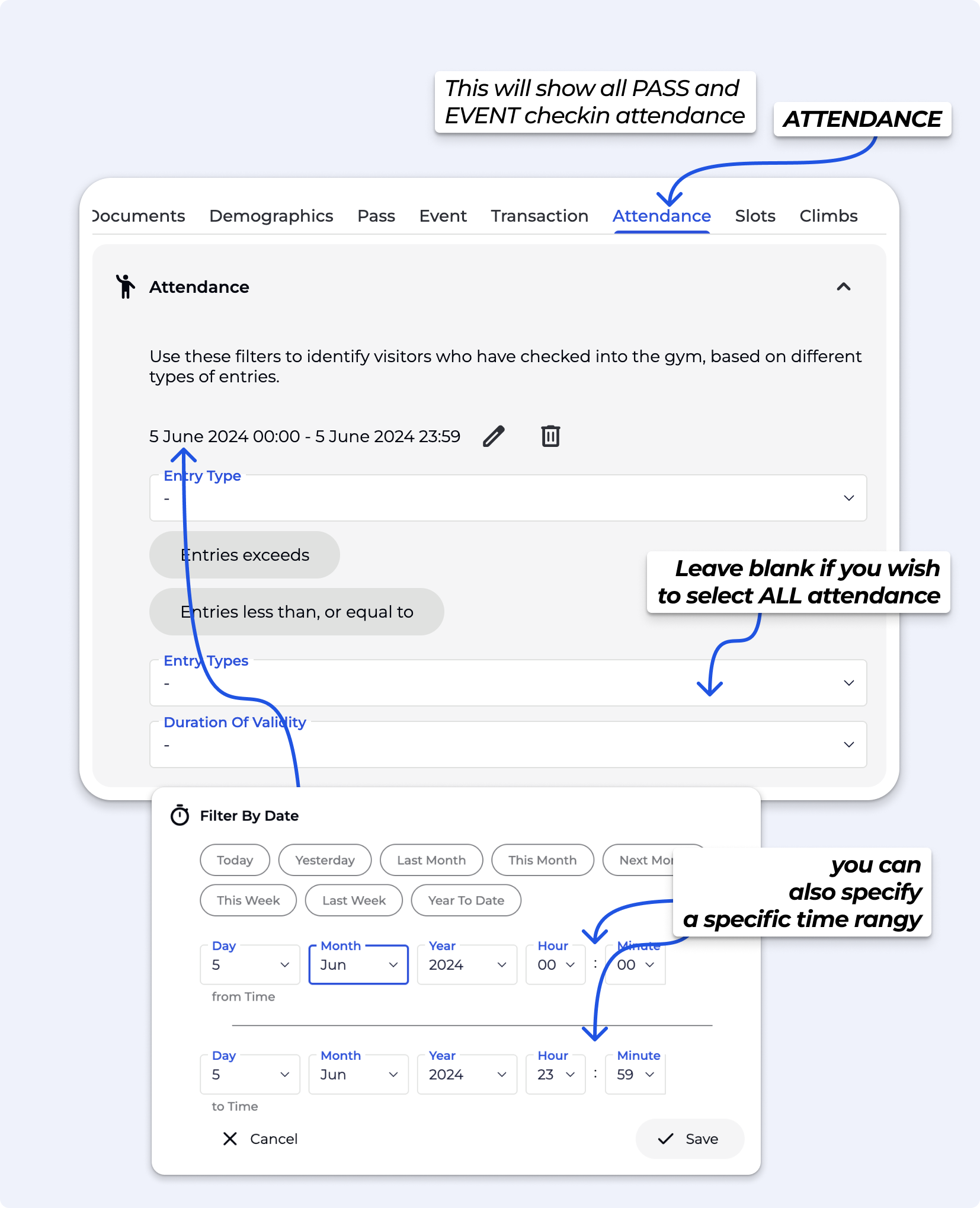
This query allows you to find all visitors who checked in on a specific date. You can use this to analyse daily attendance patterns, identify peak times, and understand which demographic segments visit on particular days.
To set up this query:
Select "Attendance" as your filter category
Set the date range to your target date (e.g., "October 5, 2025")
Optionally, you can add additional filters to see specific segments who checked in (e.g., members only, day pass users, etc.)
This query is particularly useful for:
Event follow-up communications
Analyzing attendance after marketing campaigns
Identifying low-attendance days for targeted promotions
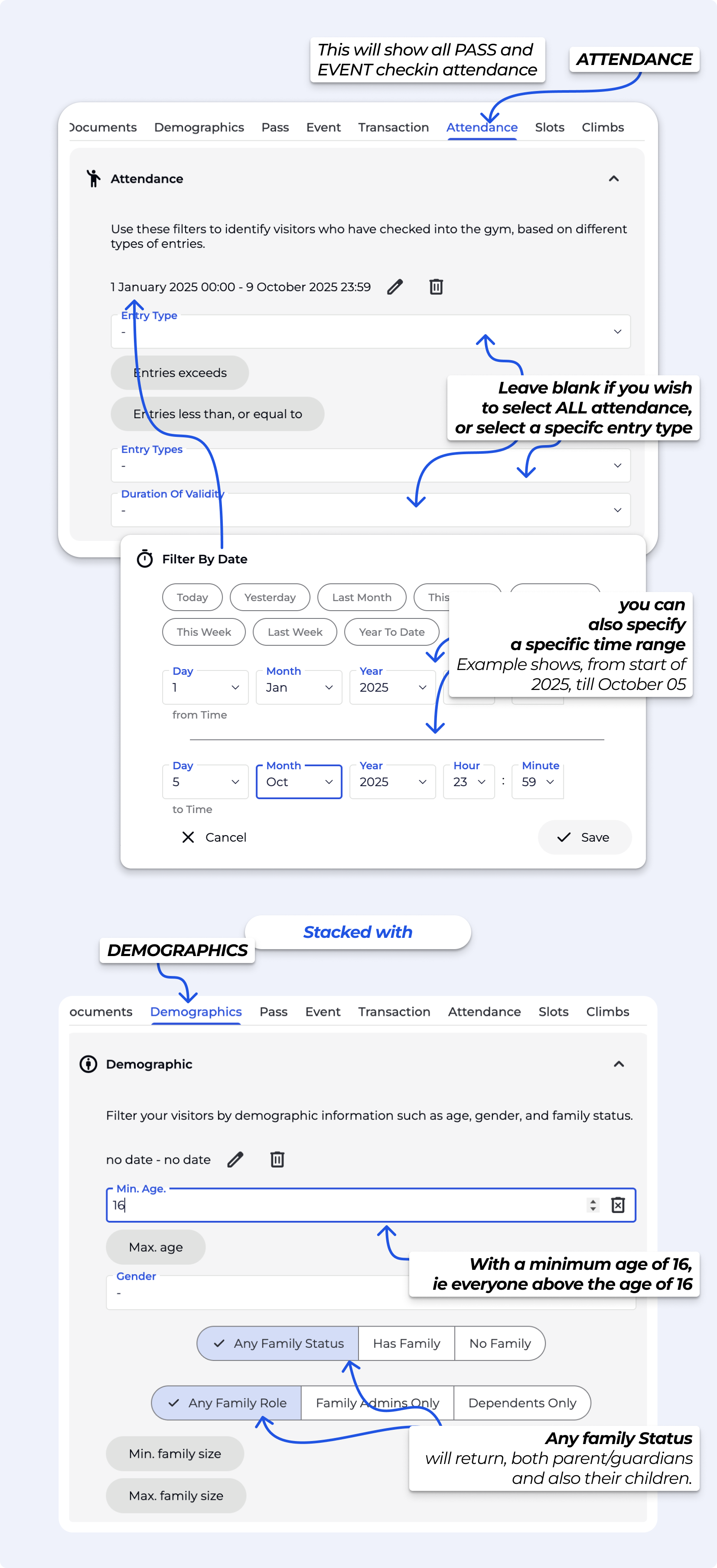
This query retrieves all check-ins (both event attendances and pass check-ins) for visitors aged 16 and above. This will return unique visitor profiles who checked in during the specified period.
Select "Attendance" as your first filter category
Set your date range (e.g., since eg beginning 2025 onwards)
Stack another filter - to set minimum age to 16 in the Demographics filter
Remember to consider your facility's operating hours when setting date filters for accurate attendance reports.
This query retrieves all check-ins (both Event attendances and Pass check-ins) for a specific date or custom date range. Use the quick date selectors for common time periods (Today, Yesterday, Last 7 days, This month, etc.) or set a custom date range to match your specific needs.
Remember to consider your facility's operating hours when setting date filters for accurate attendance reports.
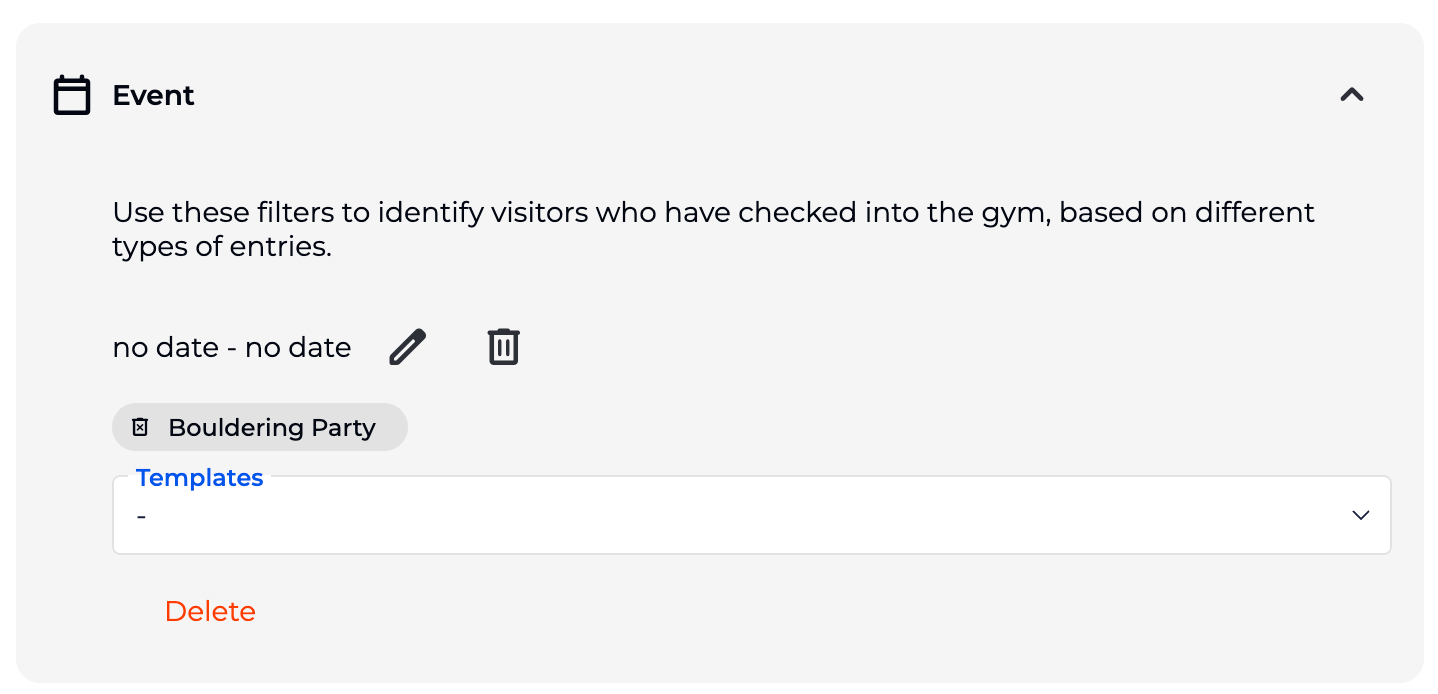
Example is profiles who have booked onto the Event = Bouldering Party, in all time
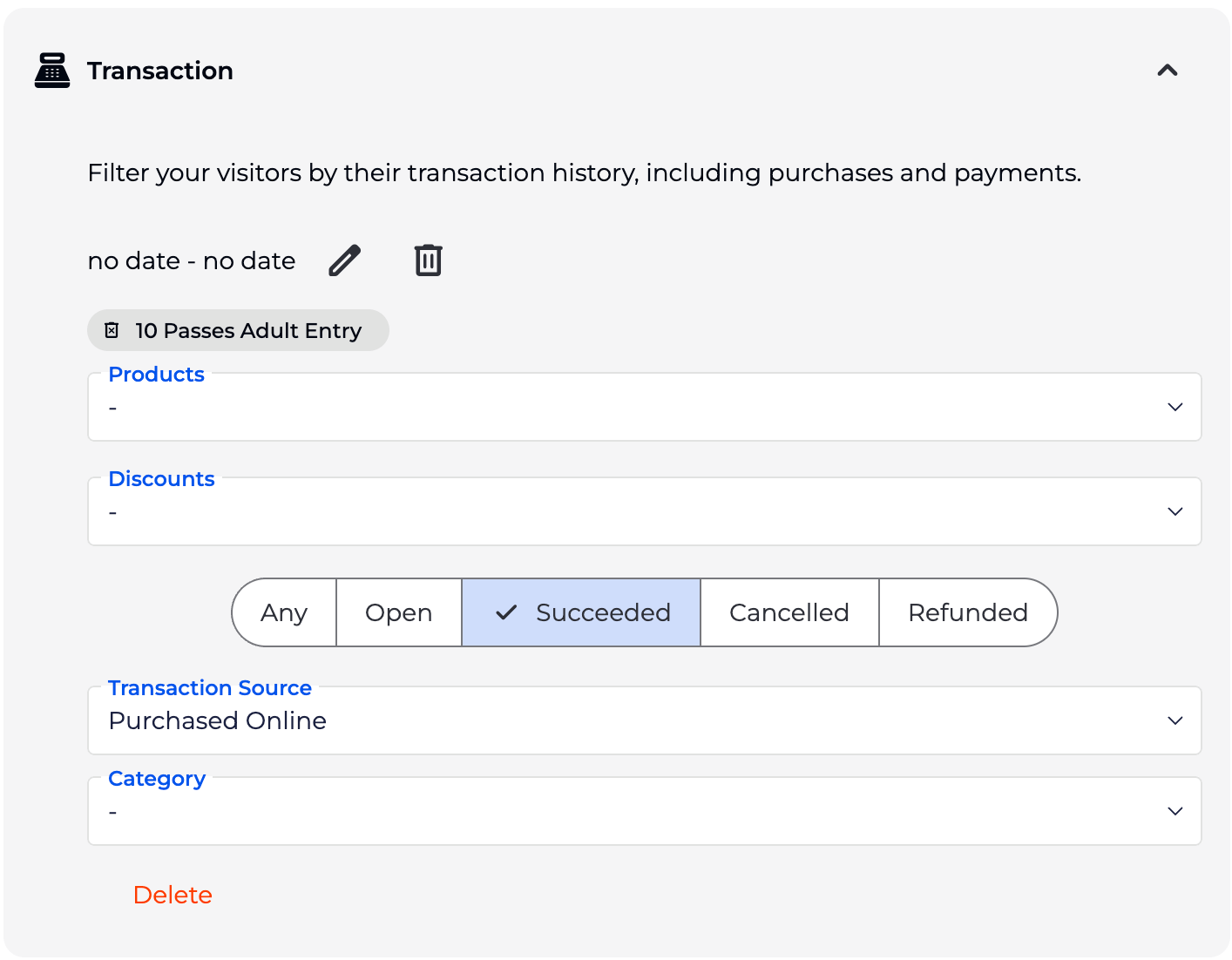
Example is profiles who purchased a 10 punch Pass where the Transaction source was online.
…WIP…
Example is profiles who had made a purchase through a succeeded subscription payment (ie had a running membership/subscription) on their account (not necessarily the pass holder being issued the entry type) during the year of 2024, and not 2025.
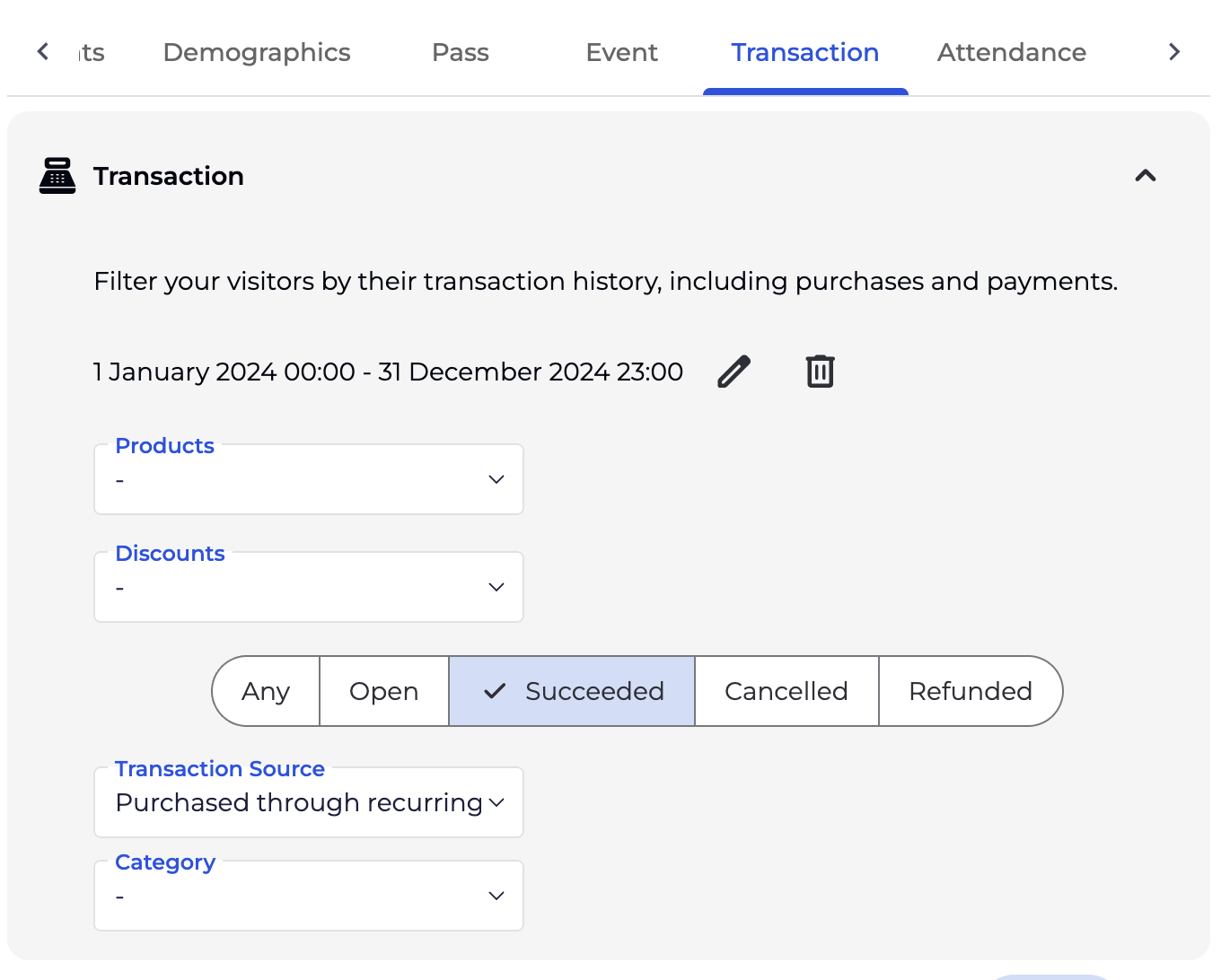
Transaction filter, with date set to 01 Jan 2024 till 31 Dec 2025, succeeded and Transaction source is “purchased through recurring subscription”.
AND
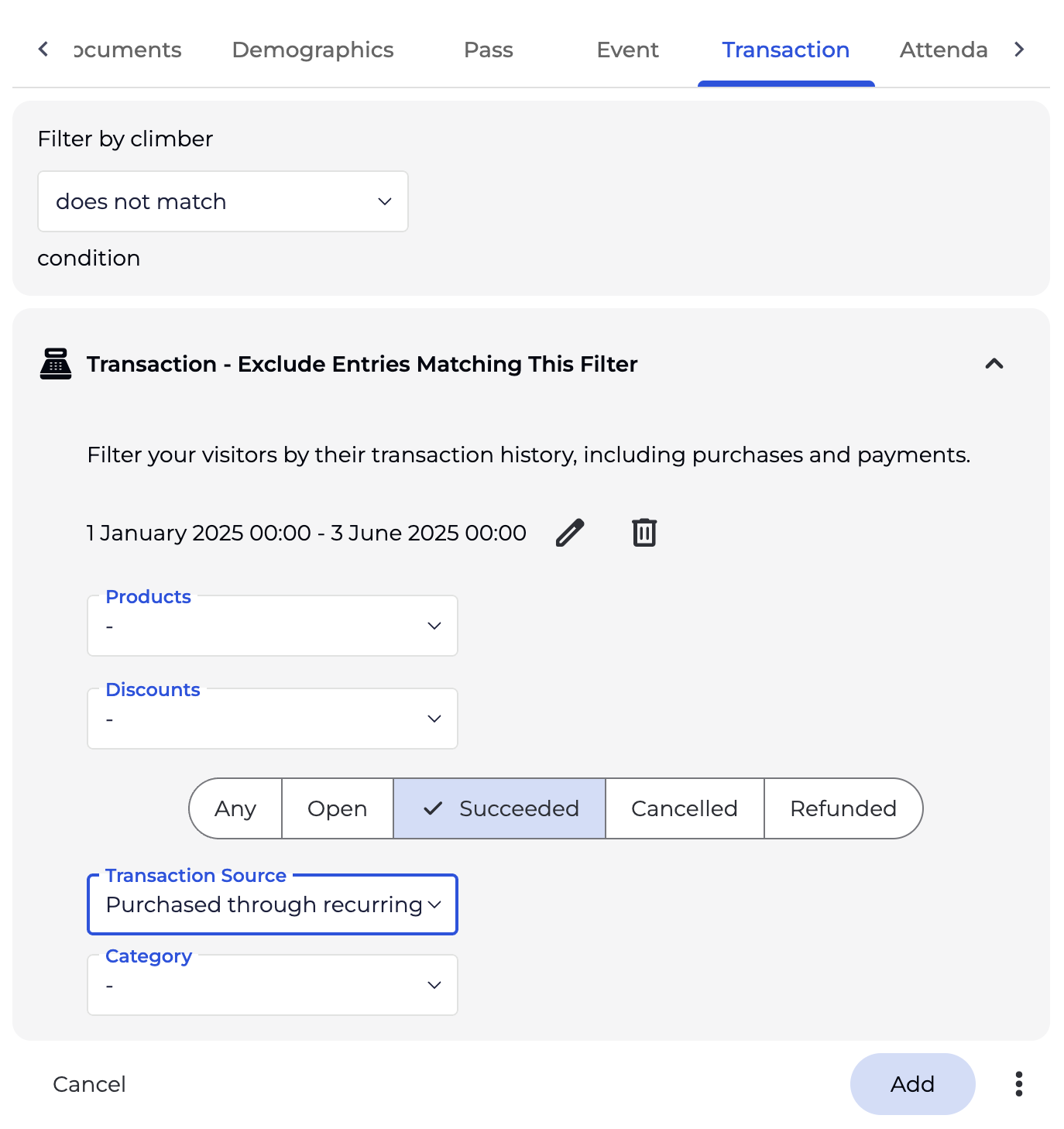
Transaction filter DOES NOT MATCH, with date set to 01 Jan 2025 to date, succeeded and Transaction source is “purchased through recurring subscription”.
Extract data on your member’s attrition/members’ cancellations.
Firstly, define what a member is by saving this as a filter on your Advanced SORT view.
Then set to extract everyone who was a member (i.e., climber that owned one of the ‘membership’ passes) during this month, and not the month before.
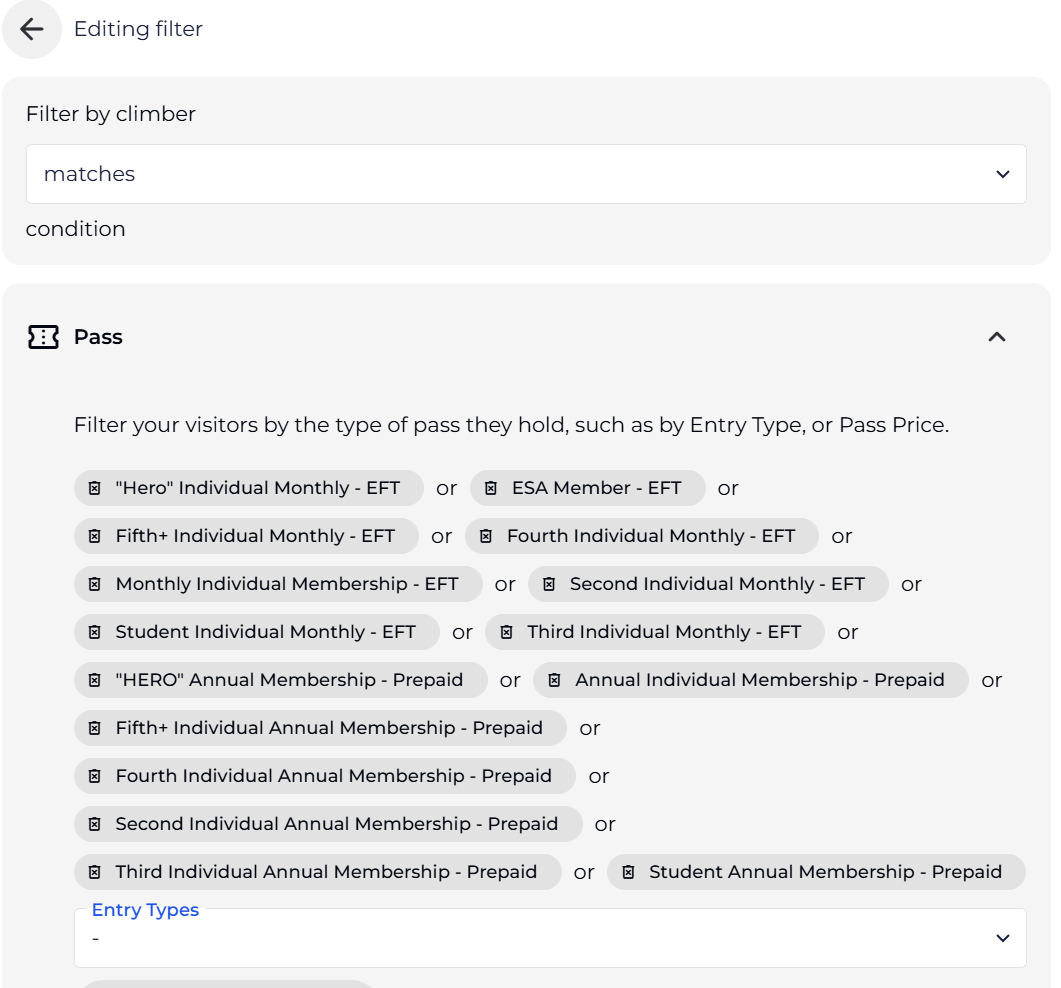
AND
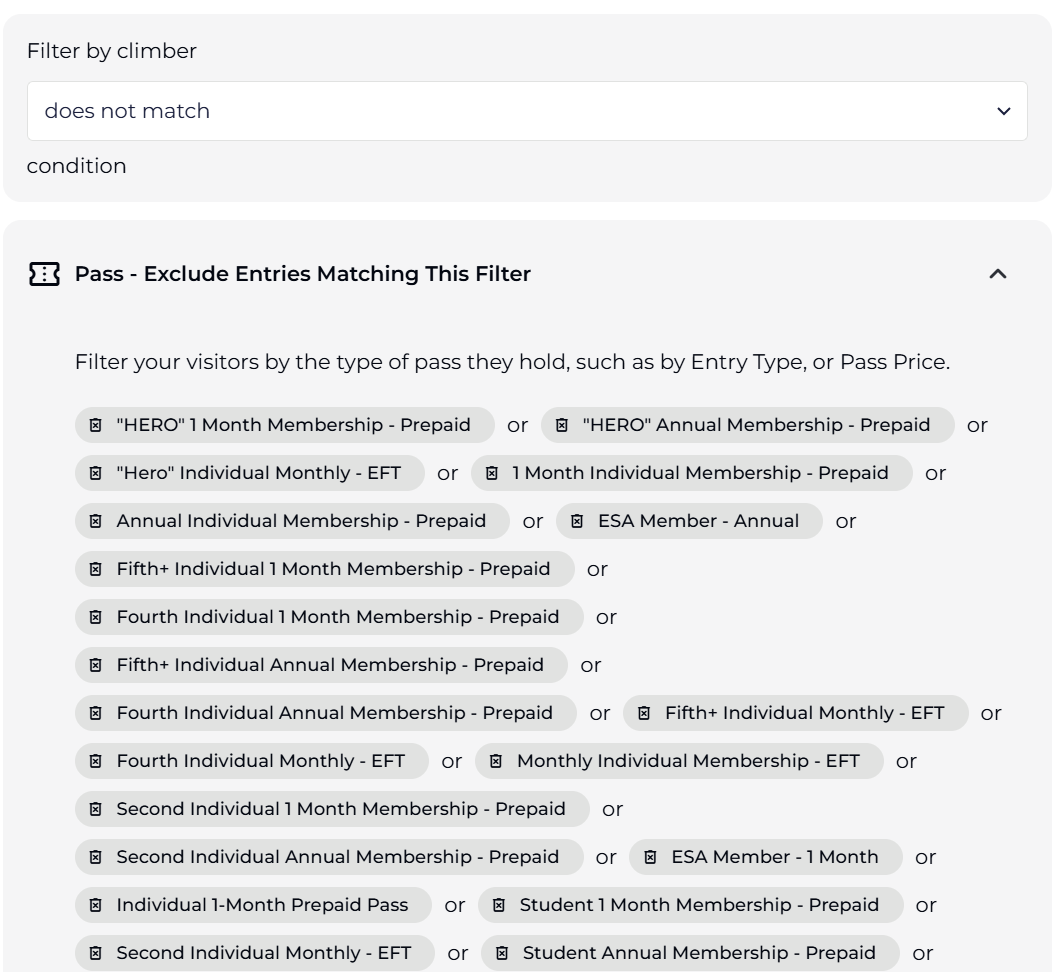
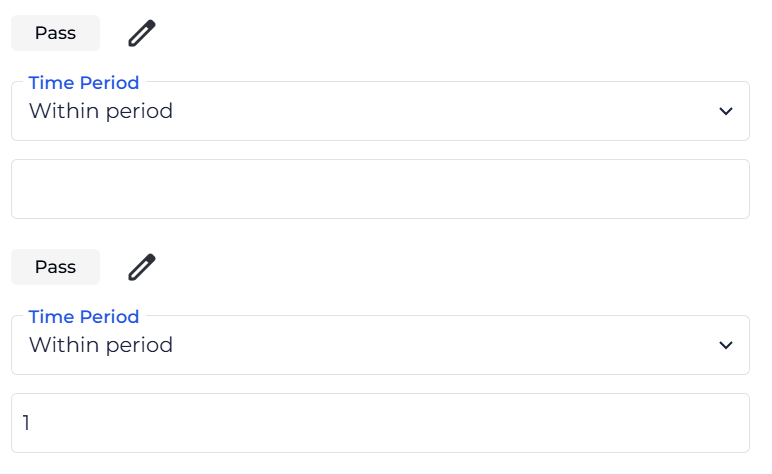
Please note that you should also exclude things from your search. For example if you are creating a search for everyone with a day pass, it will collect everyone with a day pass, and not everyone with ONLY a day pass. To collect climbers with a day pays, you must exclude all other passes. This distinction is important to create lists of the people you wish.
Yes! You have the flexibility to add more than 1 climber filters, allowing you to further refine your view based on specific population groups.
