The Square integration is available for free to all BETA users. To use the integration you also need a Square account.
service | status | terminal payments | online payments | recurring payments | website |
Square | integrated |
|
|
|
To do this, you need to have Owner Permissions in BETA. While logged into BETA please navigate to the Settings » Integrations » Square and click Connect.
You will be prompted to log into your square account which is how you integrated BETA with Square.
Once that is done, contact someone from the BETA team, so they can add all of your relevant Payment methods for Square on your POS.
You can easily offer in-app or online sales through Square by creating customised widgets using BETA’s Widget Builder. The seamless integration of Square payment system ensures a smooth experience across BETA, online, and in-app transactions.
Create Pass Widgets, Pass Widgets for a particular payment methods
Pass widgets help you sell passes and memberships on your website, link to your social media, and generate QR codes for posters.
Event Widgets: Explainer & Setup
Widgets allow you to sell and display events/course on your website, or link for social media.
Square also offers saving and capturing both card details, and direct debit mandates for recurring subscriptions. Talk to you Square representative about availability in your jurisdiction.

First make sure your terminals are connected to Square, in the Square Dashboard. Once that is connected, the Square terminal should show up in your BETA Point of Sale (POS).
Please follow their dedicated guide linked here:
Set Up a Square TerminalOnce you set up your Square terminal following the steps in the above guide, you need to connect your terminal to BETA’s POS.
On the Square Terminal: Tap Sign In » Select Use a Device Code. Leave this screen open.
Generate Device Code
In BETA:
Go to Point of Sale > Click to expand
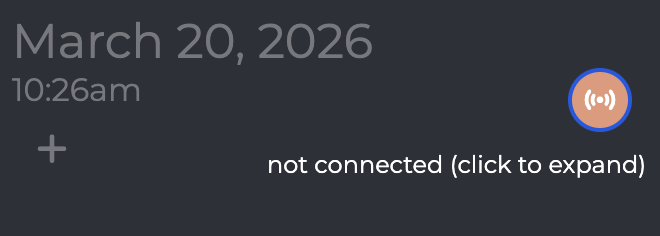
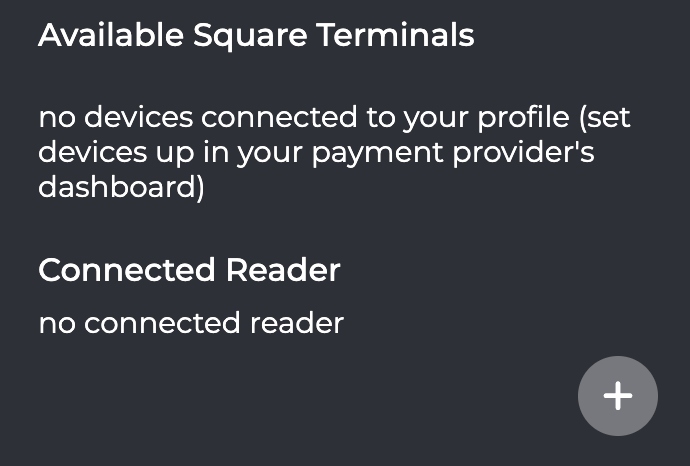
Click the PLUS button to connect a reader
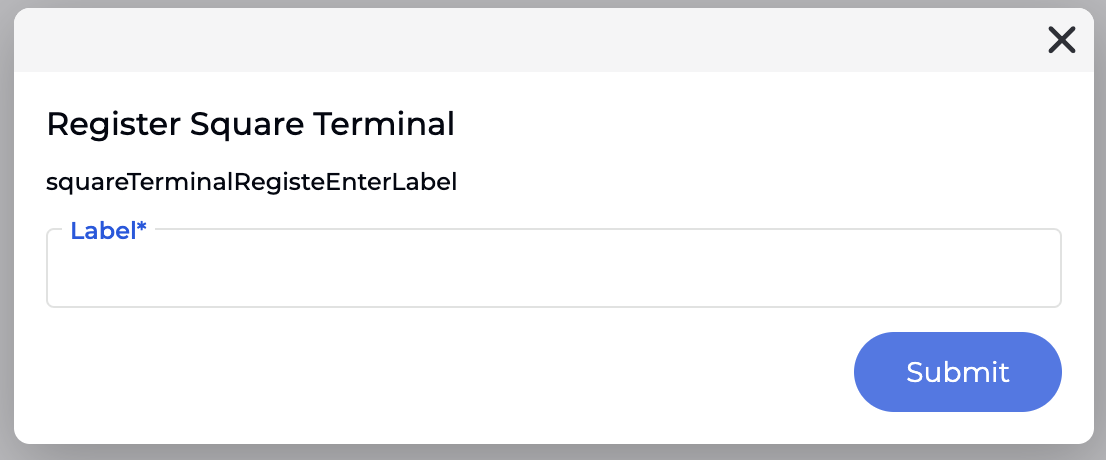
Use the code generated in Square to connect » click Submit
Please see our dedicated guide below,
Connect a Terminal to the POS
Learn how to quickly connect a payment terminal to your POS system with this setup guide.
You need Owner permissions in BETA to complete the integration.
Navigate to the Settings » Integrations page, and connect.
Once completed, contact the BETA team to ask us to add Square as an authorised payment method for your widgets or POS.
See our dedicated guide below,
How to Set Up an Integration in BETA
Set up powerful integrations to automate your workflows.
Yes, you can. BETA provides a practical solution for selling passes and courses online. Utilise our Widget Builder to integrate your offerings into your website. This functionality allows you to manage online sales efficiently and extend your business reach.
Absolutely! You can set up multiple payment providers to offer flexibility to your members. For example, you might use Stripe for online payments and Payconiq for QR code payments.

