Edit your gym details, such as Gym Name, Address , website URL, telephone or description.
Once you add & save these details, they will be public.
BETA accepts .jpg, .png, .webp, .svg
And the filename should be only TEXT with no spaces e.g., DynoSoreLogo.png
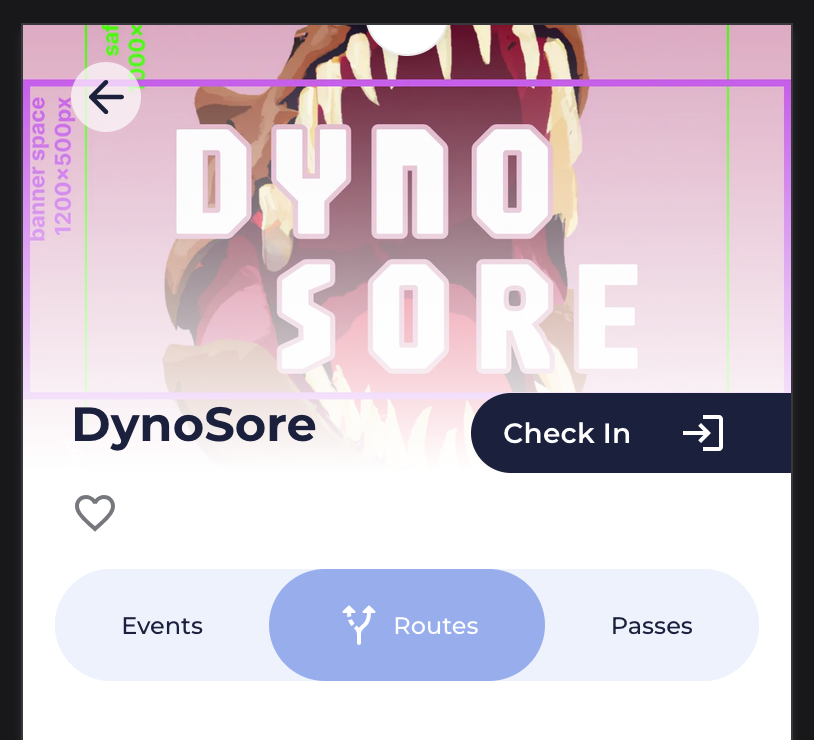
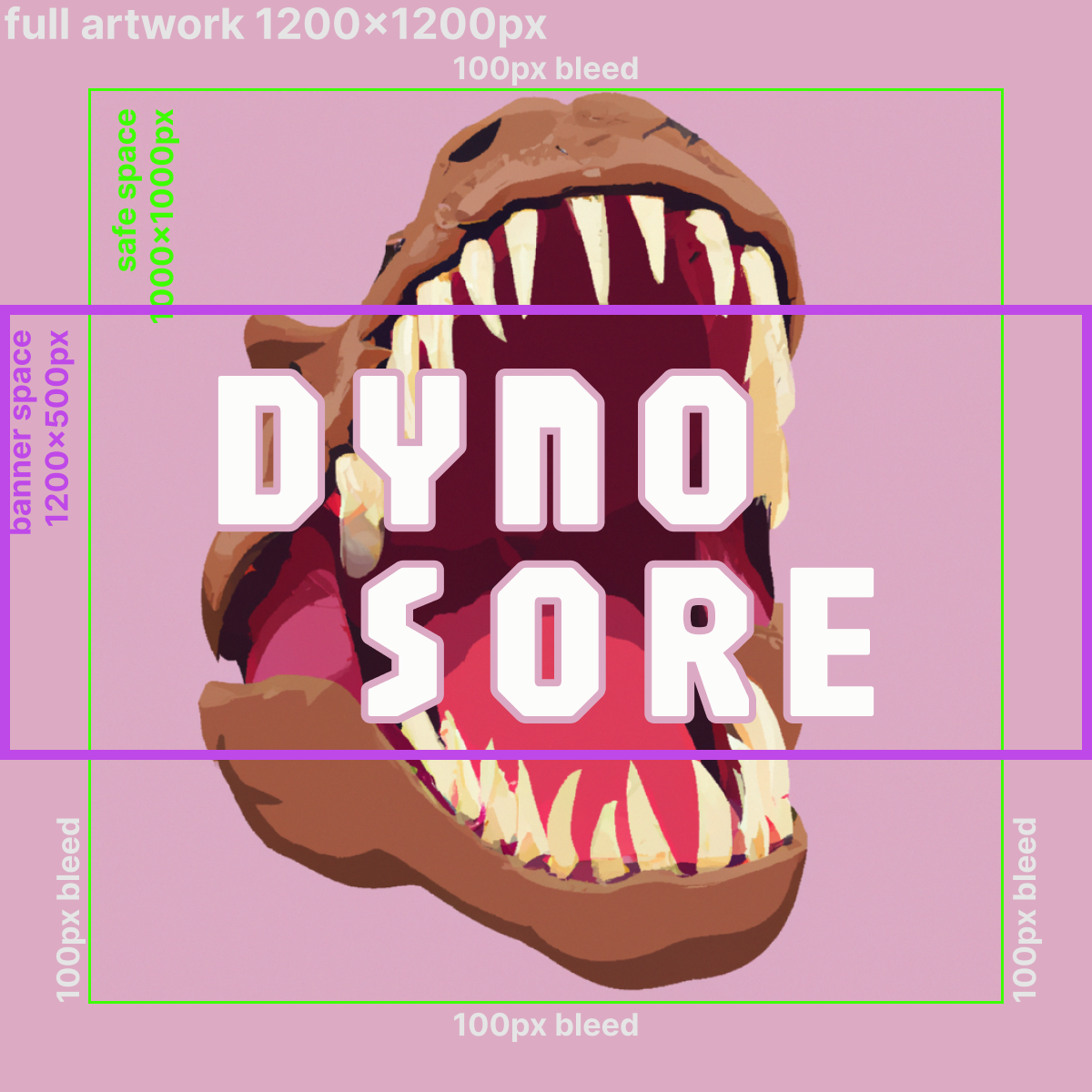
The Banner Space, will appear in the gym profile header
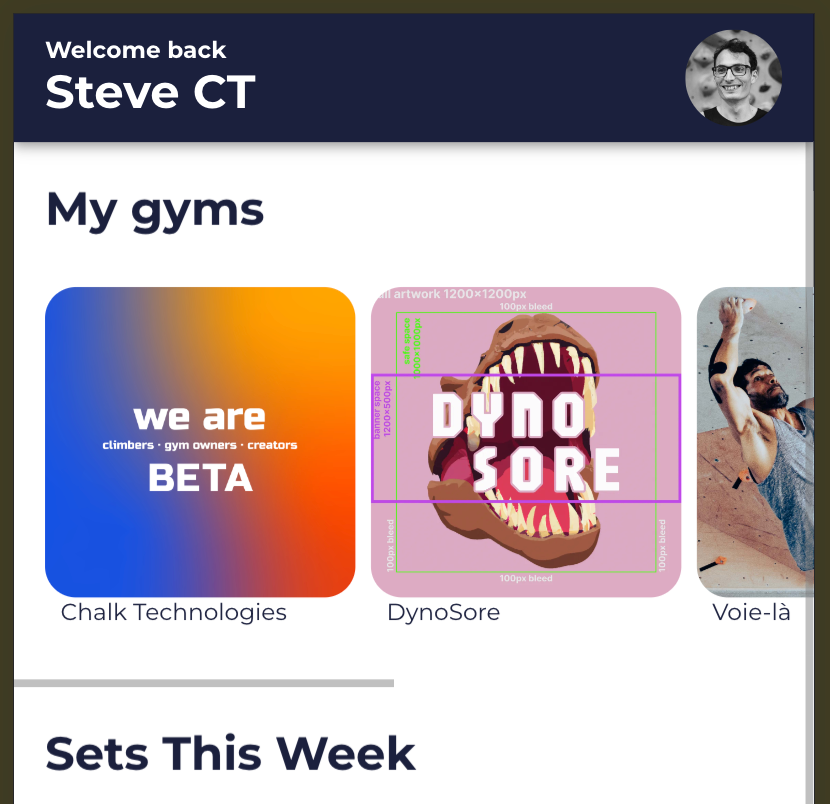
The Full Artwork, will appear in the gym search, and the main gym card
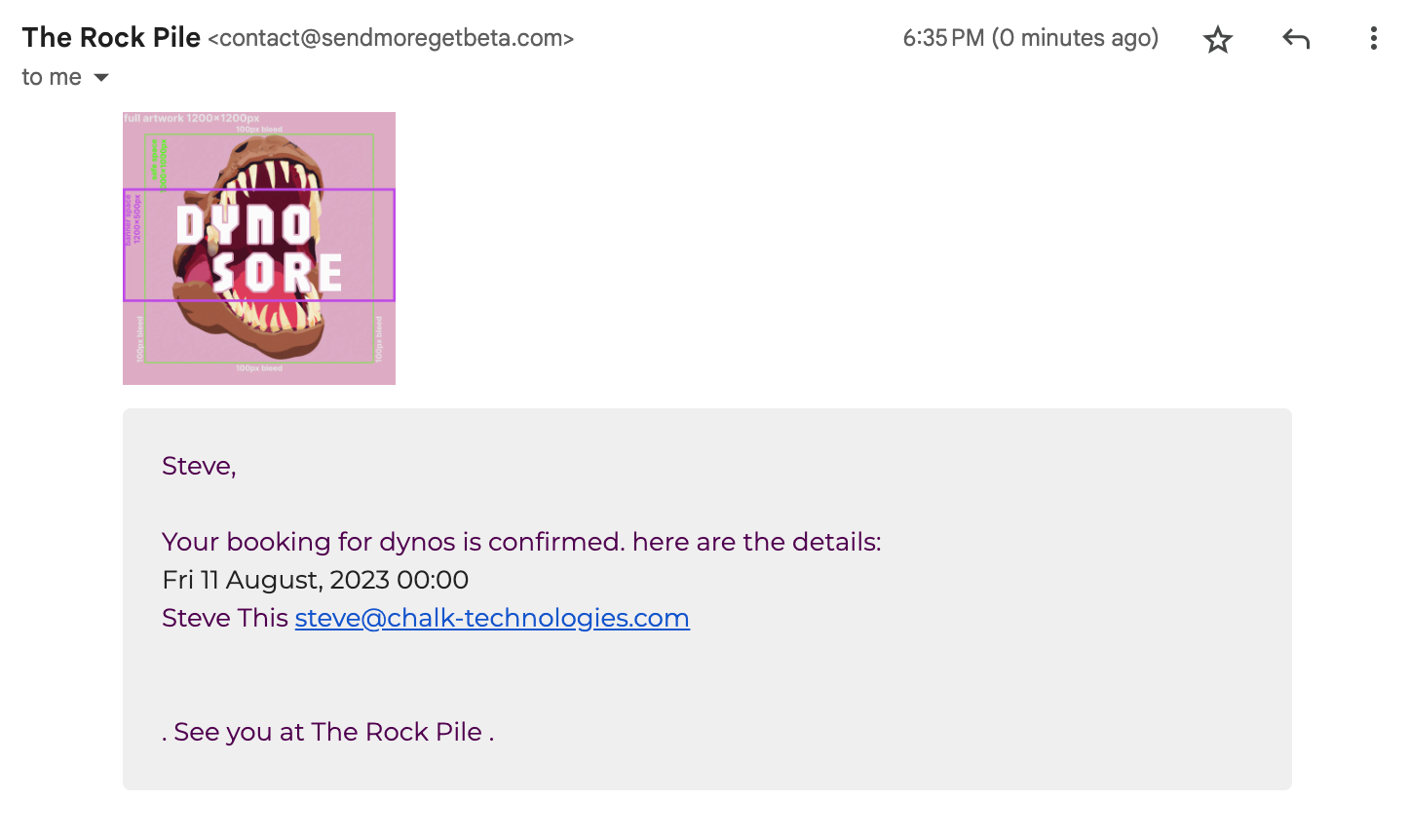
The Full Artwork, will appear in all email communications.
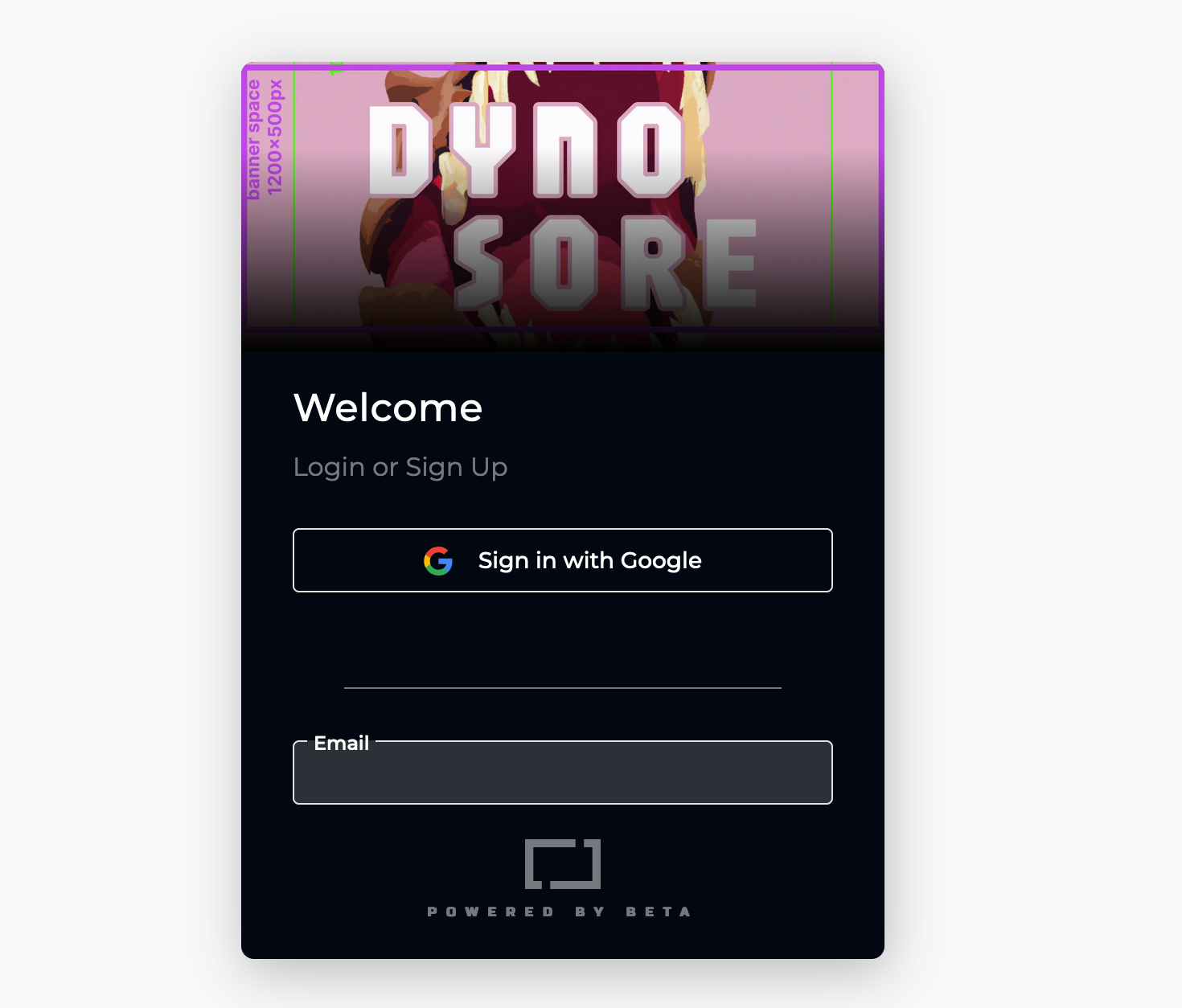
The Banner Space, will appear in the gym profile header.
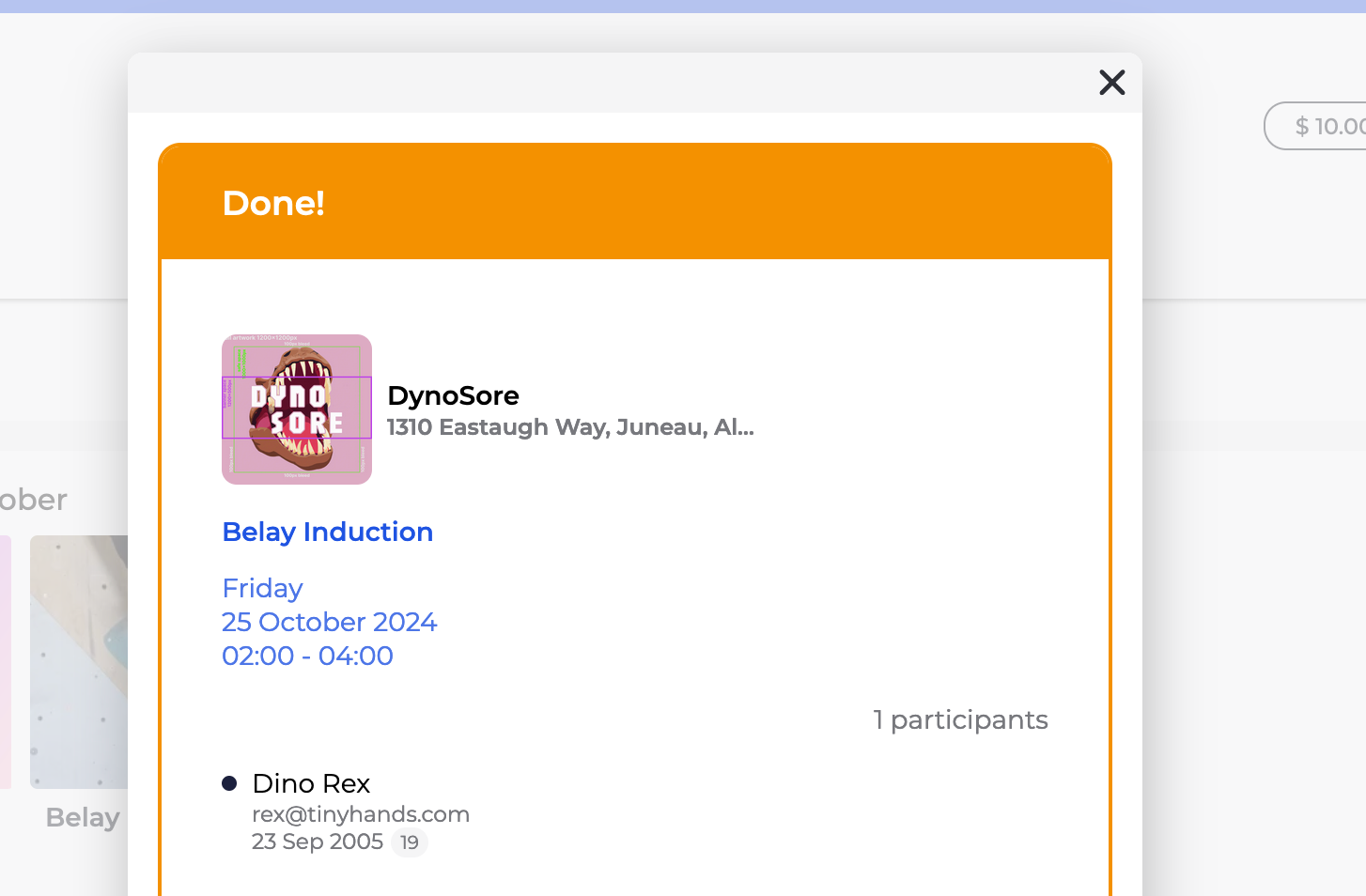
The Full Artwork, will appear cropped to a rounded square, in the event confirmation popup

The Full Artwork, will appear cropped to a circle, when used as a small favicon
BETA recommends uploading your picture with a solid background (such as white, black, or a colour that matches your brand) instead of using a transparent PNG.
This ensures your image displays consistently, whether someone is viewing it in dark mode or light mode.
When setting up the images for each location, we suggest using distinguishing colours, for clarity on the BETA app and in the BETA dashboard.
If you’re opening a brand-new climbing gym we need to know its location. BETA requires a pin of the new gym to add it. A Google Maps link works perfectly.

To ensure your gym picture displays correctly:
Use a solid background: Avoid transparent PNGs. Upload your picture on a colored background instead.
Check the design guide: Refer to the Picture Design Guide for the best image dimensions, scaling, and cropping instructions.Please follow this template!
Re-upload your picture: Once you’ve adjusted it, upload the new image to your profile.
These are updating by editing your Gym Details in, Settings ⇒ Edit Gym Details
This is due to your browser loading the image from its cache for faster performance. To see the updated photo, try clearing your browser’s cache or opening the widget/website in an incognito window. On Chrome, you can:
Open the Chrome Dev Tools by pressing F12. Once the Chrome dev tools are open, right-click on the reload button (top left), and a menu will drop down. Click on “Empty Cache and Hard Reload
To change your gym’s profile photo, you can do this from your Gym Details section in the Settings Page. This will also update the header photo in the BETAapp. Please note, that there is a template we suggest for you to use, to ensure that your brand does not get cropped.
If you're looking to enhance your gym's visibility in the BETAapp search results, you have the option to upgrade to a higher tier. This upgrade can help elevate your gym's position in the search rankings, making it more accessible to users.

Adding Meta Pixel and GA4 Tag is available to gyms on the BETA Business Tier and above.
This allows you to track user behavior. The Meta Pixel and GA4 (Google Analytics 4) tag are both essential web tracking tools, but they serve different purposes: the Meta Pixel optimizes ads within Meta's ecosystem (Facebook/Instagram), while GA4 provides holistic, multi-channel user behavior analytics across websites and apps.
