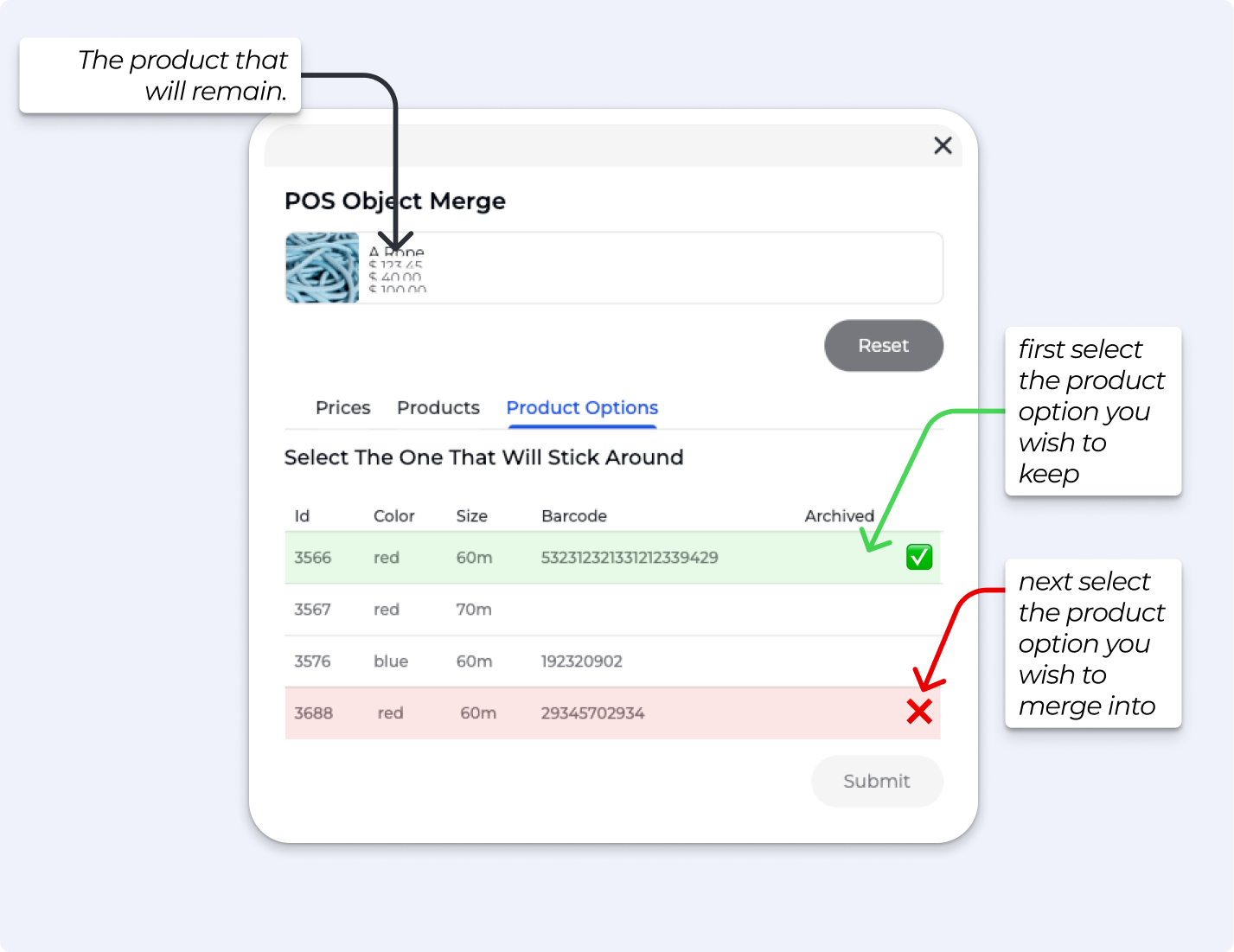
Over time, product catalogues can become cluttered — especially after importing data from other software. You may find yourself with duplicate products, prices that mean the same thing under different names, or product options (product variants) that were created more than once by mistake.

Consolidate duplicate or redundant prices, products, and product variants into a single clean record using the merge tool. You may be reading this guide if:
Your product list has grown messy and is hard to manage
You notice duplicate prices or variants in your catalogue
You recently migrated data or imported products from another system
A staff member accidentally created duplicate products or pricing entries

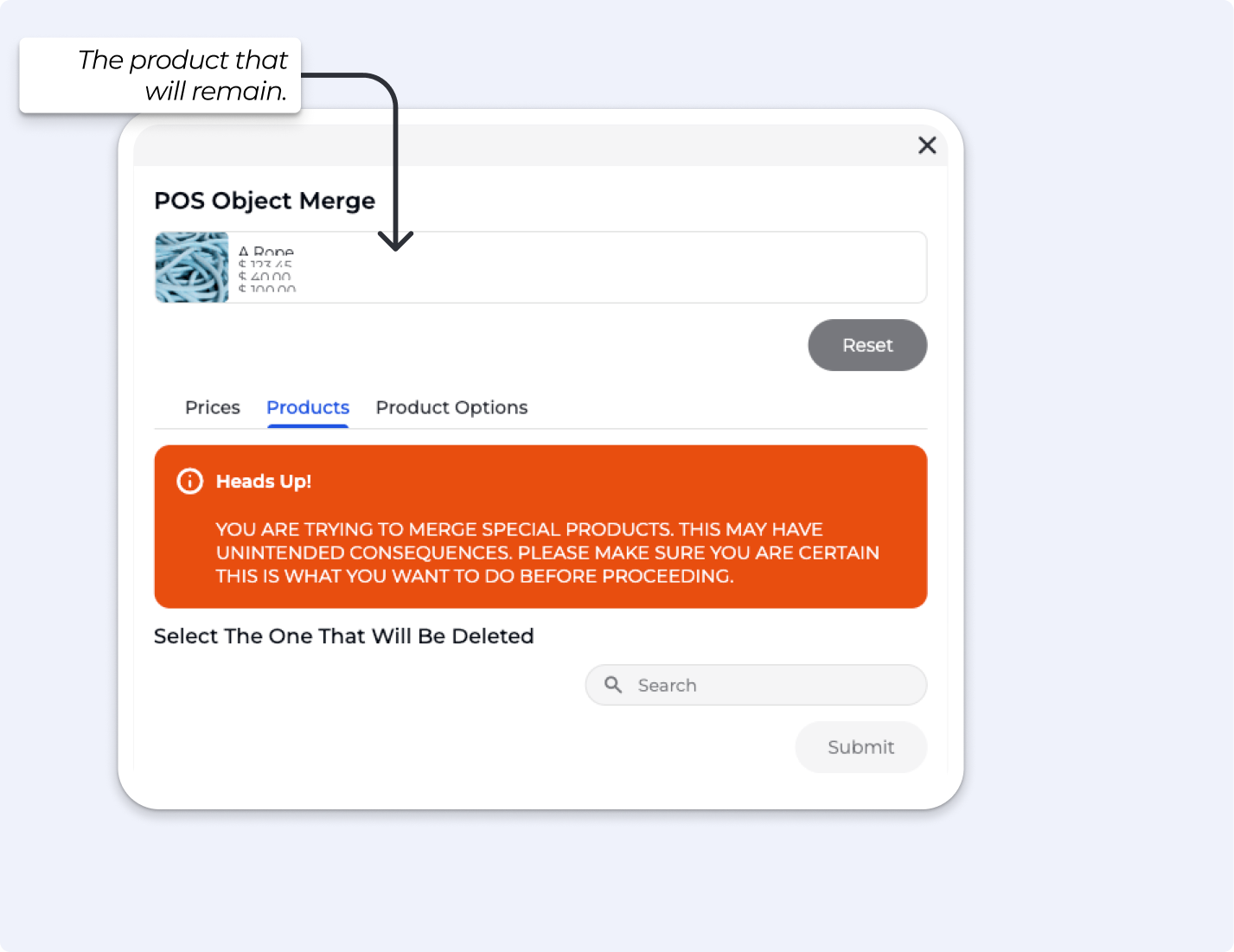
If you are merging prices related to events, passes, recurring prices, or any shop product that issues an item upon purchase, proceed with extra caution.
While the merge is possible, combining these types of prices can lead to unintended behaviour — such as pass issuance issues, or unexpected changes to how those products function.
If you are unsure whether a price is attached to a special product type, do not proceed.
Yes — archiving a price makes it unavailable for purchase.
If all prices on a product are archived, the product itself will also become unavailable. Archiving is a good option if you simply want to hide something from your product
catalogue without cleaning up duplicates.
This guide is specifically for cleaning up duplicate or redundant records by consolidating them into a single entry. If tidying up your catalogue is not your goal, archiving may be all you need.
If a price, product, or variant has never been sold, you don't need to merge it, you can simply delete it directly from the dashboard.
The merge tool will still work in this case if you prefer, but deletion is the cleaner option when there is no sales history to preserve.
BETA cannot delete any price, product, or product option that has previously been sold. This is a legal and record-keeping requirement for all point-of-sale software, historical sales transactions must always reference a valid record.
Instead of deleting, you merge the unwanted record into the one you want to keep. The old record is retired and hidden from your catalogue, but it remains in the system for transaction history purposes.
All merges start from the same place regardless of whether you are merging a price, product, or variant.
Navigate to the Experiments Section
Select “Merging Prices, Products, and Variants”
Once that is open, you can search for the product you wish to keep
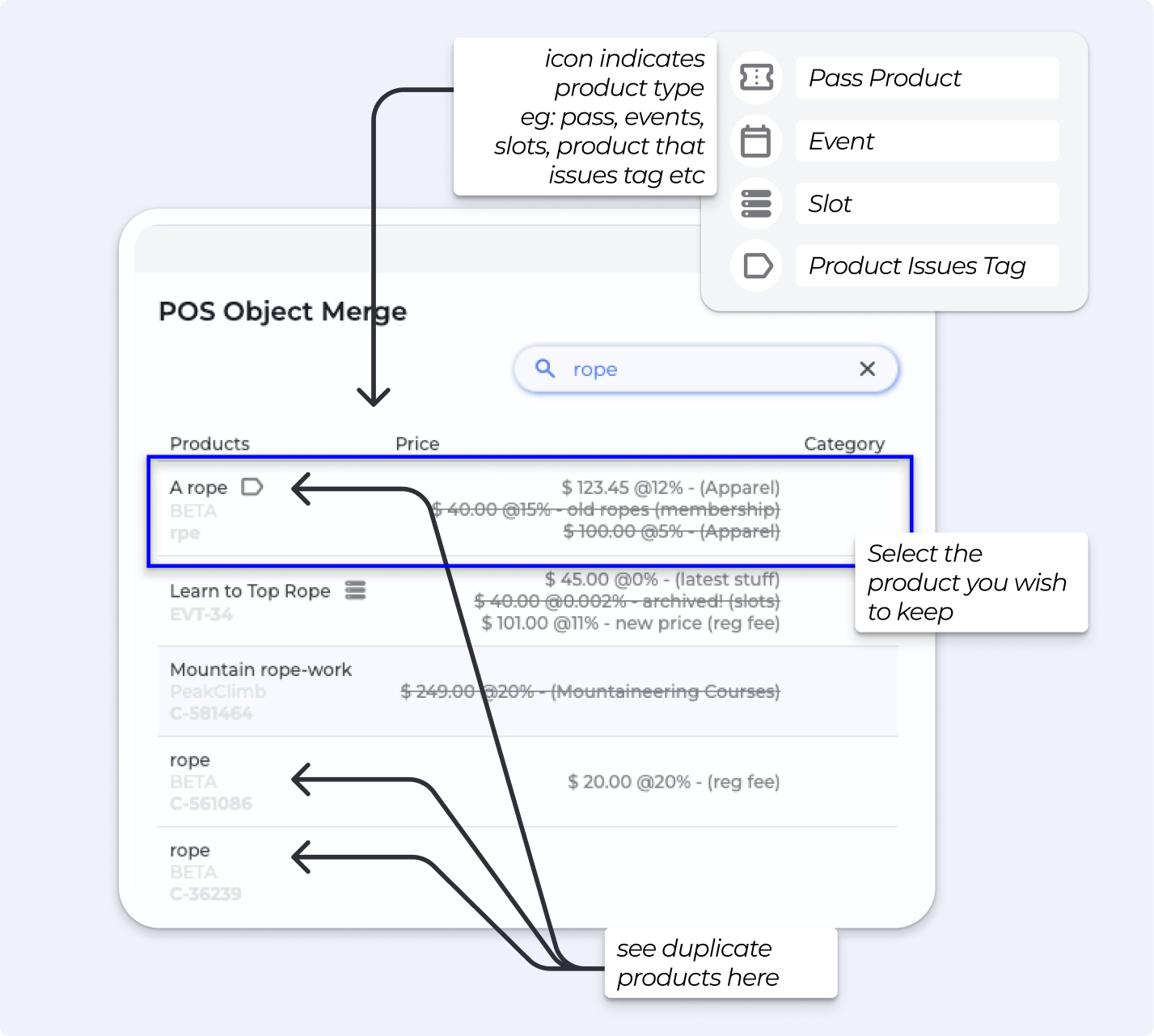
Select the tab that matches what you are merging and follow the relevant section below.
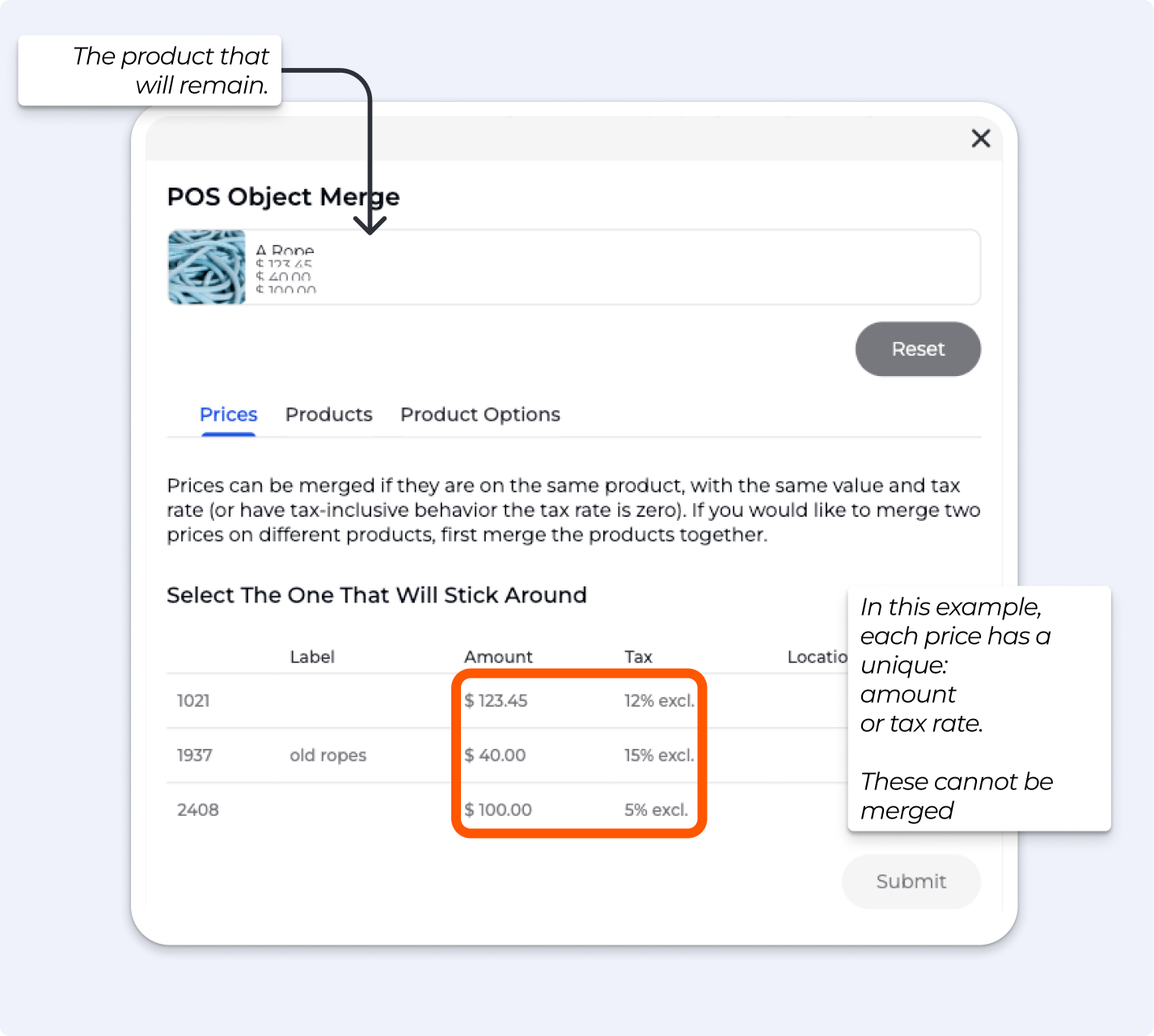
Use this when you have duplicate prices you want to clean up.
What happens when you merge Prices
All historical transactions linked to the merged price are reassigned to the price you keep.
The merged price is retired and removed from your active price list.
Reports and transaction history will reflect the kept price going forward.
Steps to Merge Prices
Search for and open the product containing the duplicate prices
Open the POS Object Merge tool and select the Prices tab
Select the price you want to keep, then the price you want to remove
Click Submit to confirm
Use this when you have duplicate products or products you no longer need that still have a sales history.
What happens:
All sales history from the merged product moves to the kept product.
The merged product is retired and removed from your active catalogue.
Steps to Merge Products
Search for and open one of the duplicate products
Open the POS Object Merge tool and select the Products tab
Select the product you want to keep, then the product you want to remove
Click Submit to confirm
Merging Variants (Product Options)
What happens:
All sales history from the merged variant is reassigned to the kept variant
Stock quantities are combined — the merged variant's stock is added to the kept variant's stock
The merged variant is retired and removed from the product

Steps to Merge Product Options
Search for and open the product containing the duplicate options
Open the POS Object Merge tool and select the Product Options tab
Select the option you want to keep, then the option you want to remove
Click Submit to confirm