 Release date: 04 May 2026
We are introducing important updates to how subscriptions work in BETA, including clearer subscription states, more flexible pause rules, and changes to how promotions and cancellations work.
These changes give you more control, improve clarity for staff and members, and add requested functionality to subscription management.
Subscription discounts are being removed and replaced with Promotions
New subscription states: Pause, Freeze, Hibernate, Cancel
Pauses on Prepaid Passes will be scheduled in advance — Business and above
Freeze on Subscriptions will be scheduled in advance — Business and above
More control with pause rules and fees — rules apply retroactively to existing passes and subscriptions — Enterprise and above
Promotions can auto-apply continuously to subscriptions — Business and above
Members via the Visitor’s Home are guided to hibernate instead of cancel
Membership history download removed: The "Download Membership History" button will be removed from the subscription view. This data remains available in Passes Insights.
Cancelled subscriptions can no longer be resumed
 Action required before 04 May 2026
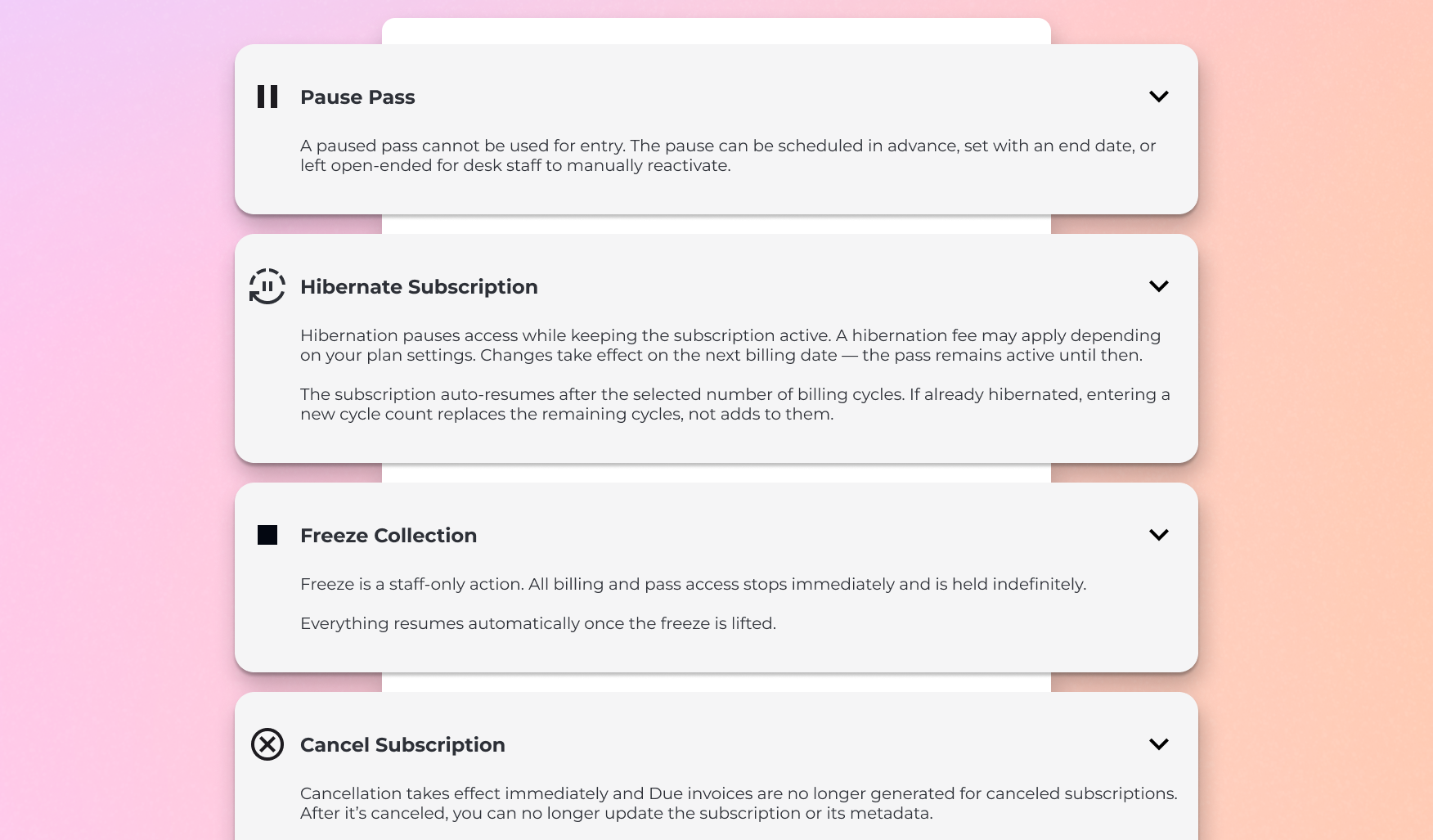
ACTIONS /  Subscription discounts are being removed
You will no longer be able to apply discounts to subscriptions. All existing discounts must be migrated to Promotions.
Discounts will remain visible on the Products page until a future release removes them fully
Any discount not migrated will stop applying at billing time after 04 May 2026

 Action required before 4 May 2026, create and replace your subscription discounts to Promotions.
 See How do I check if I have active discounts?
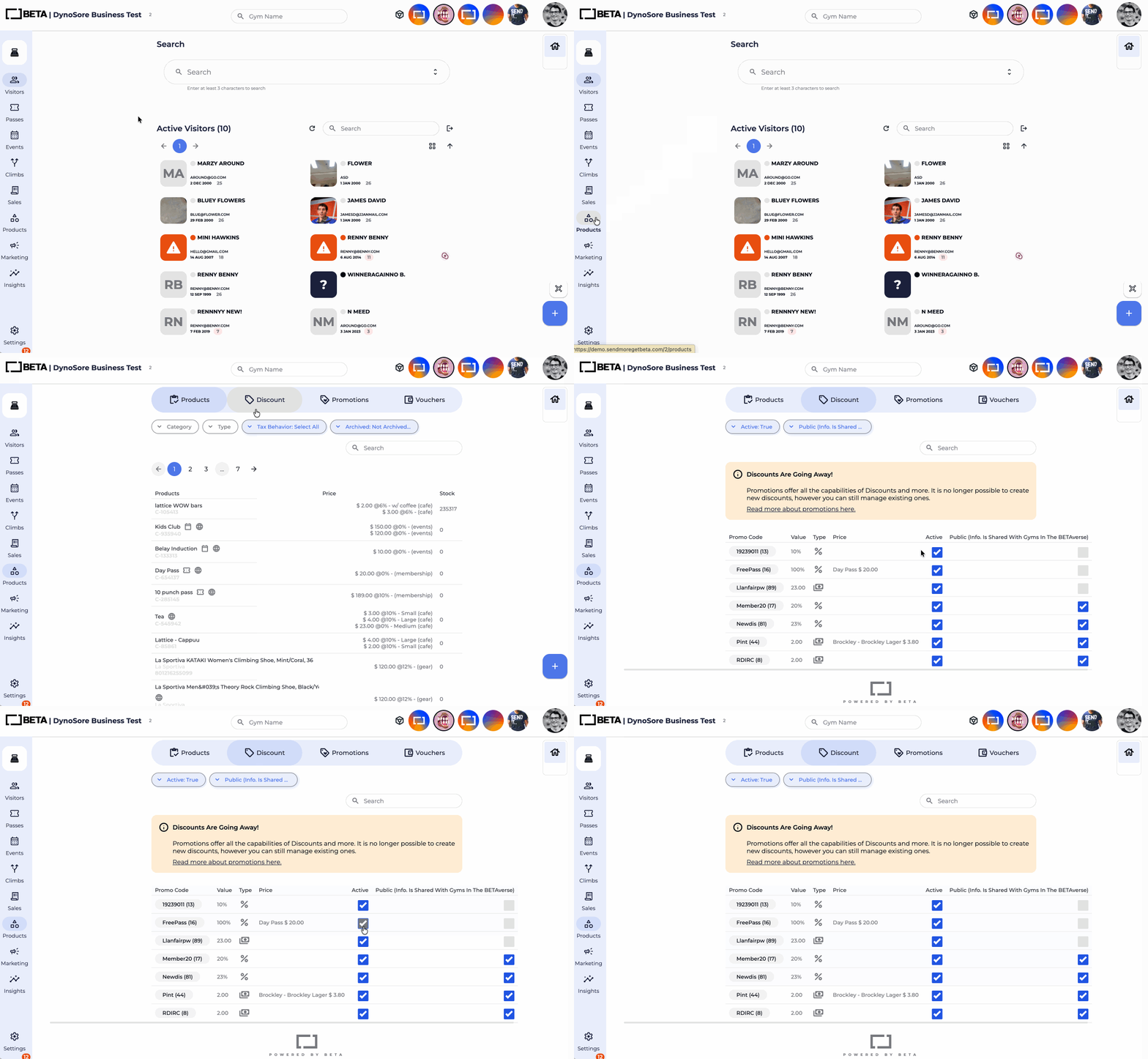
These four terms are related but apply to different things. Here's how to tell them apart.
Temporarily stops a pass from being used.
Can be scheduled or applied immediately
Can have a set end date or be left open for staff to manually resume
Members requesting a pause via the app or Visitors' Home must always set an end date
Example: A member has a 10-visit pass that expires on 30 April. They go on holiday from 15 April. Staff pause the pass on 15 April. The expiry date is frozen and no visits can be used while the pause is active. When the pass is unpaused on 29 April, the remaining visits and original expiry date are fully restored.

Stops all billing and pass access immediately, indefinitely.
Staff-only — members cannot request a freeze
Pass access stops immediately when the freeze is applied
No charges are made while the subscription is frozen
Billing resumes automatically once the freeze is lifted
The next billing date adjusts based on the number of days frozen
Example: A member's subscription runs 2 Apr – 2 May (monthly). Staff freeze the subscription on 15 April due to an injury. Pass access stops immediately. No charge is made on 2 May. When the freeze is lifted on 1 May (17 days frozen), billing resumes and the next billing date is pushed forward by 17 days — the next bill falls on 19 May, not 2 May.

Keeps the subscription active at a reduced rate (or no charge) for a set number of billing cycles.
Members can request hibernation from the app or Visitors' Home and must set an end date
Staff can set hibernation with no end date
The current pass stays active until the end of the billing cycle already paid for
On the next billing date, the hibernation fee is charged instead of the full subscription (can be zero if no fee is set)
No new pass is issued during hibernation
The subscription auto-resumes after the selected number of cycles
If a subscription includes multiple passes, each pass can be hibernated independently for a different number of cycles
Example: A member's subscription runs 2 Apr – 2 May (monthly). They hibernate on 15 April for 2 billing cycles. Their existing pass stays active until 2 May — the end of the cycle they already paid for. On 2 May, instead of the full subscription charge, they are billed the hibernation fee and no new pass is issued. After 2 cycles (2 July), the subscription auto-resumes and full billing restarts.
Ends the subscription completely.
Takes effect immediately
No further invoices are generated
Any pass already issued remains valid for check-in until it expires
Cannot be resumed

State | Applies to | Access | Billing | Who can request |
Pause | Pass | Stops immediately | n/a | Members + Staff |
Freeze | Subscription | Stops immediately | Stops completely | Staff only |
Hibernate | Subscription | Continues to end of current paid cycle, then paused | Reduced / none | Members + Staff |
Cancel | Subscription | Existing pass valid for check-in until expiry | Stops completely | Members + Staff |
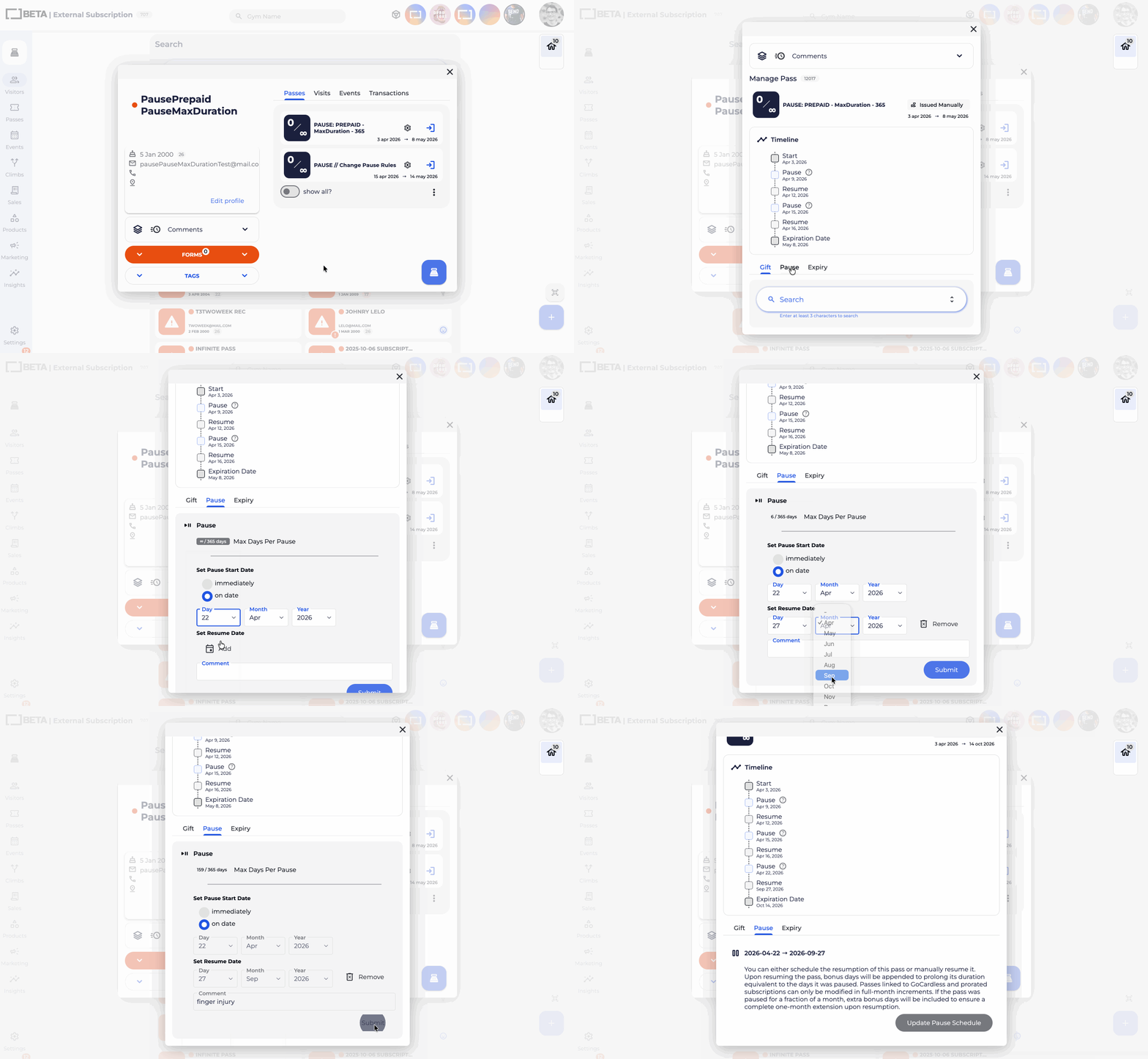
Staff will be able to apply Prepaid Pauses immediately or schedule them from a future date — Business & Above.
Navigate to: Visitor Profile »  Pass » Pause
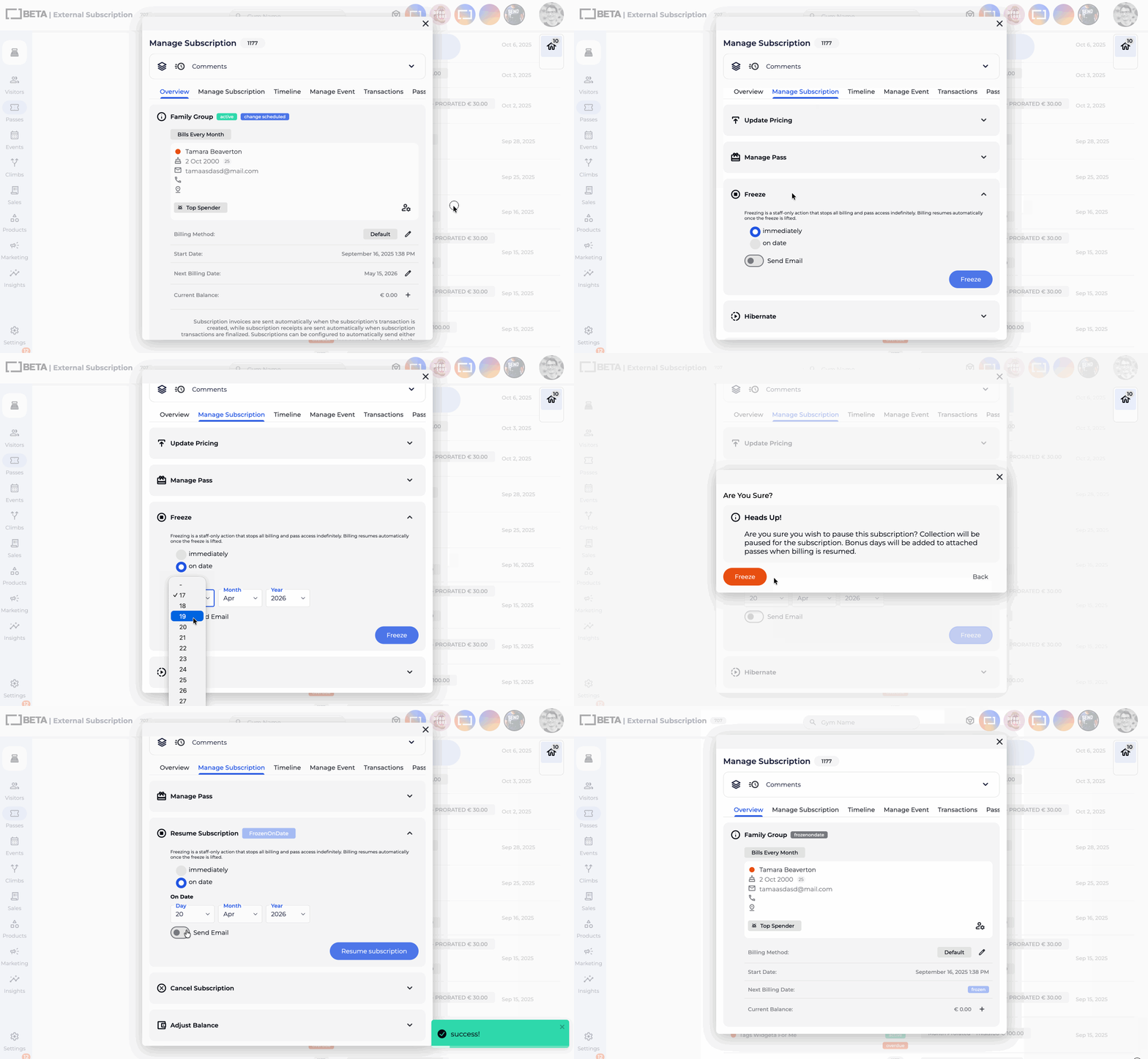
Staff will be able to apply a Subscription Freeze immediately or schedule it from a future date — Business & Above.
Navigate to: Subscription Popup » Manage Subscription » Freeze
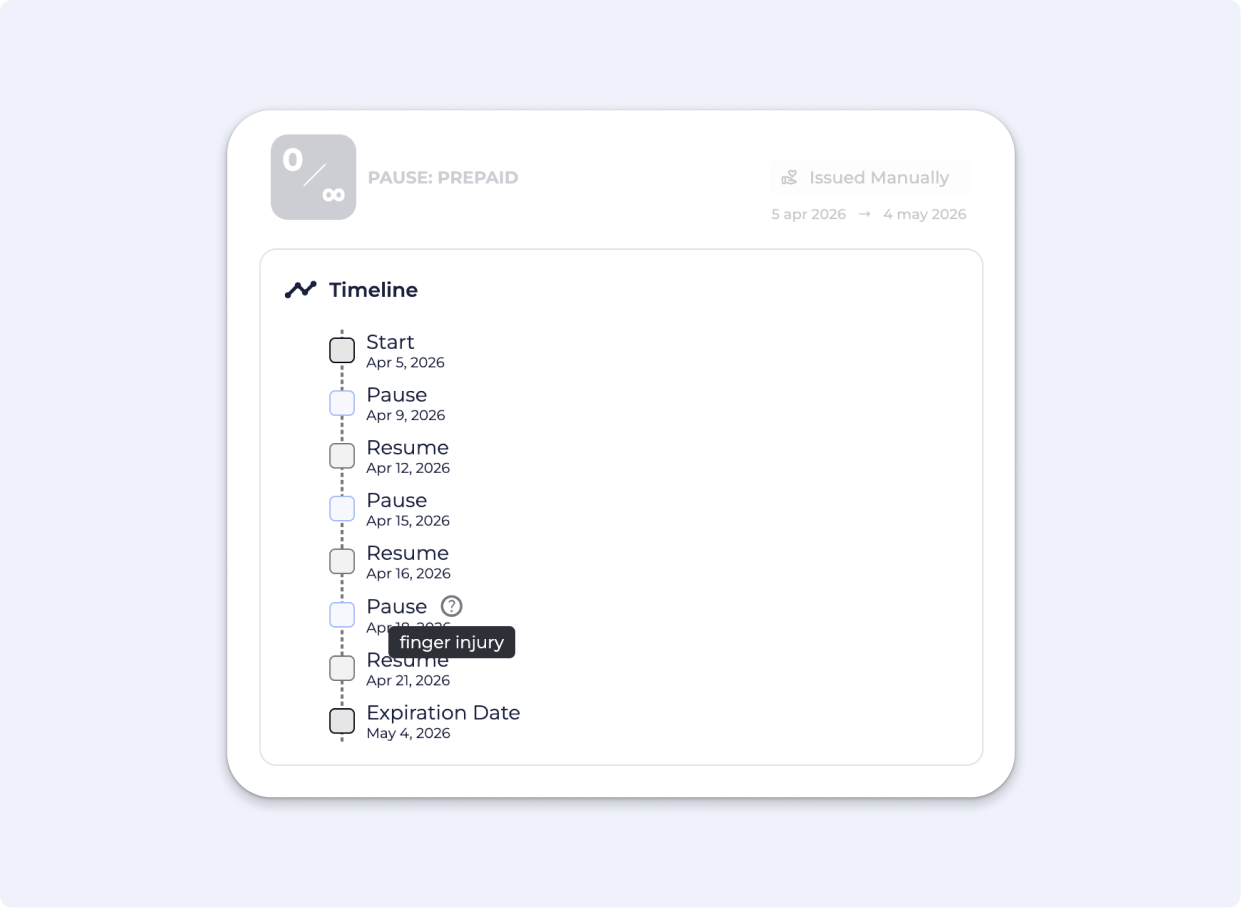
A Timeline allows you to see all important stages of the Subscription lifetime, leave direct notes on pause actions taken. The timeline does not replace the logs. For more detail, see the activity logs.
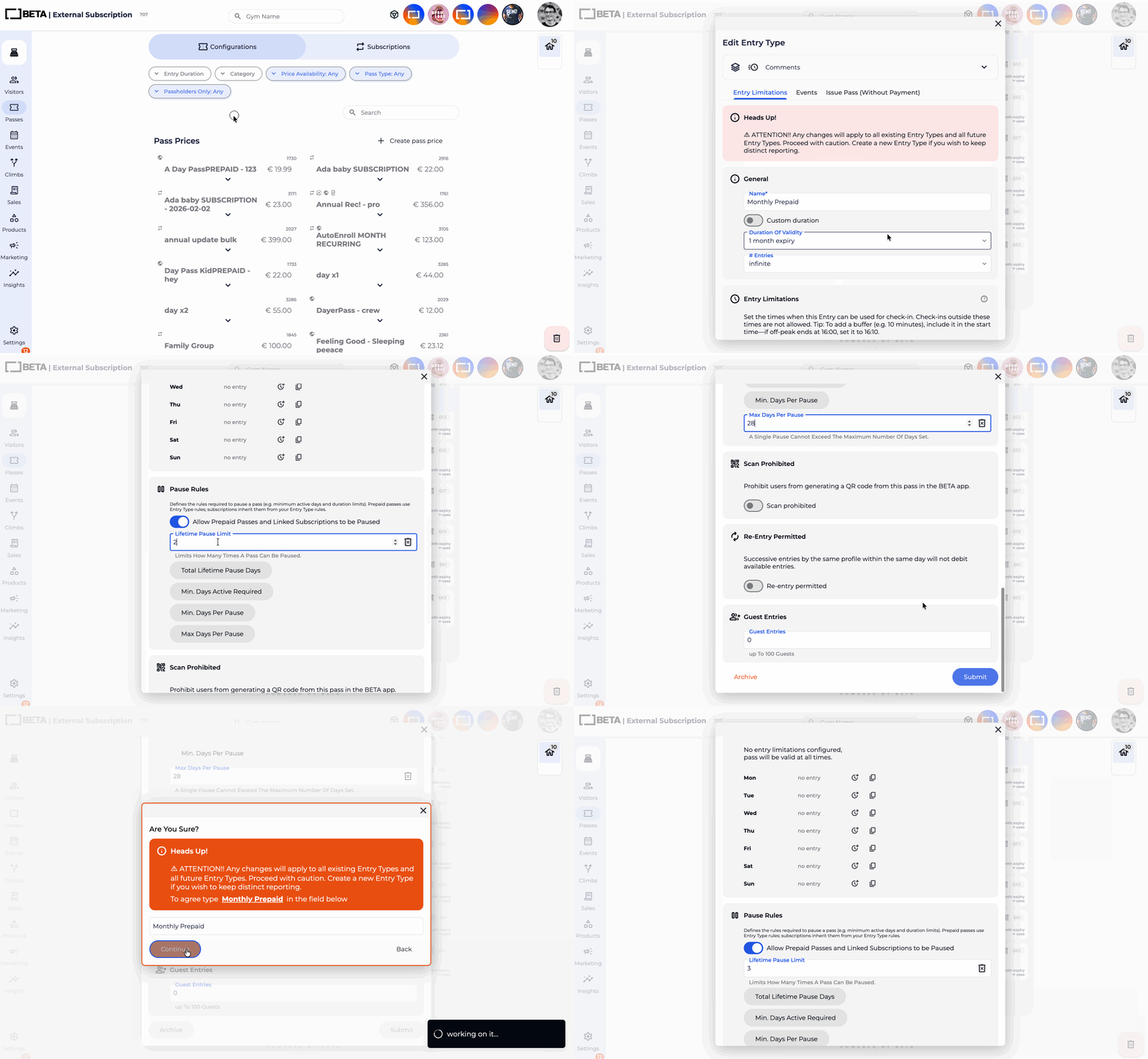
Pause rules will be configured per entry type. For subscriptions, these rules apply to hibernation. Rules apply retroactively to existing passes and subscriptions.
Configurable rules include:
Max number of pauses
Max total pause duration
Minimum active days before pausing
Minimum and maximum pause duration

|
| Tier | |
Max count | Maximum number of times a pass can be paused over its lifetime. | Does not apply to subscription-linked passes. | Business & above |
Max cumulative duration | Maximum total days of pause time allowed. | Does not apply to subscription-linked passes. | Enterprise & above |
Min active days | Minimum days since the start of the pass or last reactivation before a pause can be requested. | Minimum days since the start of the subscription or last reactivation following a hibernation. | Enterprise & above |
Min duration | Minimum number of days required between the requested pause start and end date. | Minimum number of billing cycles the hibernation must last. | Enterprise & above |
Max duration | Maximum number of days permitted between the requested pause start and end date. | Maximum number of billing cycles permitted for the hibernation. | Enterprise & above |
See How to set Pause Rules on an Entry Type
Navigate to: Passes Page » Entry Type » Configurations Tab » Entry Type Pop Up » Entry limitations » Pause Rules
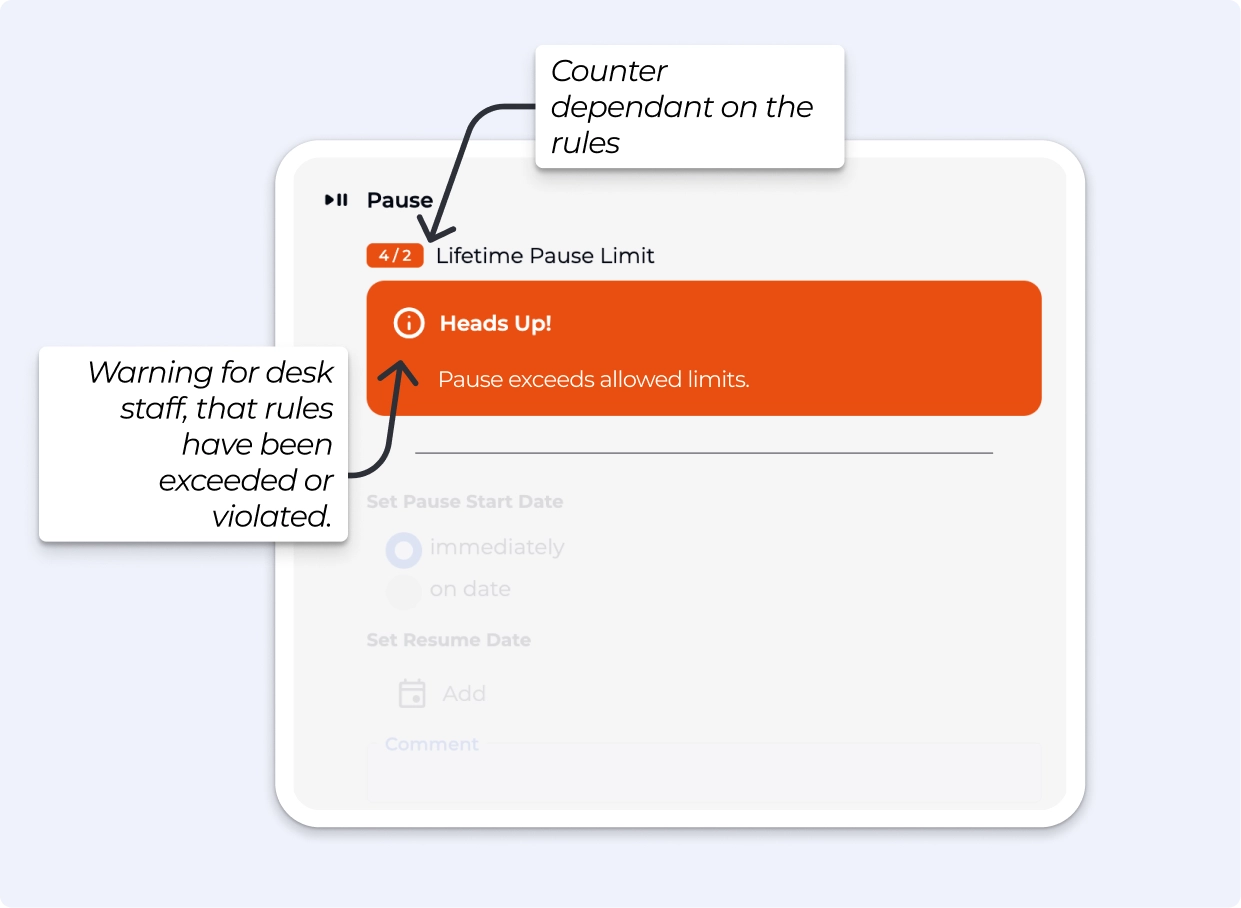
What will “violated rules” look like on my BETA dashboard?
If the rules have been violated, the dashboard will display the relevant information related to the rules, and a warning — on the pass or on the subscription.
Only staff can choose to override these rules. Members may bypass rules if an override fee is configured and paid.
Charged when a pause or hibernation is applied
Applies per pass or subscription price affected
Can be set to no fee (ie not required)
Allows a member to bypass pause rules by paying a one-time charge
Charged instead of the pause fee — not in addition to it
Applies per pass or subscription price affected
How it works: Pause not yet allowed (rule not met) → member is blocked → override fee is offered → member pays → pause proceeds
See the below guide, how to create a Recurring Product Pause Price.
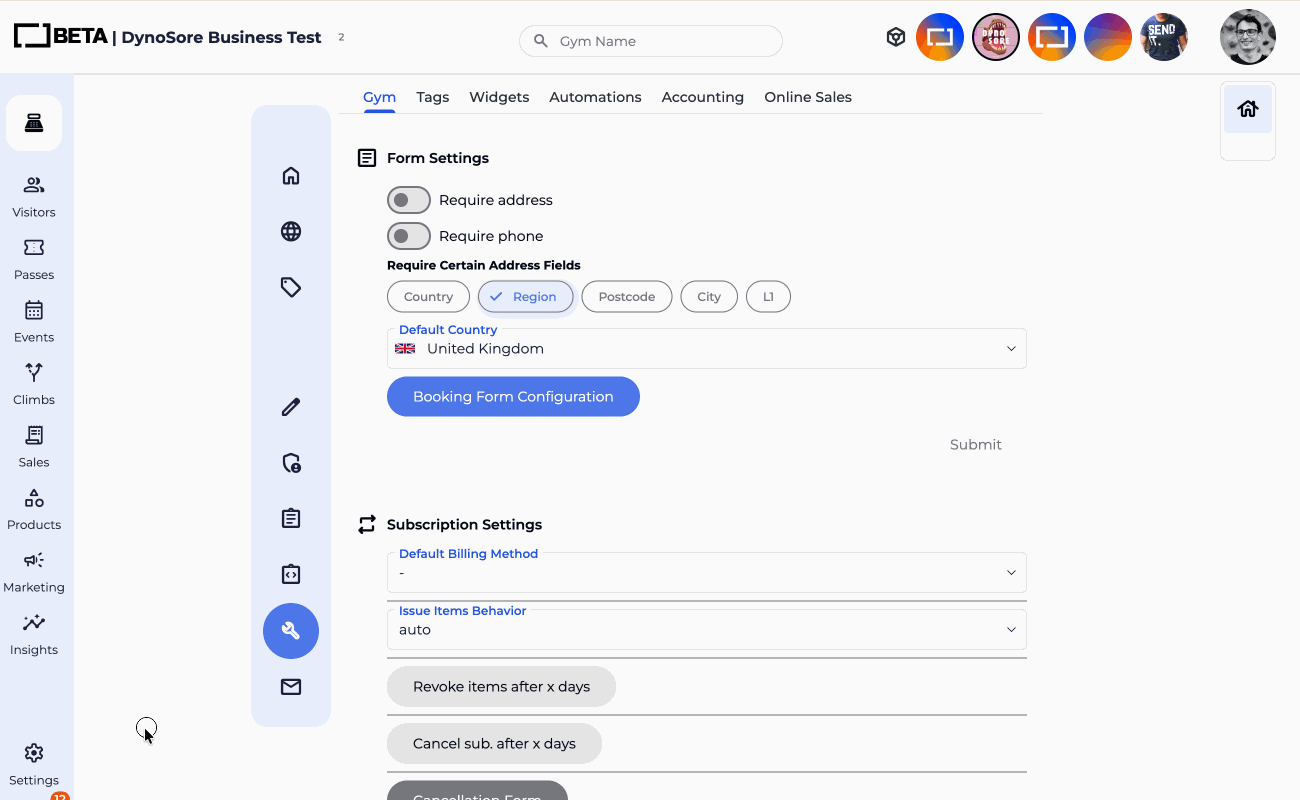
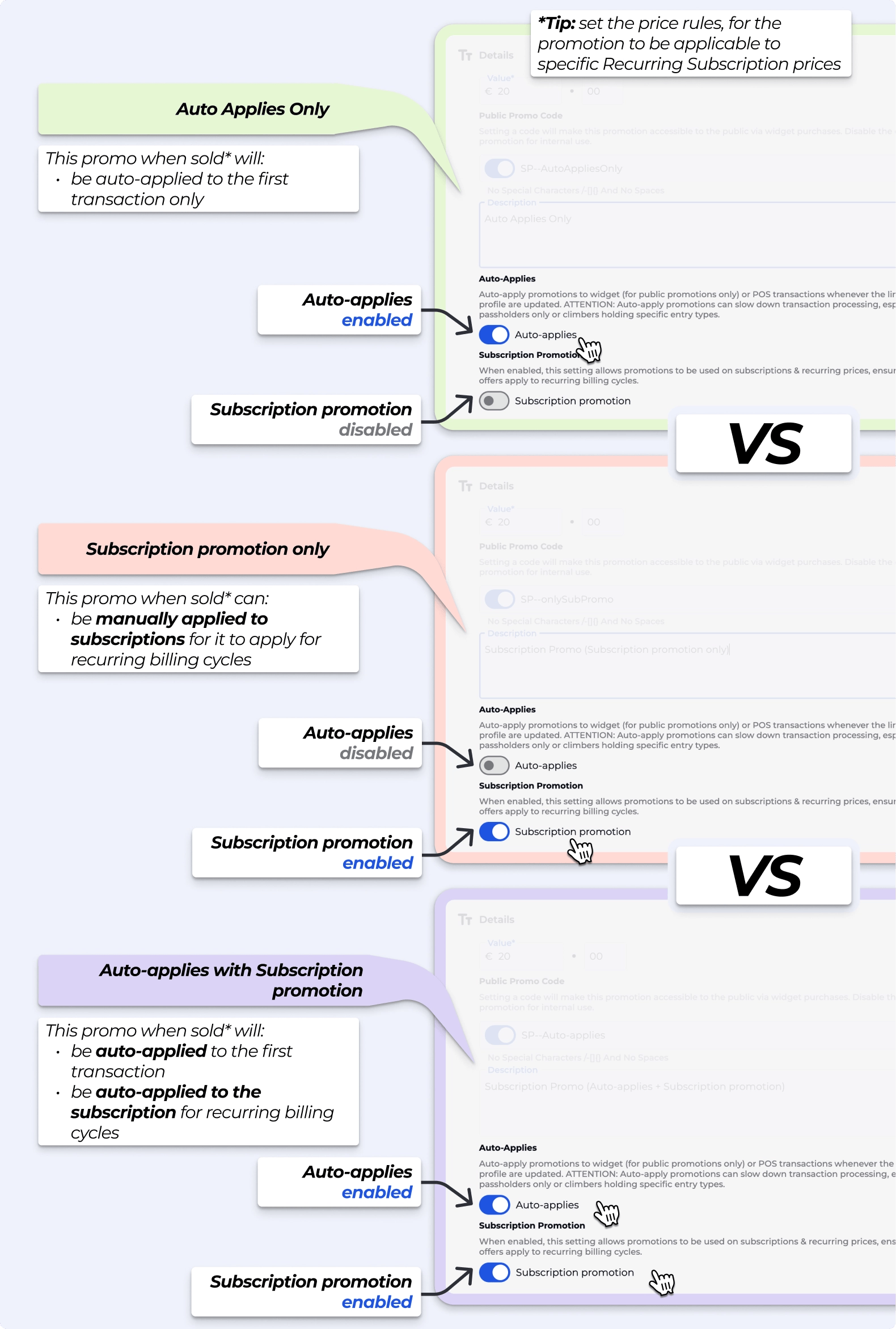
This update will allow you to set subscription promotions to auto-apply continuously. Any subscription matching the promotion rules will have the discount applied automatically every billing cycle — no manual action required each time.
There are three modes:
1. Auto Applies Only
Automatically applies to the first transaction only. Does not continue on recurring billing cycles.
2. Subscription Promotion Only
Does not auto-apply on purchase. Must be manually added to a subscription to apply to recurring billing.
3. Auto Applies + Subscription Promotion
Applies to the first transaction and continues to apply on all recurring subscription payments.
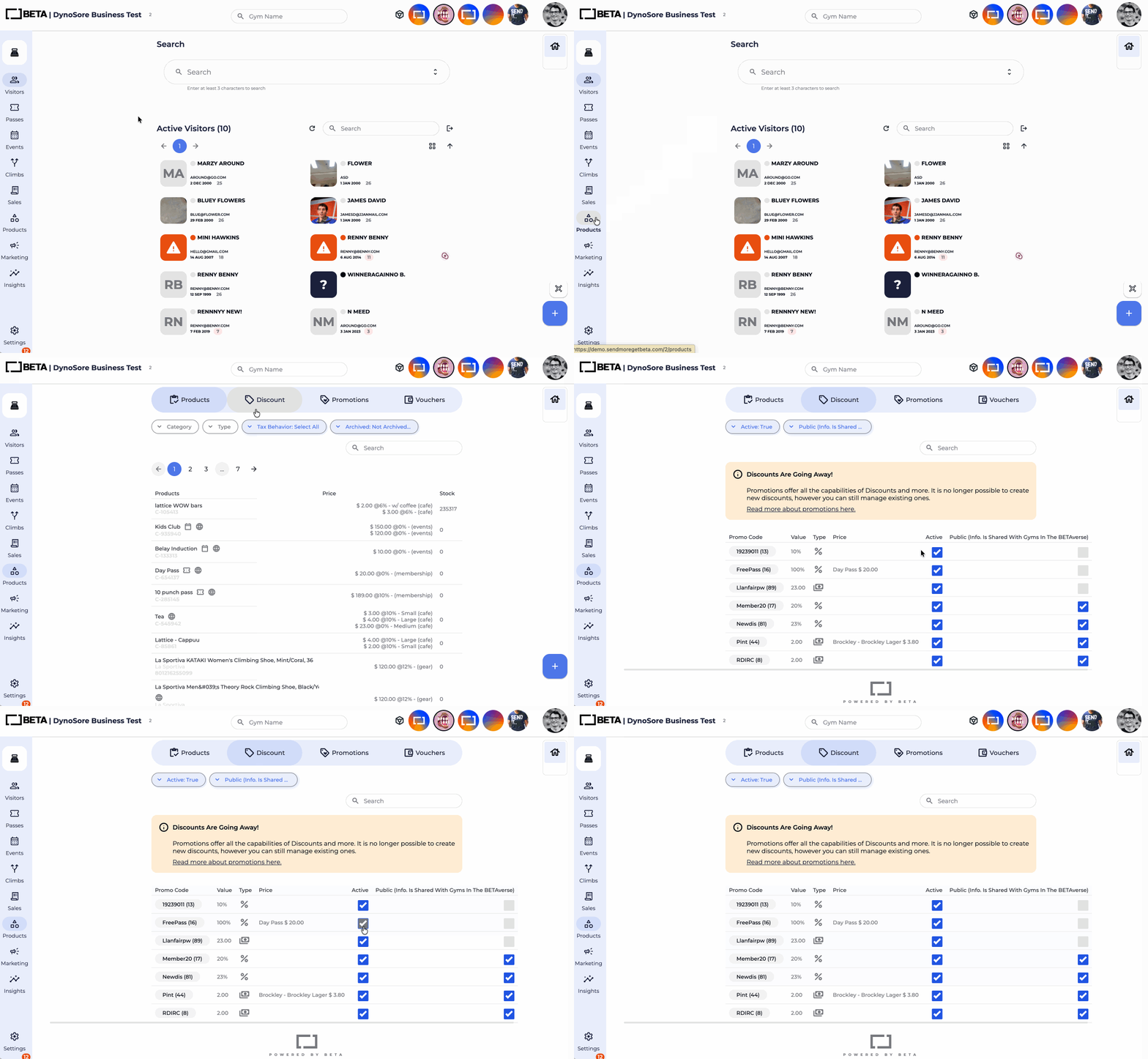
Promotions will fully replace subscription discounts. Discounts can no longer be applied to subscriptions after 04 May 2026 — this is a legacy feature and may not apply to you.
Navigate to: Products Page » Discounts Tab — review your active discounts. Any active discount should be recreated as a Promotion before 04 May 2026
In the app and Visitors' Home, members will be:
Prompted to consider hibernating before cancelling (if you allow for hibernation)
Encouraged to contact the gym directly
This helps reduce accidental cancellations.
What's the difference between Freeze and Hibernate?
Freeze is staff-only and stops everything immediately: billing stops, pass access stops. Hibernate is member-requestable and keeps the subscription open at a reduced rate. The existing pass stays usable until the end of the current billing cycle, then access pauses.
If I update pause rules, do they apply to my existing members or only new ones?
They apply retroactively — existing passes and subscriptions are affected immediately.
If I don't set up pause rules for an entry type, will the pause option still appear for members in the app and web?
It depends on your Entry Type settings. In your entry type settings (Passes » Entry Type » Configurations » Pause Rules), there is a toggle: "Allow Prepaid Passes and Linked Subscriptions to be Paused."
Toggle off: members will not see a pause option at all — pausing is disabled for that entry type (inc. subscription and prepaid).
Toggle on, no rules set: pausing is enabled and unrestricted — members can pause freely with no limits on count, duration, or timing (inc. subscription and prepaid).
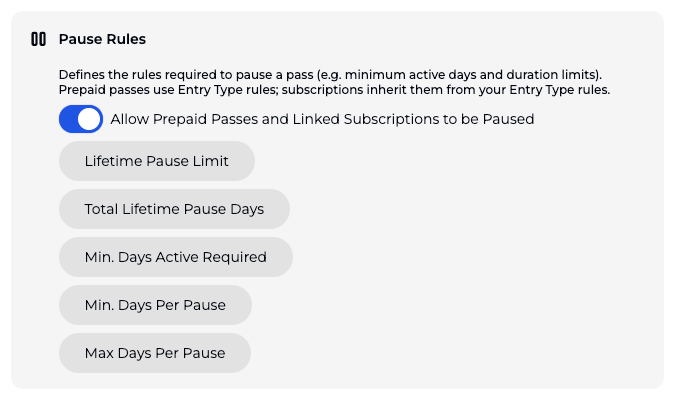
Toggle on, with rules set: pausing is enabled but governed by whichever rules you configure (minimum active days, max duration, etc.) (inc. subscription and prepaid).
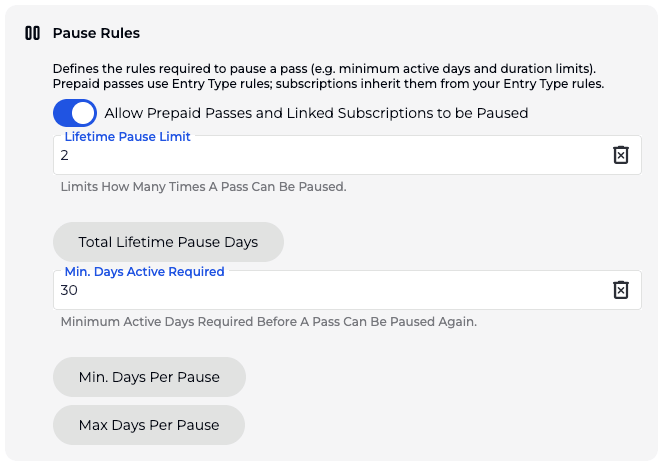
Staff can still override manually regardless, the BETA dashboard shows a warning.
Will the "Allow Prepaid Passes and Linked Subscriptions to be Paused" toggle be on or off by default after the update?
Off by default. The toggle needs to be explicitly enabled per entry type — nothing changes for your members until you turn it on.
If I don't set up an override fee, will members see any option to override pause rules?
Correct! No override fee configured means no override option for prepaid/subscription members.
The ability for a member to bypass a pause rule via the Visitors' Home is tied directly to the override fee being set. Without it, if a rule blocks a pause request, the member simply cannot proceed.
Staff can still override manually regardless, the BETA dashboard shows a warning.
Can a member get around pause rules?
Only if you've set an override fee (Enterprise tier). If the rule is not met, the member is blocked — unless they pay the override fee, in which case the pause/hibernation proceeds.
Can I set different pause rules for different membership types?
Yes. Rules are configured per entry type, so you can have different rules for each.
 For Climbers
I hibernated a subscription but I can still check in, is that right?
Yes. The existing pass stays active until the end of the current billing period. After that, access pauses for the duration of the hibernation.
Thank you for your attention
- from the BETA team


