The calendar on BETA is where you can see what & when events is taking place. You can also see staffing hours overlayed, filter by templates, booked events and more!
Events Explainer
Create and manage event templates and instances effectively with our guide. Streamline event scheduling, duplication, and resource management.
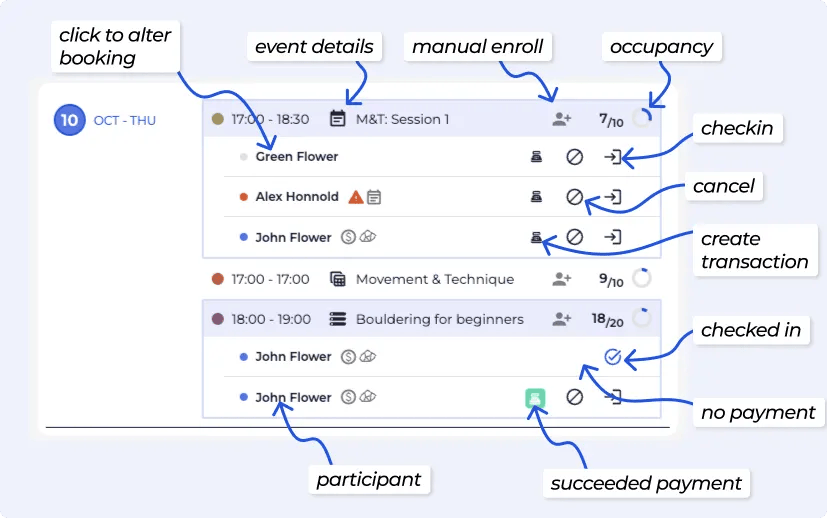
This view of each functionality on the Today's Schedule allows you to:
Click to Alter: Edit or modify details of the participant bookings for the event..
Event Details: View or update key details like time, location, and description of the event.
Manual Enroll: Add a participant to the event manually, ie without payment
Occupancy: Check the number of booked participants compared to event capacity.
Check-In: Mark participants as checked in for the event.
Cancel: Cancel the event and notify participants.
Create Transaction: If a participant was manually enrolled, and not checked in - you are able to create a transaction for that participant.
Checked In: See the list of participants who have already checked in.
No Payment: Identify participants who have not yet paid for the event.
Participant: View the details such as form status, proficiencies and name of enrolled participants.
Transaction State: Verify is they have paid or not.
Event Instance Comments: Staff can add internal comments to individual event instances for clearer coordination and follow-up. Business & Above
Participant Comments: You can record notes on individual participants directly from the event view, helping teams track important details and context. Business & Above
| Jump to today |
| Week view |
| List view |
| Day view |
BETA's Dashboard Keyboard Shortcuts
These shortcuts help improve efficiency in daily usage of BETA.
The calendar includes several filtering options to help both staff and clients (via widgets or the BETA app) quickly find relevant events.
You can filter by:
Event Tags – Tags set in the event template to categorize and organize events.
Template Type – Filter by the type of event template (e.g., class, course, workshop).
Host – View events by instructor or staff member assigned to the event.
Bookings – Filter by whether an event currently has active bookings.
Resource – Show events linked to a specific room, wall, or facility resource.
Cancelled – Include or hide cancelled events in the view.
Yes, you can filter events based on their tags.
To assign a tag to an event, simply click on an existing event template or create a new one. In the pop-up, you can add relevant tags, making it simpler for you to locate and organize events of a specific type in the calendar view.
Yes! To simplify the identification of booked events/slots, you can switch to a list view in the events calendar page. Use the drop-down menu and select the list view option for a clearer display.
Moreover, you can further filter your view by tags, event templates, slots and organizer, providing you with more customisable views.
The first day of the week in your calendar is determined by your browser’s regional settings. If you’d like it to start on a different day (for example, Monday instead of Sunday, or vice versa), you’ll need to adjust your browser or device’s location/region settings.
For guidance, we suggest searching: “[your browser name] change region settings” to find step-by-step instructions. Once updated, the calendar will automatically reflect your preferred start of the week.
Yes! BETA offers an integration with Google Calendar, effortlessly synchronising your events in BETA with your Google Calendar. If you are interested in learning more about the Google Calendar integration, you can find additional details on here. To set up the integration, please refer to this guide.
Events set up on BETA will automatically populate on your Google Calendar, including details such as the number of participants booked. Any modifications or edits to these events can be managed directly from your BETA dashboard.
Merging of events is not possible. You will need to unenrol the participants from one event and enrol them in the other. Once you have done so, you can then delete the duplicate event.
The solution here is to update the Widget iFrame on your website. By refreshing or updating the Widget iFrame, the changes made in the events calendar should reflect accurately on the public schedule, just like they appear on the beta app. Learn how to generate an events widget here.
Yes! To simplify the identification of booked events/slots, you can switch to a list view in the events calendar page. Use the drop-down menu and select the list view option for a clearer display. Moreover, you can further filter your view by tags, event templates, slots and organizer, providing you with more customisable views.
