This feature is available to gyms on the Business Tier and above.
Event Resources in BETA tie Event Templates together. They allow you to manage resources needed to run scheduled events - such as staff, space or equipment.
To understand how events and courses are handled in BETA, please read the full explainer below,
Events Explainer
Create and manage event templates and instances effectively with our guide. Streamline event scheduling, duplication, and resource management.
Event Resource
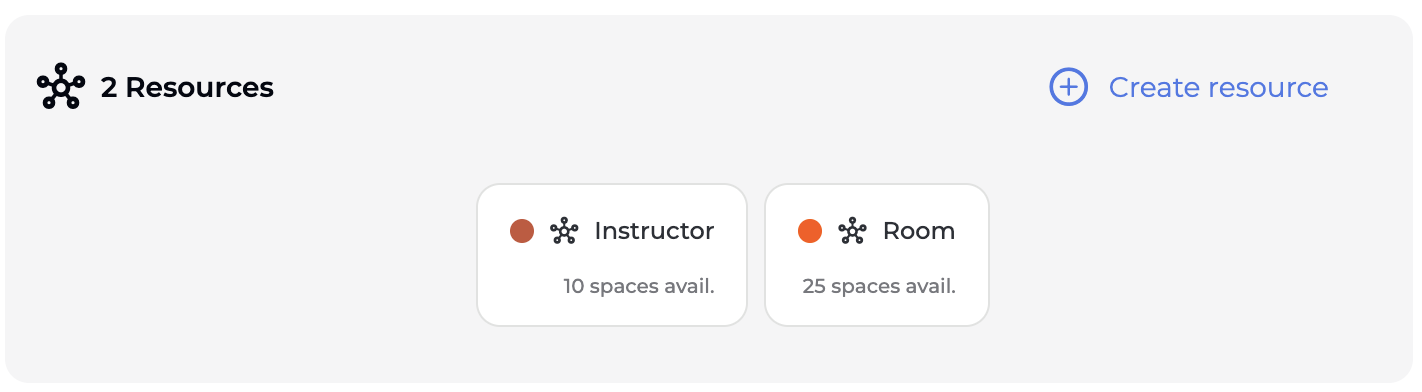
Resources control the availability of shared things needed to run your events — like staff, rooms, or equipment.
Resources are added via the Events Page » Templates » Resources.
Event Capacity
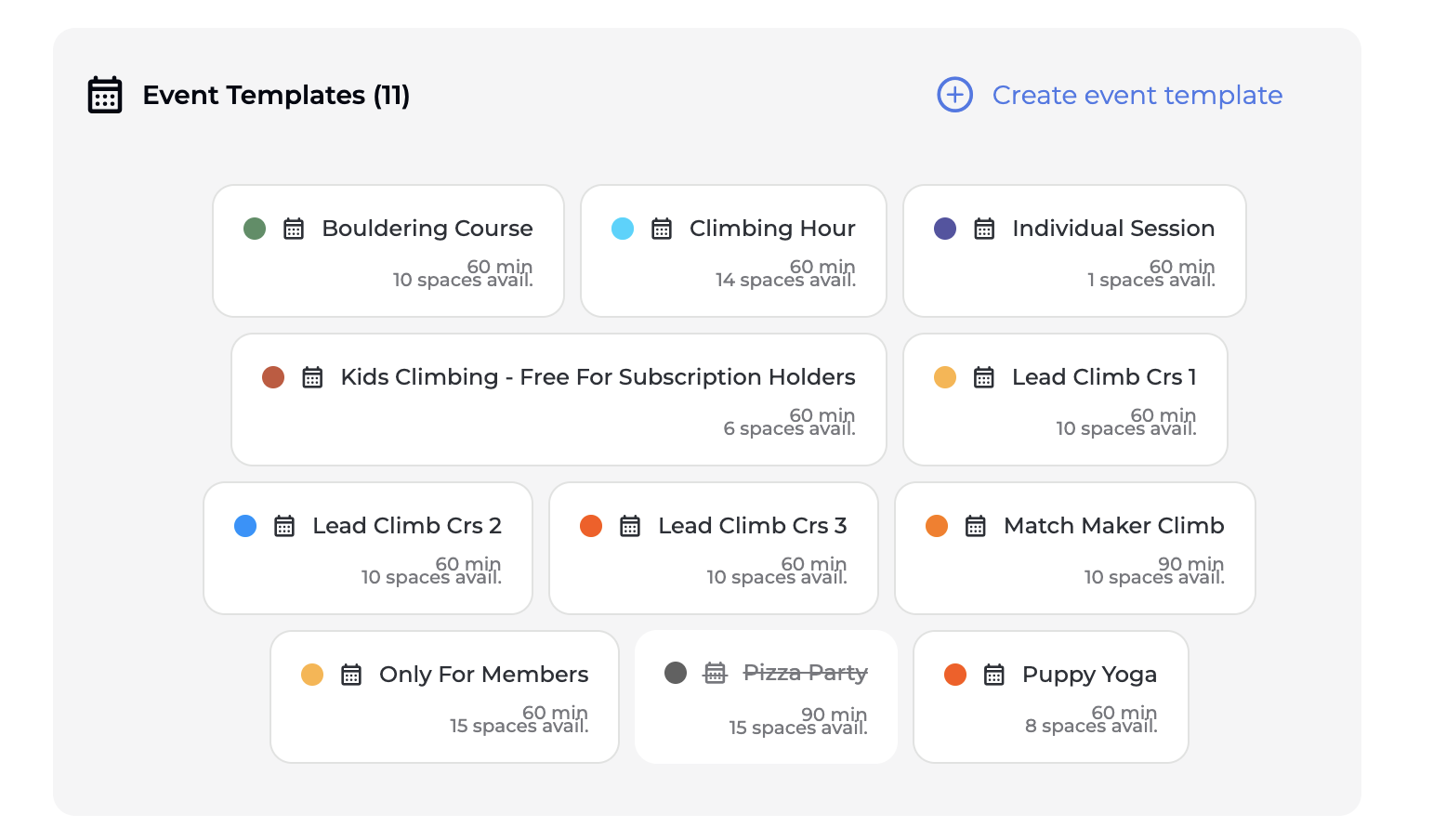
Event Capacity refers to how many participants an event can accept.
Event Capacity is set on each individual event template, via the event setting pop-up.
Once set, it will show as
e.g., 10 spaces available
Instructor – when you have 1 instructor that can lead multiple events
Bouldering Area / Shared space – If the space can host 2 events concurrently
Private Room – If only one party can use it at a time, the room would be your resource
Rental Gear Sets – For events that require gear, you might define a resource like “Harness Set (Event)” with a count that matches your inventory
Business tier and Above
To create a resource, navigate to the Events Page » Templates.
When creating a resource, you’ll be required to give it:
A name (e.g. Instructor, Yoga Room, Rental Harness Set)
A Maximum capacity count, which reflects back to your event capacity
for instance, if you have one instructor that can lead 3 concurring events, all with capacity for 10 people at a time, you will name the event resource Instructor, and add max capacity as 10 (i.e., each event will have a capacity for 10 participants)
To link a resource you’ve created to event templates, navigate to the event template pop-up.
You will see a dedicated Resource section at the bottom of the pop up, where you can select from your existing event resources. Select and slick submit to link the resource to the event template.

Once you’ve created your resource and linked it to the selected event templates, you can further select a behaviour of that resource, by choosing a resource type.

When multiple events are linked to the same resource, and the Single Booking setting is not enabled, the system tracks the combined participant count across all linked events.
This means that the total number of participants allowed across those linked events will not exceed the maximum capacity set on the resource.
If three different classes are scheduled at the same time and linked to the same room (as the shared resource), and that room has a capacity of 10 — then only 10 total participants can book across all three events combined. In this case, booking into one of the events, does NOT cancel the rest of the events.
So, someone booking into Event A may reduce the available spots in Event B and Event C, even though they’re separate templates. BETA will manage this automatically, ensuring the mex capacity of your resource is not exceeded.
You are running three different events in your Clip & Climb area that has a maximum capacity limit that must not be exceeded. When running the three events simultaneously, the combined number of participants across all bookings must stay within this climbing area limit. Each individual booking deducts from the total available capacity of the area.

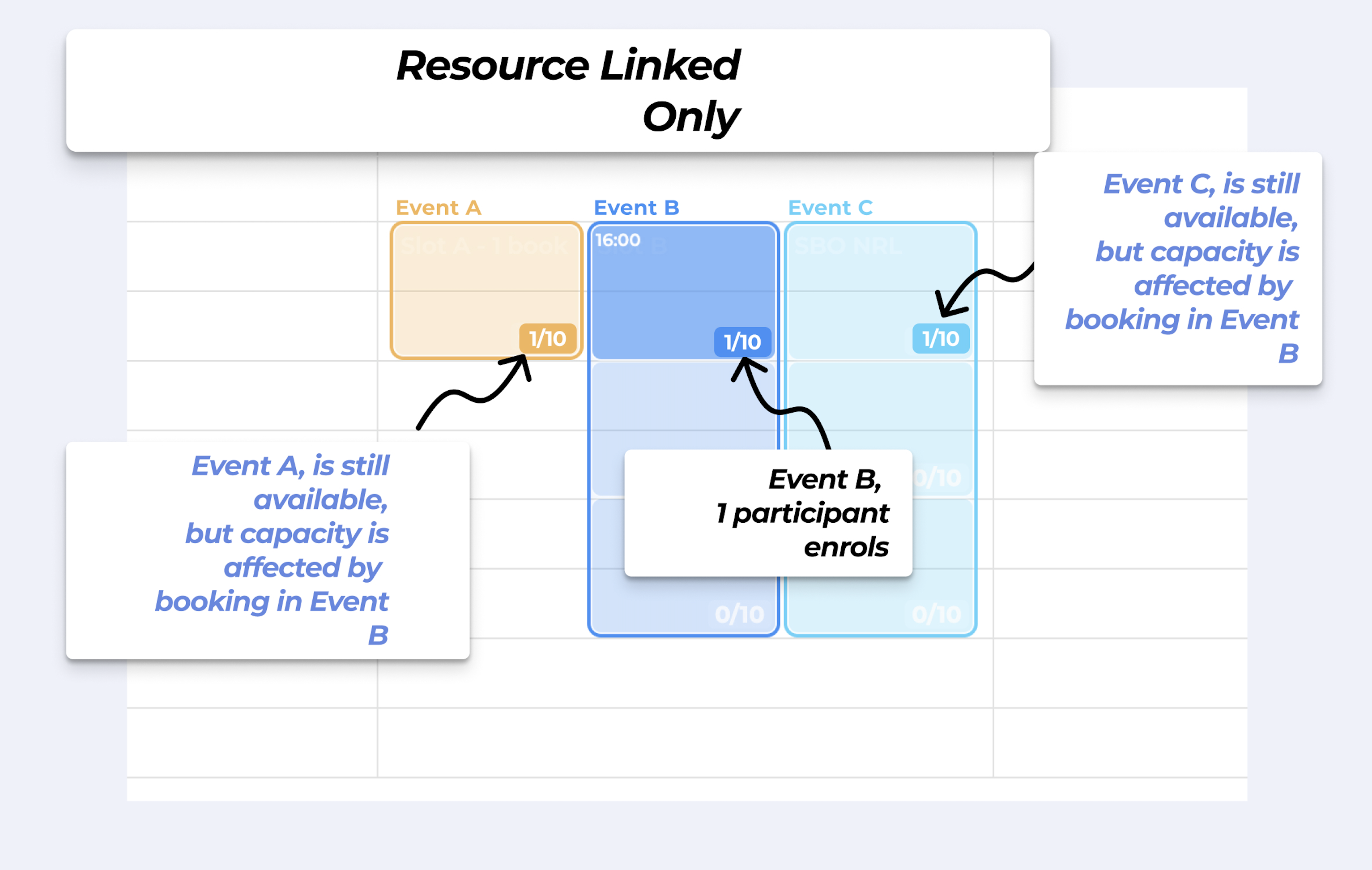
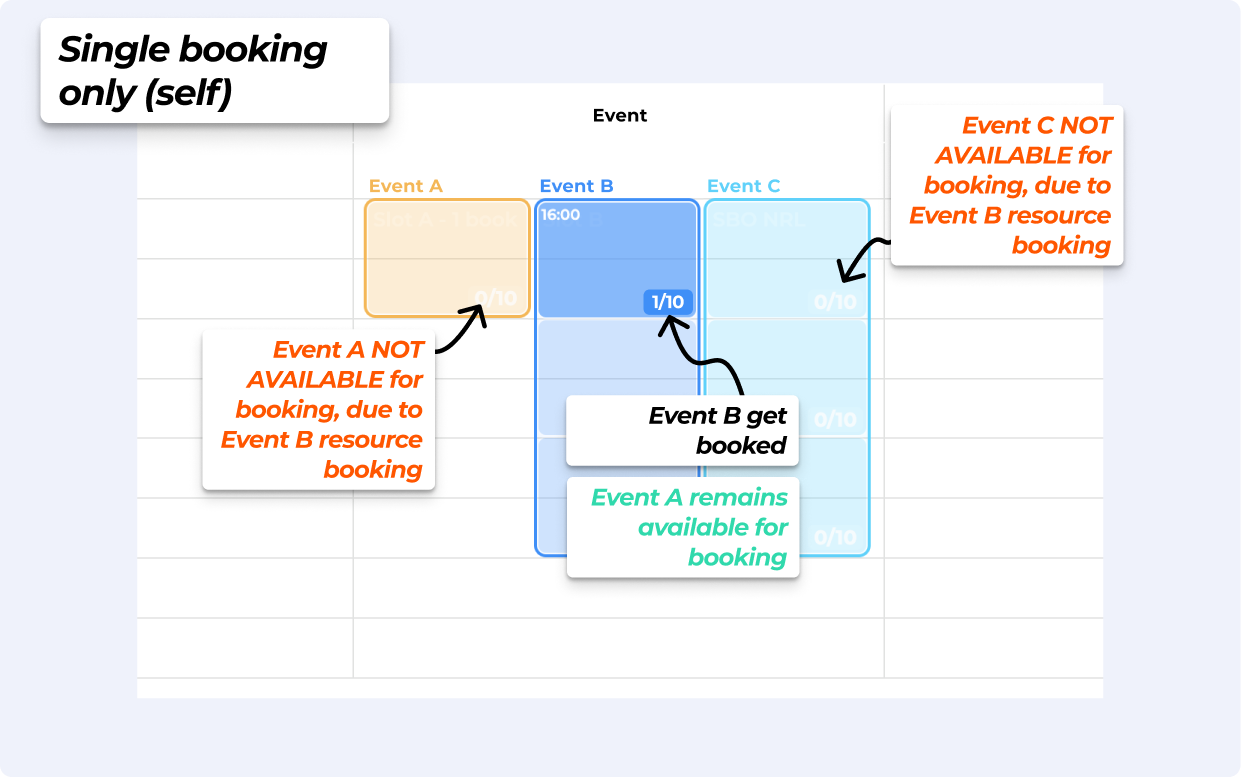
When the Single Booking Only (resource linked) is enabled for any one of the Events (e.g., Event B in the example below) — once Event B is booked, Events A, C below are blocked, because they are linked to the same resource. So if there is a booking on an Event B instance, then Event A and Event C instances become unavailable for booking.
one instructor can lead 3 events, but they can only host one event at the same time
each event can have 6 participants enrolled at a time in them (event capacity = 6)
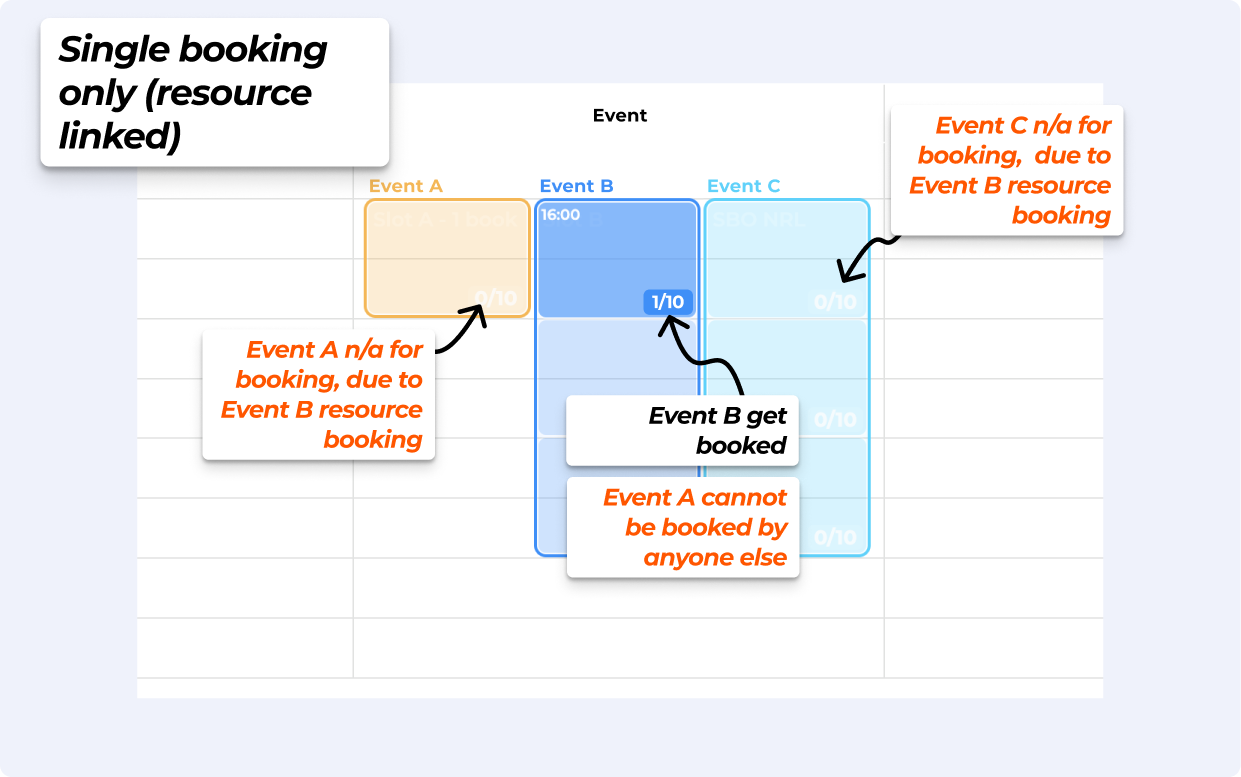
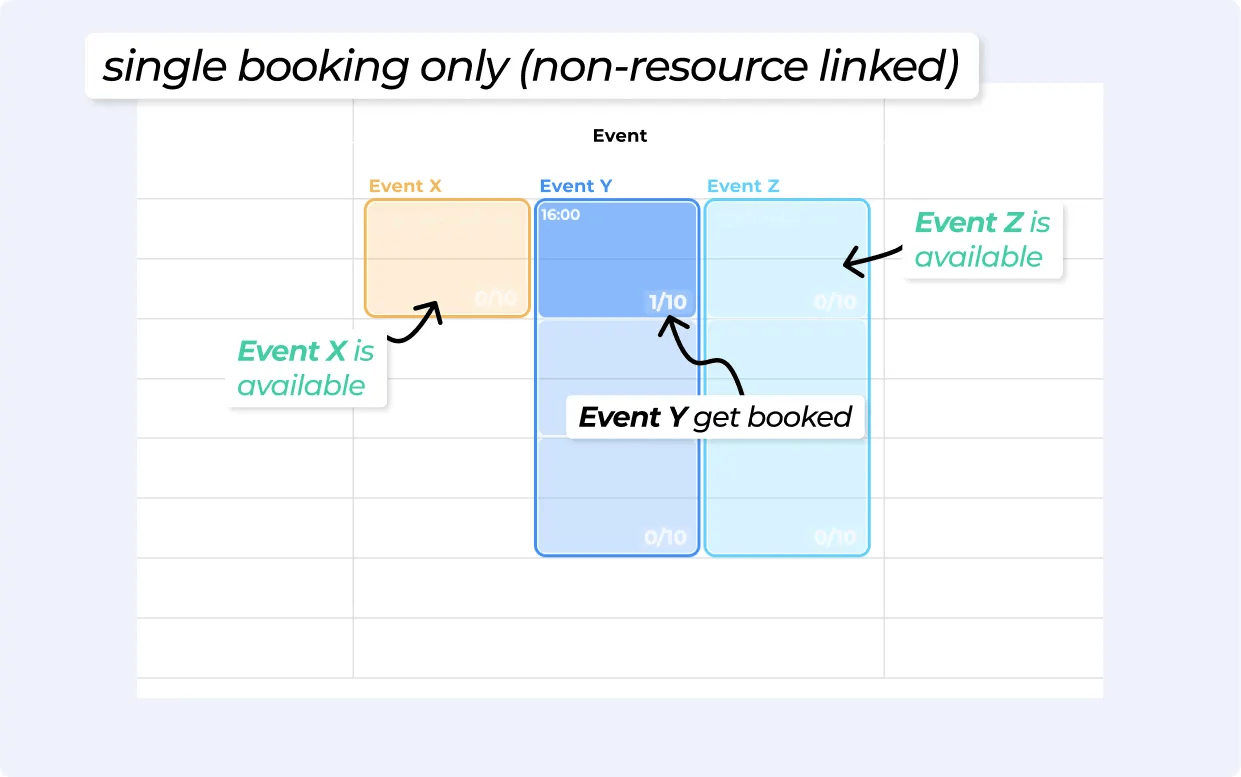
This means that the online booking function will only allow a single booking for this slot type at a given time, but shared resource Events can still allow multiple bookings.
So if Event Y is set to Single booking only (non-resource linked), any booking on Event Y instance, will only disable that Event Y for additional bookings.
Private birthday party / corporate event. All other scheduled events that overlap are not affected.
Booking one event tied to a resource cancels all other overlapping scheduled events using the same resource, but the booked event remains available.
You have 3 yoga classes at Location 1, all using the same “Studio A” resource.
A user books Yoga Class 2.
Yoga Class 1 and Yoga Class 3 are automatically unbookable, but Class 2 remains open for booking.
Yes. You can assign the same resource (e.g. "Instructor") to different event templates, and BETA will manage availability across them.
If you’ve created a resource called “Instructor” and set the count to 1, that means only one event can use that instructor at a time.
For example:
You schedule a Beginner Class at 6:00 PM using the Instructor.
Then, someone tries to book a Private Lesson at 6:00 PM that also needs the Instructor.
Because the Instructor is already booked, the system won’t allow the second event to be scheduled. This helps you avoid double-booking and keeps your events running smoothly.
Yes. You can update the name or count at any time if your staffing or space availability changes.

Still Lost? We’ve got you covered!
Use the search box on the main Help to search the entire list of available help guides, or drop your question in the Support Chat!
