Promotions can be configured to reduce the price of items in your customer’s cart — whether with widgets, from the POS, or for recurring subscriptions.
When promotions are applied to a transaction, adjustments are added to individual line items to alter their subtotal. These adjustments are applied before tax is calculated. If you are using any of our accounting integrations, the post-adjustment total is sent to the accounting service.
Promotions are great for:
tracking the total amount you would have taken in had you charged full price
configuring automatic price variations for subscription holders
defining the positive outcome of a transactional email campaign

The Promotion Type determines how the adjustment amount is computed on the transaction. Promotions types include fixed amount, percentage-based, or BOGO (buy-one-get-one) offers.
These calculations ensure the correct discount is applied based on the promotion’s structure and the set rules. They can be applied to individual lines or to the entire transaction.
Reduce all matching items by a set percentage. The transaction must include at least one line item that meets each price rule to qualify. Every item matching one or more price rules receives the percentage discount.
Set Price Rules to control which items promo is applied to. If no price rules are set, all non-gift card items are matched.
Example, Get 10% off a t-shirt.
Reduce a value of each matching item in the price rules, by a fixed monetary amount when qualifying. The transaction qualifies if at least one price rule is matched, and the promotion value is applied to each line that matches at least one price rule, times the quantity in the line. The adjustment value cannot exceed the value of the line.
If multiple items are added to the cart, and multiple categories are added to the cart - it will reduce that total value of each prices matching your Price Rules.
If you wish to reduce a total value of the matched items CUMULATIVELY then use a Total transaction amount off Promo Type, with Price rules set to those prices.
Set Price Rules to control which items promo is applied to. If no price rules are set, all non-gift card items are matched.
Example, Get $5.00 off any t-shirt.
When all price rules are matched, reduce the full transaction value by a given percentage. A single item in the cart cannot match multiple price rules, so order your rules from most specific (i.e. a specific price) to least (i.e. a price category).
Once qualified, a percentage reduction is applied to every non-gift-card item in the transaction, even those that don't directly match any price rule.
Example, Get 10% off your entire transaction if you buy a harness, belay device, chalk bag, and shoes.
When all Price Rules are met, reduce the full transaction value by a specific amount. A single item in the cart cannot match multiple price rules, so order your rules from most specific (i.e., a specific price) to least specific (i.e., a price category).
The reduction is distributed proportionally across all non-gift-card items, with any leftover cents allocated sequentially. The reduction value on each line cannot exceed the line’s subtotal.
Example, Get $15.00 off when you purchase four or more day passes.
Available on Enterprise & Above
If both price rules are satisfied, one quantity of the item matching the second rule is free for each matching pair. This promotion applies automatically for every distinct pair, with more-expensive items prioritized for the first rule and less-expensive items for the second.
It cannot be combined with other promotions and requires exactly two price rules.
Example, One free t-shirt with any day pass purchase - buy 10 get 10!
Available on Enterprise & Above
If both Price Rules are met, one quantity of the item matching the second rule is free per transaction, regardless of additional matches.
Like the per-match option, this promotion requires exactly two Price Rules, cannot be used with other promotions, and prioritizes items by price — more-expensive for the first rule and less-expensive for the second.
Example, One free shoes with any membership purchase - limited to one pair per purchase.
Application defines where and how promotions are available.
Promotions can be applied manually (via widget, or POS) or automatically (via auto-apply). Promotions are triggered via codes (online), POS prompts, or auto-apply rules.
This field defines the discount amount that will be applied when the promotion is applied. It directly reflects the monetary value or percentage reduction offered to the customer.
This determines whether a promotion is available for online widget use.
ATTENTION: When the code is disabled, it cannot be used online in the widgets.
Example, Get 10% off when buying online!
This provides a non-public description displayed in the POS to inform staff about a promotion. It helps ensure your team understands the promotion without exposing information to customers.
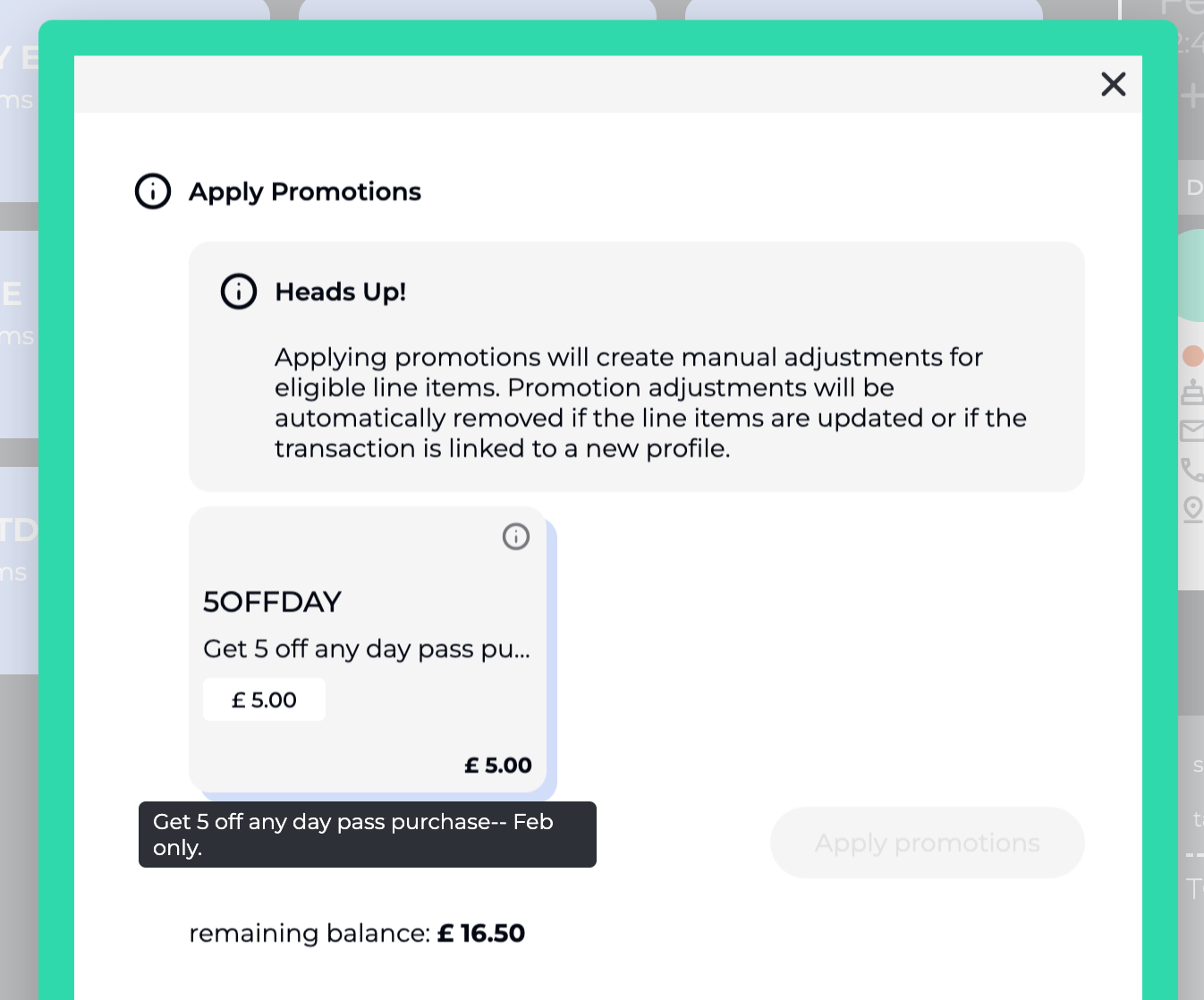
This option enables the promotion to be automatically applied when the conditions are met. It streamlines the checkout process by eliminating the need for manual code entry, but can slow down the transaction creation and checkout process if too many auto-apply transactions are configured.
ATTENTION: Auto-apply with multiple Price rules and Entry Type Validation or Transaction Total in particular will impact the performance of the POS. Auto-apply should be applied discretionally.
Example, Automatically get 10% off at online checkout or at POS!
Subscription Promotions have:
Consistent Application: Settings— including Promotion Validity & Timing, Price Rules, and Promotion Types — will be applied to active promotions, even if updates are made later. Price limitations cannot be set for subscription promotions.
Recurring Benefits: Promotions apply to every billing cycle, they can be applied perpetually, or have an expiration date set
Automatic Updates: Active promotions on subscriptions update with changes to validity, timing, price rules, and types made.
No Price Limitations: Price limitations cannot be set for subscriptions
Example, Apply 10% off a subscription for the first 90 days of subscription.
Looking to apply a promotion to a subscription? View full guide below:
Subscription Promotions
Explore our guide on setting up subscription promotions, including applying discounts, managing expiry dates, and ensuring benefits for every billing cycle.
Determine when a promotion is active and how its validity is determined. It specifies the start and end dates to clarify what timeframes the promotion applies to. Your promotion will automatically end on the end date that you've specified.
Set the Time validity in the past or disable it, the promotion will automatically disable. Note, disabling a promotion that is tied to subscriptions, will effect the subscriptions too.
Creating a promotion without a start or end date allows you to save it as a draft. This means it won’t go live until you’re ready to activate it.
Example, This Christmas get 10% off, ends January!
Price Rules define which items in a transaction are eligible for a promotion. They target specific products, categories, or price points, ensuring only intended items receive the discount.
If more than one of the three fields is set within a single rule, then a match to any of the set fields will constitute a match to the price rule.
Example, if a price rule is set to include the product “Tea” and the category “Cafe”, then any item that is either a Tea product OR a price in the “Cafe” category will match the rule.
Because price categories can change, the validity of a promotion can change over time. Historical transactions will not be updated once price rules or price categories change, but if the promotion is reapplied or the line items adjusted, the newest configuration will be taken into account when determining the value of the promotion.
If price rules are omitted, all prices will match with the exception of Gift Card/Voucher products, which must be explicitly set as a match rule in order to be discounted.
This applies the promotion only to items that have a specific price. It’s useful when the discount is meant for items at that exact price point.
Example, Get 10% off Student day pass.
This rule applies the promotion to all instances of a specific product. It’s ideal when the discount is intended exclusively for that product regardless of its price. A product here is any product - retail, pass, event, course or normal product.
Example, Get 10% off our ropes, no mater the length
This rule targets all items within a particular category. It ensures that any item falling under that category qualifies for the promotion.
Example, Get 10% off at our Cafe.
Promotion Limitations set the restrictions that limit how and when the promotion can be used. It sets eligibility criteria such as membership status, usage limits, or minimum transaction values.
This ensures that discounts are only applied to transactions meeting your predefined requirements.
This sets the minimum total transaction value required for the promotion to be applied. It ensures that discounts are only available for purchases above a certain threshold.
Example, Buy $100 or more for, 10% off your entire cart.
This limits the overall number of times the promotion can be used across all transactions. It prevents the promotion from being over-utilized. The number of uses includes both online and in-facility purchases, and excludes refunded transactions.
Example, First 100 get 10% off.
Restricts the number of times a single customer can use the promotion. It is designed to prevent repeated discount claims by the same customer.
Example, Get 10% off your first purchase.
Limits the promotion to customers with a valid Entry Type on their account.
ATTENTION: Auto-apply with multiple Price rules and Entry Type Validation or Transaction Total in particular will impact the performance of the POS. Auto-apply should be applied discretionally.
Example, Only Annual Subscription members get 5% of all Gear products.
Limits the promotion to customers with a valid pass that has any duration that is not daily or infinite. It offers exclusive benefits to committed members.
Example, Get 10% off at online checkout or at POS, available to all members!
Promotions can be tied to proficiencies and/or segmentation tags to control who is eligible to receive them.

This section gives a quick stats of how a promotion has performed. You’ll see a full list of historic purchases using the promotion.
Count: How many times the promotion was used.
Total Value: The total discount value given (based on count × average value).
Average Value: The average discount amount per use.
These examples demonstrate the versatility of promotions within your system, showing how each component — from application to calculation — can be configured to meet your needs. Looking to see how to create Promotions? See our dedicated guide below.
Promotion Examples & Set Up
Explore our comprehensive guide on setting up various promotions at your point of sale, including discounts, special offers, and free items to enhance your customer experience.
See how promotions are applied, and used in the Point of Sale, see our dedicated guide below.
Apply Promotions in the POS
See how promotions are applied and used in the POS.
See how promotions are applied to Subscriptions
🔗 Subscription Promotions
Explore our guide on setting up subscription promotions, including applying discounts, managing expiry dates, and ensuring benefits for every billing cycle.
A promotion adjusts the price of items in a transaction. It can be applied manually or automatically based on set conditions.
Visit the Promotions Explainer, to learn about how to create promotions, and see a few examples and their setups, Promotion Examples and Setups
Promotions can be triggered by entering a code in any BETA widget, through POS prompts, or via auto-apply when eligibility criteria are met. See more here Apply Promotions in the POS
Yes, promotions are available across both channels. To make the code available online, simply toggle the Promo Code, and set a promo code. The promo code can be used in your widgets.
If no end date is set, the promotion remains valid indefinitely until it is manually deactivated or updated.
Without a start date, the promotion is active until the end date. With neither a start nor end date, the promotion is not active and will not be available for application either in the POS or in online sales widgets.
No, if a promotion’s value is edited, historic transactions will NOT be affected, all future transactions will be bound to the new settings.
See example promotions and configurations:
Promotion Examples & Set Up
Explore our comprehensive guide on setting up various promotions at your point of sale, including discounts, special offers, and free items to enhance your customer experience.
