A Booking Form is an online form integrated into your booking widget that gathers additional information during the booking process. Once a booking form configuration is set to the Product/Price, completion of the Booking Form is mandatory to finalize purchase.
Available on BETA Business and above.
Its primary function is to capture additional details from when making bookings online. A Booking Form can be:
simple, eg a Booking form with one Input Field to collect Shoe size, or
detailed, eg a Booking form with further information, embedded videos and terms & Conditions.
You decide! Just link the form to the product/price or event.
A Booking Form is created the same way as any other Form in BETA. Navigate to Settings → Participant Forms, and create a new form there.

See how to create a new form in the guide below:
Forms Explainer
Explore our comprehensive guide on managing participant forms, including settings, expirations, and booking forms
What is the different between linking a Booking Form to a product / price / event?
A Booking Form can be linked in four ways, and each determines when it appears online:
Linked to a product: Every price associated with that product will trigger the Booking Form.
Linked to a specific price: Only that selected price will trigger the Booking Form.
Linked to an Event: This applies to all prices within that template, even if the template is free.
Linked to no product, price, or event: The form becomes a general booking form for any online or app purchase.
This setup ensures users provide the required information for the specific offering they are purchasing.
Product-Based: Attach the form to a product so all prices linked to it inherit the requirement.
Example – Add-On: Capture shoe sizes when Rental Shoes are purchased as an add-on; the form appears only when the add-on is in the cart.
Example – Event: For a Birthday Party booking, collect details such as whose birthday it is and any special requirements.
Price-Specific: Attach the form to a single price point.
Example – Event: An Intermediate Bouldering session has two prices (A and B). You may choose to collect extra information only when someone books Price B.
Event-Specific: Attach the form to an Event/Course Template. This applies to all prices within that template, even if the template is free.
If all fields are left blank for the Configuration Options, the booking form becomes the default requirement for all online sales, meaning every user must submit it before purchase.
If multiple fields are added for the Configuration Options, the booking form will be required if Product A and Price B are in the cart.
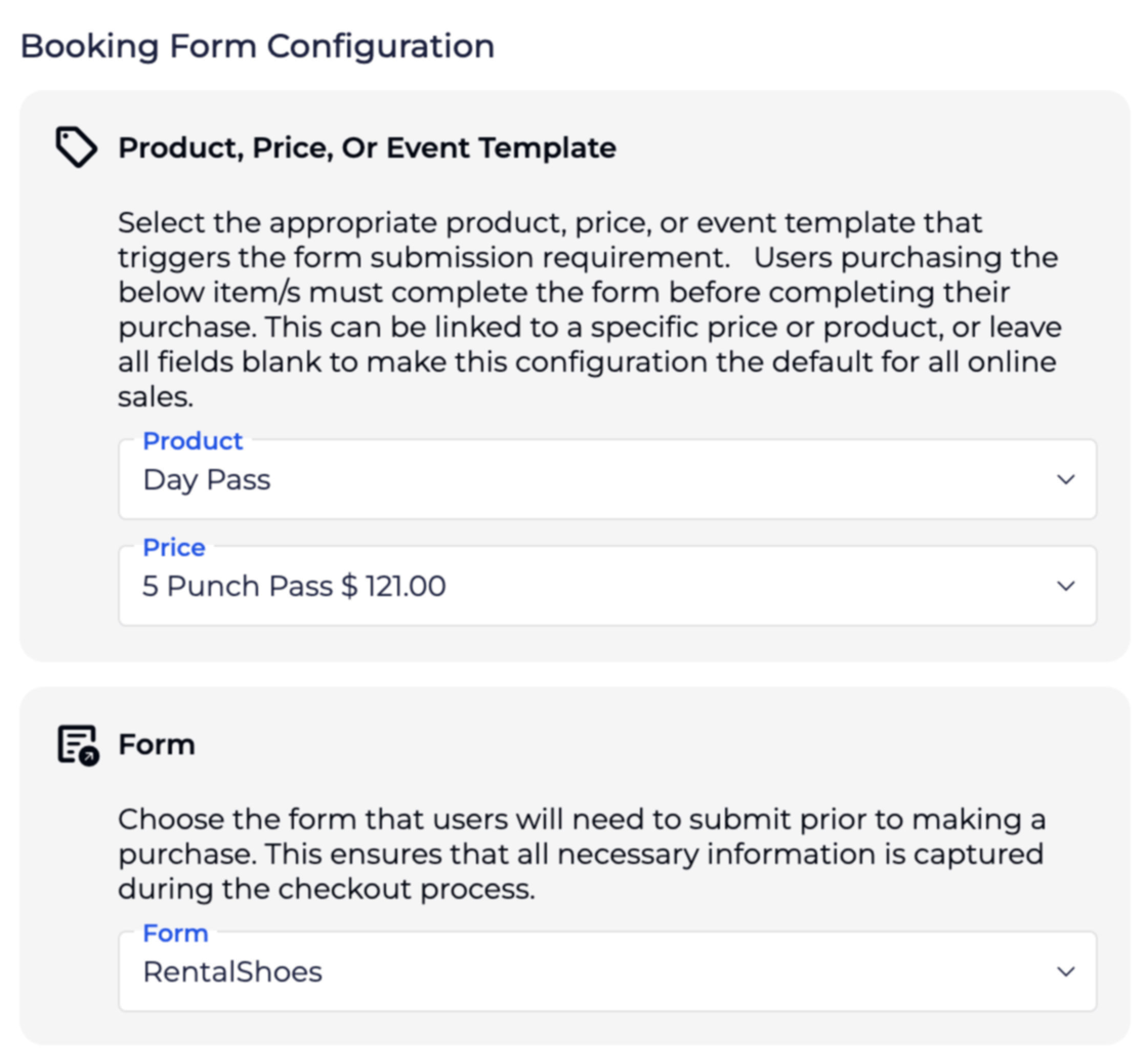
See Example,
with Purchase of Day Pass or 5 Punch Pass $121.00 Booking Form Rental shoes is required when purchasing online.
Create a configuration to make phone number entry mandatory for all online purchases.
A General Configuration to any online purchase from your widgets.
When Collect a Booking Form per Participant is enabled, a separate form is required for each individual participant booked through the widget.
This is especially useful when you're collecting important details for every person attending, not just the person making the booking.
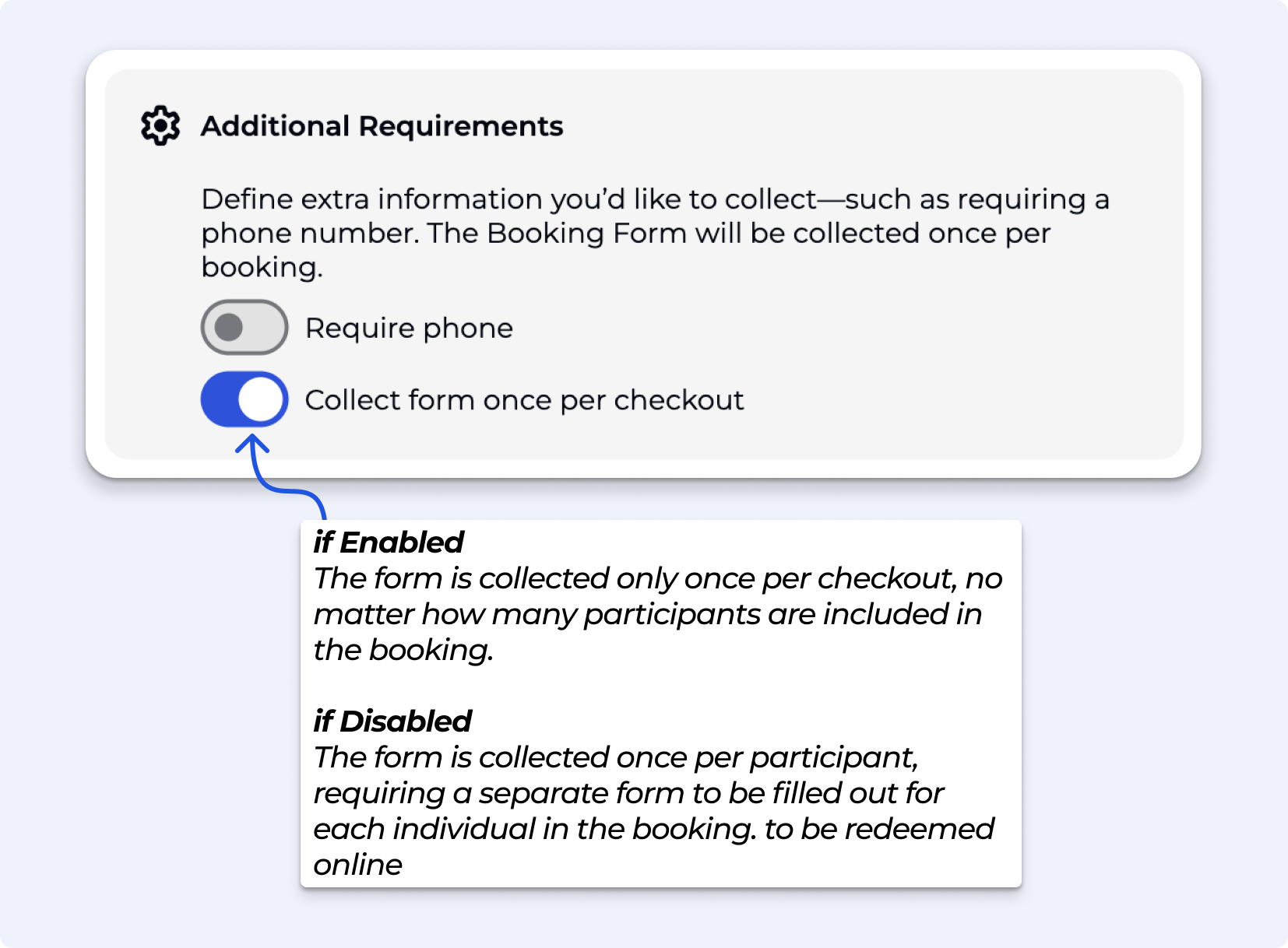
For example, if someone books 3 spots in a class, they will be prompted to complete the form three times, once for each participant.
Please note, leaving the form field empty implies that no Booking Form needs to be submit on online purchase. In this example only the phone number needs to be captured.
Attention, Events can be found in the Product dropdown, or tie it to the event template.
To link a purchase of Pass, Product, Price or Event to a Booking Form, navigate to the Settings » Gym » Booking Configuration.
Step 01: Create a form in BETA i.e., your Terms & Conditions (T&C form).
See how in the explainer below.
Forms Explainer
Explore our comprehensive guide on managing participant forms, including settings, expirations, and booking forms
Step 02: Link the T&C form as a Booking form with the price on your pass price
Follow the steps in the video in the section above. » Create Configuration to require a Booking Form, tied to a Product, Price
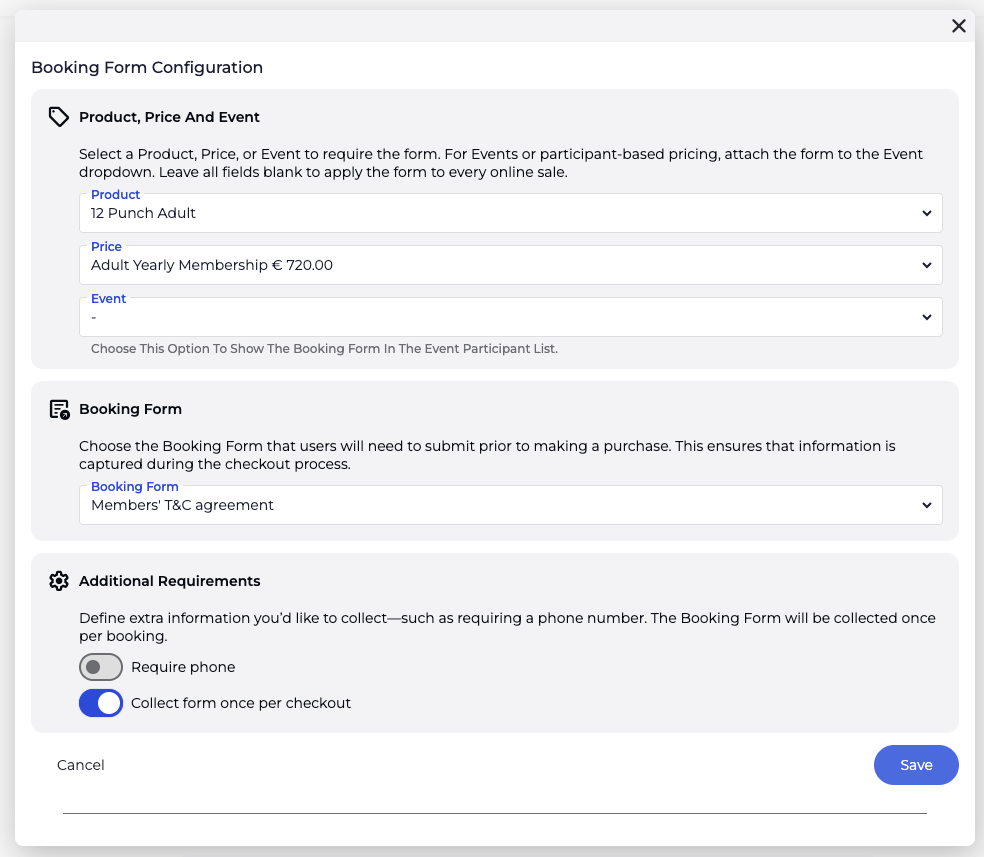
Step 03: Visitor’s View
Once your form has been linked to the desired price, and you’ve generated a widget for your product, the visitors will be required to sign your T&C form during online checkout.
Go to Settings → Participant Forms and create a new form. Add your form/waiver content. If you wish this to generate a .pdf include a Signature field — this is what generates a signed PDF.
Next go to Settings → Gym → Booking Form Configuration and create a new configuration. Under Product, Price and Event, select your event from the Event dropdown and leave the other fields blank.
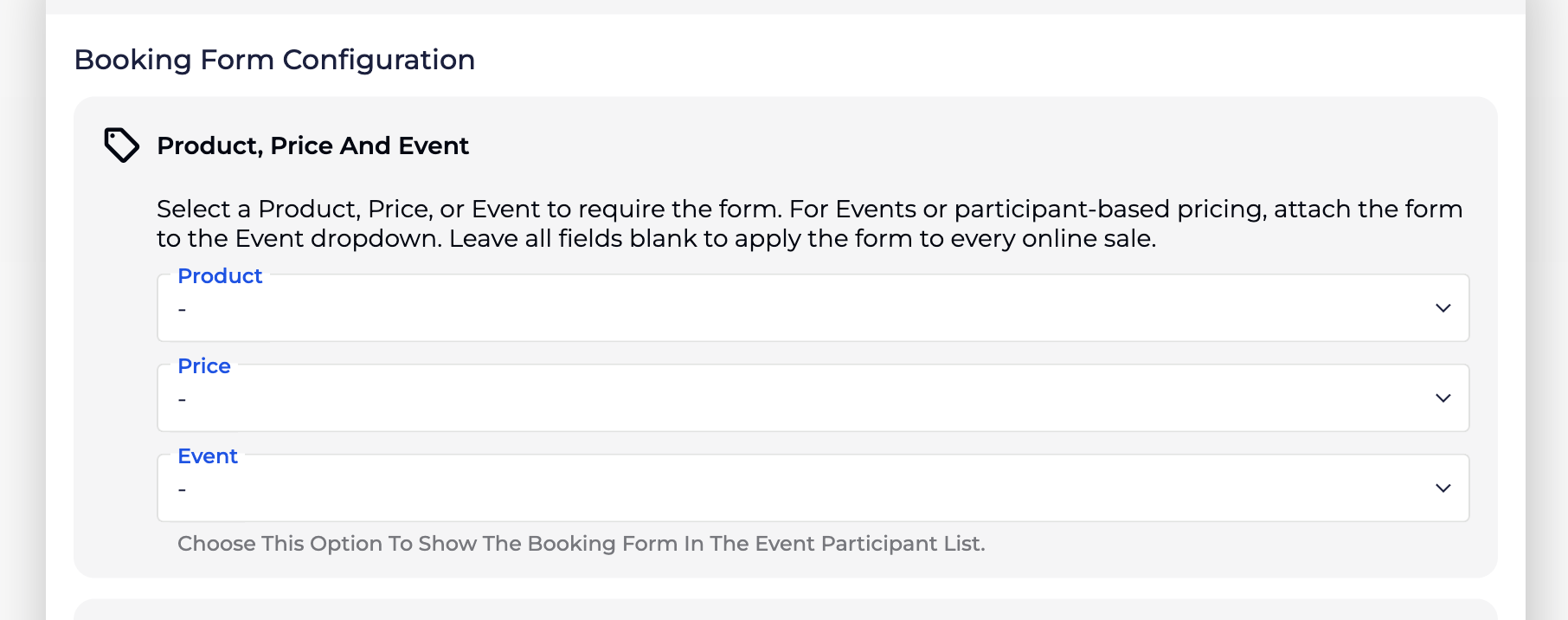
You can configure the Booking Form to trigger based on the selected product, specific pricing option (such as a slot, event, or add-on).
Use Booking Form Settings to request additional details, like a phone number, before a participant completes their booking. Follow along here: › Booking form Configuration, for any online purchase
You can link a Booking Form Configuration to the Product for general use, or to a specific Price for more targeted data collection.
Yes, by leaving the product and price fields blank in the configuration, the Booking Form becomes a default requirement as your General Settings. This means that every online sale will require form submission before the purchase can be finalized.
Check out the video recording below to see the widget checkout process:<VIDEO Screen_Recording_2025-02-17_at_18.27.00.mp4>
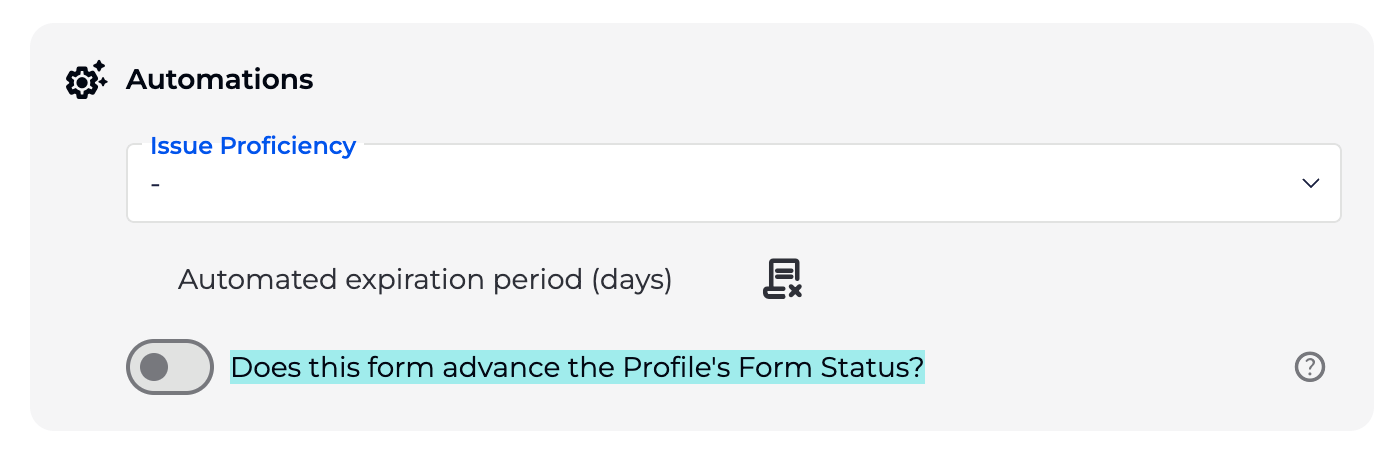
Use a booking form, tied to the Product or price “Rental Shoes”! Learn more about Booking Forms Explainer See the Booking Form set up belowThe form is set to NOT advance the Profile's Form Status See the Booking Form Configuration set up below
If you're running birthday parties or functions through Events and need to collect specific information (e.g. catering preferences or pizza orders), you can do this using Add-ons and booking forms.Recommended setup:Create an Add-on Product (e.g. “Pizza”) tied to your birthday party Event. See more here Link Prices/Product Add-Ons to Pass/Event Price Attach a booking form to that Add-on to collect details like pizza type, quantity, or dietary notes. See more on Booking Forms Explainer This keeps everything organised within the Event booking and ensures your team has the details they need. Additionally comments can be left on an events, or tied to a specific person on that event. Note on Slots:If you're currently using Slots, please be aware that they are being phased out. All core Slot features (e.g. resource control, single bookings, repeat schedules) are now available in Events, which offer better flexibility and long-term support. We recommend transitioning to Events where possible.
Addons start on the Business Tier and above, while adding Pass Prices/Recurring Pass Prices/Recurring Extras/Gift Cards is available on the Enterprise Tier. Please note, Event, and Archived prices cannot be added as an Add-on,
› Learn about Product Types
To do that, you will need to add a signature field in the form.
If you're using BETA for multiple locations, make sure that each booking form is created within the individual gym dashboard for each location, rather than in the parent gym dashboard. Forms and widgets set up in the parent gym dashboard will not display for online purchases in child locations.
Also Booking Forms are available on the Business Tier and above.

Still Lost? We’ve got you covered!
Use the search box on the main Help to search the entire list of available help guides, or drop your question in the Support Chat!
