Please note, if you do this, your Mailchimp contacts will be imported with the status “pending.” You will not be able to send emails to those contacts until they have agreed to join your mailing list.
In order to ensure the imported members receive a request to join the mailing list when they are imported, you must enable Double Opt-In in your Mailchimp settings BEFORE importing.
READ MAILCHIMP’S HELP ARTICLE HERE
Mailchimp
Learn how to integrate Mailchimp with BETA for seamless email marketing. Follow our guide to set up your Mailchimp account, manage audience data, and enhance user engagement.
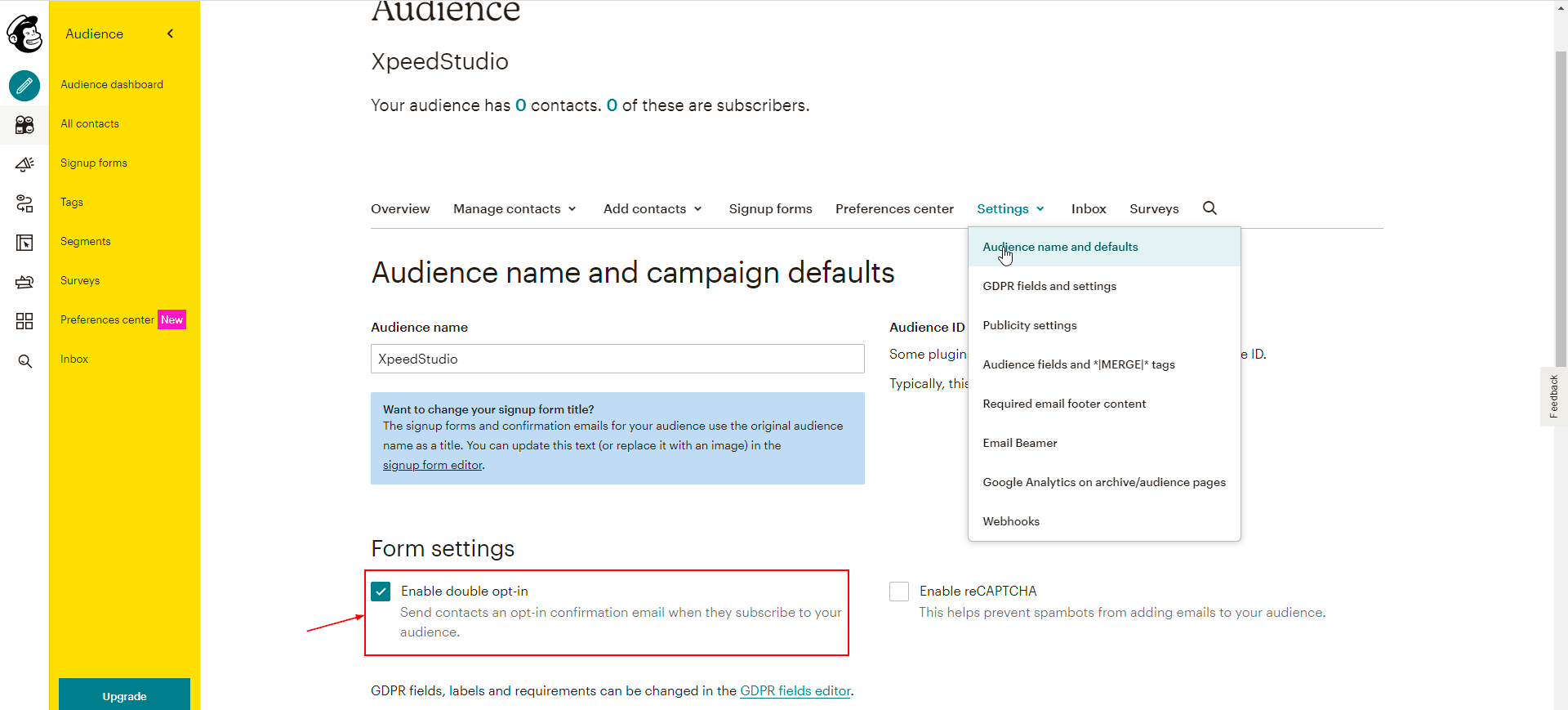
Note, If you’d like for the opt-in email to match your branding, you can update the template in the Forms and Response Emails section.
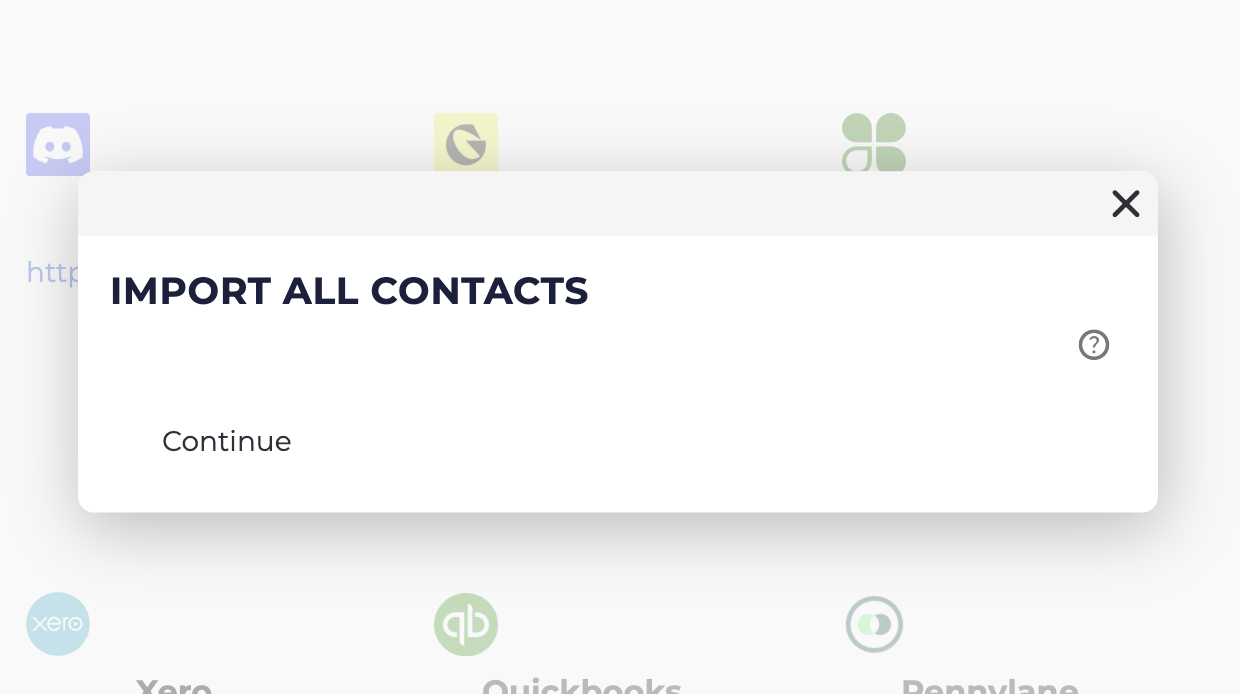
READ MAILCHIMP’S HELP ARTICLE HEREOn your BETA dashboard, visit the Integrations » Mailchimp, and click Continue to import all contact to your Mailchimp account.
On your BETA dashboard, visit the Marketing Tab » Advanced SORT, which you can use to segment your Audience however you wish.
Download climbers’ data with Advanced SORT
Download climbers' data using Advanced SORT to filter and segment your audience easily. This guide helps you understand queries, templates, and attendance tracking.
You have not integrated Mailchimp with BETA correctly.
When you create a Mailing list through your BETA Mailchimp integration, you will add tags to any members fitting the set criteria. You can either add to existing Segments or create a new Segment.

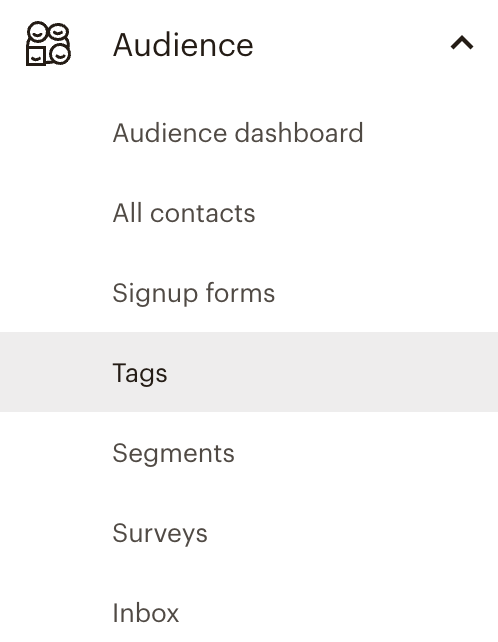
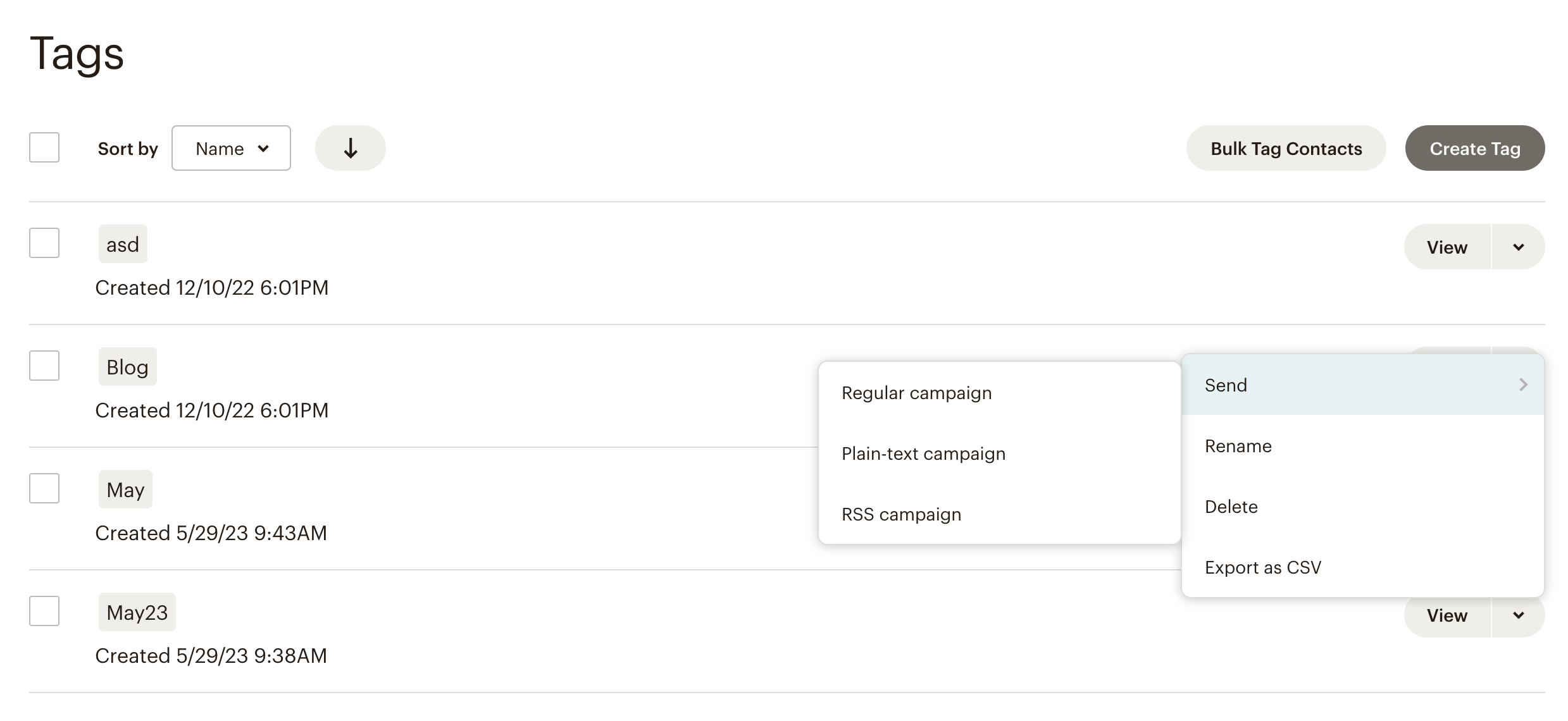
You can access your existing Segments in your Mailchimp account under “Tags”.
To send a campaign to a Segment, select “Regular campaign” in the send menu from the given Tag.

Still Lost? We’ve got you covered!
Use the search box on the main Help to search the entire list of available help guides, or drop your question in the Support Chat!
