Pennylane is an accounting software that brings all your financial and accounting data together in one place. The Pennylane integration is available for BETA users on Community tier or higher.

Below is an overview of the entire process, and what you need in place, to keep your BETA transactions flowing into the accounting software automatically.
In BETA’s Integrations settings, authorize access to your Pennylane organization. Ensure API access is enabled in Pennylane and that your BETA and Pennylane time-zones match.
In BETA’s Pennylane integration settings, choose how you’d like your transactions bundled each night into the Draft Journal.
You can group by:
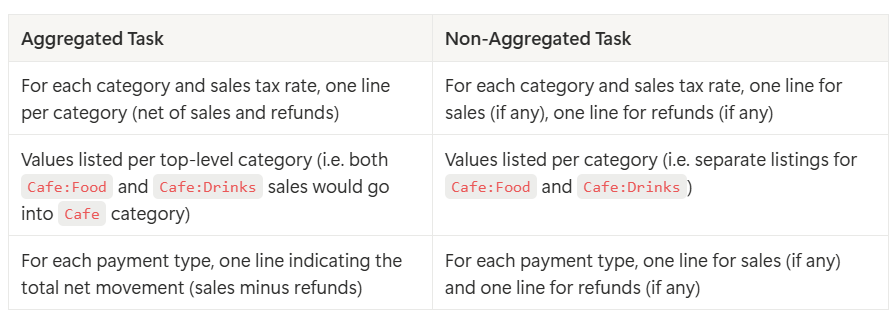
This setting determines exactly which subtotals appear on each journal line, so that you see the right level of detail when you review and post in Pennylane.
On first connect, BETA will generate three default accounts in Pennylane:
BETALIAB (liabilities)
BETACURR (bank/cash movements)
BETASL<TAX> (one for each sales tax rate)
If you prefer your own accounts, you can rename or map Price Categories to any existing Pennylane account code.
In BETA, list all your Price Categories (e.g. “Day Pass,” “Membership,” “Cafe:Drinks”).
For each Category, either:
Exact-match its name to a Pennylane account, or
Enter a custom Account Code in BETA to override the default.
Categories using a colon (e.g. Cafe:Food) will post subtotal lines under the parent account (Cafe).

When using the Pennylane integration, your Price Categories in BETA must match the account names in your accounting system for the integration to work properly.
: & - 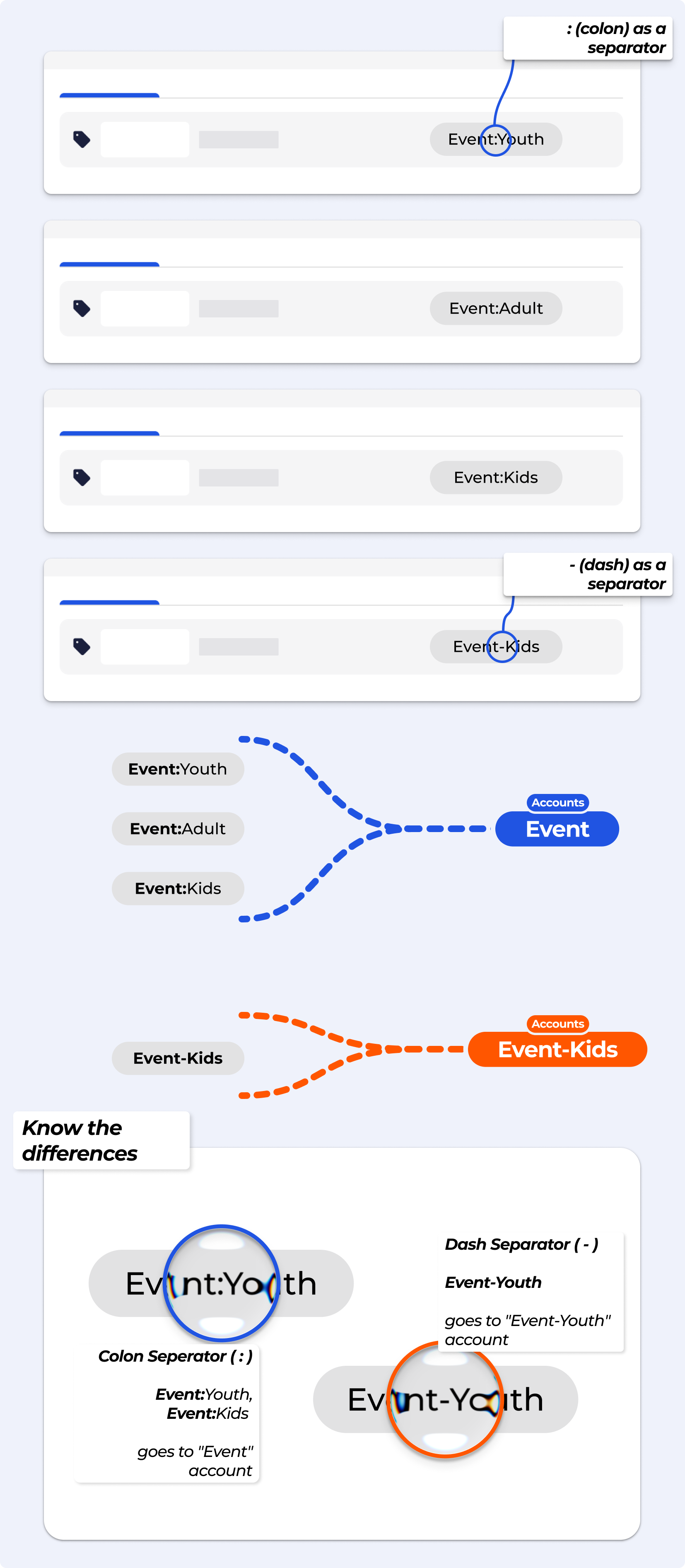
BETA looks at the text before the colon : when sending data to Pennylane.
a) For example, these all map to the same account:
Event:Youth
Event:Kids
Event:Adult
All three go to the "Event" account in Pennylane.
b) If you use a dash - instead of a colon:
Event-Youth is treated as a completely different account called “Event-Youth.”
It will not be grouped with “Event.”
c) If no colon is used,
BETA simply looks for an exact match to your account name or falls back to BETASL<TAX>.
Use a colon
:to group categories to the same account.Avoid using a dash
-if you want items to go to the same account.
🔗Manage Products, Product Options & Product Prices
This is a new page
At 1 AM daily, BETA gathers all day’s sales, refunds, gift-cards, deposits, payroll, etc., into a single Draft Journal in Pennylane. Lines are grouped by Price Category (or fallback BETASL<TAX>), tax rate, and payment type.
BETASL<TAX> sales account for that item’s tax rate.In BETA you can run a report, which will export a .csv of how your Price Categories match with the accounts you have set up in your Pennylane.
If you’re using Pennylane, click the “Pennylane” option under the integration settings.
Note: If you operate with multiple locations, be sure to download and check the mapping at each location—especially if you use a separate Pennylane account per location.
Open the Draft Journal in Pennylane, confirm totals and account breakdowns, then click Approve.
Once approved, the journal is posted to your Chart of Accounts » no manual exports or .csv are required. These are updated and set to run, depending on the frequency you have chosen.
The integration ensures the transfer of crucial financial information such as sales, transactions, and expense data from BETA to Pennylane. This synchronisation enhances accuracy in your accounting records and reduces manual data entry.
Before initiating the integration, ensure that you:
Have an active Pennylane account.
Have the necessary permissions in both your BETA and Pennylane accounts to authorise data sharing.
Have purchased the BETA tier on which this integration is available.
Check for any specific requirements outlined by Pennylane for third-party integrations.

Still Lost? We’ve got you covered!
Use the search box on the main Help to search the entire list of available help guides, or drop your question in the Support Chat!
