
Before learning how to manage Gift Cards in BETA, please see our guide on creating this product type.
Product Creation, Create Vouchers / Gift Cards
Create and manage gift cards in BETA, including fixed-value and custom-value options, selling online, and tracking usage effectively.
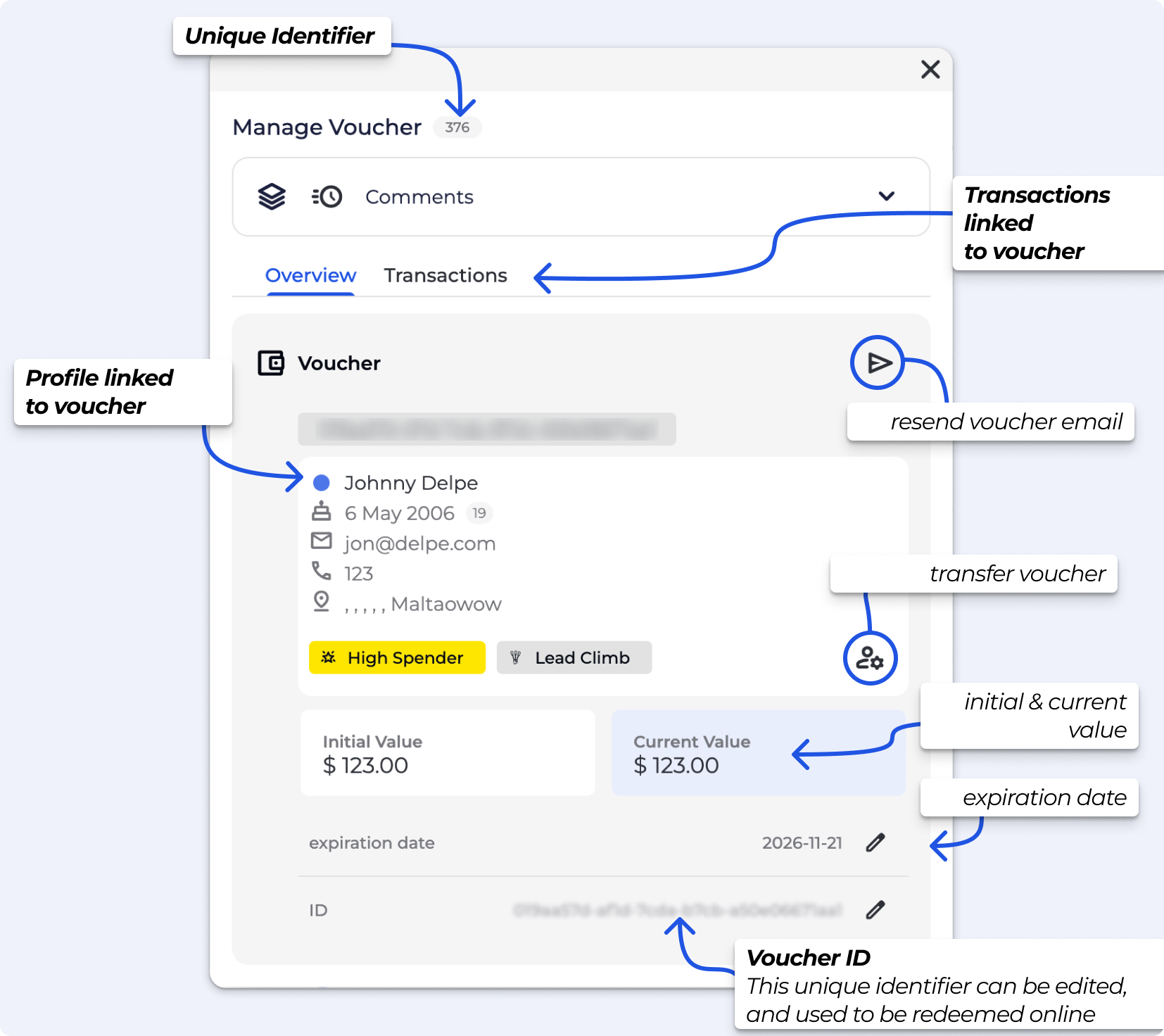
Unique Identifier (ID): each voucher has a unique and non editable ID number set by BETA
Initial Value: The purchased value of the voucher/gift card
Current Value: The remaining balance on the voucher
Linked Profile: The Profile with the voucher
Expiration Date: The expiry date of the voucher
Voucher ID: A code that can be modified by you. The Voucher ID can be used to be redeem in any BETA widget.
» It's important to ensure each Voucher Code is unique. If you do not wish to keep track of this, please do not set any Voucher Code, and use the Voucher ID set by BETA.
Transactions: displaying the transactions linked to the use of this gift card i.e., what was bought with it
To edit the email sent navigate to Settings » giftCard to edit your gyms default email for gift cards.
Edit Gym's Default Emails
Efficiently manage communications and learn how to edit and customize gym default emails for events, forms, payments and more
If you need to resend a gift card, open the Gift Card / Voucher popup and select resend. The gift card will be sent to the email shown in the Overview section of the popup.
To set the expiration date of a Gift Card (Voucher) in BETA, simply set the desired expiry date to control when the card can be used. Adjusting this ensures that the Gift Card will only be valid until the specified date, helping manage its use.
BETA automatically generates a unique identifier for every Gift Card to ensure accurate records, and this cannot be modified.
Alongside this, you can assign your own internal code, which is fully adjustable. While doing so, ensure all records in your system stay aligned for proper tracking and reporting. If you have pre-printed Gift Cards with specific IDs that you plan to distribute, BETA allows you to modify the Voucher code to match those cards.

Manage your vouchers and gift cards, list of all the vouchers with credit on them.
In your Vouchers list, BETA will subtract the balance from that visitors voucher and updated the Remaining Balance.
This way of adding a voucher should ONLY BE USED TO ISSUE A CREDIT NOTE OR SIMILAR. This WILL NOT show the sale in your sales exports/reports.
To create a sale associated with a Gift Card/Voucher:
Managing Gift Cards (Vouchers) in the POS
Learn how to manage gift cards directly in the BETA POS.
Gift Cards can be sold in the POS or online via a dedicated gift card widget, which can be created from the Marketing Page in your BETA dashboard.
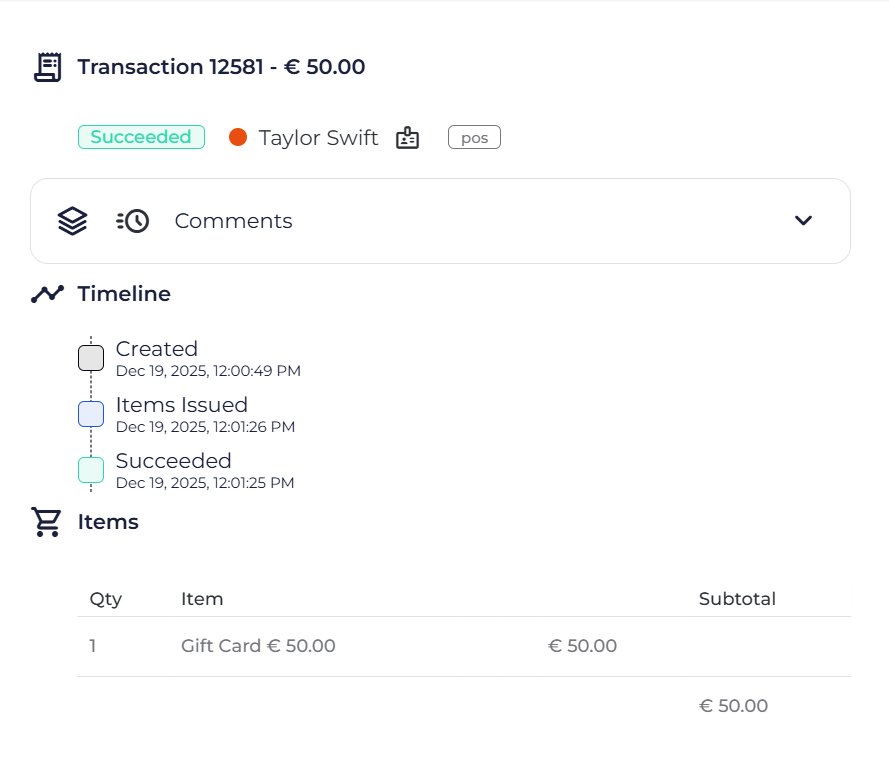
To track where a sale of this was made, you’ll need to find the transaction linked to the purchase of this gift card. You can do that by opening the Gift Card Pop Up and double clicking on the visitor’s name.
This will open up the relevant profile, where you can search for the gift card transaction, under Transactions sub-tab. The transaction will indicate where the purchase was made e.g., POS as per example below.
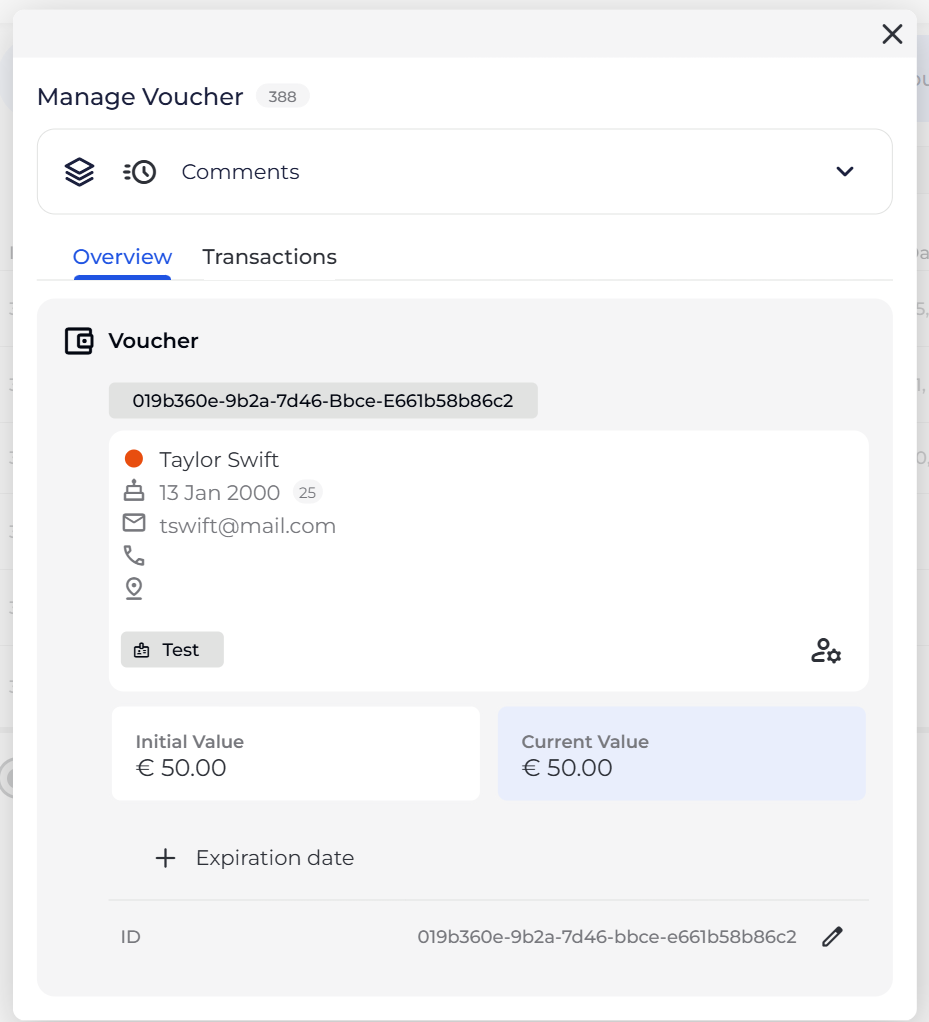
Go to Products Page, then Vouchers and simply choose the gift card you wish to add an expiration for.
When you open a gift card, you can either edit a current expiration date via the edit button at the bottom of the voucher pop-up, or add one, if expiration not yet added.
Go to Products Page, then Vouchers and click on the expiration button at the bottom right. You can update by number of days or choose a specific date you wish those to expire on.
By Days: choose the number of days to be added to the voucher expiry
if expiration added, it will add the number of days to the existing expiration date i.e., existing expiration date + number of days added
if no expiration added, it will consider TODAY as a start i.e., today + number of days added
By Date: chose the exact date for all vouchers to be expired
here you have the option to exclude vouchers that already have a set expiration
Navigate to your Products Page, then Vouchers and click on the download button at the bottom right.
A report with the following fields will be generated and downloaded:
BETA Voucher Key
Voucher ID
Purchase date
Expiration date
Initial value
Remaining value
First name
Last name
DOB
The gift card ID can be entered during the online checkout process and used to purchase passes, events, courses, or products.
For online purchases, the gift card is not user-restricted, anyone with the code can redeem it.
You probably migrated to BETA! Your previous software did not allow us to link gift cards to profiles, however when they can be searched via the Voucher ID, in the POS, or in your Gift Cards (Vouchers) page.
If you wish, you can also transfer the ownership from the default BETA profile to the correct climber profiler.
Currently by opening the Gift Card Pop Up and double clicking on the visitor’s name. This will open up the relevant profile, where you can search for the gift card transaction.
If you cannot find the transaction there, it is likely that the gift card was gifted to this profile.
At the moment, there isn’t a way to automatically set gift cards to expire one year after purchase.
We recommend either manually adding an expiry date to each individual gift card or voucher, or using BETA’s bulk expiry date feature to apply expiration dates more efficiently.

Still Lost? We’ve got you covered!
Use the search box on the main Help to search the entire list of available help guides, or drop your question in the Support Chat!
