This help article will assist you in ensuring your passes and subscriptions are ready before your start date with BETA! This includes set up of your offerings in our system, migrating purchased passes from your previous provider and assigning them to the correct visitor.
To be able to migrate your passes, you first have to create these in BETA. Ensure you’ve reviewed the below guides that explain the types of passes and walk you through the passes creation process.
Passes Explainer
Explore our comprehensive guide on understanding passes in BETA, including entry types, pass prices, creation processes, and tracking usage for enhanced gym management.


When migrating to BETA, we require guidance on linking passes from your previous provider to the passes that you’ve created in BETA. This ensures that all visitors are correctly allocated the pass they have purchased and can continue to use it to access your facility once BETA is live.
You will be provided with a Mapping Sheet, which allows you to associate your previous passes with a corresponding pass price key or entry type key in BETA.
Your Mapping Sheet can be found in a shared google drive folder.
You can update member pricing by adjusting the EFT-to-Pass Price mapping for the entire group.
Once updated, all members in the group will have their Pass Prices updated to match the new mapping. Be careful, as this change will apply to everyone in the selected group.
In BETA, a Prepaid pass is a pass purchased for a fixed duration of time. Members pay upfront for a set period, such as a 3-month pass, a 6-month pass, or an annual pass. Once purchased, the pass remains active for that duration and does not automatically renew.
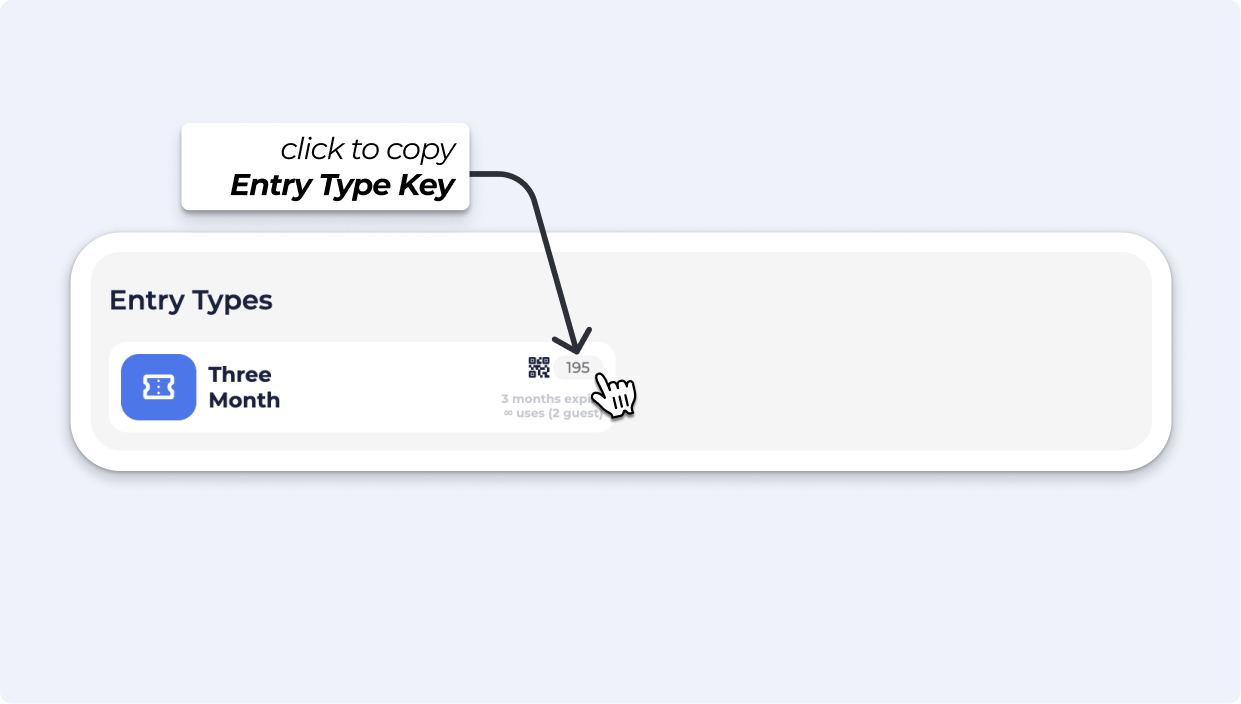
This is the unique identifier for each type of entry/pass in BETA
e.g., “10 punch Pass,” “3 month prepaid”, “Annual Prepaid”
Entry Type Key can be found on the top right of each Entry Type you have created.

In BETA, a Subscription is a pass on a recurring, automated payment schedule. Members are billed at regular intervals (e.g., weekly, monthly, or yearly) without needing to repurchase. Subscriptions are used for ongoing memberships and continue until cancelled.
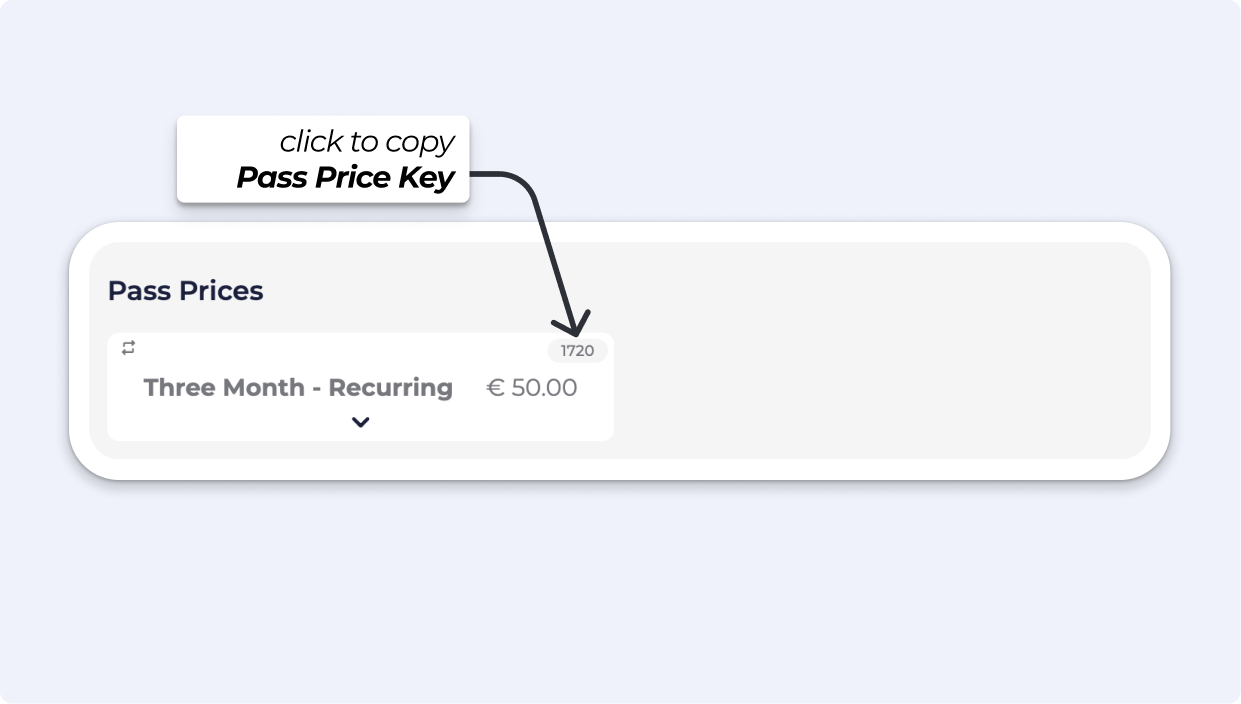
This is the unique identifier for each type of Subscription Pass Price in BETA
e.g., “Monthly Membership” “3 month membership”, “2 Week Autopay”
When migrating members into BETA, you can map their existing EFT due values (RGP specific) to a Pass Price in BETA.
The Pass Price Key is found at the top right of each created pass price.
The Gym is responsible for informing the BETA team of any special prepaid passes (i.e., entry types).
If this information is not provided, all entries will be imported under a single entry type with the specified expiry date.
e.g., passes with “add-ons”. If this information is not provided, all entries will be imported under a single entry type with an expiry date.
“10 Punch Pass with Rental shoes” VS “10 Punch Pass” should be two separate Entry Types
Available on the BETA Enterprise tier and above
If you wish for any pause fees to be migrated with your subscriptions, you will need to let us know! This should be included in your Mapping Sheet. These will need to be mapped to a recurring extra from your dashboard.
Do not forget to create a Recurring Extra as a price. Read more below.
Gym Wide Subscription's Settings
Access the Gym Subscription Settings guide to learn how to customize billing methods, manage subscriber actions, and enhance user experience in your gym's subscription management.
To enable online purchase, you need to update your website widgets; see guide below.
Create Pass Widgets
Pass widgets help you sell passes and memberships on your website, link to your social media, and generate QR codes for posters.

Still Lost? We’ve got you covered!
Use the search box on the main Help to search the entire list of available help guides, or drop your question in the Support Chat!
