In BETA you can create a shared desk account with permissions called Require PIN.
Require PIN: This account makes PIN entry necessary for any actions performed while logged in it. Depending on the action that needs to be completed, desk, manager or owner pin would be required.
In BETA, there are also 4 different staff admin accounts, each of which have different permissions. Select the admin account type for each staff member based upon their role!
Setter: A Setter has access to the routesetting features of BETA. They can add/edit/delete routes to your gym, see routes. Setter permissions also allow for viewing of participant lists and event calendar - setters may not edit the calendar. Sales/Transaction/Events and Members are hidden to them.
Desk: These accounts have access to the Point of Sale, Events and Visitors page. They can perform actions such as to create profiles, merge profiles, update profiles information, validate and expire waivers on profiles, add tags and proficiencies to profiles, alter passes on profiles, check out climbers, and others. They can control events (e.g., manage event participants), but cannot alter the event/course/resources templates. The ability to create new waivers and In-depth Insights are hidden to them.
Manager: A Manager may access most of the functionality across your gym. Creating events, issue refunds, making price adjustments, creating new passes and controlling stock. They also get access through Advanced Sort, and the Widget builder. Managers may not alter permissions to accounts to owners or create vouchers/add voucher credit to visitors.
Owner: Full Gym Access. Owners can edit, create & manage anything.
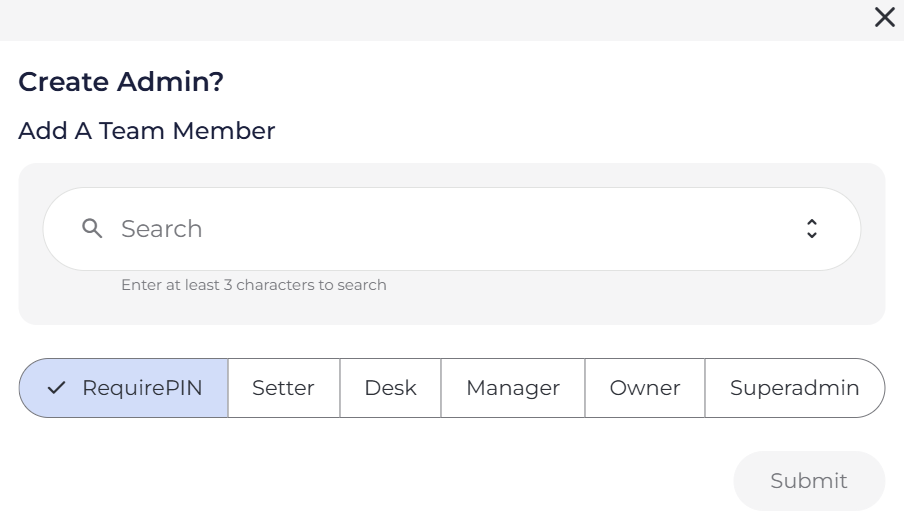

Create a dedicated desk account to control access to your BETA dashboard. We recommend this account be the only one used for the desk device, maintaining a single active session.
Enable the REQUIRE PIN permission for this account, making a PIN necessary for any actions performed while logged into it.
Please note, a ‘desk’ profile needs to be created first so you can link it to these permissions. If you have not created one already, you can do this while adding the Require PIN permissions in the Accounts & Permissions page.
See in the below video how to add a staff profile directly from the Access & Permissions page in BETA (if your staff’s profiles have not already been created), add and edit their permissions (i.e., desk, manager etc) and add a staff pin on their account.
The pin you add with each staff permission will be used by the team member to perform various actions while logged into the Require PIN desk account you’ve created.

You can update a team member’s permissions at any point in time, including yours.

If you’ve granted someone access to your BETA dashboard but they’re seeing the error message “UNAUTHORIZED: you don’t have permission to view this page”, this usually happens because the person has two different profiles in BETA.
Why does this happen?
You manually created a profile for them in BETA, and during their own signup process, they used different information (e.g., a different email address, DOB or spelling of their name).
This caused BETA to generate a separate BETA Climber Key (a unique identifier for each user) i.e., a different profile. As a result, the access you granted is linked to one profile, but they are logging in with another.
Tips to avoid this issue.
The simplest solution is to have them sign a form so their profile is created automatically and then granting access to that profile they’ve created. If they don’t have a profile, you can also create one manually, just keep in mind that doing so may result in a duplicate profile being created.
How to fix it?
First, make sure the email address you granted access to is correct, and confirm that the user is logging in with that same email, and not a personal or alternate one.
Next, If the email matches but they still see the error, it may be due to a duplicate profile.
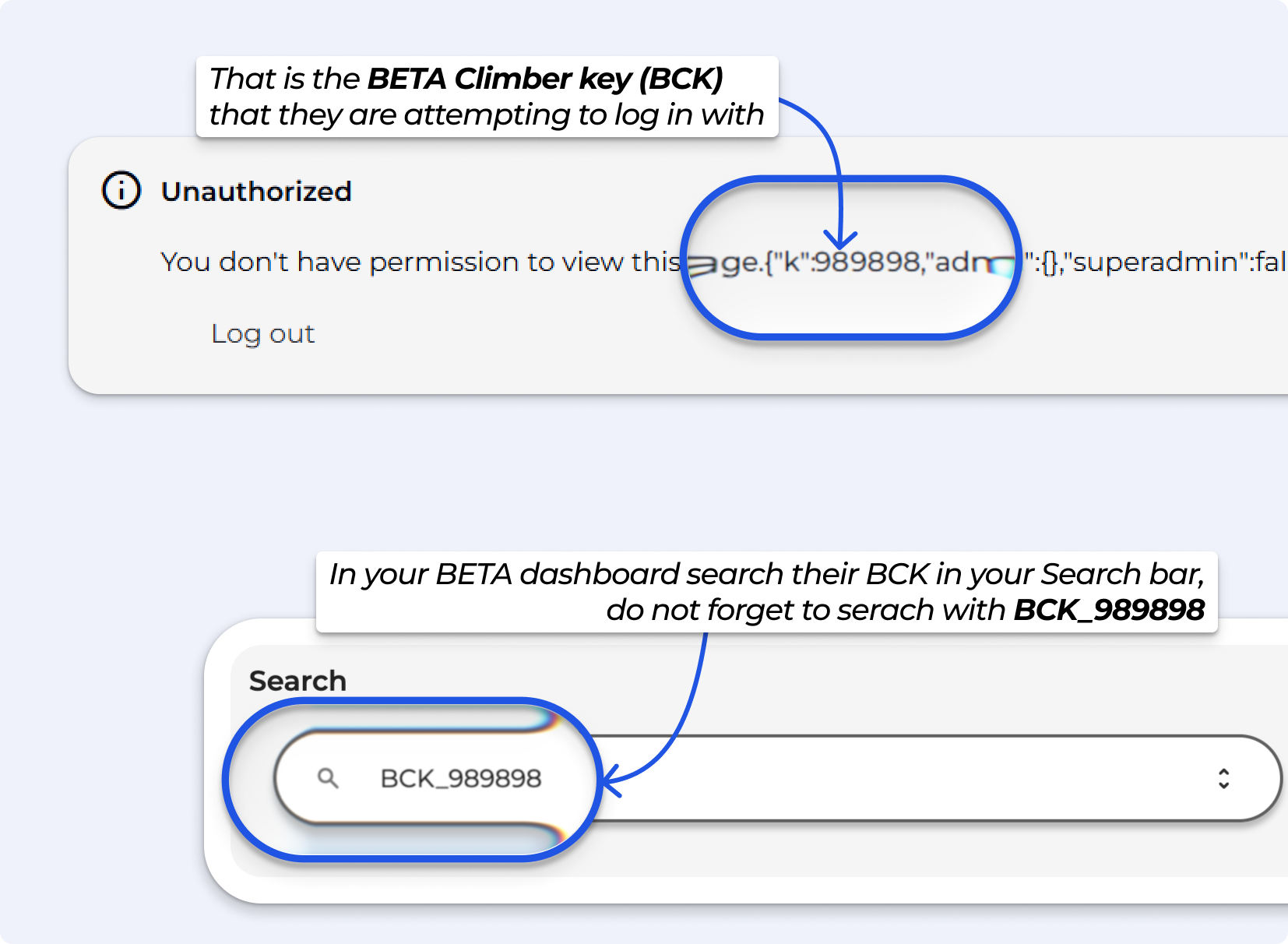
The error screen will display the BETA Climber Key (BCK) for the account they are actually logging in with.
In your dashboard, search for that BETA Climber Key.
You’ll find their profile tied to the login they’re using, as a Family Member.
Grant access to that profile instead
ORmerge this BETA Climber Key with the manually created profile you originally set up.Once you grant access to the correct profile (or merge the duplicate), the user will need to log out, and log in to gain access.
Unsure how to merge profiles, see how to below:
Creating, Merging and Deleting Profiles
This help article covers how to create, merge and delete visitor profiles in BETA.
Assign a PIN to a user account for staff logging purposes.
While logged into the REQUIRE PIN account, allow any user with a PIN to perform actions, attributing the action to the corresponding staff key in the log. Assign varying levels of permissions to user profiles, each equipped with a PIN for staff logging within the system.
Create their profile » You can manually add anyone via an email address, allowing them to access your BETA dashboard. Alternatively, you can ask them to sign your form, which will automatically create their BETA profile.
Add their permissions in Settings.
BETA does not send out any email, they will simply be able to login.
Only users with Owner or above permissions can add another owner account.
If the profile is not showing up once you search, the profile needs to be created. Ensure you created the profile before hand, and searching with an email might be more accurate.
BETA will show a “Can't find what you're looking for?” under the search bar - allowing you to quickly create that profile.
Accounts are created by them signing a waiver, purchasing an item - or through manual creation » Manually create a new visitor profile
You can add staff directly in BETA; they will then appear in your Staff dropdown.
Staff profiles don’t require a real email UNLESS YOU WISH THEM TO LOGIN TO THE DASHBOARD. For example, you can create profiles like:
John B – staff@mail.com Henry K – staff@mail.com
This can happen in a multilocation gym where you have manager permissions in a child location, but not under the parent/main gym.
You would need to add your account with manager permissions under the parent gym to resolve this since profiles are "owned" by the parent gym.
on Viewing PINs
Managers and Owners have the ability to view pins in the Account Permissions area.
In the accounts and permissions page, click Change Admin Type on the account’s profile.
on PIN configuration
Do you keep getting this warning from your Chrome browser?
Change your password The password that you just used was found in a data breach. Google Password Manager recommends changing your password.
We suggest, either setting your password to something less common than 1234, or qwerty etc etc. Or else you can force disable the warning in your Chrome settings:
If you had enabled safe browsing from Chrome settings chrome://settings/syncSetup you may turn off this feature from the Sync and other services settings.
Go to Chrome settings and go to Sync and Google services.
Turn off Warn you if passwords are exposed in a data breach
No, having multiple PINs for different accounts is not allowed. Each account must have a unique PIN for security and individual identification purposes.
The PIN, can be a combination of letters & numbers, with a minimum of two characters and a max of six characters (we suggest a sweet spot of 4 characters).

Still Lost? We’ve got you covered!
Use the search box on the main Help to search the entire list of available help guides, or drop your question in the Support Chat!
