BETA’s subscription settings page allows you to customize and control various features of subscriber profiles to match your needs.
Action | Description |
Set Default Billing Method | Select the default payment provider for processing subscription payments. |
Issue Items Behaviour | Determines when subscription transactions issue items. |
Revoke items after x days | If payment isn’t received within |
Cancel sub. after x days | If payment isn’t made within |
Enable User Cancellation | Allows subscribers to cancel directly from their app and member home profile, aligning with US Federal Trade Commission’s (FTC) Click-to-Cancel guidelines. |
Allow User Pause/Unpause | Users can pause or unpause subscriptions from the BETA app, or member home widget. They will be required to login. |
Add Card Surcharge Fee | Apply a percentage fee for credit card payments vs. direct debit. |
These components have been explained in more detail below.
Select the default payment provider for processing subscription payments.

Looking to Create a Pass Widget for particular payment methods?
Find the dedicated section in the below guide,
Create Pass Widgets
Pass widgets help you sell passes and memberships on your website, link to your social media, and generate QR codes for posters.
See how to set other collection Settings related to your recurring Subscriptions.
This is a gym-wide setting. You can either allow all visitors to cancel their recurring subscriptions via the BETA app and the Visitor’s Home, or disable this entirely. Simply tick the Allow user cancellation box.
Available on BETA’s Enterprise tier and above.
You can create and link a form to your recurring pass prices, in order to gather data on reasons for subscription cancellation.
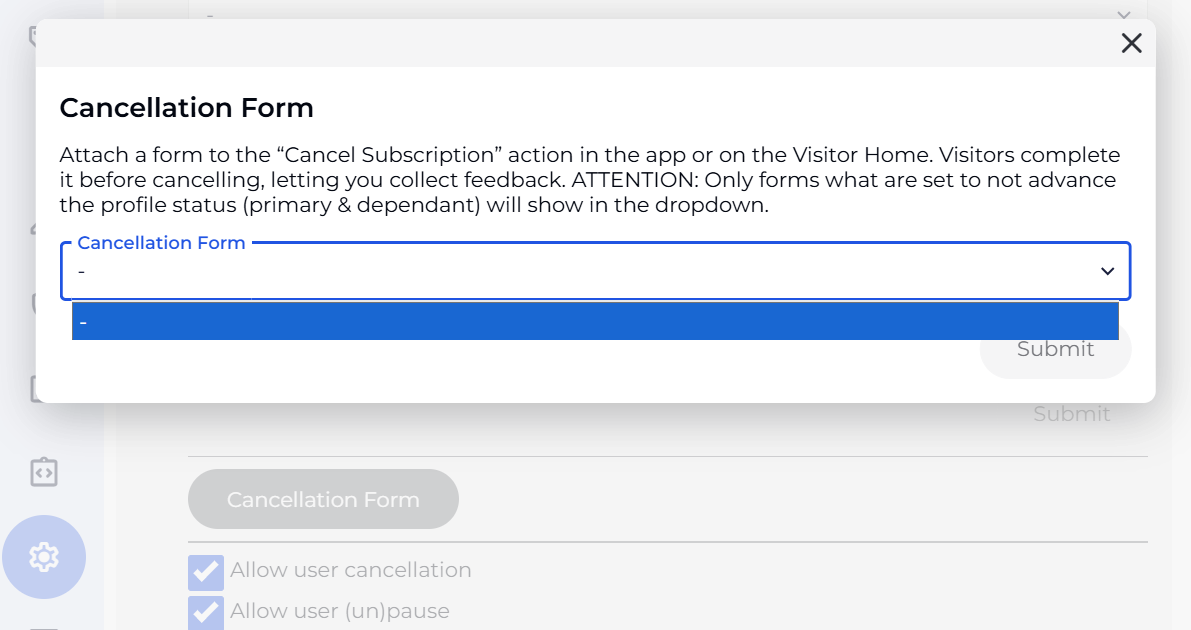
Once linked, visitors will be required to fill in the dedicated form during the cancellation process.
Results will be visible in the Responses & Statistics section of the form, both as charts summarising the data, and in a list view displaying all of the visitors who have completed this.

Read more on cancelling a recurring subscription below,
Cancel a Recurring Subscription
Learn how to cancel a recurring auto-billing subscription effectively, manage pending transactions, and handle overdue payments with our step-by-step guide.
This is a gym-wide setting. You can either allow all visitors to pause their recurring subscriptions via the BETA app and the Visitor’s Home, or disable this entirely. Simply tick the Allow user (un)pause box.
Available on BETA’s Enterprise tier and above.
Create a Pause/Freeze fee product in the Products page. The price on this product must be recurring to be able to set this up as Pause fee in the settings.
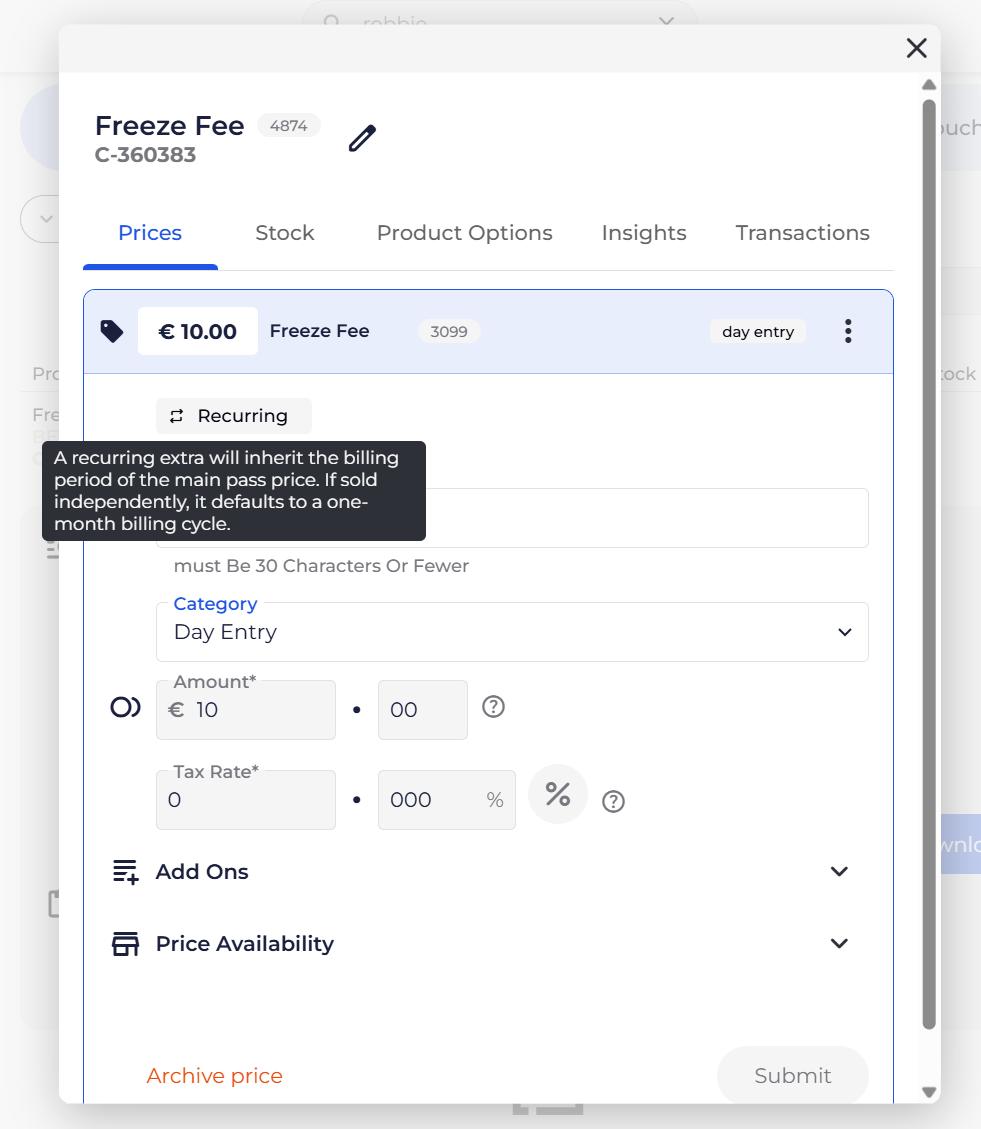
Clicking to edit a Pause price will allow you to choose this product from a dropdown.
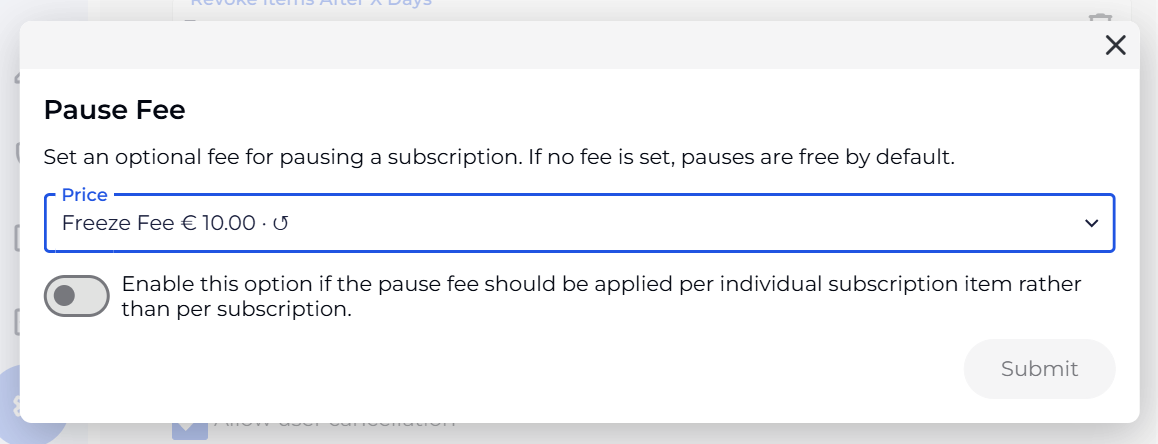
Once this has been linked, upon a visitor pausing their subscription the product linked as a Pause fee will be applied as a recurring price in place of the recurring price of the subscription.
Read more in the help article below,
Pause or Un-pause a Recurring Subscription
This guide explains how to pause or unpause a subscription, including managing fees and access during the pause.
BETA allows you to control how failed subscription payments are retried. When a payment fails on the next billing date, BETA can automatically attempt to collect the payment again based on your retry schedule.

Community
One automatic retry, 1 day after the initial failure.
Business
Two automatic retries, 1 day and 3 days after the initial failure.
Enterprise
On the Enterprise tier, you can configure up to three custom retry attempts. Define the number of days to wait after the initial failure for each attempt below.
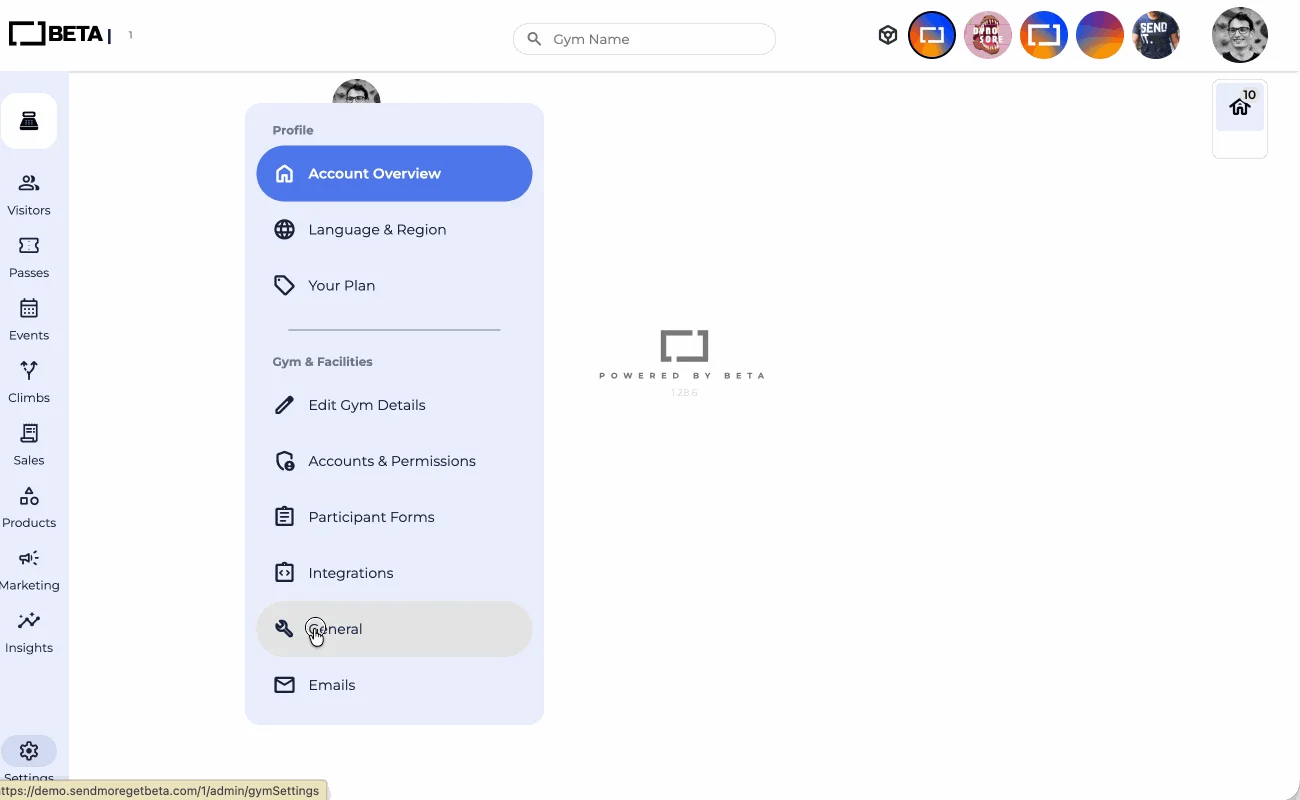
Available on BETA’s Enterprise tier and above.
Credit Card Surcharge Fee
Apply an automatic percentage-based surcharge to card payments on subscriptions and optionally at the point of sale.
Absolutely! Change the subscription’s billing method to manual collection, in the Subscription Popup > Overview and you’ll be able to pay with cash or other non-recurring methods.
Only subscriptions using the “default” payment method will inherit the change. If a subscription’s payment method was manually set, it won’t be updated. Use filters in your Subscription Page to check their current payment settings.
That is, if their Billing method is default, they will be billed by the default billing method in your Settings Page.
If you enable the setting in your Settings, subscribers may cancel this when they log into the members home.

Still Lost? We’ve got you covered!
Use the search box on the main Help to search the entire list of available help guides, or drop your question in the Support Chat!
