"Climber Needs Payment Method" pop-up highlights there is an issue with the profile’s Payment Profile.

Manage Visitor's Payment Methods
Manage payment profiles and methods efficiently for subscriptions and recurring payments.
There are several reasons a climber's payment method may be missing or invalid:
They opted out at checkout: When purchasing online, climbers can choose not to save their card. If they opted out, no payment details are stored against their profile, even if the purchase went through successfully.
They removed it themselves: Climbers can manage their saved payment methods directly from the Visitors' Home Widget and may have deleted it manually.
Their card expired: If the saved card has passed its expiry date, it will no longer be valid for future charges.
Their card was declined or flagged: A card can become detached from a profile if it was declined or flagged by the payment provider.
When a saved payment method is missing or invalid, the climber will be prompted to add or update their payment details — this is the pop-up they may be seeing.
This opt-in/opt-out control is required by payment providers and cannot be removed.
When a climber checks out, especially for a recurring subscription, payment providers require that the customer explicitly consents to having their card saved for future charges. The checkbox or toggle at checkout is that consent mechanism. It is the cardholder's decision to make, not the gym's.

This means:
The initial charge went through correctly
No card is stored for future automatic billing
If the subscription attempts to renew, it may fail unless the climber adds a payment method to their profile
This is expected behaviour, the transaction was valid, the card simply was not saved.
For Stripe users specifically: This behaviour is governed by Stripe's Payment Element, which automatically presents a consent control whenever saved payment methods are enabled. Stripe requires explicit customer consent before storing a card — this cannot be bypassed. See the Stripe documentation for full details: Save a payment method during checkout — Stripe Docs
When the visitor checks in, click the  icon next to their profile in the system. This will direct you to their payment setup in Stripe, where you can add or update their payment method.
Stripe, GoCardless, Square, Clover Ecommerce
Visitors can log in to the Visitor’s Home portal and navigate to Wallet > Payment Methods to securely add or update their payment information themselves. This can also be done via the app.
Visitors' Home Widget: Explainer
How climbers can manage their subscription, enroll into events, manage their payment methods and more!
Set Up a Payment Method as a Visitor
This article outlines the two ways a visitor can set up their payment method in BETA.
During the online checkout process, there is this option which people can disable (see screenshot below) - by default this is enabled.
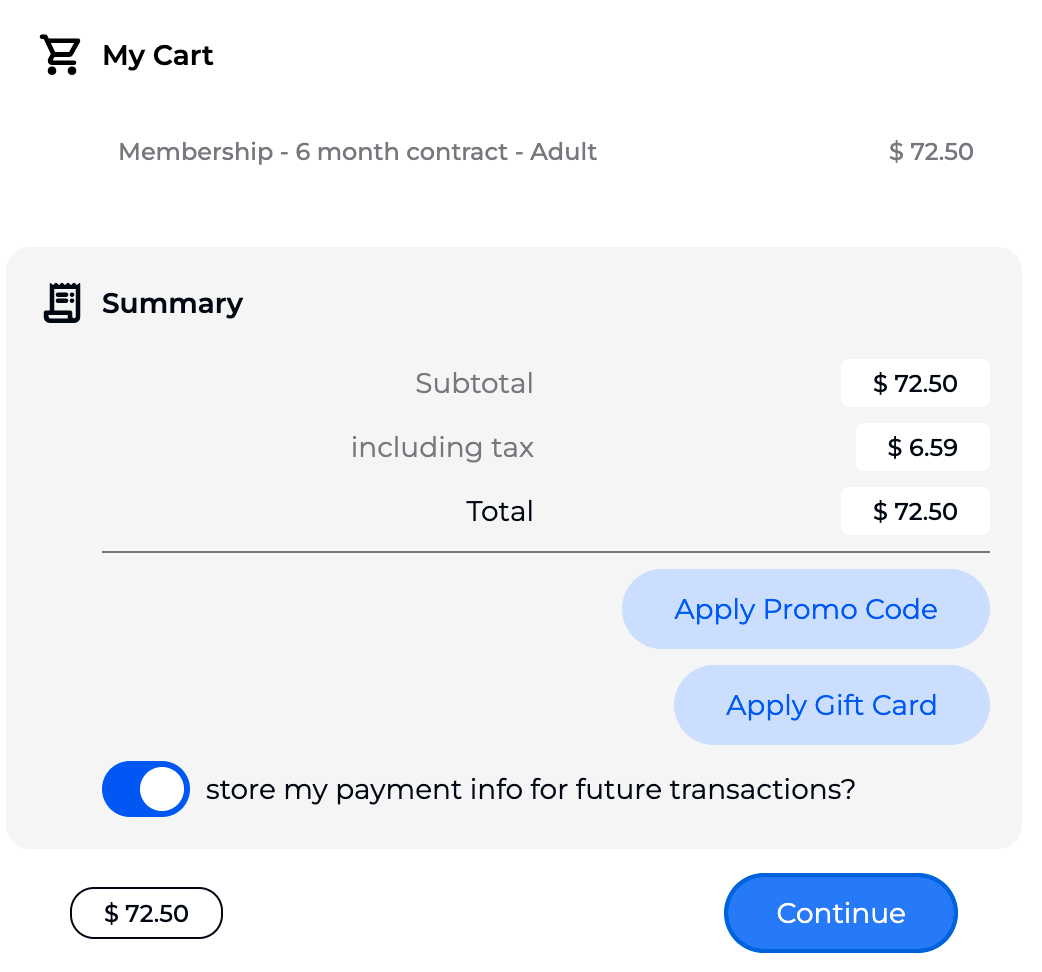
Having this option for visitors is a compliance requirement when storing payment methods. If interested, here is the specific documentation in Stripe that BETA needs to follow to be compliant.
When someone purchases a pass via the app/widget, there is an option to save their card details. If they disable this option during payment, the card is not saved in Stripe, even though the payment goes through. This is a Stripe compliance requirement.
To resolve this, the climber must add their card manually via Wallet » Payment Methods in their profile or the BETA app. Once this is done, it will appear in Stripe.
We can’t remove the customer opt-out for saving card details because Stripe’s payment flows require explicit customer consent when saved payment methods are enabled.
The Payment Element / Checkout automatically presents a consent control and treats the decision as the cardholder’s choice.
That is why when they select a recurring subscription it is enabled by default — but they can change that.
See Clover docs below:
"To make a transaction recurring, select the Yes checkbox next to Make recurring?"
If you want to see who have a missing payment, there is a report that can be generated in the Subscription page.
Please note, this report takes a few minutes to process, as it pings Stripe for each member payment method status. Report: Export Recurring Subscriptions
Yes, retroactive payments are handled automatically if the new mandate is attached to the existing subscription. However, the original billing date remains unchanged unless updated manually. For instance, if your subscription begins Jan 1 and you activate a mandate on Jan 8, the payment will retroactively cover the period from Jan 1. If a separate subscription is created, the billing will start from that new subscription’s purchase date.
More information here
» Mange Payment Profiles & Payment methods
Yes, visitors can access their subscription details through the Visitor’s Home portal or the BETA App to update their payment methods, or cancel their subscriptions.
Visit the dedicated help article » Set Up a Payment Method as a Visitor
Learn how to control this for your visitors » Gym Subscription Settings
The subscription will remain active but marked as overdue until a valid payment method is added. Once a payment method is added, BETA will backdate their unpaid months on their recurring subscription.
BETA only displays active mandates in a customer profile, meaning mandates that can be used to create future charges.
If a one-off mandate is created that is authorised for a single payment only, it will not appear in BETA. This is because it cannot be reused to generate new payments.
Also ensure the purchase was made through the BETA widget and not manually inside GoCardless. Mandates created directly in GoCardless will not appear in BETA.
In some cases, a billing request may be started but not completed. This can create objects in GoCardless without creating a full payment inside BETA.

Still Lost? We’ve got you covered!
Use the search box on the main Help to search the entire list of available help guides, or drop your question in the Support Chat!
