The Visitors’ Home Widget is your climbers’ personal dashboard. It’s where they log in to view and manage everything connected to their profile at your gym, passes, memberships, bookings, payments, forms, and more.

The widget is designed mobile-first, meaning it works smoothly on phones, tablets, and desktops. No matter the screen size, climbers can easily navigate and manage their account.

To embed the Visitors' Home Widget on your website, follow the guide below:
Create a Visitor’s Home Widget
Learn how to create and customize a visitor’s home widget for your gym. This guide covers embedding, usability features, and troubleshooting tips for optimal management.
The Passes section gives climbers a full overview of what they have and what's active.
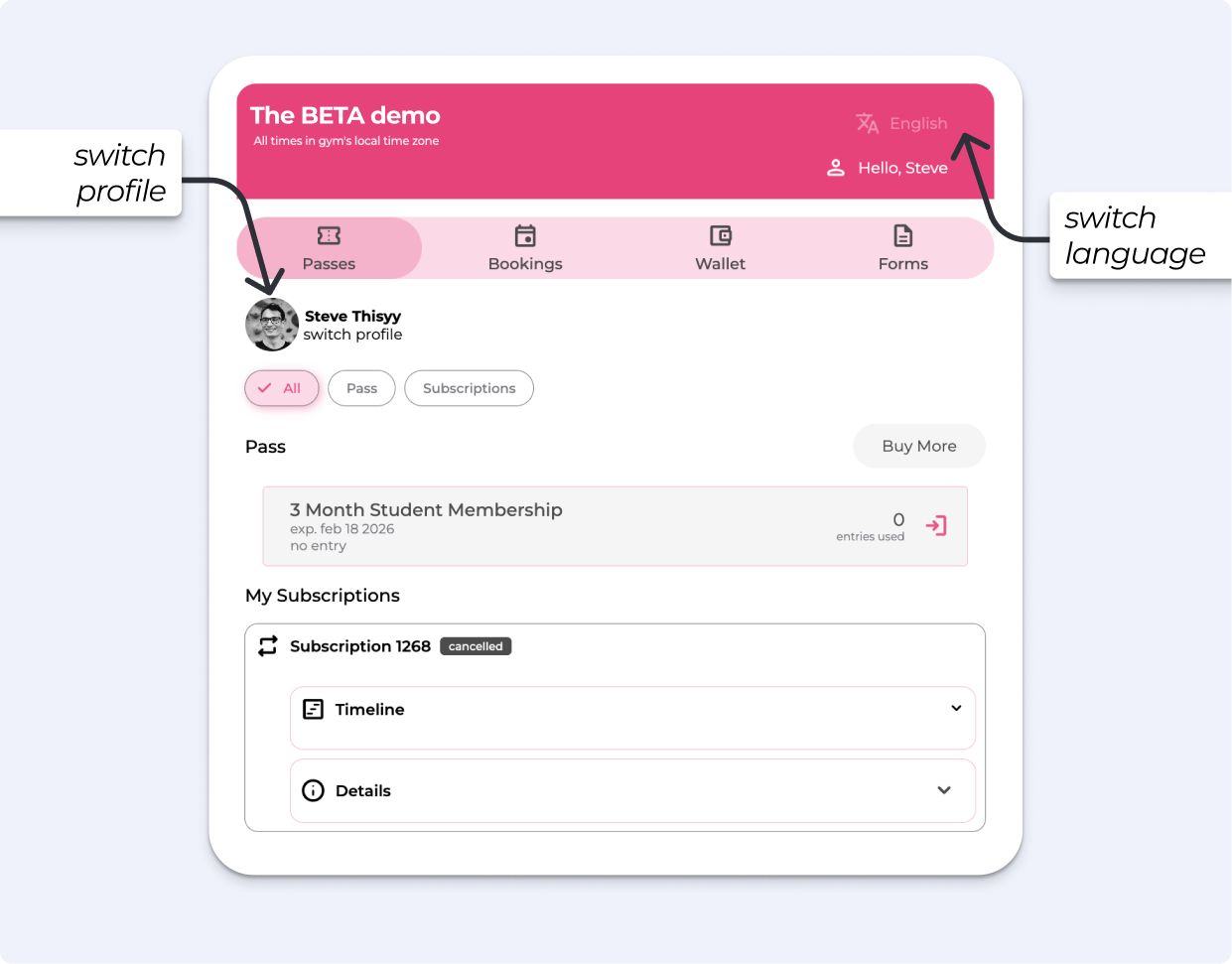
Climbers can:
See active and expired passes
View remaining uses
Check expiration dates
See if a pass is paused
Climbers can:
View active recurring memberships
See the creation date
Check the upcoming billing date
Review their subscription timeline
Depending on your gym’s settings, subscriptions can be paused or cancelled directly from this section. See how to change those settings below:
Gym-wide Subscription Settings
Access the Gym Subscription Settings guide to learn how to customize billing methods, manage subscriber actions, and enhance user experience in your gym's subscription management.
Climbers are directed to the Passes Widget, where they can purchase any passes that are available for online sale.
This section allows climbers to manage event enrollments.
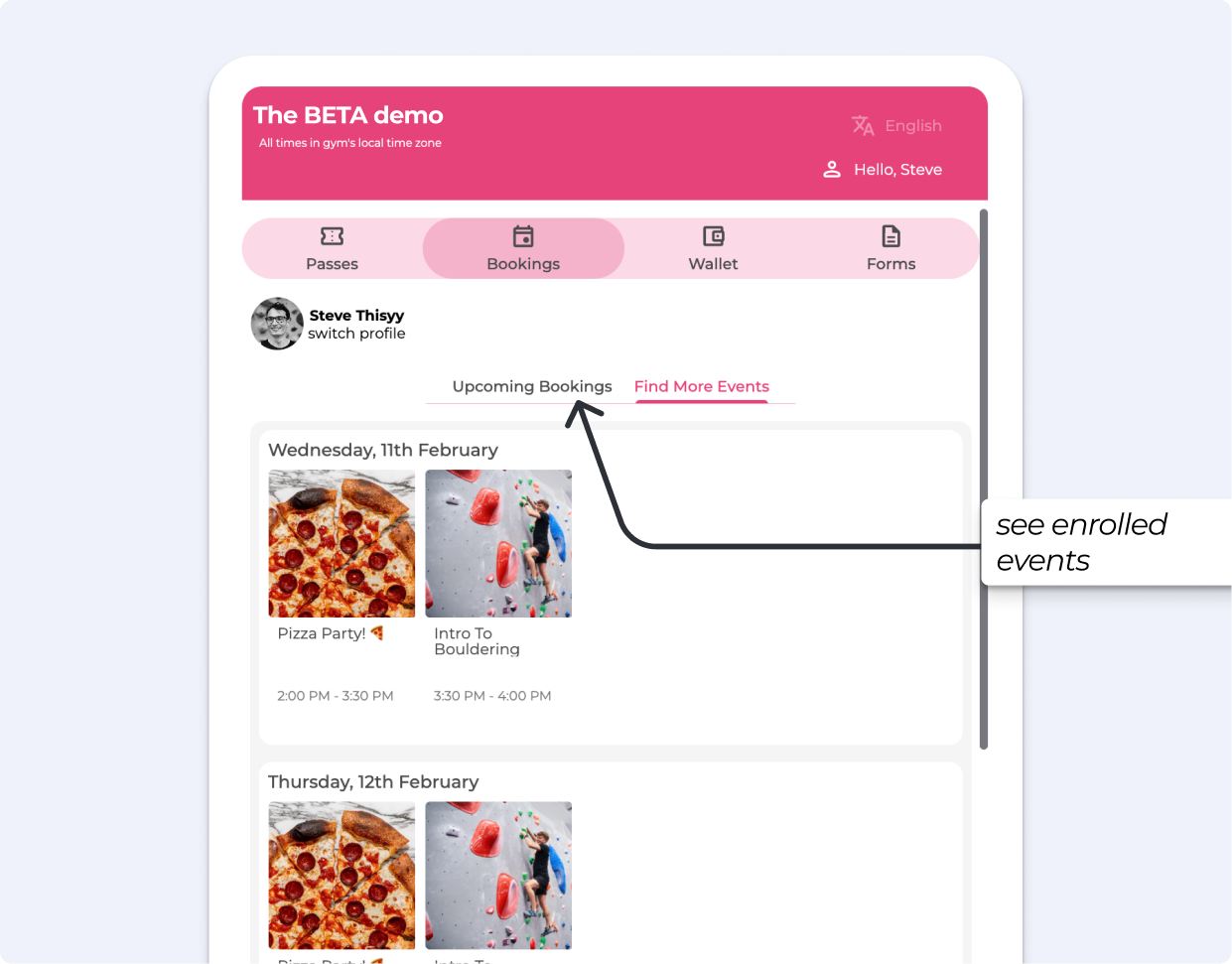
Climbers can:
View events they are enrolled in
Enroll themselves in eligible events
Unenroll if they can no longer attend
This shows events they are not currently enrolled in. If an event is included for free with their entry (for example through a prepaid pass or recurring subscription), they can enroll without being charged — provided they are accessing it correctly.
Why can’t they book far into the future?
If a booking falls beyond their next billing date, the system prevents enrollment. This ensures climbers do not reserve a spot for a period where their membership may not yet be active or paid.
This section gives climbers visibility and control over payments and transaction history.
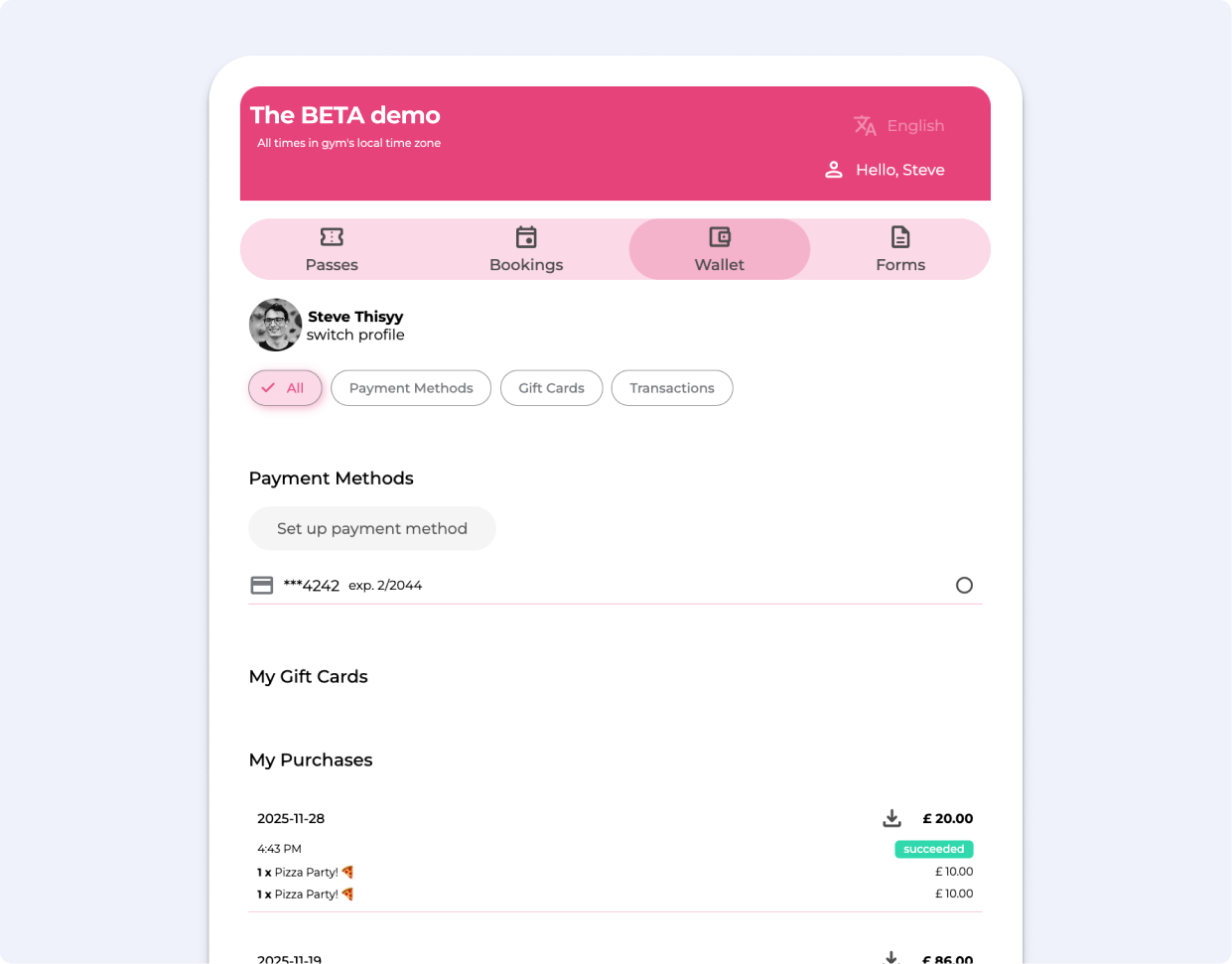
Climbers can:
Add, update, or remove payment methods
Change their default payment method
The exact experience may vary depending on your payment provider.
Climbers can:
View gift card details
See the gift card code (for online use)
Check purchase date
View remaining balance
See expiration date
Climbers can:
View their full transaction history
Download receipts for all successful payments
This section handles all signed and required documents.
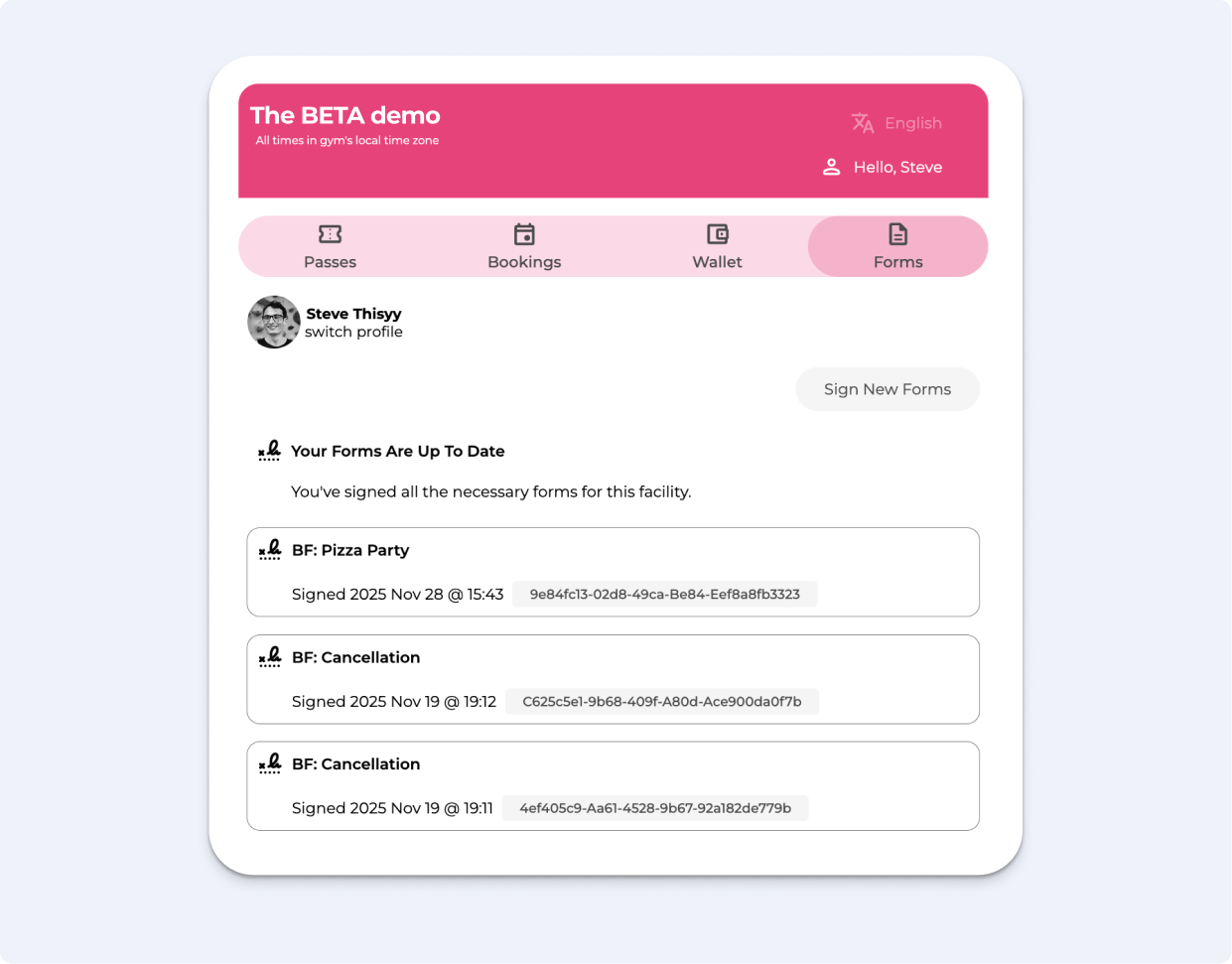
Climbers can:
View previously signed forms
Download copies for their records
Climbers are directed to the Forms Widget, where they can complete any required forms.
Their profile details are prefilled automatically, but they must still review, complete required fields, check boxes, and provide signatures. Only their own profile information is prefilled.
For troubleshooting, see our dedicated guide.
Troubleshooting: Pass Holder Being Charged for a Free Event
If a pass holder/member is being asked to pay for an event that should be free, follow these steps in order to identify the issue.
