BETA includes a built-in email editor that lets you customise your transactional emails without any coding knowledge. For full creative control, BETA also accepts HTML — allowing you to apply custom design, brand-consistent styling, and external links.
Automated Emails Explainer
This guide explains the differences between marketing and transactional emails, best practices for each type, and how to customize transactional email settings effectively.
Transaction Email Smart Tags / Variable Placeholders
Enter dynamic data into your transactional emails, to
See our dedicated guide below.
Transaction Email Smart Tags / Variable Placeholders
Enter dynamic data into your transactional emails, to
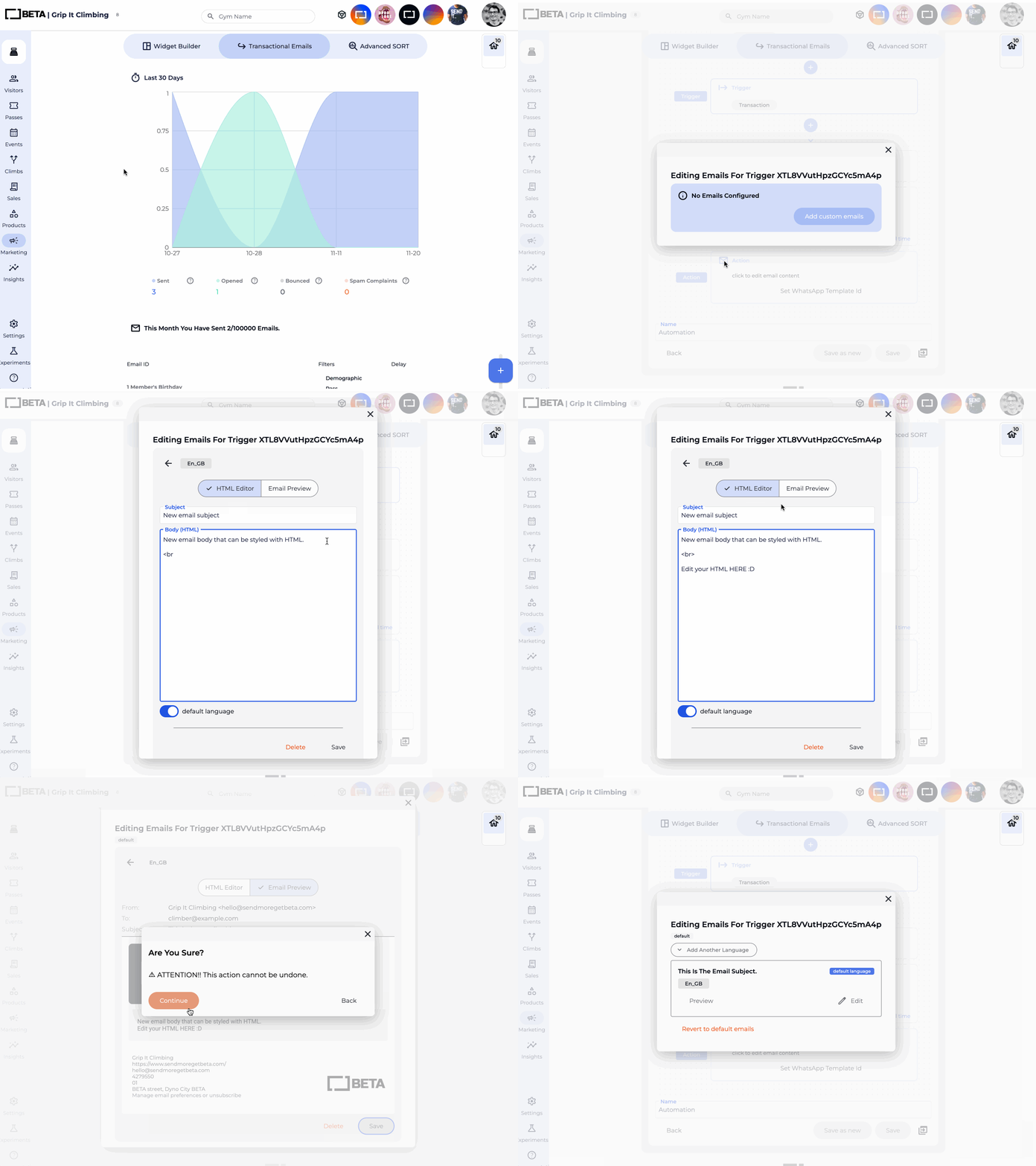
Use <p> tags to add blocks of text. Each new <p> tag starts on a new line.
html
<p>This is a paragraph, and it will display as normal text.</p>
<p>This will show up as a new line!</p>Use heading tags to create titles and section headers in your email. The lower the number, the larger and bolder the heading.
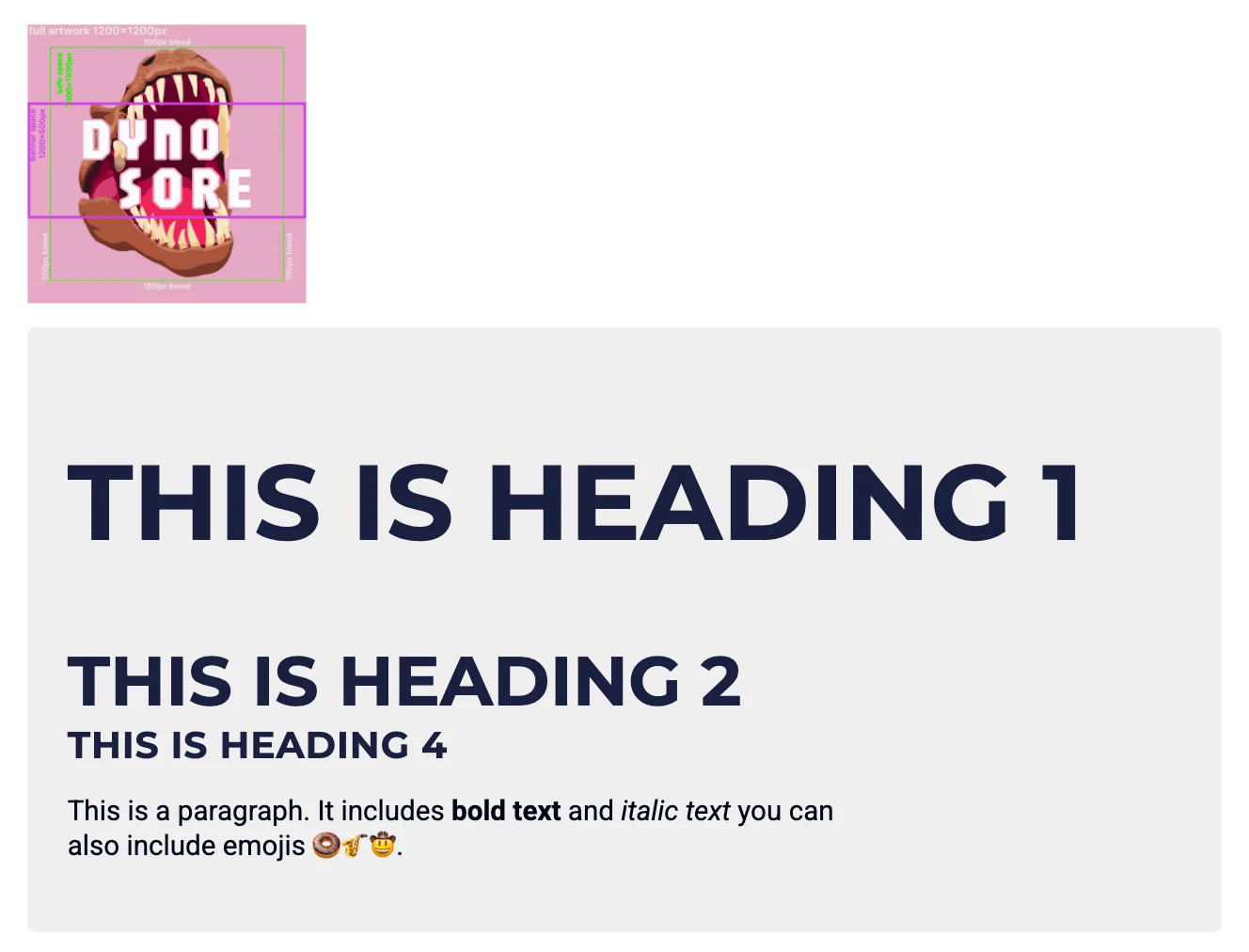
<h1>This is a Heading 1</h1>
<h2>This is a Heading 2</h2>
<h4>This is a Heading 4</h4>
Body Text Formatting
You can bold, italicise, underline, or strike through text within a paragraph.
html
<p>This is a paragraph, and <b>this text will be bold,</b>
<i>this will be italicized,</i>
<u>this will be underlined,</u>
<s>this will be strike-through.</s></p>
<p>This will show up as a new line!</p>To display an image in your email, use an <img> tag with a link to your image file.

src attribute.<img
src="https://your-public-image-url-here.com/image.jpeg" />Adds a styled button that links climbers to the BETA app download page.
Simple Button Example:
This is a minimal version that’s easy to reuse. Just enter this HTML in the custom email form, and some tips: Use inline styles for buttons in emails.
Replace the href="https://www.sendmoregetbeta.com/climbers/" the URL to redirect to another URL
Replace the “Click here” to change the Call to action. Keep button text short, descriptive and action-oriented.
<table align="center" cellpadding="0" cellspacing="0">
  <tr>
    <td align="center">
      <a
        href="https://www.sendmoregetbeta.com/climbers/"
        target="_blank"
        style="
          background-color:#2054E2;
          color:#2054E2;
          padding:10px 18px;
          border-radius:4px;
          text-decoration:none;
          display:inline-block;
        "
      >
        Click here
      </a>
    </td>
  </tr>
</table>Adds a styled button linking to any URL. Replace Enter_the_URL_here with your destination link, and update the button label as needed.
<a href="Enter_the_URL_here" class="button" target="_blank">This will be your Button Text!</a>The example below shows a complete confirmation email for an event. It includes smart tags, a booking details block, a link to event info, and a form sign button. Adapt the copy and URLs to suit your event.
Note Double-check all smart tags and replace placeholder URLs before saving.
<h1>Hey {{CLIMBER_FIRST}}! <br> Your {{EVENT_NAME}} booking is confirmed</h1>

    <p>Don't forget to bring your fav toppings; we provide the dough and the rolling pins. Looking forward to seeing you at {{GYM_NAME}} 💃</p>

 <br><br>
<h2>{{BOOKING_DETAILS}}</h2>

     <br>
    <!-- Link to Event Details -->
    <a href='https://www.sendmoregetbeta.com/' style='text-decoration: underline; color: #2054e2;'>Read more about the event here</a>

    <br><br>

    <p>Please! <b>Do not forget to sign our form!</b></p>
 <br>
    <!-- Link to Sign Form -->
    <a href='[Your_Form_Widget_URL]' style='display: inline-block; padding: 10px 20px; background-color: #2054e2; color: #FFFFFF; text-decoration: none; border-radius: 8px;'>Sign Form</a>
 <br><br>
<p>We will see you soon, <br> from {{GYM_NAME}}.</p>HTML allows you to customise the content of the email to your liking, and to fit your brand and styling. There are some online tools which can help you with basic formatting, or feel free to take our example above, and tailor it to suit your needs.
If you are looking for further email customisation, you have full control of the CSS code and the styling of the email formatting on the Enterprise Tier.
