This guide explains how to update (either increasing or decreasing) your product prices for your passes, events, and other products; this includes subscription prices adjustments for customers who have already purchased them.
The Price Updater, used for updating a sale price on any product
EXPERIMENT: Price Updater
Update prices for Passes, Events, or Products using the Price Updater.
The Subscriptions Updater, used for updating the price of the pass attached to subscriptions
EXPERIMENT: Bulk Upgrade Subscription / Membership Prices
Upgrade subscription prices in bulk
What is a Price?
A price may be associated to a Product, Entry Type, Subscription, Event, Course or Retail Item. Multiple prices might be set for the same item. In BETA, new prices need to be created in order to replace the existing price. Existing prices may not be edited.
See more in our dedicated guide linked below,
BETA's Glossary
Explore BETA's comprehensive glossary for definitions.

Once a price has been used in any transaction, it cannot be edited or deleted. This applies regardless of the transaction’s status (open, due, cancelled etc). This ensures accurate accounting and reliable reporting.
When updating a product price, you’ll need to archive your old price, if you do not wish for this to be sold anymore. Always ensure that old prices are Archived and/or not available online.
When updating a product price for Passes or Retail, you’ll need to consider updating your Widgets. Section below.
When updating a product price, you’ll need to consider updating your POS view. Section below.
Updating your prices, and subscription prices involves five steps. Here’s a general overview, each step is explained in further below.

Update the price from the Products Page or the Passes page, depending on what type of product price you are updating.
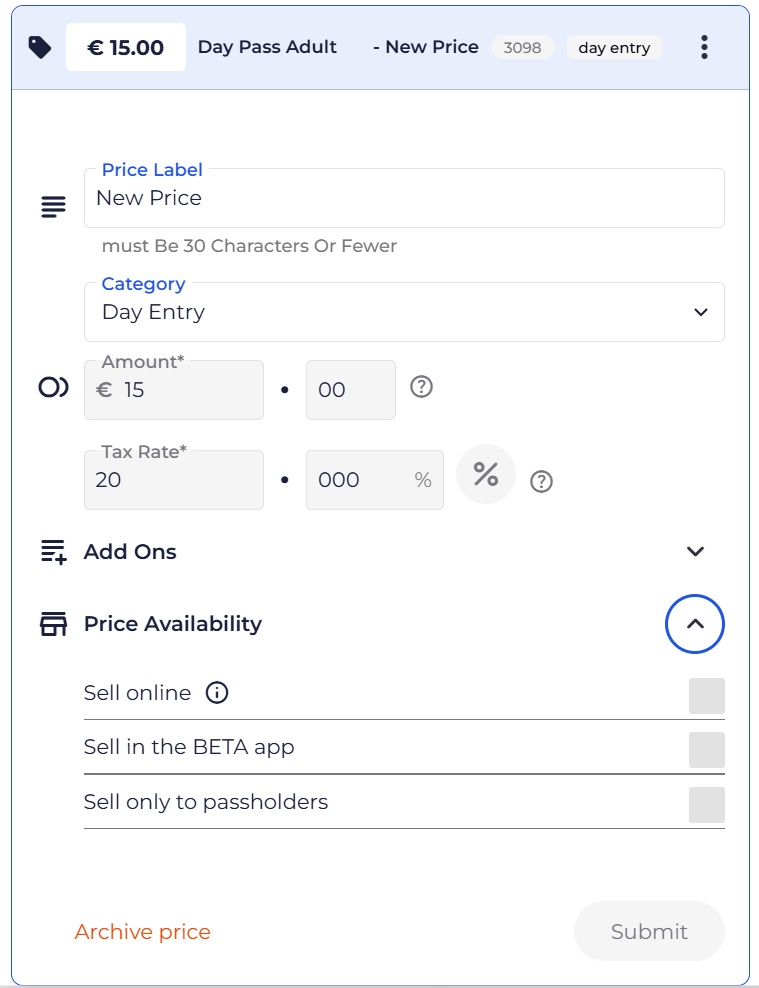
Simply go to your product and click Create price button.
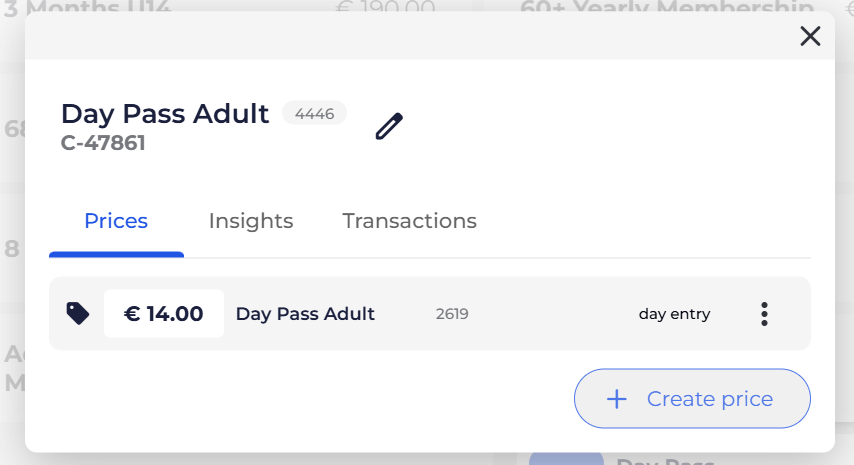
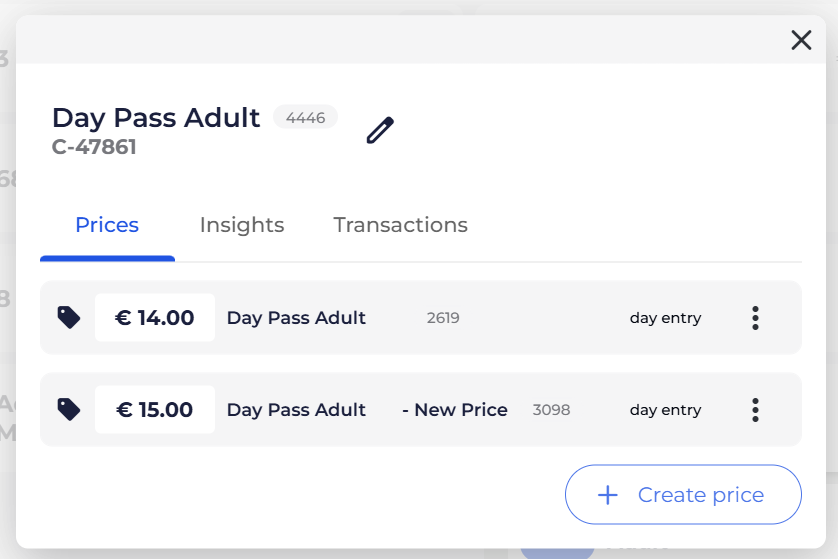
If you wish, you can add a Price Label to indicate this e.g., New Price.
This will appear as a suffix to the Price in your POS and your online widgets.
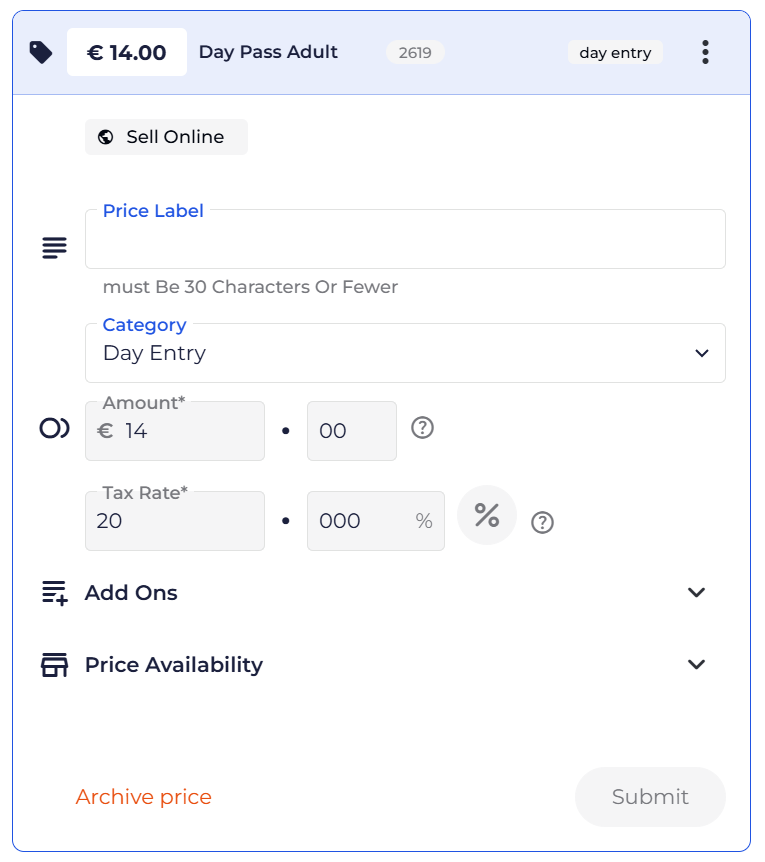
Archive the old price via the Archive Price button, as below.
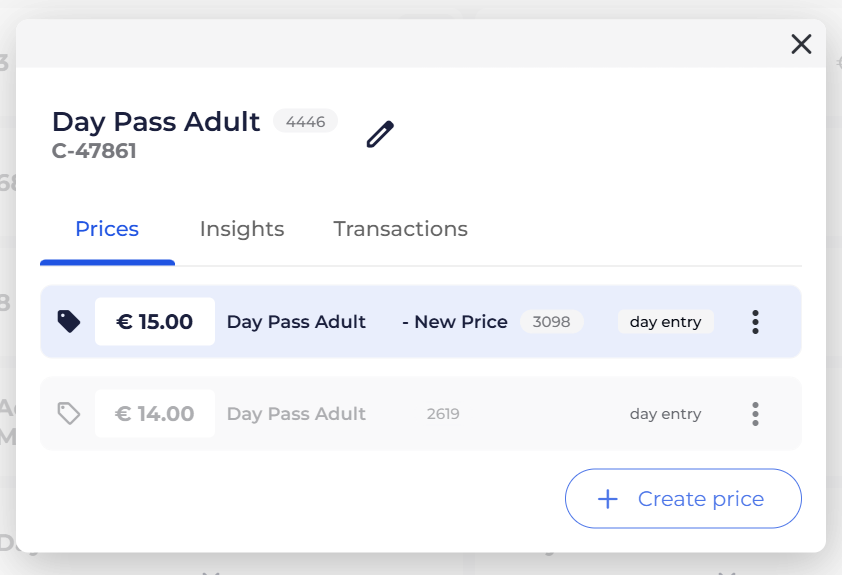
Now only the new price will be available for purchase.
Ensure the Price Availability of the new price has been set up as desired.
The Bulk Price Updater allows you to quickly update a Pass, Event/Course or Product Price and update the custom POS view in one action. See how to automatically create a new price and archive the old.
EXPERIMENT: Price Updater
Update prices for Passes, Events, or Products using the Price Updater
Use this option when you want to stop a price from being sold/purchased. By disabling the price’s availability (for example, in POS, online, or the app), you prevent new purchases.
Archiving the price removes it from active selection while keeping it on record.
Prices can’t be deleted because they are part of your financial and transaction history. As a POS system, BETA must keep prices for reporting, auditing, and fraud prevention purposes. Archiving ensures past transactions remain accurate while stopping future use.
When updating recurring passes (subscriptions), changes are not limited to just the price value. This also applies if you change:
The Price Value (for example, price increases or decreases)
The tax rate
The billing behaviour (for example, rolling vs prorated)
Other pricing-related settings,
In these cases, you still have three options, each option gives you control over how widely changes are applied, from everyone on a price, to a few individuals, or only new subscriptions going forward.
OPTION 01: Bulk update existing subscriptions by price
Use this when you want to update all members from a specific price to another. You can choose exactly which prices to update (for example, Monthly Adult but not Monthly Child) and repeat this for each price as needed. This applies the change to all active subscriptions on the selected prices.
OPTION 2: Manually update individual subscriptions
Use this when you only want to update specific members. This is useful for exceptions, testing, or handling a small group without affecting others.
OPTION 3: Do not update existing subscriptions
Choose this if you want the change to apply only to future subscriptions. All current subscriptions remain exactly as they are.
To use the Bulk Upgrade Feature for updating the price of recurring pass prices (subscriptions), you must first create a new price for the desired Pass Price with the price increase, or decrease.
The Bulk Upgrade subscription allows you to quickly and easily upgrade all subscription pricing from one price to another price, for visitors who have already purchased your subscription.
This allows you to update everyone from Subscription Pass Price A
to your new price, Subscription Pass Price B
Please ensure that if you are doing this for your Recurring Subscriptions, that you are upgrading to a subscription with a similar Billing Period, and a price that is recurring.
Once this is completed, BETA will generate a report showing which subscription upgrades were successful and which were not.
EXPERIMENT: Price Updater
Update prices for Passes, Events, or Products using the Price Updater
What about the Paused and cancelled subscriptions?
By default, the Bulk Subscription Updater skips paused and cancelled subscriptions. This means that if a paused subscription is resumed, or a cancelled subscription is reinstated, it will continue on its original price. The price can be changes from the subscription popup - see below.
This approach prevents unintended price changes to subscriptions that are not actively billing and ensures pricing updates only affect currently active members.
⤷ Learn how to Upgrade Pricing of a single subscription
Only Subscription Prices created in BETA may be edited by BETA. So if you created the subscription outside of BETA, this cannot be updated by BETA.
Please contact GoCardless to update the Direct Debits created outside of BETA.
Only Subscription Prices created in BETA may be edited by BETA. So if you created the subscription outside of BETA, this cannot be updated by BETA.
Only Subscription Prices created in BETA may be edited by BETA. So if you created the subscription outside of BETA, this cannot be updated by BETA.
Use this option when you want no changes to current subscriptions. To do this, Step 01: Create a new price with the updated details, then Step 02: archive the old price so it can no longer be selected for new sign-ups.
Existing members will continue on their current price without interruption, while only future subscriptions will use the new price. No subscription updates are required.
Updating a prices for Passes & Retail Products does not automatically update the widgets on your website. This allows for control of when the go-live date occurs. So if you have updated your Passes & Retail Products prices, you are going to need to update any Passes/Prices widgets on your website, social media, etc.
What that means?
If you have built a special passes widget that only lists certain prices, and one of those prices becomes archived and replaced with a new price by the "update price" function, the widget doesn't update. If you have used custom widgets you can update the saved configuration.
Learn how to Create a pass widget for particular payment methods,
Create Pass Widgets
Pass widgets help you sell passes and memberships on your website, link to your social media, and generate QR codes for posters.
If you did not use the Price Updater but rather updated a price on your Products Page, then you will need to add all the new prices in your custom POS views.
See our dedicated help article linked below,
Customise POS view
Learn how to customise your POS view effectively in our guide.
Perform these checks to confirm that outdated prices are archived, subscriptions are correctly updated, and communication with members is clear. This will help maintain consistency and avoid potential confusion for both your staff and members.
Confirm that outdated prices are archived in the Products Page by filtering for archived items.
Review your website, social media platforms, any printed QR codes, the POS, and desk displays to ensure old prices are removed.
If a price is archived it will never show up for sale online.
Check if all subscriptions have been updated to the new pricing on the Subscriptions Page by search for the outdated pass price, especially if renamed earlier for easier identification.
Once a price has been used in any transaction, it cannot be edited or deleted. This applies regardless of the transaction’s status. The amount and tax settings for a sold price cannot be changed or deleted, and the price can only be archived.
This ensures accurate accounting and reliable reporting.
No! Once a price has been used in any transaction, it cannot be edited or deleted. This applies regardless of the transaction’s status (open, due, cancelled etc).

Still Lost? We’ve got you covered!
Use the search box on the main Help to search the entire list of available help guides, or drop your question in the Support Chat!
