This help article covers everything you need to know about managing individual Subscriptions in BETA, as well as managing Subscriptions in bulk.
Please make sure you’ve read the Passes Explainer first, so you can fully understand this guide.
Passes Explainer
Explore our comprehensive guide on understanding passes in BETA, including entry types, pass prices, creation processes, and tracking usage for enhanced gym management.
This video covers creating and managing recurring memberships, billing settings, and subscription lifecycle tools.
 This video has sound.
BETA manages subscription lifecycles internally, handling all billing intervals, pauses, and cancellations directly within the platform.
This means that any changes to a subscription’s lifecycle, such as pausing or resuming, will be configured directly through BETA, while payments themselves continue processing through the chosen integrated provider. This approach helps ensure consistency across different payment providers.
In BETA, a subscription is a recurring Pass Price that is automatically billed, at regular intervals, to a customer to receive a product e.g. a monthly membership.
Subscriptions reissue the entry types attached to the pass price at every set interval, after a payment is successfully processed. Prices in subscriptions MUST be set as recurring prices, be it Pass Prices, or Recurring Prices.
A Recurring Price is a convenient way for members to pay for Recurring Pass Price, Recurring Extras, or subscriptions.
It automatically deducts funds from a debit or credit card, ensuring payments are made on time without needing manual action. Unlike direct debits, where bank details are used, recurring payments use credit card details for authorization.
Any recurring prices in a transaction will be turned into subscriptions, grouped by their recurrence period. For example, when purchasing a three-month recurring pass and two one-month recurring passes in a single transaction, two subscriptions will be set up: one with the two one-month prices and one with the three-month price.
» Recurring Extras are available on Enterprise and above.
Access the Subscription Page here.
The page provides key insights into each subscription’s status, type, and handling method:
Profile: Shows subscriber name and information, of whom the subscription is tied to. Note, this can be different to who the entries are assigned to.
Subscription ID: Unique identifier for easy tracking, psst you can search using the ID.
Subscription State: Current status (Active, Pending, overdue, Cancelled, etc.).
Start Date: Initial activation date.
Last Billing Date: Most recent billing attempt.
Next Billing Date: Upcoming billing cycle date for timely payment tracking.
Subscription Type: This identifies how payments are handled.
Subscriptions can be managed through either:
Integrated & Automated Payment Providers: These are automated, directly integrated payment providers services for automated payment tracking.
External Manual Payment: Managed outside of BETA via cash or external payment providers. An External Subscription is a recurring Subscription, that has NO AUTOMATED PAYMENT linked to it.
🔗 Payments Explainer
https://www.notion.so/Payments-Explainer-0927b248b4db4f6c9dcae88b0a7c93d1
🔗 External Subscriptions
This article covers subscriptions that are external to BETA i.e., subscriptions without an automated recurring payment method.
🔗 Sell and Set up a Recurring Subscription
Learn how to set up and manage subscriptions using Stripe with our step-by-step guide. Perfect for recurring payments and optimizing your Point of Sale system.
In BETA, subscriptions move through different states based on activity and payment status.
What are the different subscription states?
Active - actively collecting payments.
Cancelled - no further payments will be collected.
Paused - payments temporarily not being collected. Connected passes unable to be used for check-in.
Processing - a transaction for this subscription has been created and payment is still being processed
Change Scheduled - A pending change is any scheduled update that will take effect on the next billing date. Staff should check the upcoming invoice to confirm the details of the pending change.
Payment Overdue: Shows subscriptions with pending payments.
Filter by:
Normal - not overdue, payment was processed successfully
Processing - awaiting confirmation of payment from the payment provider/manual
Overdue - Displays subscriptions where payments failed to be collected.
Overdue payments generally occur when there isn’t an active payment method, such as card details or active direct debit mandate. It can also indicate that, although a valid payment method is on file, a billing attempt was unsuccessful.
This may happen if a customer cancels their mandate with the bank or if a limited-term mandate expires. Additionally, during subscription transfers or account merges, the system might default to a payment profile without an active mandate, which can result in overdue payments.
Depending on your policies, you might choose to continue trying to collect payment or cancel the subscription if payments remain unresolved. In most cases, asking the customer to set up a new mandate via their account is the best solution.
Price: Filters by your Recurring Pass Prices, helping you locate subscriptions based on pricing tiers.
Profile: Allows filtering by profiles for easy access to specific customer information, or just use the search!
Report: Export Recurring Subscriptions
A Recurring Subscriptions export will export a .csv with all info regarding your recurring subscription memberships, including information regarding their payment methods.

 EXPERIMENTAL feature.
 EXPERIMENT: Bulk Upgrade Subscription / Membership
Upgrade subscription prices in bulk
If a subscriber’s billing fails (for example, due to insufficient funds or an expired payment method), their subscription becomes Overdue, meaning they owe payment.
BETA allows you to bulk bill all outstanding subscriptions.
This creates an OPEN transaction for each unpaid subscription and immediately attempts billing using each profile's saved payment method.
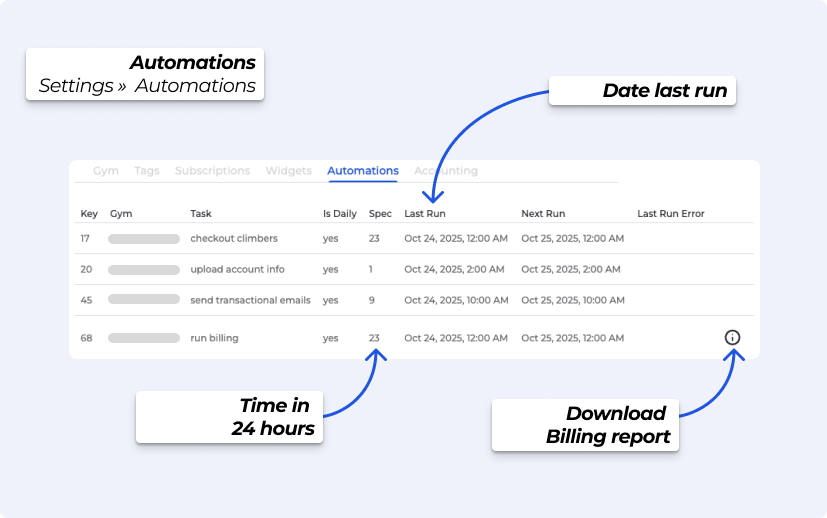
This initiates billing for all Overdue subscriptions at once and generates a downloadable report, showing which transactions succeeded or failed.
See here for how to Extend a subscription with Update Billing Date if you do not wish to apply retroactive payments.
🔗 Subscriptions Explainer
Find comprehensive guidance on managing subscriptions, including billing, payment methods, and troubleshooting issues within the BETA platform. Access tips for effective subscription management.
BETA runs billing daily, at a time set during your onboarding process.
Navigate to the Settings » Automations to download the daily billing report as a .csv
Bill Report Result | What does it mean? |
OK | Was billed correctly, or submit for billing if direct debit. |
no payment method available | Could not bill subscription due to missing payment method. |
The Subscription Popup offers in-depth details and management options for each individual subscription, which can be accessed from the individual Profile, or the Passes/Subscriptions Page.
Overview: Subscriber information, billing cycle, start and next billing dates, and subscription balance (reflecting any credit accrued for the period).
Upcoming Invoice: Breakdown of upcoming charges, such as pass prices, recurring extras, and discounts.
Manage Subscription: Options to perform key actions, like adjusting billing cycles or canceling subscriptions. Please refer to the actions below.
Transactions: Lists all recurring payments triggered by the subscription. (Note: Initial setup payments appear only on the user profile, not on this list.) Note if you see a value 0.00 in this list, then this indicates a transaction settled through Subscription Billing.
Passes: Shows all passes issued and the Entry recipients linked to the subscription over time. In between billing cycles, BETA will assign the entry to who it was gifted to during checkout, or if gifted across.
This is a convenient way for a manual one-off payment to be collected and reflected in BETA when visitors experience issues with paying for their subscription via their set billing methods.

Please navigate to the Due transaction from the Subscription Pop up, and add the payment manually.
Please note, you can also open this transaction in the POS.
If a subscriber’s billing fails (for example, due to insufficient funds or an expired payment method), their subscription becomes overdue, meaning they owe payment.
What you can do in this case is:
Bill Subscription: Creates an OPEN transaction and immediately attempts billing with the payment provider. This may process instantly if a valid payment method is available.
Retry Billing: If the transaction is still open (pending), use Retry Billing to reattempt the charge, or resync the status with the payment provider.
You can learn how to perform this action in the below linked help article,
Sales Explainer
Explore the Sales Explainer guide to learn about managing transactions, understanding transaction states, and generating sales reports
If the wrong climber is set as the owner of a subscription, you can transfer the entire subscription to the correct profile.
Transfer a Subscription (to another visitor)
Subscriptions can be transferred from one visitor profile to another when responsibility for payment needs to change.
Transferring a subscription alters WHO is paying for that subscription.
Assign Passes, will automatically issue the passes to other profiles, for this history of that subscription.
🔗Gift a pass - one time
Learn how to gift a one-time pass with our step-by-step guide.
Yes, you can transfer a subscription to a different profile, which will also transfer billing responsibilities to the new profile.
In a separate action, you will also need to ,Gift a pass - one time to also assign the passes to the correct profile. This ensures the subscription, payments and associated entries are correctly aligned with the new profile.
For Multi-location gyms, see how to transfer a subscription to another gym location — future billing will be charged from the new location. Available on Business plan and above, see the dedicated guide below.
Move Subscriptions Between Locations
Transfer a subscription to another gym location — future billing will be charged from the new location. Available on Business plan and above.
Looking to upgrade a recurring subscription/membership of just one subscription?
🔗 Upgrade Pricing of a Subscription
Learn how to upgrade subscription pricing, manage billing cycles, and navigate potential errors effectively in our comprehensive guide for users.
A subscription promotion is a price adjustment applied to a subscription. It can have an expiry date or be set to apply indefinitely, ensuring that Promotions or special offers continue with recurring billing cycles. Available on Business & Above
🔗 Subscription Promotions
Explore our guide on setting up subscription promotions, including applying discounts, managing expiry dates, and ensuring benefits for every billing cycle.
Changing the billing method for a single subscription lets you switch from the subscription’s default payment type to another payment type.
This is useful if you need to collect manual payments like cash or checks or if the subscription requires a different method than its usual setup.
Note, This applies only to the specific subscription you’re doing this for.
Cancelling a recurring subscription will stop future payments. To cancel a subscription, make sure the action is done within BETA, not in your payment provider.
Looking to cancel a recurring subscription?
Cancel a Recurring Subscription
Learn how to cancel a recurring auto-billing subscription effectively, manage pending transactions, and handle overdue payments with our step-by-step guide.
Pausing a subscription temporarily stops payment collection and suspends all attached passes, including bundled ones.
Looking to Pause/Un-pause a recurring subscription?
Pause or Un-pause a Recurring Subscription
This guide explains how to pause or unpause a subscription, including managing fees and access during the pause.
The Next Billing Date is the date the transaction is submitted to the payment provider for processing.The billing date can be set in the future or in the past, depending on your needs.
Update Subscription’s Next Billing Date
See how to change a subscription Next Billing Date.
Membership credit limits are only applicable to Stripe subscriptions. Membership credit limits should be checked-out in the POS via Subscription billing. Learn how to check out with Subscription billing here.
BETA’s Membership Credit Limit feature enhances control over spending while allowing flexibility based on each of your members' subscription. This feature allows you to customize spending caps for each member, ensuring they can make supplementary purchases such as snacks, drinks, or rental gear during their subscription, while staying within a personalized budget.
Global Gym Setting: Sets a universal spending cap for all members to manage supplementary purchases, keeping spending within acceptable limits.
🔗 Set membership credit limit (across your facility)
Learn how to set membership credit limits across your facility to manage spending effectively.
Individual Member Limit: Individual credit limits can be customized per subscription overriding the gym-wide cap.
Learn hot to set Individual Credit Limit Override for Subscriptions below,
Subscriptions Explainer
Find comprehensive guidance on managing subscriptions, including billing, payment methods, and troubleshooting issues within the BETA platform. Access tips for effective subscription management.
No, the membership credit limit represents the total amount available for spending, separate from the subscription fee. For e.g. If the membership credit limit is $100, this means the member can spend up to $100 on additional items or services on top of their subscription. Any amount spent will be accrued on top of the subscription cost.
This allows you to manage payment profiles and methods for both recurring payments and subscription billing, and more.
Payment profiles link a climber to a customer ID provided by your payment processor (e.g., Stripe or GoCardless). These profiles store secure payment methods, such as saved card details or bank mandates, enabling automated billing without requiring a physical card.
🔗 Manage Visitor's Payment Methods
Manage payment profiles and methods efficiently for subscriptions and recurring payments.
There are three types of balance adjustments you can make. These adjustments allow you to maintain accurate billing and resolve discrepancies effectively.
🔗Manage Subscription Credit/Debit Balance
Manage customer subscription credit and debit balances effectively with our guide. Learn how to adjust balances, apply vouchers, and resolve billing discrepancies.
Merge Subscriptions
For when a profile has multiple subscriptions with the same billing cycle.

See our dedicated guide below.
Multiple Billings for a Subscription
If a customer is being billed multiple times for their subscription, there are a few possible reasons for this issue. Follow these steps to identify and resolve the situation effectively.
Overdue payments generally occur when there isn’t an active payment method, such as card details or active direct debit mandate. It can also indicate that, although a valid payment method is on file, a billing attempt was unsuccessful.
This may happen if a customer cancels their mandate with the bank or if a limited-term mandate expires. Additionally, during subscription transfers or account merges, the system might default to a payment profile without an active mandate, which can result in overdue payments.
Depending on your policies, you might choose to continue trying to collect payment or cancel the subscription if payments remain unresolved. In most cases, asking the customer to set up a new mandate via their account is the best solution.
Subscription Billing is automatically retried by BETA if a subscription is marked as overdue after the first attempt to bill the visitor fails.
You can also manually trigger a retry using the Run Billing function.
This depends on your gym-wide subscription settings. » SEE HELP ARTICLE HERE «
The pass will be eventually revoked. You can control that setting from your gym wide subscription settings page. » SEE HELP ARTICLE HERE «
If a visitor later adds a valid payment method and a successful billing occurs, the system will attempt to bill retrospectively for the missed cycles.
You can manually change their billing date to prevent this, if that's the behaviour you want. Relevant help page for guidance » CLICK HERE FOR THE DEDICATED HELP ARTICLE «
Ideally your team should change the subscription in the profile pop up directly from the visitor’s profile in the BETA dashboard so that the client doesn't end up with multiple subscriptions on their profile.
It’s important to communicate to your visitors that subscriptions must be cancelled via the Visitor Home portal or the BETA app. Cancellations made through a banking app do not cancel the subscription in BETA, which visitors are often unaware of. As a result, unpaid balances can accumulate, and visitors sometimes purchase a new subscription and re-add their payment method, causing billing to resume on both the old and new subscriptions.
You can check the Subscription Popup > Transactions Tab associated with that subscription, including the Payment Method if a Transaction is present. If there isn’t one, it was most likely issued manually through the Passes Page. See here how to view the View subscription details
Rolling Subscription
In a rolling subscription, your billing cycle starts on the day you sign up. You pay the full price immediately for a full month of service, and subsequent payments follow your sign-up date. Example: If you sign up on the 14th, your next bill will always be on the 14th of each month.
Pro-Rated Subscription
In a pro-rated subscription, the billing cycle is fixed to a specific date, often the 1st of the month. Your first payment is adjusted (pro-rated) to align future payments with this fixed cycle. You pay a partial amount immediately for the remaining days of the month, then pay the full subscription amount on the fixed billing date moving forward. Example: If you sign up on the 14th, you pay only for the remaining days of the month so your next bill aligns with the 1st.
When applying a discount to a subscription, it will only apply that discount for the next payment cycle, unless it was applied as a perpetual discount in the Subscription Pop Up.
Stripe subscriptions leverage saved payment details in your Stripe Account (BETA does not store any card details).Stripe will debit the default payment method tied to the subscriber at the interval specified by the price. If a client has no valid default payment method on the date of charge, the payment will be retried or cancelled according to a gym’s retry rules. A gym can configure their retry rules from their Stripe account, here.
The initial payment is processed through a GoCardless immediate payment - when the first pass in allocated in BETA. Setting up the Direct Debit requires some processing time due to the bank, therefore until the next payment is taken you will see pending, to indicate that the second payment (processed through a Direct Debit) is still inactive. The subscription status will change to active processing of the second payment. Learn more about subscription payments here.
Carla Adult purchased an Adult Monthly Unlimited membership on the 6th of March using GoCardless direct debit. In the subscription details tab on the visitors profile, the next billing date is appearing as March 28, 2024. Carla is not happy with this as she has paid for the month already, so till the 5th of April. How do we correct this?
Yes, that's right, the payment is set for March 28th, as GoCardless payments are taken slightly before the start of the new subscription cycle to ensure the payment is processed. Even though the payment is scheduled for March 28th, her pass will still be valid until April 5th. This means Carla will get the full month she paid for. You can always check the pass expiry date at the bottom of her pass in her profile.
What will happen if Carla decides to cancel her Adult Monthly Unlimited Membership?
Carla’s membership will remain active until the 5th of April. Following this, she will have to purchase a new pass or membership to enter your climbing facility.

Still Lost? We’ve got you covered!
Use the search box on the main Help to search the entire list of available help guides, or drop your question in the Support Chat!
