This feature is available to gyms on the Club Tier and above.
BETA uses a simple traffic light system to quickly indicate a visitor’s climbing status based on their form and proficiency records, or lack of such.
Visible throughout the BETA dashboard and the POS, this system helps your gym staff to quickly assess whether a visitor is cleared to climb, needs further validation, or requires some action before entering the facility.
 Blue Profile = Good to Go; the visitor has a valid signed form and a proficiency
 Grey Profile = Valid signed form but NO Proficiency
 Orange Ring Profile = Form/waiver submitted, awaits manual/email validation
 Red Profile = a starting point for each profile, no signed form and no proficiency
 Dark Profile = User has NOT granted the gym privileges over their details
The traffic light system in BETA serves as a visual indicator of the status of visitor profiles.
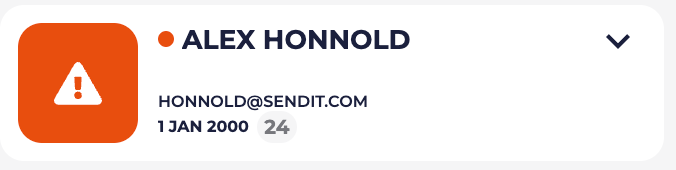 |
They cannot participate in climbing activities until this is resolved. |
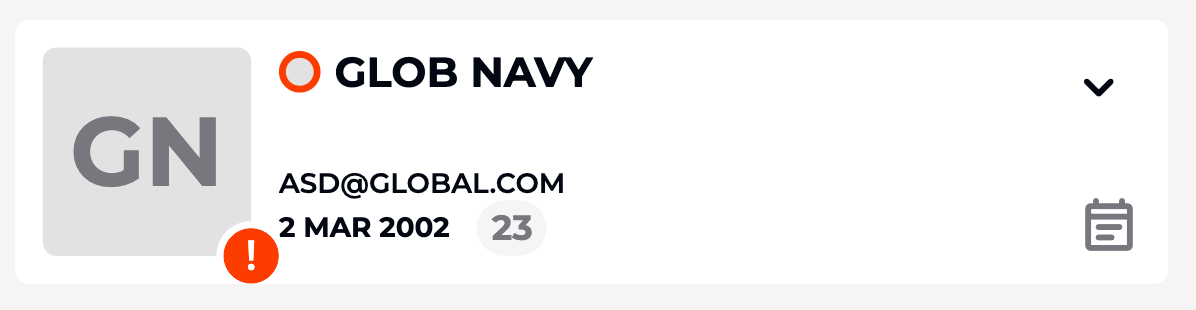 |
|
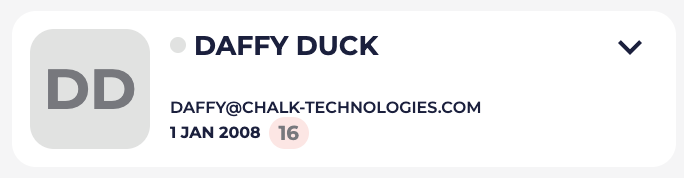 |
Staff may need to assess or update their profile. |
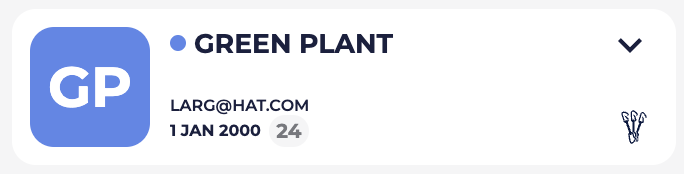 |
Note: tags that are not a proficiency will NOT advance the profile status (e.g., notes, warning, etc.). |
 |
|
Available on the Business Tier & above
By default, each profile must have a valid pass to check in. Beyond that, you can choose what level of validation is required before QR code check-in is allowed i.e., to what colour a profile must advance to, to be able to freely check into your facility.
Please read the help article linked below to understand how to set gym validation requirements,
Choose Gym Wide Check-in Validation Requirements
Learn how to manage the "Allow Unverified Auto Check-In" feature for QR code generation, ensuring only verified climbers access the gym with the right credentials.
Profile Permissions refer to the authorization granted to manage a user's account within BETA.
You gain permission over a user’s profile and data when:
Users sign waivers or other intake documents, which creates a profile in BETA and saves their information. This document serves as a record that the climber has given you and your staff permission to manage their profile on their behalf, so make sure you include any locally-required statements in your waiver document.
You create a user’s profile directly in the Visitors tab on your BETA Dashboard.
️ A dark profile signifies the user has not given your gym privileges over their details.
This indicates that the profile was created in the app, and the user did not enter their name, surname, or date of birth.
This means the profile was initially created at another gym in the BETAverse.
GDPR (General Data Protection Regulation) and privacy restrictions prohibit searching dark profiles.
In order to gain rights over their profile, you will have to:
Ask the visitor to sign your form
Email a form to a profile (pre-filled form link)
Search for a BETA app profile, via QR code if they have the BETA app.
In summary, every profile starts as a red profile, as they have both no form signed and no waiver on their profile. Once a valid form is signed, the profile of the visitor advances to grey. If the form that the visitor has signed also issues a climbing proficiency (e.g., boulder safety), then their profile will advance directly to blue.
Yes, a profile can be downgraded at any point. For example, if a form expires on a grey profile that has had a valid signed form, the profile will appear red again. Or if a proficiency is removed from a blue profile, the profile will be downgraded to grey (i.e., a signed waiver but NO climbing proficiency).
There are a couple of ways you can ask a visitor to sign your gym’s form.
Embed a BETA form widget on your website so visitors can sign directly there » see how here!
Generate a QR code from a form widget and display at your facility so visitors can quickly scan and sign your form
Email a form directly from a visitor’s profile, if this already exists in BETA with a correct email address » see how here!
A proficiency (i.e., what we call a tag in BETA) can be issued manually directly to a visitor’s profile (available on the Community Tier and above) » see how here!
Alternatively, a proficiency can be issued automatically upon signing a BETA form (available on the Business Tier and above) » see how here!

Still Lost? We’ve got you covered!
Use the search box on the main Help to search the entire list of available help guides, or drop your question in the Support Chat!


