An Entry Type is what gets issued when a pass is purchased. It defines the rules of the pass, including how it works, when it can be used, and what it allows access to.
The settings below control how holders of that Entry Type can check in, access events, use guest entries, and more. Changes made here affect how the pass behaves once issued.
To learn more about entry types and pass prices, read the explainer below.
Passes Explainer
Explore our comprehensive guide on understanding passes in BETA, including entry types, pass prices, creation processes, and tracking usage for enhanced gym management.

After creating an entry type, you have the option to customize various features related to that entry type. Features are customisable based on the tier your gym is on, as detailed below.
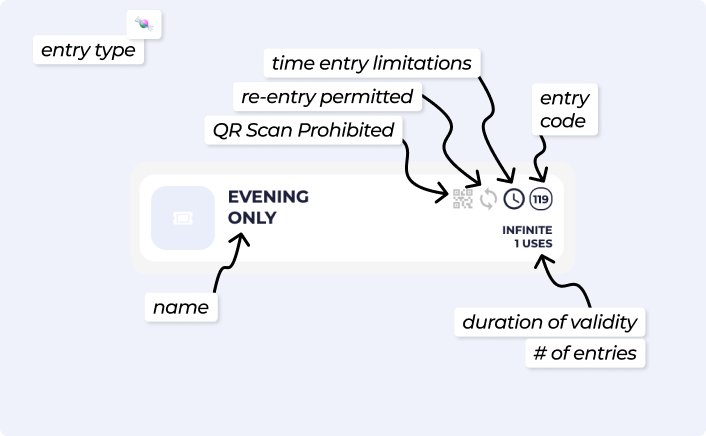
Time entry limitations - Set restrictions on entry based on the time of the day.
» Community & above
QR Scan Prohibited - Prohibit users from generating a QR code from this pass in the BETA app.
» Club & above
Permitting re-entry - Successive entries by the same profile within the same day will not debit available entries.
» Club & above
Guest entries - Enable this option to allow guest entries for free with the Entry Type.
» Community & above
Free event entries - Allow free event registration for certain Entry Types.
» Community & above
Free Slot Entries - Allow free slot registration for certain Entry Types.
» Community & above

Logs are used to track editing of entry types, these are stored in the comments bar the top of the Entry Type Pop Up.
Modify the name of an entry type as needed.
Editing the Duration of Validity does not affect existing passes that already have a start date.
Control the number of Entries allows on the Entry Type.
You can archive entry types to remove them from lists without impacting any existing passes. Simply scroll down to the bottom of the Entry Type popup to archive.

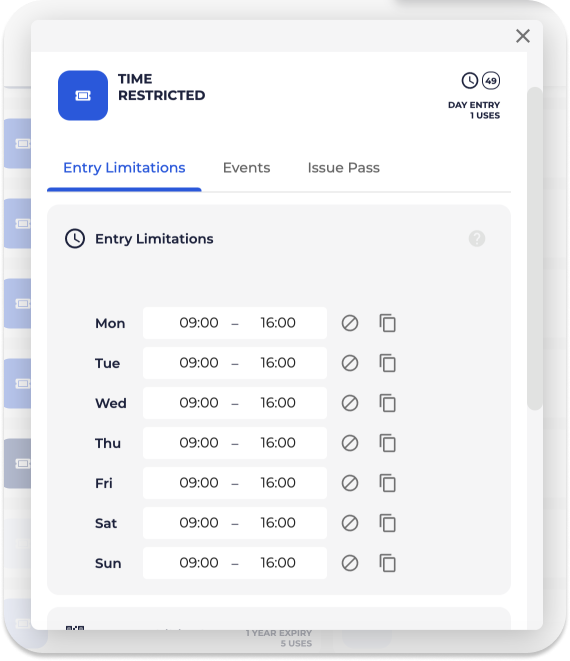
Adding time entry limitations on passes are useful for gyms that would like to set different prices of passes based upon the time of day e.g. peak and non-peak passes. Community & above
Note, If time entry limitation is empty, the pass will be valid at all hours, on all days of the week.
You can add entry times for each day by clicking on the  Clock. e.g., This will mean that this entry will only be valid on Mondays & Tuesdays from 09:00AM - 04:00PM.
To remove the entry times, click on the  No Entry icon
Click on the  Copy Icon to duplicate that field, to all fields.
QR Scan Prohibited - Prohibit users from generating a QR code from this pass in the BETA app. Community & above
Permitting re-entry on a pass will allow successive entries by a climber within the same day, without debiting their available entries. Community & above
Community & above
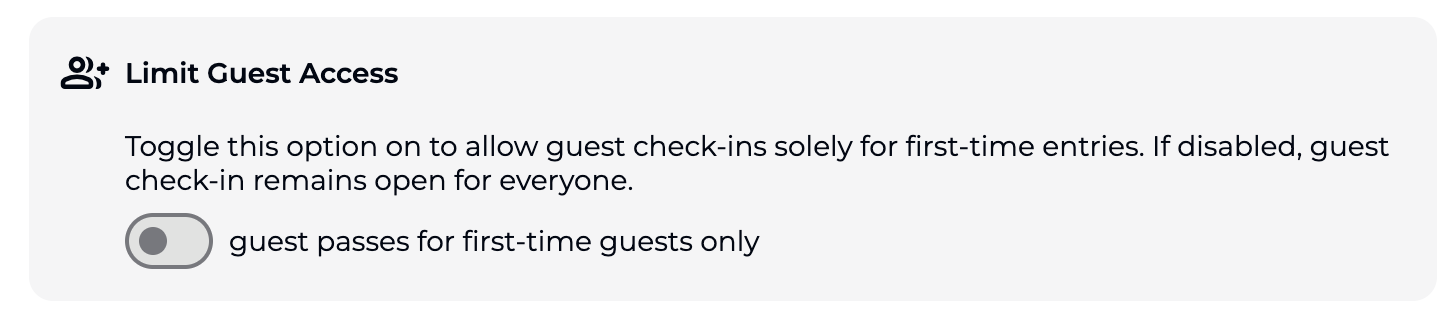
With BETA, you have the option to enable guest entry for a specific entry type.
This feature allows you to check in a guest for free using the pass, and simultaneously deducts the pass count when you check in a guest.
Learn how to check in a guests,
Guest check-in
Learn how to manage guest check-ins, configure entry types for guests, and automate checkouts for a seamless visitor experience.
Attention: There is no automation to control when and how these guest entries are used e.g., limit to one guest entry per week and per entry type is currently not possible.
In the settings page navigate to your Settings » General, and at the bottom of that page, you will find the setting to enable this.
With BETA, you can grant specific entry holders, such as your ‘members’, free access to specific events if they have the correct entry type.
By configuring entry types, you ensure that only those with the appropriate entry or subscription can register for certain events at no additional cost.
Set up event prices for different Entry Type holder:
For people who need to pay (non–entry type holders):
Go to the Event Template
Add a price to the event (this is what they will pay online, through an Event Widget)
For people with a specific entry type (e.g., membership holders) who should get in free:
Go to the Passes Page → Entry Types
Find the entry type you want to include (e.g., Annual Membership)
Click on Events » Add the event template to that entry type
This makes the event free for anyone with that entry type, available through the Visitor's Home or the BETA app
Please refer to the dedicated help page linked below,
Configure Entry Types | Event Entries
Configure event entry types to manage free access for members / pass holders.
Allows staff to issue an Entry Type manually without collecting payment.
Useful for:
Staff access
Sponsorships
Complimentary passes
Manual corrections
The issued pass’ start date can be set in the pop up an the expiry date, and rules are set as defined in the Entry Type.
Open up the Entry Type pop up, and press the  icon to rename. This change will be reflected across your entire dashboard, inlcuding widgets.
Yes! Re-entries can be permitted on any entry type in BETA, however, they are most relevant for those entry types which do not have an infinite number of entries.
No, only accounts with manager or owner permissions can modify pass features to include re-entry functionality.
If a climber has already entered your gym on the same day and returns with a re-entry pass, you will see a prompt to “Resume Session” after opening their profile. Checking them in with the “Resume Session” button won't subtract an entry from the pass’s available entries. This also works for guest entries used on another climber’s pass.
Guest entries on Passes will all automatically be delivered on renewal of the pass, according to the expiry of the pass. For example, if a pass expires in 12 months, and the pass has 12 entries associated with it, they will all be assigned together.
You can enable free entry for supervisors by setting up guest entries within the entry type settings.
This option allows passes for minors to include check-in privileges for one or more accompanying guests, ensuring easy access for adult supervisors.

Still Lost? We’ve got you covered!
Use the search box on the main Help to search the entire list of available help guides, or drop your question in the Support Chat!
