The Sales Page offers a variety of functionalities to help manage transactions. You can filter sales by state (e.g., completed or pending), by time period, and view detailed transaction lists. This makes it easier to track specific sales, ensure proper reporting, and access any associated data.
The page also includes reporting options, allowing you to generate a summary of sales activity, which is useful for day-to-day management or for generating reports at the end of a period.
Basic Filtering on the Sales Page
Explore our guide on filtering and searching the Sales Page to efficiently track transactions by date, climber, staff member, and transaction ID.
Open Transaction
Open transactions are transactions that were started, but either the cart was abandoned, or the transaction was not finalised in the POS. Open transactions allows for more items to be added to the same transaction. Items are NOT issued.
Due Transaction
Due transactions locks the transaction, preventing any items to be added to the transaction. Due transactions may only be modified by adding/removing payments, recalling, or refunding the entire transaction. All Items are issued to the linked profile. Available on Business and above
Succeeded Transaction
Transactions that have been successfully processed and completed.
Cancelled Transaction
Transactions that have been intentionally terminated.
Refunded Transaction
Transactions for which a full refund has been issued.
Partial Refund Transaction
Transactions for which a part refund has been issued.
For for a full breakdown of the Sales Reports you can generate in BETA.
Generate Sales Reports
Explore how to generate and manage sales reports effectively with our comprehensive guide, covering transaction states, tax rounding, and export options.
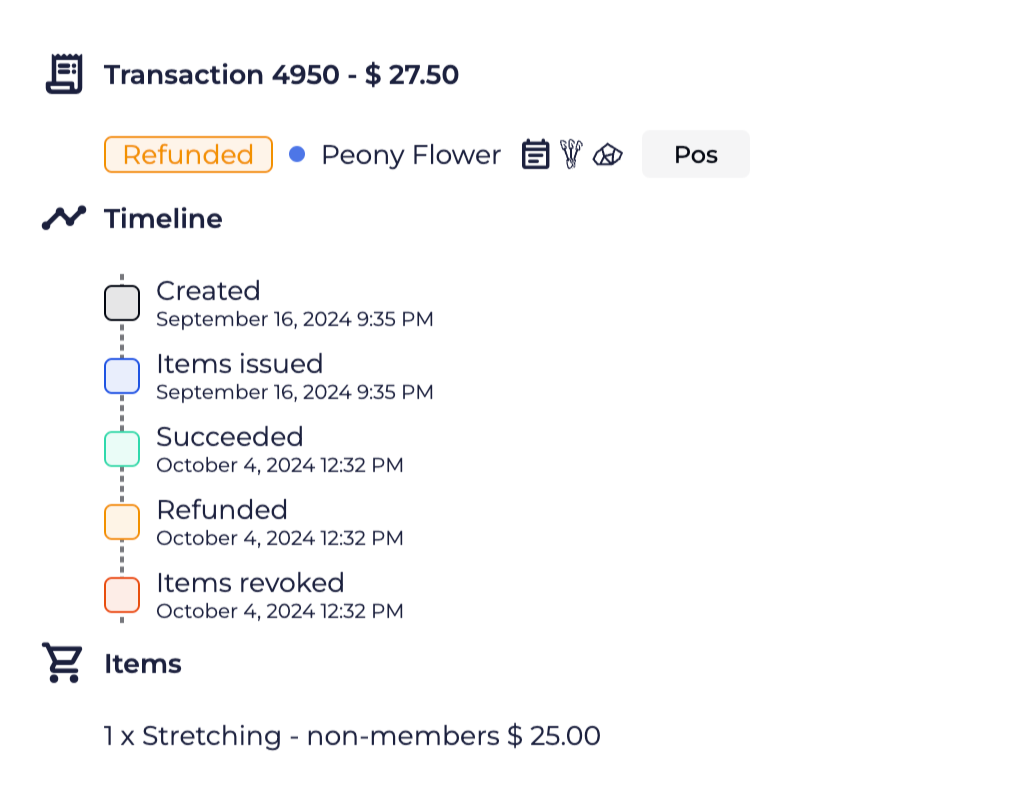
The Transaction Timeline provides a detailed record of key events in the lifecycle of a specific transaction. Displayed in a pop-up page, it helps track each step from the initial purchase to completion.
You can view important timestamps, such as when payments are processed, products issued, and any related actions. This feature ensures a clear, chronological overview for managing transactions effectively, helping resolve disputes or review transaction history.
Created: The date when the transaction was initially created.
Items Issued: The date when the items within the transaction were issued.
Succeeded: The date when the transaction was successfully processed, and payment was completed.
Refunded: The date when the payment for the transaction was refunded.
Partial Refund: Indicates that a partial refund was initiated, scroll down to the payment to see amount.
Revoked: All Items (Entries Types/Events/Stock etc) associated to that transaction have been revoked and returned.
BACS (Bankers' Automated Clearing Services) and ACH (Automated Clearing House) payments, along with Direct Debit transactions managed through providers such as Stripe or GoCardless, depend on regular syncing to keep payment data accurate and up to date.
Because these payment types are not instant, settlements typically take 3–5 business days to complete.
BETA automatically syncs with these services daily to update payment information. During each sync, any changes in payment status (e.g., processing, completed, failed) are reflected on your dashboard.
When immediate updates are required - such as for customer queries or financial reporting - BETA’s manual syncing can be used to refresh data instantly. Use the Sync button, which will check with your chosen payment provider and update the payment status in BETA. It's useful when a payment was completed but hasn't yet appeared as confirmed.
Looking to updating a billing date for a subscription?
Subscriptions Explainer
Find comprehensive guidance on managing subscriptions, including billing, payment methods, and troubleshooting issues within the BETA platform. Access tips for effective subscription management.
At times, some payment providers’ notifications do not get delivered to BETA. If you suspect this is the case, retrying billing will FORCE SYNC the already created transaction. Note, to sync a specific DUE payment on a subscription that can be done from the Transactions Tab » Syncing DUE Payment status

Purchased items refer to the original items bought by the attendee during the registration or ticketing process. Issued items, on the other hand, reflect the items currently assigned to the attendee.
These may change if adjustments or transfers occur.
When an event is transferred (using the BETA transfer feature), the issued items in the Sales Popup is updated to reflect the transfer, while the purchased item details remain tied to the original transaction. This allows for clear tracking of changes and transfers.
