Xero is a cloud-based accounting software for small businesses that provides solutions for for streamlined financial management.
The Xero integration is available for BETA users on Community tier or higher.
To use the integration you also need a Xero account.
Below is an overview of the entire process, and what you need in place, to keep your BETA transactions flowing into the accounting software automatically.
In BETA’s Integrations settings, authorize access to your Xero organization. Ensure API access is enabled in Xero and that your BETA and Xero time-zones match.
In BETA’s Xero integration settings, choose how you’d like your transactions bundled each night into the Draft Journal.
You can group by:
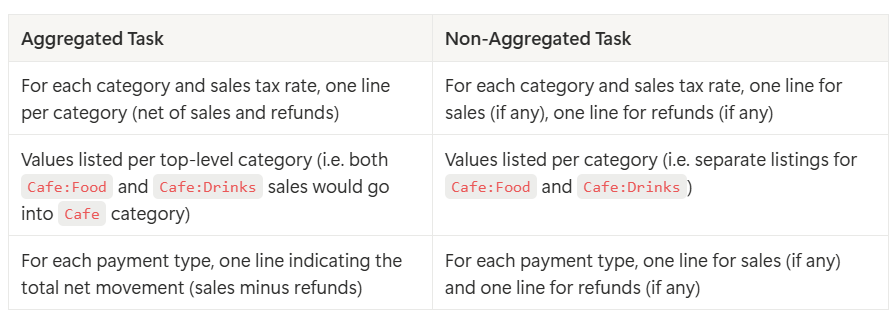
This setting determines exactly which subtotals appear on each journal line, so that you see the right level of detail when you review and post in Xero.
On first connect, BETA will generate three default accounts in Xero:
BETALIAB (liabilities)
BETACURR (bank/cash movements)
BETASL<TAX> (one for each sales tax rate)
If you prefer your own accounts, you can rename or map Price Categories to any existing Xero account code.
In BETA, list all your Price Categories (e.g. “Day Pass,” “Membership,” “Cafe:Drinks”).
For each Category, either:
Exact-match its name to a Xero account, or
Enter a custom Account Code in BETA to override the default.
Categories using a colon (e.g. Cafe:Food) will post subtotal lines under the parent account (Cafe).

When using the Xero integration, your Price Categories in BETA must match the account names in your accounting system for the integration to work properly.
: & - 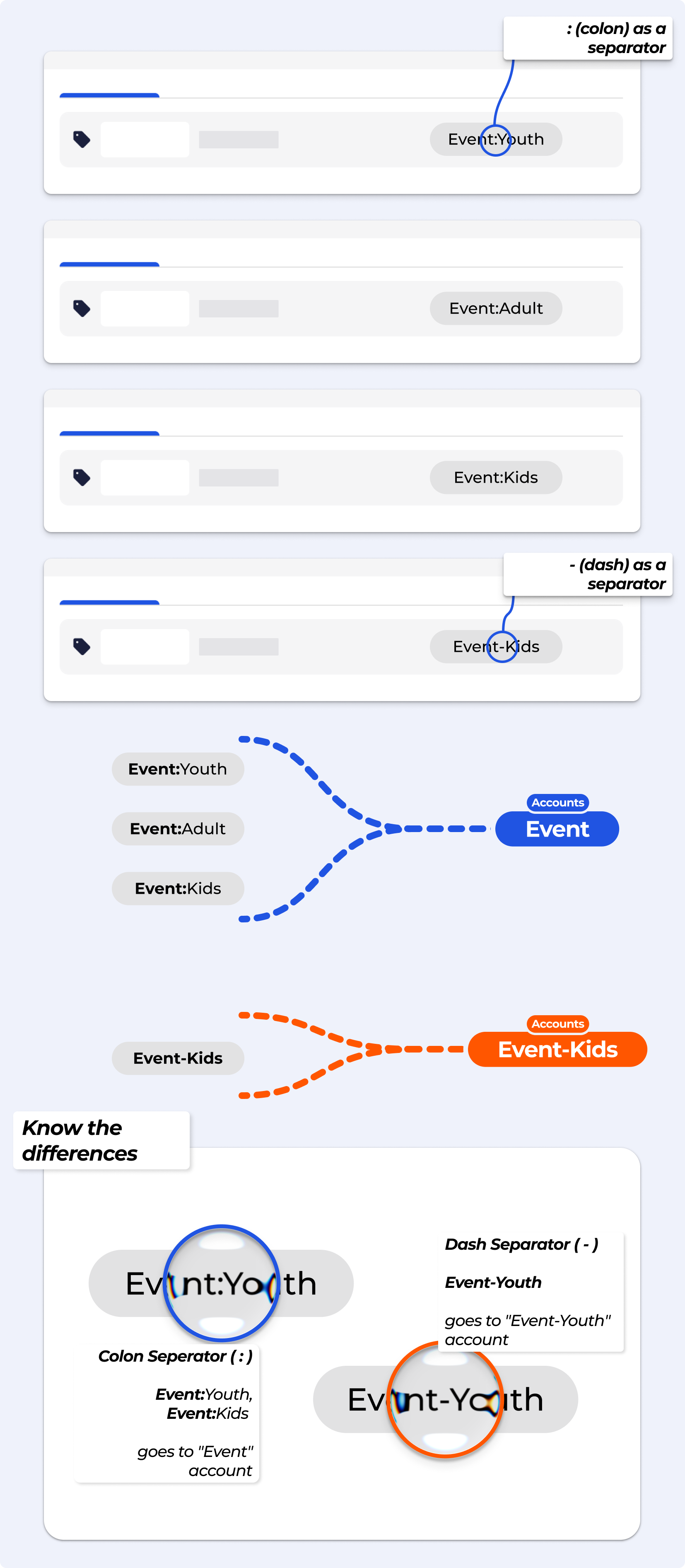
BETA looks at the text before the colon : when sending data to Xero.
a) For example, these all map to the same account:
Event:Youth
Event:Kids
Event:Adult
All three go to the "Event" account in Xero.
b) If you use a dash - instead of a colon:
Event-Youth is treated as a completely different account called “Event-Youth.”
It will not be grouped with “Event.”
c) If no colon is used,
BETA simply looks for an exact match to your account name or falls back to BETASL<TAX>.
Use a colon
:to group categories to the same account.
Avoid using a dash
-if you want items to go to the same account.
🔗Manage Products, Product Options & Product Prices
This is a new page
At 1 AM daily, BETA gathers all day’s sales, refunds, gift-cards, deposits, payroll, etc., into a single Draft Journal in Xero. Lines are grouped by Price Category (or fallback BETASL<TAX>), tax rate, and payment type.

BETASL<TAX> sales account for that item’s tax rate.In BETA you can run a report, which will export a .csv of how your Price Categories match with the accounts you have set up in your Xero.
Troubleshooting: Fixing "BETA SALES" Account Errors in QuickBooks & Xero
This guide applies to Xero & Quickbooks integration and show you how to troubleshoot accounting errors, or mismatched guides.
If you’re using Xero, click the “Xero” button.
Note: If you operate with multiple locations, be sure to download and check the mapping at each location—especially if you use a separate Xero account per location.
Open the Draft Journal in Xero, confirm totals and account breakdowns, then click Approve.
Once approved, the journal is posted to your Chart of Accounts » no manual exports or .csv are required. These are updated and set to run, depending on the frequency you have chosen.
BETA offers two export formats for accounting: Aggregated and Non-Aggregated.
Aggregated gives a simplified summary, while
Non-Aggregated provides a more detailed breakdown of sales, refunds, and categories.
Choose the format that best fits your bookkeeping needs, and after setting up the integration, let the BETA team know which you would prefer
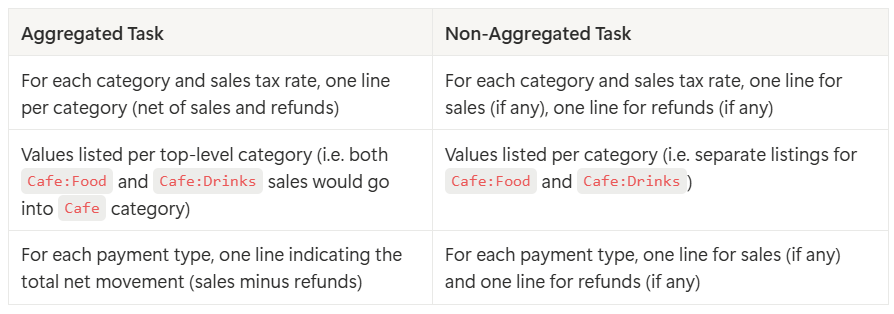
The BETA team will configure an automated task that runs daily at 1 am. This task serves the following purposes:
Creates a journal entry Xero based on the integration you've set up.
Records total sales made, categorised by tax rate (credited to relevant sales accounts).
Logs total sales refunded, categorised by tax rate (debited from relevant sales accounts).
Documents total payments received, categorised by payment method (debited to the current account).
Tracks total payments refunded, categorised by payment method (credited to the current account).
Manages total deposits received for transactions not yet finalised (credited to current liabilities).
Handles total deposits exchanged for transactions closed today (debited from current liabilities).
Records total deposits refunded (debited from current liabilities).
Accounts for total gift cards redeemed (debited from current liabilities).
Logs total gift cards purchased (credited to current liabilities).
If you prefer, or if there was an error during syncing, you can manually push a specific date to your draft journal in Xero, from the Settings » Integrations Page.
You will need Owner and above permissions.
In your BETA dashboard, you define Price Categories in BETA (e.g., “Day Pass,” “Membership,” “Cafe,” or any custom label). BETA will:
Exact-match your Category name to an existing Xero account.
If your Category uses a colon (e.g. Cafe:Beverages), everything before the colon (Cafe) must match an account—then BETA will post a separate journal line for Beverages under that account.

Cafe:Drinks and Cafe:FoodWhen you integrate BETA with Xero the system will automatically create specific accounts in Xero to help manage your financial transactions. Here's what you need to know.
BETALIAB
This account is created for all current liabilities, such as deposits and unredeemed gift cards.
BETACURR
This account is designed to manage all incoming payments.
BETASL{TAXRATE}
For each tax rate at which you sell products, a unique account is generated with the name above followed by the applicable tax rate. This account helps you categorise sales transactions based on different tax rates.
LIABILITIES ACCOUNT
 The liability account increases in value (a CREDIT) when:
A gift card is purchased
Payments are taken for a transaction that is not finalized (a deposit)
A transaction is closed with subscription billing. </aside>
 The liability account decreases in value (a DEBIT) when:
A gift card is redeemed
Payments attached to transactions that were never finalized are refunded
Transactions with deposits taken on previous days are finalized.
A subscription payment is made with additional value to cancel out previous subscription billing.
This automated account creation process simplifies your financial management by ensuring that the correct accounts are set up in Xero, streamlining your accounting procedures. This way, you can maintain accurate records and efficiently track your financial data.
You can also customize your account mapping for gift cards, subscription billing, and general liabilities with an account mapping file. Please contact us on Discord for a mapping template.
You can configure BETA to try to match sales to specific accounts within Xero. BETA will first group sales by category, and then attempt to match categories to accounts within Xero. The name must be an exact match, or if the category in BETA has a colon : in the label, BETA will check for a match in the part of the label that precedes the colon.
BETA can send Timesheet entries to Xero based on the shifts logged in the shift tracking area.
In order to send Timesheets to Xero, you must first be integrated to Xero, and then navigate to the Integrations page in BETA. Click on the Xero card and you will see a popup where you can enter the date range and a Payroll Calendar ID to send a batch of Timesheets. The Timesheet entries will be sent with the Draft status.
Employees are matched by their first and last name. If there is no match for an employee in Xero, the employee’s shifts will not be sent to Xero. You will be able to download a summary of the match results for all employees at the end of the upload.
The Tax Rate Accounts automatically created by our system are simply fallback accounts. You can use whatever accounts you like to organize your revenue. Before allocating any sales or refunds to our fallback accounts, BETA checks for an account matching the Category of the Price associated with the line item.
For example, if I have prices allocated to the category “Cafe” in BETA, and a Xero account called “Cafe”, any sales or refunds of those Cafe prices will be allocated to your Xero Cafe account.
To further break down sales within a single account, you can append a colon and then a subclassifier to the Category name. For example, if I want to see the total sales per day of all beverages as a separate line in Xero from the total sales of all food items, I might set up the two following Categories in BETA:
Cafe:Beverages
Cafe:Food
All revenue from both categories will be entered into the Xero account called “Cafe”, but the Beverage and Food totals will have separate lines in the Journal Entry.
You can customize the Xero accounts BETA uploads information to in your settings page. Simply enter the Xero Account Number (in the example below, AR123) in the desired field and click Submit.

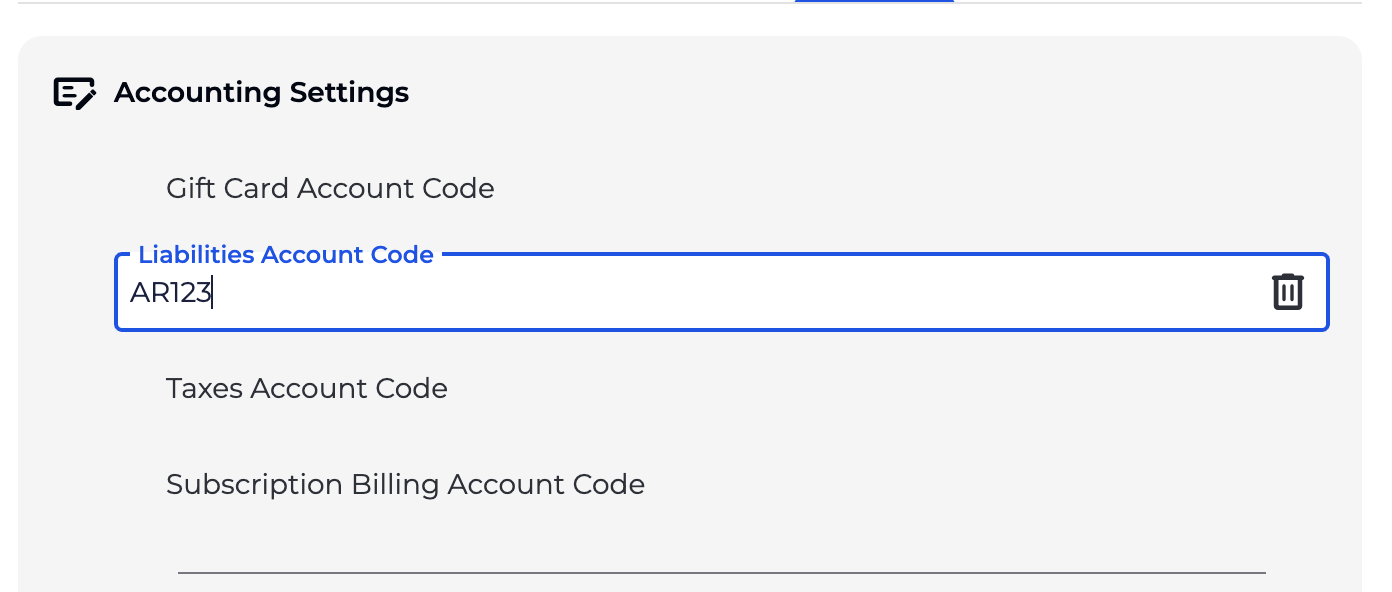
Some account types require a Customer Code or Vendor Code (Accounts Receivable and Accounts Payable, respectively) to be attached to a journal entry. If you’d like to use one of these accounts, please create a Customer or Vendor and enter the code in the relevant field in your BETA Accounting settings.
If you plan to add prices in the future with new tax rates, you may encounter an error in your integration. In order to avoid any errors, please contact us if you update your tax rates to ensure all necessary accounts are created in Xero.
Gift Cards without Payment: If you issue a gift card without receiving any payment in return, please be aware that you'll need to manually credit the liability in Xero.
Manual Journal Entry Status: In Xero, the manual journal entries created by the automated task will have the status "DRAFT." It's crucial to note that, for the time being, these entries must be manually approved. Ensuring manual approval helps guarantee the accuracy and compliance of your financial records in Xero.
To access the Xero/Quickbooks integration feature in BETA, follow these steps:From the BETA Dashboard, click the Settings option.Click Integrations from the menu.Select Xero from integrations page.
This implies that no matching account was found in your XERO account, meaning BETA could not map any transactions to the account. Please update your accounts in Xero to match.
See the Xero guide here:https://central.xero.com/s/article/Export-or-print-your-chart-of-accounts
Yes, you can customise the names of the accounts created in Xero during the integration process.
However, please do not alter the Account Code in Xero to maintain the accuracy and integrity of your financial records.
If you plan to update your tax rates in the future, please contact us. This step is crucial to ensure that all necessary accounts are created in Xero, preventing potential integration errors.
If you issue a gift card without receiving any payment in return, you'll need to manually credit the liability in Xero. This ensures accurate accounting for such transactions.
All automated accounting entries are pushed to Xero as draft manual journals, which allows you to review and approve them manually. Manual approval is essential to maintain the accuracy and compliance of your financial records in Xero.
This is a setting inside of your XERO account, you will need to update the default tax rate for the BETA CATEGORY inside of XERO eg: “Shoes” account. You can do this from the Chart of Accounts. Please follow the XERO help page.

Still Lost? We’ve got you covered!
Use the search box on the main Help to search the entire list of available help guides, or drop your question in the Support Chat!
