When your price categories in BETA don't exactly match your account names in QuickBooks or Xero, transactions get dumped into a generic "BETA SALES" account instead of your specific revenue accounts.

Xero
Learn how to integrate Xero with BETA for seamless automated accounting. This guide covers setup, account mapping, and troubleshooting for efficient financial management.
Quickbooks
Access our Quickbooks integration guide to streamline financial management in BETA. Learn how to set up accounts, customize settings, and avoid common errors.
Why this matters: You need to see which categories are matching correctly and which ones are falling back to "BETA SALES." The mapping report shows you exactly where the problem is.
In BETA:
Go to  Settings → Integrations
Click QuickBooks or Xero (depending on which you use)
Click "Download mapping"
Open the CSV file to see how BETA categories currently match your accounting accounts
If you are using Xero, click the “Xero” button.
If you are using Quickbooks, click the “Quickbooks” button.
The mapping CSV shows you exactly which categories are broken. Knowing what to look for saves you time hunting through reports. Any category mapped to "BETA SALES" is a mismatch.

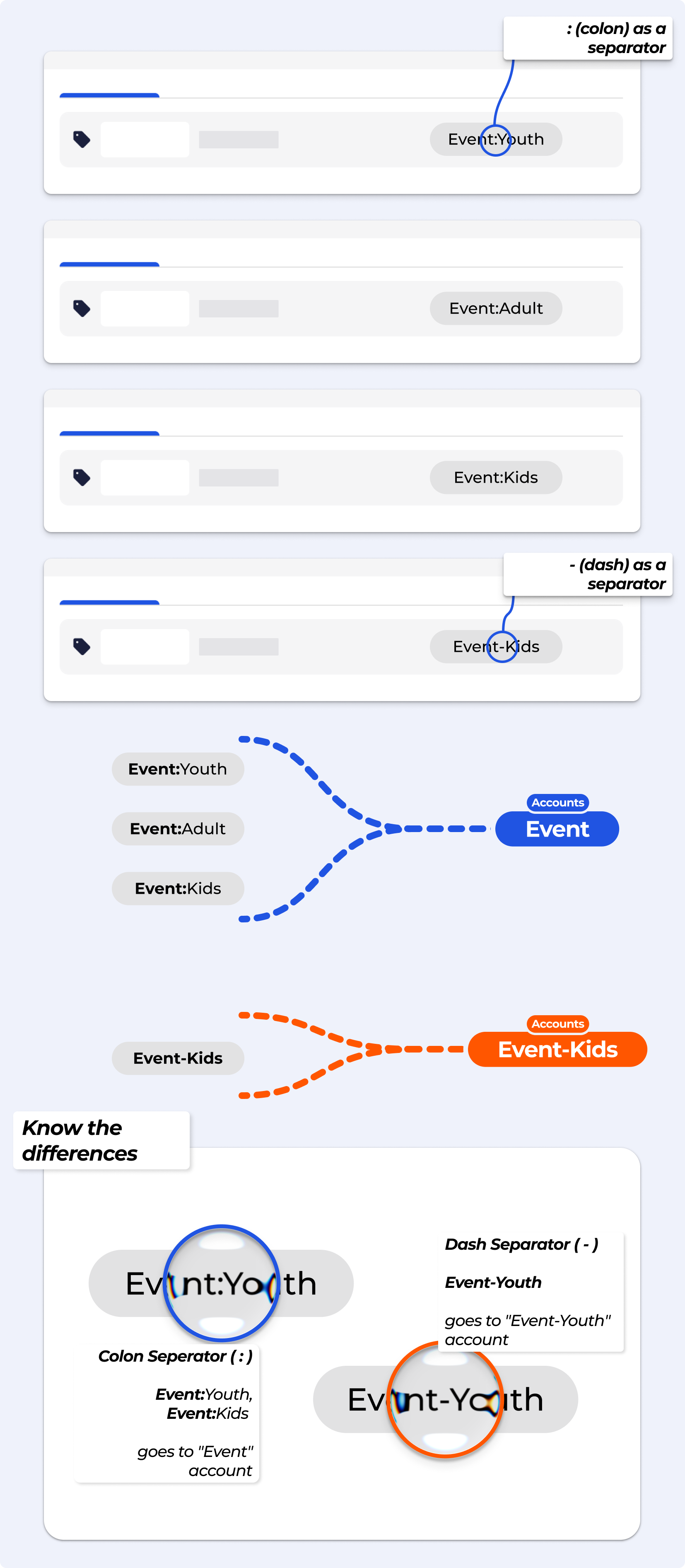
If you want multiple categories to roll up into ONE account, use a colon.
How it works:
Cafe:Drinks and Cafe:Food both go to the "Cafe" account
The part BEFORE the colon must exactly match your account name
Each will show as separate lines in your journal entry
Don't use a dash (-):
Cafe-Drinks is treated as a completely different account called "Cafe-Drinks"
: & - 
When you download the mapping CSV, look at the "Category Code" column:
 MATCHED (Correct):
Category Code shows the actual QB/Xero account code (e.g., 405, 1200, SALES-COACHING)
These codes repeat for categories that map to the same account
 MISMATCHED (Problem):
Category Code shows BETASL0 (or BETASL15, BETASL20 depending on tax rate)
This means BETA couldn't find an exact match and is using the fallback "BETA SALES" account
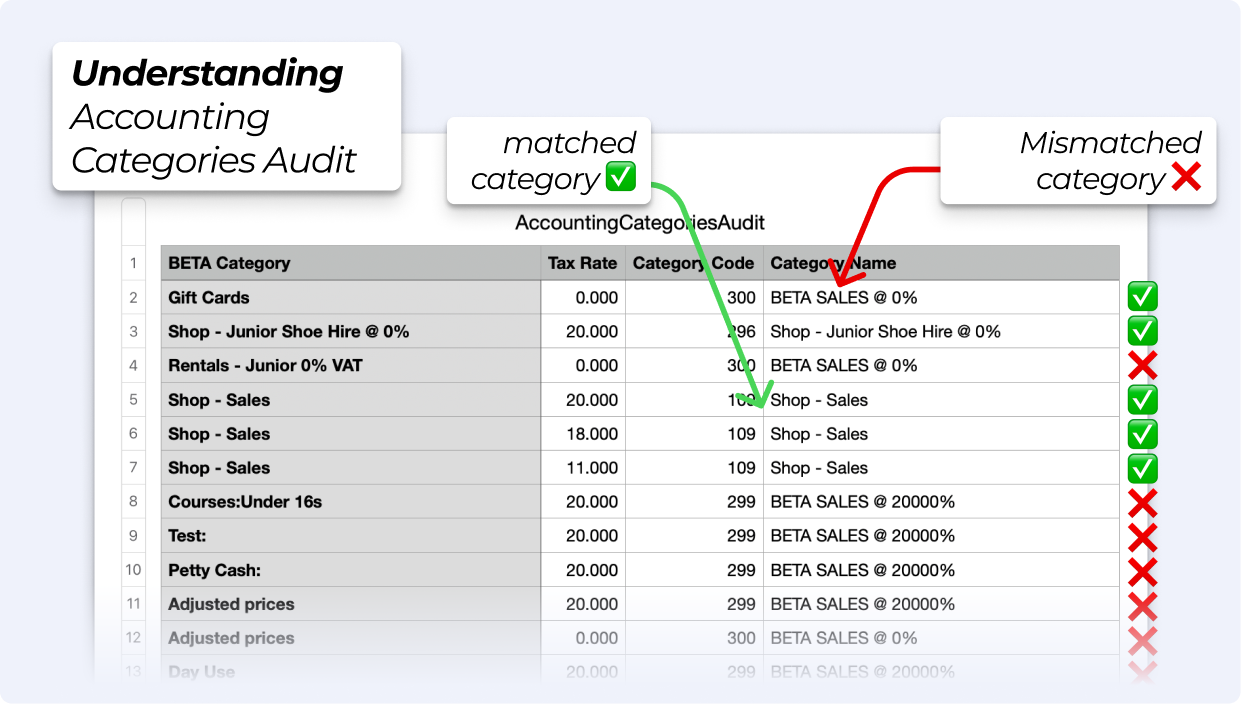
You have two options:
Option A: Update categories in BETA to match your accounting software
Option B: Update account names in QB/Xero to match BETA
Check out the tools in BETA update BETA categories.
EXPERIMENT: Bulk Update Price Categories
Update the price category for multiple prices at once, making it easy to reorganise or standardise your pricing.
Manage Products, Product Options & Product Prices
Control your tangible products, such as retail/cafe items. Set their description and other details and set pricing and price categories.
After updating, download the mapping report again to verify everything matches.
If the automation is set, wait for the next nightly sync (happens at 1 AM)
Check your QB/Xero draft journal entry
Confirm transactions are posting to the correct accounts instead of "BETA SALES"
Still seeing "BETA SALES" after updating?
Double-check spelling and spaces—use copy/paste from your QB/Xero account list if possible
Make sure you updated the categories for ALL prices, not just some
Download the mapping report again to confirm matches (should show account codes, not BETASL0)
Clear your browser cache and redownload the mapping
Need to change QB/Xero account names instead of BETA categories?
In QB/Xero, rename accounts to match your BETA categories exactly
For Xero users: Don't change account codes—only change the account name (changing codes breaks the integration)
Transactions from last month are still wrong:
The fix only applies to NEW journal entries going forward
Old entries with "BETA SALES" need to be manually reclassified in QB/Xero. You can also manually push a journal from Settings » Integrations if you don't want to wait for the automatic sync.
Going forward, everything will post correctly
