This help article will assist you in ensuring your forms/waivers are ready to go before your start date with BETA! This includes set up of new forms, migration of forms from your previous provider and allocating them to the correct visitor.
To be able to migrate your forms/waivers, these need to be created in BETA. Ensure you’ve reviewed the below guides that explain the types of forms BETA supports and walk you through the form creation and set up process.
Forms Explainer
Explore our comprehensive guide on managing participant forms, including settings, expirations, and booking forms


When migrating to BETA, we require guidance on linking forms from your previous provider to the forms that are created in BETA.
This ensures that all visitors are correctly allocated the form they have signed.
You will be provided with a Mapping Sheet, which allows you to associate your previous forms with a corresponding form key in BETA.
Your Mapping Sheet can be found in a shared google drive folder.
The form key can be found on each individual form on the Participant Forms page in your dashboard.
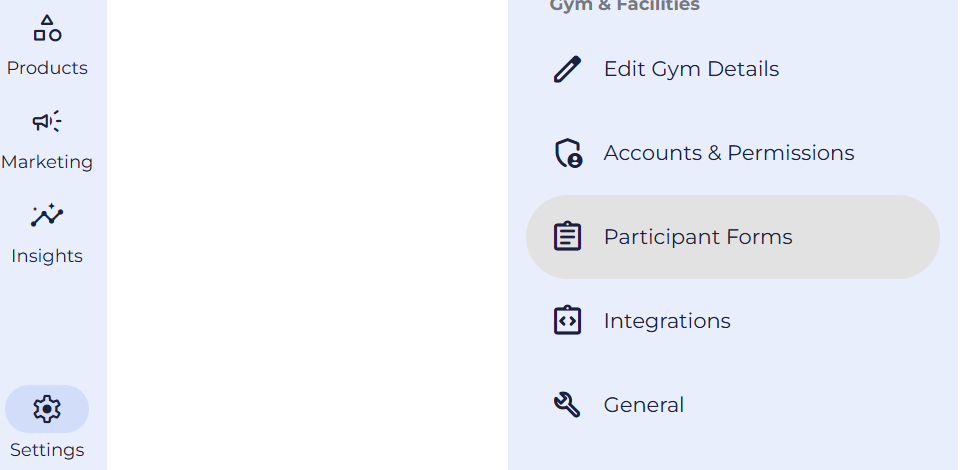
It’s important to download all your documents from your current system.
In BETA, forms will be imported in each profile as a status, meaning that you can see what was signed by the visitor, when it was signed, and when it is going to expire, but you would not be able to open the form from BETA. This is why it is important that you download all forms and store them somewhere safe, if you ever need to open a form for reference.
The historical download of your participant contracts/forms can be started, and the "gap" will need to be bridged later on.
A migration is a great opportunity to review and improve your processes and operations.
If you choose to update your forms or waivers, you can simply ask participants to sign the new versions when they visit your facility. In this case, there’s no need to migrate or download previously signed forms into BETA.
Booking forms and waivers are different in BETA. Please see the dedicated guide below.
Booking Forms Explainer
Learn how to create and configure Booking Forms for your online booking widget, ensuring mandatory details are collected for purchases.
We recommend capturing this information with your forms/waivers. Please ensure your forms or waivers include a field to capture an emergency contact’s name and phone number.
To display on your website, or generate QR code leading to your widgets for quick and easy signing.
Create Forms Widgets
Form widgets help you add forms to your website, link to your social media, and generate QR codes for posters.

Still Lost? We’ve got you covered!
Use the search box on the main Help to search the entire list of available help guides, or drop your question in the Support Chat!
