You may want this guide if you are setting up automations to send WhatsApp messages — for example, notifying a parent when their child's pass is expiring, confirming an event enrollment, or sending a renewal reminder.
WhatsApp messages in BETA are sent using SeaChat, a third-party WhatsApp messaging integration. Before using this feature, you will need an active SeaChat account connected to your BETA system.
SeaChat is a WhatsApp Business messaging platform that connects to BETA to send automated messages to your climbers via the Marketing » Transactional Emails » Automation Builder
How to Set Up an Integration in BETA
Set up powerful integrations to automate your workflows.

On the Marking Page » Transactional Emails
Create a new automation or open an existing one Automation in BETA.
Build your Automation via Triggers, Pre-trigger filters and Post-trigger filters. See the dedicated guide below
Under Action, click Add Action.
Select SeaChat as the action type.
Click Edit SeaChat Config to open the configuration panel.
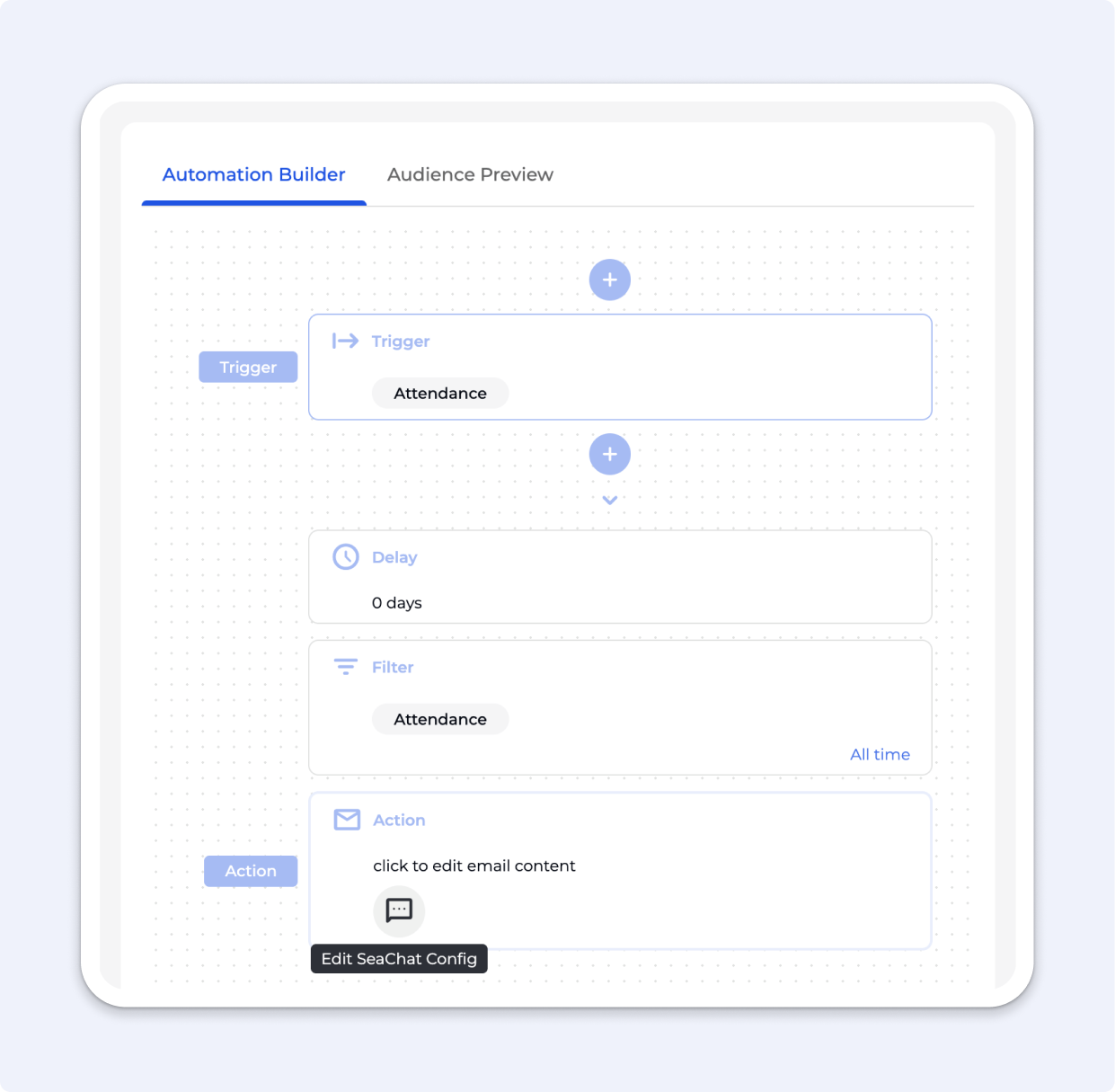
Interested more about setting up Automations, via Triggers, Pre-trigger filters and Post-trigger filters. See our full guide below
Create Advanced Transactional Emails
Learn how to Leverage Advanced Transactional Emails in BETA's inbuilt Automation tool.
When you open the Edit SeaChat Config panel, you will see the following options:
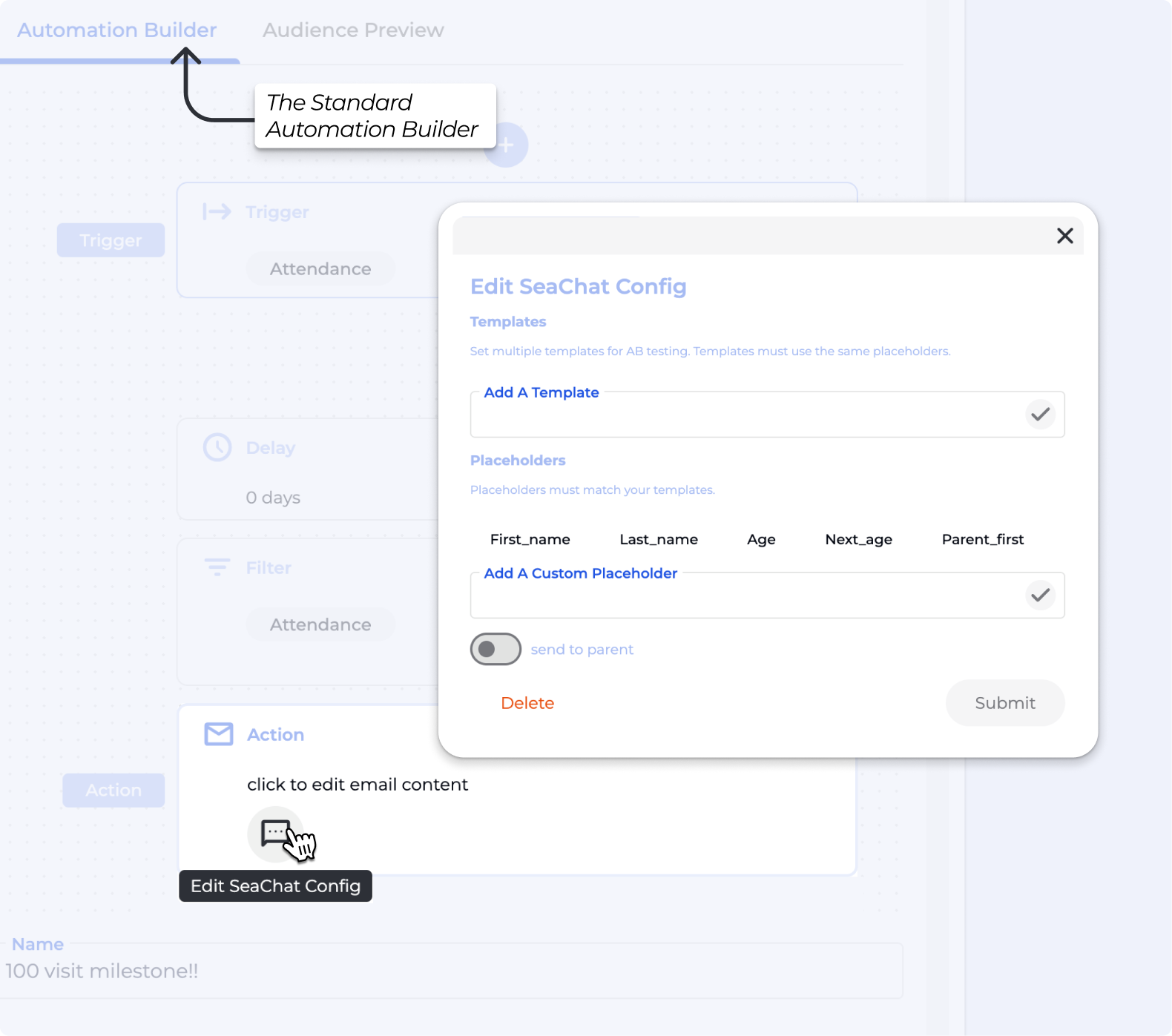
Use the Add A Template field to enter your message template.
You can add multiple templates for A/B testing.
All templates in the same config must use the same placeholders.

Placeholders are variables that are automatically replaced with real data when the message is sent.
The following placeholders are available by default:
First_name → The climber's first name
Last_name → The climber's last name
Age → The climber's current age
Next_age → The climber's age at their next birthday
Parent_first → The first name of the climber's parent or guardian
To add a custom variable, use the Add A Custom Placeholder field and enter a name. Custom placeholders must match the placeholder name used inside your template exactly.
Toggle Send to Parent on if the message should be delivered to the parent or guardian's WhatsApp number rather than the climber's.
Curious on how Family profiles work in BETA?
Manage Families in BETA
Learn how to manage family profiles in BETA.
Once your templates and placeholders are configured, click Submit to save the SeaChat config.
Complete any remaining automation settings.
Activate the automation when ready.

Messages are not being sent
Check that your SeaChat account is active and connected under Settings → Integrations. → Confirm the climber or parent has a valid WhatsApp number on their profile.
Placeholder text is appearing in the message instead of real data
Check that the placeholder name in your template matches exactly what is listed in the Placeholders section (case-sensitive).
The wrong person is receiving the message
Check whether the Send to Parent toggle is set correctly for your use case.
