BETA’s pre-sale process consists of a series of steps designed to prepare you for going live with sales. These steps include:
Integrating your payment provider with BETA to enable you to receive payments
Setting up your electronic receipt and invoice templates to be sent to customers
Creating your pre-sale offerings so customers can purchase them (e.g., passes, events etc)
Generating BETA widgets for your pre-sale offerings to enable seamless online purchases
Setting up forms and waivers for customers to complete during the purchase process, ensuring they’re ready to climb once you open
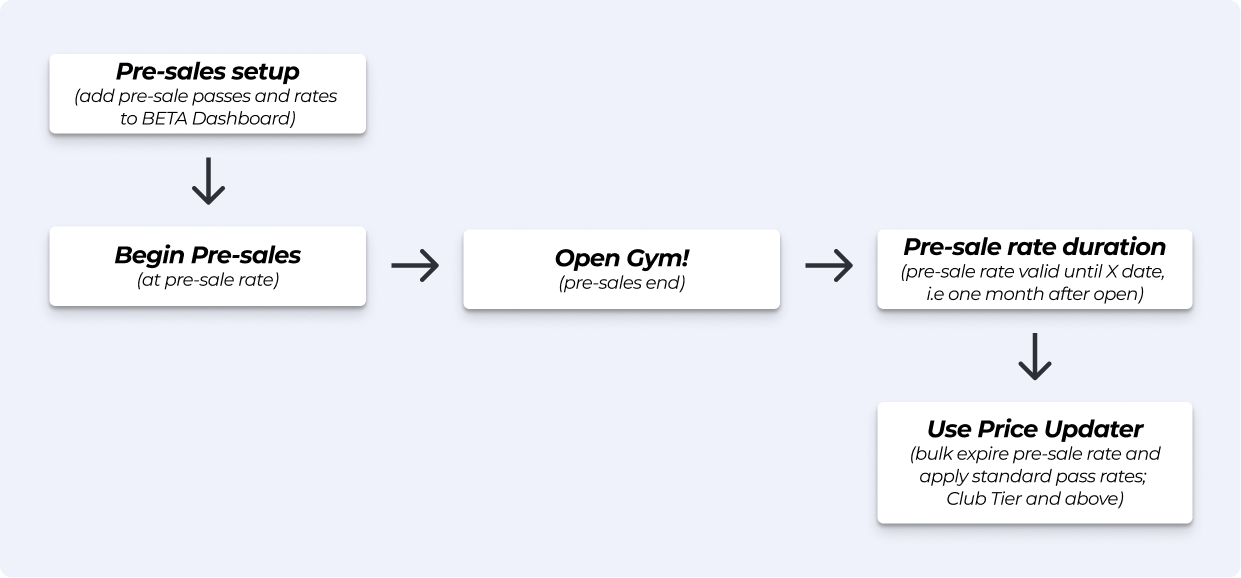
Deciding what happens to these offerings after your gym opens
e.g., if you wish a price update of these passes etc
Your Official Opening Date
Duration of the Pre-sale offer after official opening
When do you wish for visitors to be changed to a different price/offering?
Billing Style
Please confirm which payment provider you will be using. Your gym’s designated contact must contact us and let us know via the BETA support chat in the dashboard
BETA's Integrated Payment Providers
Here you can find a list of all payment providers currently integrating with BETA.
Integrate your payment provider with BETA on the Integrations Page on your dashboard
Check out all of our Payment Integrations Guides
Check the below help article to understand what electronic receipts and invoices are used for
Read the guide below for what information our team needs from you to complete the set up of these for you. Please provide the information via via the BETA support chat in the dashboard
Your Gym's Receipt & Invoice Templates
Discover how to customize and send receipt and invoice templates directly from the BETA Dashboard.
Read the article linked below to understand the different types of passes you can create in BETA
Watch the video in the article linked below for a step-by-step process of creating your passes
Passes Explainer
Explore our comprehensive guide on understanding passes in BETA, including entry types, pass prices, creation processes, and tracking usage for enhanced gym management.
If you also wish to sell events as part of your pre-sales, please refer to the guide below.
Read the article linked below to understand the different types of events you can create in BETA
Watch the video in the article linked below for a step-by-step process of creating your event/course templates
Events Explainer
Create and manage event templates and instances effectively with our guide. Streamline event scheduling, duplication, and resource management.
If there is anything specific that you wish to include in your pre-sales such as physical products, gift cards etc please do get in touch with the onboarding BETA team via the BETA support chat in the dashboard.
If you wish to enable online sales, you must generate your BETA widgets for each of the products/offerings you have created and wish to include in pre-sales.
Please refer to the relevant guidance linked below!
Create Pass Widgets
Pass widgets help you sell passes and memberships on your website, link to your social media, and generate QR codes for posters.
Event Widgets: Explainer & Setup
Widgets allow you to sell and display events/course on your website, or link for social media.
If you wish for your visitors to sign a participant waiver during purchase of the pre-sales offering (i.e., their pass), we can get that set up for you!
If you wish this set up, your gym’s designated onboarding contact must contact the BETA tam via the BETA support chat in the dashboard.
Please refer to the relevant guidance linked below if you wish to learn more about forms!
Forms Explainer
Explore our comprehensive guide on managing participant forms, including settings, expirations, and booking forms
We suggest creating a dedicated “Early Bird” pass price
This Early Bird rate is applied to the first month(s) of membership
After your official opening, standard membership pricing can be applied using the Subscription Price Updater, available on BETA’s Club Tier and above
This setup allows for clear and concise reporting of pre-sale data and insights

If you want to make your offering free with a 100% promotion, it’s important to note that BETA does not allow payment-method capture on fully discounted signups.

Business tier & above
Some gyms choose to provide incentives to members for referring other new members.
To facilitate a referral incentive during your gym’s pre-sale, create a booking form, and tie it to your membership sale. New members can select how they heard about the gym (use the multi-select option).
It's important that they provide the email address of the person who told them about your gym. This will help avoid any confusion in BETA for members with the same name, for instance.
Check out our Booking Forms Explainer for setup guidance
Booking Forms Explainer
Learn how to create and configure Booking Forms for your online booking widget, ensuring mandatory details are collected for purchases.
By the time you have opened, you’ll need to have created all your offerings i.e., passes, events, products.
Please refer to your checkpoints on your dedicated Notion onboarding timeline.
If you wish to bulk update prices for visitors who purchased a pre-sale pass, use BETA’s Price Updater.
Available on BETA’s Club Tier and above.
EXPERIMENT: Price Updater
Update prices for Passes, Events, or Products using the Price Updater

Lost? We’ve got you covered!
Use the search box on the main Help to search the entire list of available help guides, or drop your question in the Support Chat!
